- Microsoft Defender Application Guard isolates untrusted sites and documents in a Hyper-V container to protect the system and corporate data.
- Its deployment requires specific editions and licenses of Windows, as well as compliance with virtualization and network configuration requirements.
- Security and user experience are controlled through group policies that regulate clipboard, downloads, printing, extensions, and access to resources.
- Diagnostic, auditing, and support tools enable the identification of conflicts, optimization of performance, and maintenance of a balance between protection and productivity.
If you work with sensitive information or browse suspicious websites daily, Microsoft Defender Application Guard (MDAG) It's one of those Windows features that can make the difference between a scare and a disaster. It's not just another antivirus program, but an extra layer that isolates threats from your system and data.
In the following lines you will see clearly What exactly is Application Guard, how does it work internally, on which devices can you use it, and how do you configure it? We'll cover both simple and enterprise deployments. We'll also review requirements, group policies, common errors, and various frequently asked questions that arise when starting to work with this technology.
What is Microsoft Defender Application Guard and how does it work?
Microsoft Defender Application Guard is an advanced security feature designed to Isolate untrusted websites and documents in a virtual container Based on Hyper-V. Instead of trying to block each attack one by one, it creates a small "disposable computer" where it puts the suspicious material.
That container runs in a separate from the main operating systemwith its own hardened instance of Windows and no direct access to files, credentials, or internal company resources. Even if a malicious site manages to exploit a browser or Office vulnerability, the damage remains within that isolated environment.
In the case of Microsoft Edge, Application Guard ensures that any domain that is not marked as trusted It opens automatically within that container. For Office, it does the same with Word, Excel, and PowerPoint documents that come from sources the organization doesn't consider safe.
The key is that this isolation is of a hardware type: Hyper-V creates an independent environment from the host, which drastically reduces the possibility of an attacker jumping from the isolated session to the real system, stealing company data, or exploiting stored credentials.
Furthermore, the container is treated as an anonymous environment: It does not inherit the user's cookies, passwords, or sessions.This makes life much more difficult for attackers who rely on spoofing or session theft techniques.
Recommended device types to use Application Guard
Although Application Guard can technically run in various scenarios, it is especially designed for corporate environments and managed devicesMicrosoft distinguishes several types of equipment where MDAG makes the most sense.
First of all there are the domain-joined enterprise desktopThese are typically managed with Configuration Manager or Intune. They are traditional office computers, with standard users and connected to the wired corporate network, where the risk comes mainly from daily internet browsing.
Then we have the corporate laptopsThese are also domain-joined and centrally managed devices, but they connect to internal or external Wi-Fi networks. Here, the risk increases because the device leaves the controlled network and is exposed to Wi-Fi in hotels, airports, or home networks.
Another group is BYOD (Bring Your Own Device) laptops, personal equipment that does not belong to the company but is managed through solutions like Intune. They are usually in the hands of users with local administrator privileges, which increases the attack surface and makes using isolation for access to corporate resources more appealing.
Finally, there are the completely unmanaged personal devicesThese are websites that don't belong to any domain and where the user has absolute control. In these cases, Application Guard can be used in standalone mode (especially for Edge) to provide an additional layer of protection when visiting potentially dangerous websites.
Required Windows Editions and Licensing
Before you start configuring anything, it's important to be clear on this. In which editions of Windows can you use Microsoft Defender Application Guard and with what licensing rights.
For Edge standalone mode (i.e., using Application Guard only as a browser sandbox without advanced enterprise management), is supported on Windows:
- Windows pro
- Windows Enterprise
- Windows Pro Education / SE
- Windows Education
In this scenario, MDAG license rights are granted if you have licenses such as Windows Pro / Pro Education / SE, Windows Enterprise E3 or E5 and Windows Education A3 or A5In practice, on many professional PCs with Windows Pro you can already activate the feature for basic use.
For edge enterprise mode and corporate administration (where advanced directives and more complex scenarios come into play), support is reduced:
- Windows Enterprise y Windows Education Application Guard is supported in this mode.
- Windows Pro and Windows Pro Education/SE No. They have support for this enterprise variant.
Regarding licenses, this more advanced corporate use requires Windows Enterprise E3/E5 or Windows Education A3/A5If your organization only uses Pro without Enterprise subscriptions, you will be limited to Edge standalone mode.
System prerequisites and compatibility

In addition to the Windows edition, for Application Guard to work stably you need to meet a series of technical requirements related to version, hardware, and virtualization support.
Regarding the operating system, it is mandatory to use Windows 10 1809 or later (October 2018 Update) or an equivalent version of Windows 11. It is not intended for server SKUs or heavily scaled-down variants; it is clearly aimed at client computers.
At the hardware level, the equipment must have hardware-based virtualization enabled (Intel VT-x/AMD-V support and second-level address translation, such as SLAT), since Hyper-V is the key component for creating the isolated container. Without this layer, MDAG will not be able to set up its secure environment.
It is also essential to have compatible administration mechanisms If you're going to use it centrally (for example, Microsoft Intune or Configuration Manager), as detailed in the enterprise software requirements. For simple deployments, the Windows Security interface itself will suffice.
Lastly, note that Application Guard is in the process of being deprecated. For Microsoft Edge for business, and that certain APIs associated with standalone applications will no longer be updated. Even so, it remains very prevalent in environments where short- and medium-term risk containment is needed.
Use case: safety versus productivity
One of the classic problems in cybersecurity is finding the right balance between to truly protect, not to block the userIf you only allow a handful of "blessed" websites, you reduce the risk, but you kill productivity. If you loosen restrictions, the level of exposure skyrockets.
The browser is one of the main attack surfaces of the job, because its purpose is to open untrusted content from a wide variety of sources: unknown websites, downloads, third-party scripts, aggressive advertising, etc. No matter how much you improve the engine, there will always be new vulnerabilities that someone will try to exploit.
In this model, the administrator precisely defines which domains, IP ranges, and cloud resources they consider trustworthy. Anything not on that list automatically goes to the containerThere, the user can browse without fear that a browser failure will jeopardize the rest of the internal systems.
The result is relatively flexible navigation for the employee, but with a heavily guarded border between what is an unreliable external world and what is a corporate environment that must be protected at all costs.
Recent features and updates to Application Guard in Microsoft Edge
Throughout the various versions of Microsoft Edge based on Chromium, Microsoft has been adding Specific improvements for Application Guard with the aim of refining the user experience and giving the administrator more control.
One of the important new features is the blocking file uploads from the containerSince Edge 96, organizations have been able to prevent users from uploading documents from their local device to a form or web service within an isolated session, using the policy ApplicationGuardUploadBlockingEnabledThis reduces the risk of information leaks.
Another very useful improvement is the passive mode, available since Edge 94. When activated by the policy ApplicationGuardPassiveModeEnabledApplication Guard stops forcing the site list and allows the user to browse Edge "normally," even though the feature remains installed. It's a convenient way to have the technology ready without redirecting traffic yet.
The possibility of has also been added synchronize host favorites with the containerThis was something many customers requested to avoid having two completely disconnected browsing experiences. Since Edge 91, the policy ApplicationGuardFavoritesSyncEnabled It allows new markers to appear equally within the isolated environment.
In the networking area, Edge 91 incorporated support for label the traffic leaving the container thanks to the directive ApplicationGuardTrafficIdentificationEnabledThis allows companies to identify and filter that traffic through a proxy, for example to restrict access to a very small set of sites when browsing from MDAG.
Dual proxy, extensions, and other advanced scenarios
Some organizations use Application Guard in more complex deployments where they need closely monitor container traffic and the browser's capabilities within that isolated environment.
For these cases, Edge has support for double proxy From stable version 84 onwards, configurable via the directive ApplicationGuardContainerProxyThe idea is that traffic originating from the container is routed through a specific proxy, different from the one used by the host, which makes it easier to apply independent rules and stricter inspection.
Another recurring request from customers was the possibility of use extensions within the containerSince Edge 81, this has been possible, so ad blockers, internal corporate extensions, or other tools can be run as long as they comply with the defined policies. It is necessary to declare the updateURL of the extension in the network isolation policies so that it is considered a neutral resource accessible from Application Guard.
The accepted scenarios include the forced installation of extensions on the host These extensions then appear in the container, allowing for the removal of specific extensions or the blocking of others deemed undesirable for security reasons. However, this does not apply to extensions that rely on native message handling components. They are not compatible within MDAG.
To help diagnose configuration or behavioral problems, a specific diagnostic page en edge://application-guard-internalsFrom there, you can check, among other things, whether a given URL is considered trustworthy or not according to the policies actually applied to the user.
Finally, regarding updates, the new Microsoft Edge will It also updates itself within the containerIt follows the same channel and version as the host browser. It no longer depends on the operating system's update cycle, as was the case with the Legacy version of Edge, which greatly simplifies maintenance.
How to enable Microsoft Defender Application Guard in Windows
If you want to run it on a compatible device, the first step is activate the Windows feature corresponding. The process, at a basic level, is quite straightforward.
The quickest way is to open the Run dialog box with Win + R, to write appwiz.cpl and press Enter to go directly to the "Programs and Features" panel. From there, on the left side, you'll find the link to "Turn Windows features on or off."
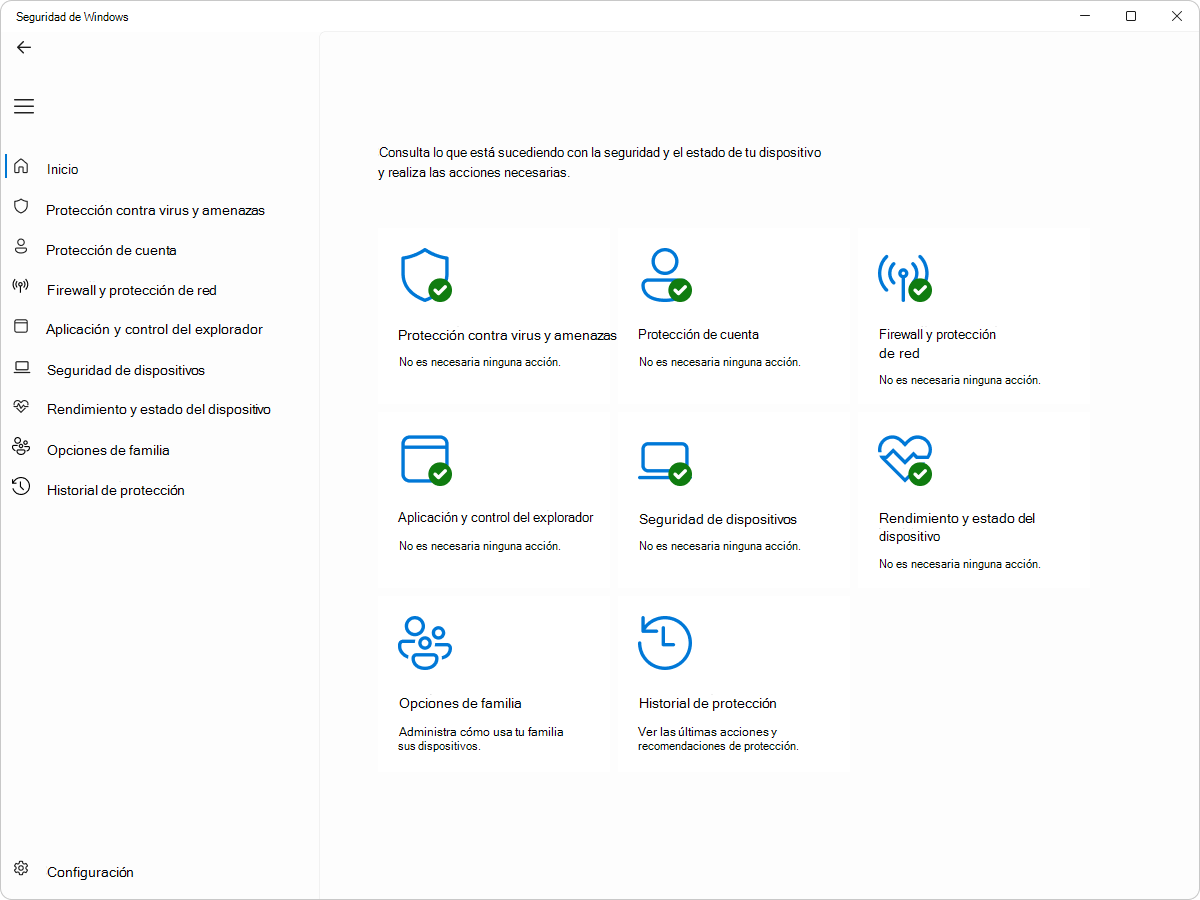
In the list of available components, you will need to locate the entry “Microsoft Defender Application Guard” and select it. Upon accepting, Windows will download or enable the necessary binaries and prompt you to restart your computer to apply the changes.
After restarting, on compatible devices with the correct versions of Edge, you should be able to Open new windows or isolated tabs through browser options or, in managed environments, automatically according to the configuration of the untrusted sites list.
If you don't see options like "New Application Guard window" or the container doesn't open, it's possible that The instructions you are following may be outdated.This could be because your edition of Windows is not supported, you do not have Hyper-V enabled, or your organization's policy has disabled the feature.
Configuring Application Guard with Group Policy
In business environments, each piece of equipment is not configured manually; instead, a predefined system is used. group policy (GPO) or configuration profiles in Intune to define policy centrally. Application Guard relies on two main configuration blocks: network isolation and application-specific parameters.
The network isolation settings are located in Computer Configuration\Administrative Templates\Network\Network IsolationThis is where, for example, the following are defined: internal network ranges and domains considered company domainswhich will mark the boundary between what is reliable and what should be thrown in the bin.
One of the key policies is that of “Private network intervals for applications”This section specifies, in a comma-separated list, the IP ranges that belong to the corporate network. Endpoints in these ranges will open in normal Edge and will not be accessible from the Application Guard environment.
Another important policy is that of “Cloud-hosted enterprise resource domains”which uses a list separated by the character | To indicate SaaS domains and cloud services of the organization that should be treated as internal. These will also be rendered at Edge outside the container.
Finally, the directive of “Domains classified as personal and work” It allows you to declare domains that can be used for both personal and business purposes. These sites will be accessible from both the normal Edge environment and Application Guard, as appropriate.
Using wildcards in network isolation settings
To avoid having to write each subdomain one by one, network isolation lists support wildcard characters in domain namesThis allows for better control of what is considered reliable.
If it is simply defined contoso.comThe browser will only trust that specific value and not other domains containing it. In other words, it will treat only that literal value as belonging to a business. the exact root and not www.contoso.com nor variants.
If specified www.contoso.com, so only that specific host will be considered trusted. Other subdomains such as shop.contoso.com They would be left out and could end up in the dumpster.
With the format .contoso.com (a period before) indicates that Any domain ending in “contoso.com” is trusted. This includes from contoso.com to www.contoso.com or even chains like spearphishingcontoso.comSo it must be used with care.
Finally, if it is used ..contoso.com (initial colon), all levels of the hierarchy located to the left of the domain are trusted, for example shop.contoso.com o us.shop.contoso.com, But The root “contoso.com” is not trusted in itself. It's a finer way of controlling what is considered a corporate resource.
Main Application Guard-specific directives
The second major set of settings is located in Computer Configuration\Administrative Templates\Windows Components\Microsoft Defender Application GuardFrom here the country is governed detailed container behavior and what the user can or cannot do within it.
One of the most relevant policies is that of “Clipboard settings”This controls whether copying and pasting text or images between the host and Application Guard is possible. In managed mode, you can allow copying only from the container out, only in the reverse direction, or even disable the clipboard entirely.
Similarly, the directive of “Print settings” It decides whether content can be printed from the container, and in what formats. You can enable printing to PDF, XPS, connected local printers, or predefined network printers, or block all printing capabilities within MDAG.
The option “Acknowledge persistence” This setting determines whether user data (downloaded files, cookies, favorites, etc.) is retained between Application Guard sessions or purged each time the environment is shut down. Enabling this in managed mode allows the container to retain this information for future sessions; disabling it results in a virtually clean environment each startup.
If you decide to stop allowing persistence later, you can use the tool wdagtool.exe with the parameters cleanup o cleanup RESET_PERSISTENCE_LAYER to reset the container and discard the information generated by the employee.
Another key policy is “Activate Application Guard in managed mode”This section specifies whether the feature applies to Microsoft Edge, Microsoft Office, or both. This policy will not take effect if the device does not meet the prerequisites or has network isolation configured (except in certain recent versions of Windows where it is no longer required for Edge if specific KB updates have been installed).
File sharing, certificates, camera, and auditing
In addition to the policies mentioned above, there are other directives that affect how the container relates to the host system and with the peripherals.
Politics “Allow files to be downloaded to the host operating system” It decides whether the user can save files downloaded from the isolated environment to the host. When enabled, it creates a shared resource between both environments, which also allows certain uploads from the host to the container—very useful, but one that should be evaluated from a security perspective.
The configuration of “Enable hardware-accelerated rendering” Enables GPU usage via vGPU to improve graphics performance, especially when playing video and heavy content. If no compatible hardware is available, Application Guard will revert to CPU rendering. Enabling this option on devices with unreliable drivers may, however, increase the risk to the host.
There is also a directive for allow access to camera and microphone within the container. Enabling it allows applications running under MDAG to use these devices, facilitating video calls or conferences from isolated environments, although it also opens the door to bypassing standard permissions if the container is compromised.
Another policy allows Application Guard use specific host root certification authoritiesThis transfers to the container the certificates whose fingerprint has been specified. If this is disabled, the container will not inherit those certificates, which may block connections to certain internal services if they rely on private authorities.
Finally, the option of “Allow audit events” It causes system events generated in the container to be logged and device audit policies to be inherited, so that the security team can track what happens inside Application Guard from the host logs.
Integration with support and customization frameworks
When something goes wrong in Application Guard, the user sees a error dialog box By default, this only includes a description of the problem and a button to report it to Microsoft through the Feedback Hub. However, this experience can be customized to facilitate internal support.
On the route Administrative Templates\Windows Components\Windows Security\Enterprise Customization There is a policy that the administrator can use Add support service contact informationInternal links or brief instructions. This way, when an employee sees the error, they will immediately know who to contact or what steps to take.
Frequently asked questions and common problems with Application Guard
The use of Application Guard generates a good handful of recurring questions in real-world deployments, especially regarding performance, compatibility, and network behavior.
One of the first questions is whether it can be enabled in devices with only 4 GB of RAMAlthough there are scenarios where it might work, in practice performance usually suffers considerably, since the container is practically another operating system running in parallel.
Another sensitive point is integration with network proxies and PAC scriptsMessages such as “Cannot resolve external URLs from MDAG Browser: ERR_CONNECTION_REFUSED” or “ERR_NAME_NOT_RESOLVED” when accessing the PAC file fails usually indicate configuration problems between the container, the proxy, and the isolation rules.
There are also issues related to IMEs (input method editors) not supported In certain versions of Windows, conflicts with disk encryption drivers or device control solutions prevent the container from finishing loading.
Some administrators encounter errors such as “ERROR_VIRTUAL_DISK_LIMITATION” If there are limitations related to virtual disks, or failures to disable technologies such as hyperthreading that indirectly affect Hyper-V and, by extension, MDAG.
Questions are also raised about how trust only certain subdomains, regarding domain list size limits or how to disable the behavior whereby the host tab automatically closes when navigating to a site that opens in the container.
Application Guard, IE mode, Chrome and Office
In environments where the IE mode in Microsoft EdgeApplication Guard is supported, but Microsoft doesn't expect widespread use of the feature in this mode. It's recommended to reserve IE mode for [specific applications/uses]. trusted internal sites and use MDAG only for websites that are considered external and untrusted.
It is important to make sure that all sites configured in IE modeThe network, along with its associated IP addresses, must also be included in the network isolation policies as trusted resources. Otherwise, unexpected behavior may occur when combining both functions.
Regarding Chrome, many users are asking if it is necessary install an Application Guard extensionThe answer is no: the functionality is natively integrated into Microsoft Edge, and the old Chrome extension is not a supported configuration when working with Edge.
For Office documents, Application Guard allows Open Word, Excel, and PowerPoint files in an isolated container when files are deemed untrusted, thus preventing malicious macros or other attack vectors from reaching the host. This protection can be combined with other Defender features and file trust policies.
There's even a group policy option that allows users to "trust" certain files opened in Application Guard, so they're treated as safe and exit the container. This capability should be managed carefully to avoid losing the benefit of isolation.
Downloads, clipboard, favorites, and extensions: user experience
From the user's point of view, some of the most practical questions revolve around what can and can't be done inside the containerespecially with downloads, copy/paste, and extensions.
In Windows 10 Enterprise 1803 and later versions (with nuances depending on the edition), it is possible allow the download of documents from the container to the host This option was not available in previous versions or in certain builds of editions like Pro, although it was possible to print to PDF or XPS and save the result to the host device.
Regarding the clipboard, corporate policy may allow that Images in BMP format and text are copied to and from the isolated environment. If employees complain that they cannot copy content, these policies will usually need to be reviewed.
Many users also ask why They don't see their favorites or their extensions in the Edge session under Application Guard. This is usually due to bookmark synchronization being disabled or the extensions policy in MDAG not being enabled. Once these options are adjusted, the browser in the container can inherit bookmarks and certain extensions, always with the limitations mentioned earlier.
There are even cases where an extension appears but "doesn't work." If it relies on native message handling components, that functionality won't be available within the container, and the extension will exhibit limited or completely inoperative behavior.
Graphics performance, HDR, and hardware acceleration
Another topic that comes up frequently is that of video playback and advanced features such as HDR within Application Guard. When running on Hyper-V, the container does not always have direct access to GPU capabilities.
For HDR playback to work correctly in an isolated environment, it is necessary that the vGPU hardware acceleration is enabled through the accelerated rendering policy. Otherwise, the system will rely on the CPU, and certain options like HDR will not appear in the player or website settings.
Even with acceleration enabled, if the graphics hardware is not deemed sufficiently secure or compatible, Application Guard may automatically return to software renderingwhich affects fluidity and battery consumption in laptops.
Some deployments have shown problems with TCP fragmentation and conflicts with VPNs that never seem to get up and running when traffic passes through the container. In those cases, it is usually necessary to review network policies, MTU, proxy configuration, and sometimes adjust how MDAG integrates with other already installed security components.
Support, diagnosis and incident reporting
When, despite everything, problems arise that cannot be resolved internally, Microsoft recommends open a specific support ticket for Microsoft Defender Application Guard. It is important to gather information beforehand from the diagnostics page, related event logs, and details of the configuration applied to the device.
The use of the page edge://application-guard-internals, combined with the enabled audit events and the release of tools such as wdagtool.exeIt usually provides the support team with enough data to locate the source of the problem, whether it's a poorly defined policy, a conflict with another security product, or a hardware limitation.
In addition to all this, users can customize error messages and contact information in the Windows Security technical support dialog box, making it easier for them to find the right solution. Don't get stuck not knowing who to turn to when the container fails to start or does not open as expected.
Overall, Microsoft Defender Application Guard offers a powerful combination of hardware isolation, granular policy control, and diagnostic tools that, when properly utilized, can significantly reduce the risk associated with browsing untrusted sites or opening documents from dubious sources without compromising daily productivity.

Passionate writer about the world of bytes and technology in general. I love sharing my knowledge through writing, and that's what I'll do on this blog, show you all the most interesting things about gadgets, software, hardware, tech trends, and more. My goal is to help you navigate the digital world in a simple and entertaining way.