- En Linux Shortcuts are primarily implemented as symbolic links and .desktop files embedded in the desktop environment.
- Desktop launchers allow you to define the name, command, icon, and usage of terminal, and can be located on the desktop, /usr/share/applications or ~/.local/share/applications.
- It is possible to create shortcuts not only to applications, but also to scripts, local or network folders, web pages, and programs. Windows executed with wine.
- Tools such as gnome-tweak-tool, gsettings, gnome-desktop-item-edit, and nautilus-actions make it easy to manage icons and launchers on GNOME desktops.
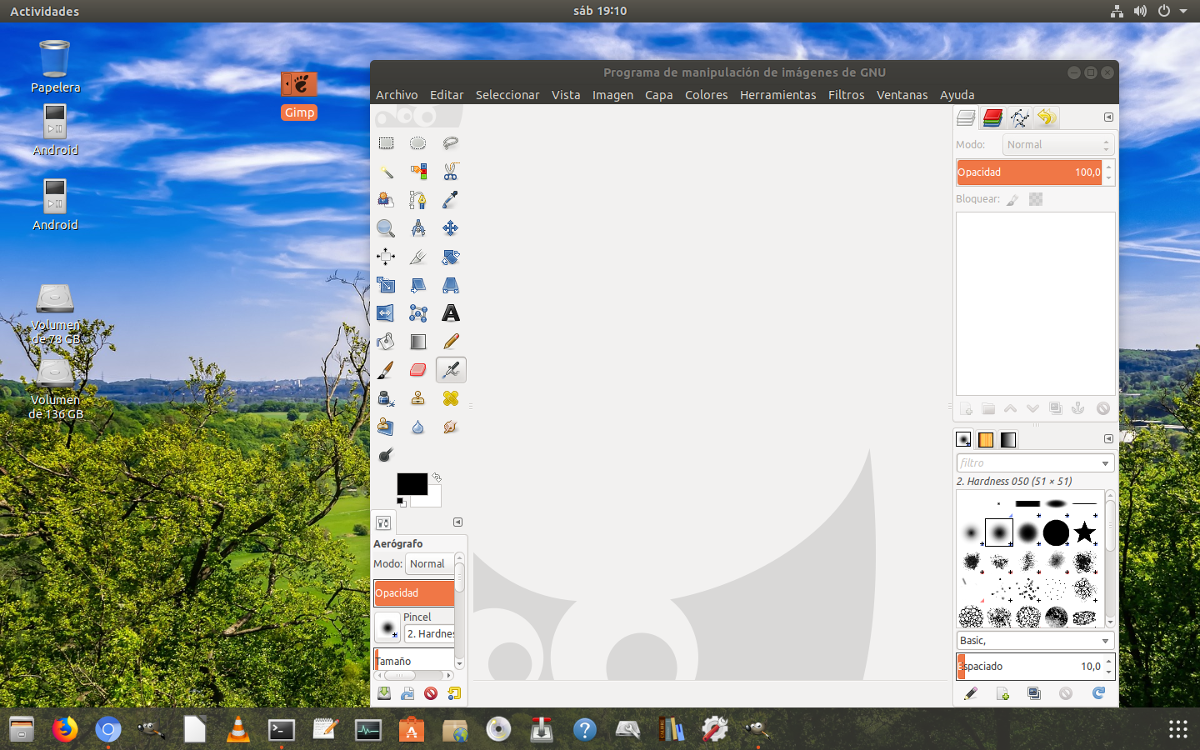
If you've been using GNU/Linux for a while, you've probably thought more than once that It would be great to open your applications or scripts with a single click.Just like in other systems. The good news is that it can be done perfectly well, and in several ways: with .desktop files, with symbolic links, or with graphical desktop tools.
In this article we will look at it calmly and step by step. How to create shortcuts in Linux from a text editorYou'll learn how to use them both in the applications menu and on the desktop, and also how to link folders, scripts, Windows programs with Wine, or even web pages. You'll see that it's not complicated and that, once you get the hang of it, it's something you'll use constantly.
What is a shortcut in Linux: launchers, symbolic links, and .desktop files
In the Linux world, what in other systems is usually called a "shortcut" can take two main forms: symbolic link (symlink) or launcher (.desktop)Although both allow quick access to something, their operation and use are different.
On the one hand, symbolic links (created with the command ln -sThese are like "shortcuts" at the file system level: they point to a real file or directory and allow access to it from a different path. The system interprets that file as a reference to the original location.
Furthermore, the app launchers They are text files with the extension . .desktop These follow a standard desktop format (XDG Desktop Entry). They describe how an application should run: what command to launch, what icon to display, whether or not to open a terminal, what type of element it is, etc.
The beauty of .desktop files is that They integrate with the graphical environment: the application menu, the system search engine (dash, board, Activities, etc.), the panel or dock, and even the desktop, provided it allows icons.
In many modern distributions, when you install a program from the repositories, its .desktop file is automatically created within / usr / share / applications or in ~ / .local / share / applicationsHowever, when you install apps “by hand” (for example, by downloading a tar.gz, a script(a Wine executable or a digital book), often you only have the binary or script in your folder, and you have to Create the shortcut yourself.
Furthermore, on some desks such as GNOMEBy default, desktop icons and the option to create launchers with the right click are disabled, so it's useful to know the manual method using a text editor.
Create a .desktop launcher for an application installed in /root or your home directory

A classic example is when downloads You decompress a compressed application (for example, Thunderbird, an IDE, or any portable program) and The executable remains in an internal folder like /root/miapp or in your /home/usuarioTo run it, you need to open a terminal and type the path to the binary each time, something uncomfortable.
Command: /root/thunderbird/thunderbird
Doing this manually constantly is a pain, so ideally you should create a .desktop file inside /usr/share/applications so that it appears in the applications menu and you can pin it to your desktop panel or launcher.
Instruction: sudo vim /usr/share/applications/Thunderbird.desktop
Template: [Desktop Entry]
Name=Thunderbird
Comment=Cliente_de_correo
Exec=/root/thunderbird/thunderbird
Icon=/usr/share/icons/Vibrancy-Kali/apps/96/internet-mail.png
Terminal=false
Type=Application
In this example, the structure of the .desktop file is very typical and Each field fulfills a specific function.:
- Name: The name that will appear in the menu or under the icon. It can contain spaces and special characters.
- Comment: A brief description or note about the program. Sometimes it appears as a tooltip when you hover the mouse over it.
- Exec: The exact command that will be executed when the launcher is clicked. This is usually where the absolute path to the binary or script is specified, and parameters can be added.
- Icon: Path to the image to be used as the icon. This can be an absolute path or an icon name from a system theme.
- Terminal: indicates whether the program needs to open a terminal (
true) or not (false). - Type: the type of entry. In most cases it will be
Application; there are alsoLinkoDirectorybut they are less common for program access.
Once the file is saved, the desktop system will detect it and, after a few seconds or after restarting the session, You'll see Thunderbird in the applications menu, with the name you put in NameFrom there you can, for example, drag the icon to the panel or dock to always have it at hand.
Shortcuts using symbolic links (ln -s)
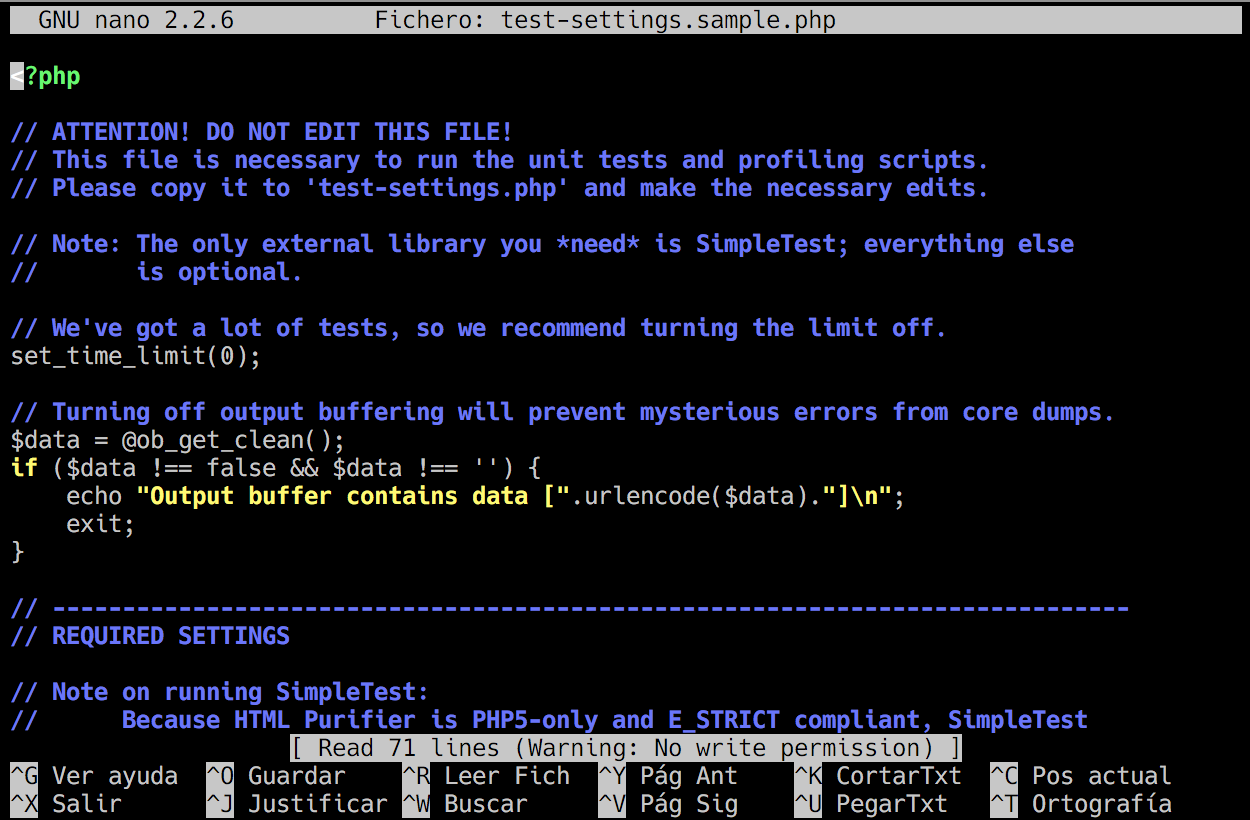
In addition to .desktop files, it is very common in Linux to use symbolic links (symlinks) as “shortcuts” to folders or filesThey are not integrated into the application menu, but they are ideal for the desktop or for organizing directories.
Syntax: ln -s ruta/original ruta/del/enlace
Practical example: ln -s /home/mi-usuario/Documentos/Lanzadores/www /home/mi-usuario/Escritorio
In this order, the first route indicates the actual directory to which the access will pointThe first is the location where the "shortcut" will be created. On modern graphical desktops, this link appears with an icon featuring a small arrow or similar symbol.
It's worth remembering that the command is lowercase lnIt can sometimes be mistaken for a capital "i", but it isn't. If you want to learn more, you can always consult the system's help:
Consultation: man ln
Symbolic links are especially useful when you want to, for example, to have quick access to shared folders, mounted remote directories, or deep locations in the structure without duplicating data or reorganizing your entire directory tree.
Create a .desktop launcher for a website
Sometimes what you want is not to open a local program, but access directly to a specific web page with a single click from the desktop or from a "launchers" folder. This can also be done with a very simple .desktop file.
The usual way is to navigate to the directory where you want to create the launcher (for example, your Desktop or a shortcut folder) using the terminal. Then, with your favorite text editor (nano, vim, gedit…), create a file ending in . .desktop:
Open editor: nano ubuntu-es.desktop
Web template: [Desktop Entry]
Version=1.0
Name=Ubuntu-es
Exec=firefox http://www.ubuntu-es.org
Icon=/home/usuario/Imágenes/Iconos/mi-icono-69x69.png
Type=Application
In this case, Name will be the text you see on the icon; In Exec The browser to be used is specified (for example, firefox) followed by the URL you want to go to. In Icon You can specify any PNG image you have on hand.
If you're worried about image size, you can use tools like GIMP to resize the icon to something reasonable (for example, 64×64 or 69×69 pixels), so that you're not using a graphic of several thousand pixels just for a tiny icon.
In many systems, the system icon folders (/usr/share/app-install/icons and similar) give you a reference to typical size and weightIcons of a few kilobytes, with moderate dimensions, that load quickly and do not saturate memory.
Create a .desktop launcher for your own application or script
A very common situation is that you yourself have created a shell script (.sh) that runs in terminal and you want your family, students, or colleagues to be able to use it with a double-click, without entering the console or typing commands.
Imagine the example of a script to make backups with rsyncThe script asks the user if they want to copy to an external drive or another drive, checks if they are mounted, and then starts the copy. You save your script as copiesFiles.sh in your personal folder.
So that less technical people don't have to know anything about terminals, you can create a .desktop file that runs that script within a console windowWith nano, for example:
Create launcher: nano copiasArchivos.desktop
Example of a launcher: [Desktop Entry]
Type=Application
Terminal=true
Name=copiaArchivos
Icon=/home/tuusuario/Imágenes/mi-icono-copia.png
Exec=/home/tuusuario/copiasArchivos.sh
Some key features of this type of launcher are especially important to ensure everything works as you want:
- Type=Application: It indicates that it is an executable application, not a simple link or directory.
- Terminal=true: Forces the opening of a terminal emulator, necessary if your script displays options, messages, or requires interaction.
- Name: It is the friendly name that users will see in the menu or on the icon.
- Icon: Absolute path to the image you want to use as an icon; it's optional, but it gives it a more professional touch.
- Exec: full path to the script (make sure the script has execute permission with
chmod +x copiasArchivos.sh).
After saving the .desktop file, you can move it to the global applications directory so that it appears in the system menu:
sudo mv copiasArchivos.desktop /usr/share/applications
From that point on, you will normally be able to search for the name “copiaArchivos” in the dash or application launcher and pin it to the launcher, panel, or dock by dragging it. If it doesn't appear at first, sometimes simply logging out or restarting your computer is enough for the environment to reload the launcher database.
In scripts that run in the terminal, it is often useful to add the following at the end some line to prevent the window from closing instantly. For example: uterine
echo "PULSAR UNA TECLA PARA CERRAR LA VENTANA"

read tecla
This way, the console remains open until the user presses a key, and they can conveniently view messages and possible errors.
Create shortcuts manually on the desktop: .desktop in ~/Desktop
In addition to putting the .desktop files in /usr/share/applications or in ~/.local/share/applications, it's possible directly place launchers on your desktopprovided that your graphical environment supports desktop icons (GNOME, XFCE, KDE Plasma, etc., with the appropriate options).
A very simple way to do it is create an empty file on the desktop and rename it with the .desktop extension. For example:
- Create a new file on the Desktop.
- Change the name of something like
miPrograma.desktop. - Open it with your preferred text editor.
Desktop template: [Desktop Entry]
Name=Nombre del programa
Comment=Comentario opcional sobre el programa
Exec=/home/usuario/Documentos/startup.sh
Icon=/home/usuario/Imágenes/icono.png
Terminal=false
Type=Application
Here, Exec points to the script or executable you want to launch, Icon It is optional (you can leave it blank or simply omit the line) and Terminal=false It indicates that a terminal is not necessary, unless the program requires a console, in which case you would put true.
After saving the file, on many desktops you'll need to go to its properties and enable "Execute as a program" or similar permissions within the permissions tab. This will change the .desktop file's permissions. executable launcher and not just a simple text document.
Path: ~/.local/share/applications
Important: The .desktop files you put there They will only affect your user account.while those of /usr/share/applications They are visible to all system users.
Enable icons and launchers on the GNOME desktop
In some distributions with GNOME (such as Ubuntu in certain versions), it is possible that the desktop comes disabledWithout icons, folders, or shortcuts. If you want to be able to create and use launchers on the desktop, you'll first need to enable that feature.
One visual way to do this is by using the retouching tool. You can usually find it in the menu as something like:
Applications → System Tools → Preferences → Retouching Tool
Within this tool, look in the left panel for the section "Desk" and enable the option to show icons on the desktop. You can also choose whether to display shortcuts to your home folder, trash, mounted drives, etc.
If you don't have the retouching tool installed, in many distros you only need to install the package gnome-tweak-tool or use similar tools such as Ubuntu-Tweakwhich also allow you to enable the display of icons on the desktop.
Another option, somewhat more direct and without a graphical interface, is to use the command gsettings from the key combination ALT + F2 or from a terminal:
gsettings set org.gnome.desktop.background show-desktop-icons true
With this, GNOME will once again display icons and you will be able to put your .desktop files, folders and documents directly on the desktop, by dragging them or creating them from the file manager.
Create advanced launchers: network folders, local pages, and programs with Wine
.desktop files support more options than the basics, so you can also Create shortcuts to network resources, local HTML pages, or Windows programs run with WineThe format remains the same, with the line changing mainly. Exec and, in some cases, adding Path.
For example, if you want to create a launcher to a shared network folder Using SMB (Samba), you can use a .desktop file similar to this:
Network template: #!/usr/bin/env xdg-open
[Desktop Entry]
Name=CarpetaCompartida
Icon=/usr/share/icons/.../icono.png
Type=Application
Exec=nautilus --browser smb://Servidor/Carpeta
StartupNotify=false
Terminal=false
Here, Exec launches the file manager (nautilus) pointing to a network pathThe user only needs to click to open the shared folder without having to worry about typing the SMB path.
For direct access to a web page or local HTMLYou can reuse the structure we saw earlier, simply changing the destination in Exec:
Local template: [Desktop Entry]
Name=MiPáginaLocal
Icon=/usr/share/icons/.../icono.png
Type=Application
Exec=firefox "RutaODirecciónDeLaPágina.htm"
Terminal=false
When dealing with Windows programs that you run with Wine (very common with old digital books, educational tools or small utilities), the .desktop usually also includes the parameter Path, which indicates the working path where the executable is located:
Wine template: [Desktop Entry]
Name=ProgramaWindows
Icon=/usr/share/icons/.../icono.png
Type=Application
Path="/ruta/a/la/carpeta/del/programa"
Exec=wine "NombreDelEjecutable.exe" > /dev/null
The use of Path is very important when linking programs or scripts that depend on being in a specific directory to find their resources (libraries, data, etc.). If your launcher points to a bash script, you can replace wine by sh or invoke the script directly if you have execution permission.
Don't forget that, once the .desktop file is created, it is essential give execute permissionsYou can do this from the file explorer (right-click → Properties → Permissions → “Allow executing as program”) or from the terminal with:
Excuse me: chmod +x nombre.desktop
Easily create launchers with gnome-desktop-item-edit and Nautilus actions
If you don't feel like editing .desktop files manually, GNOME offers a very convenient tool called gnome-desktop-item-editIt shows you a graphical form where you only have to fill in the name, command, icon, etc., and it takes care of generating the file.
Run: gnome-desktop-item-edit --create-new /home/profesor/Escritorio
This will open a window to create a new launcher in the specified directory (in the example, the desktop of a user named "professor"). There you can choose, for example, a digital book run with Wine, adding something like this to Exec:
wine /home/profesor/libros/matematicas1/exeLINUX
If the tool is not installed, you can add it with the corresponding package, for example:
Installation: sudo apt-get install --no-install-recommends gnome-panel
In addition to creating launchers from this command, you can integrate the “Create launcher” option into the context menu from the right mouse button using the “Nautilus actions” tool (nautilus-actions or modern equivalents in your distro).
After installing it (for example, with sudo apt-get install nautilus-actions), open it from the applications menu and create a new action. You can give it the context label “Create Launcher” and, in the command tab, specify something like:
- Path:
gnome-desktop-item-edit - Parameters:
--create-new %d
This way, by right-clicking on the desktop or a folder, you will have access to a direct option to launch the shortcut editorwithout needing to remember long commands.
Best practices and little tricks when creating shortcuts in Linux
When you start creating many launchers and symbolic links, it's a good idea to follow a few guidelines. Best practices to avoid problems and ensure everything works consistently in your system.
First, try using absolute paths in the Exec and Icon fields whenever possible, especially if the executable is outside the standard paths (/usr/bin, /usr/local/binetc.). This avoids problems when the graphical environment cannot find the binary file.
It is also recommended organize your scripts and home programs in clear directories (for example, /home/usuario/bin o /home/usuario/scripts) and keep the paths that reference your .desktop files there. This way, if you ever change machines or make a backup of your home directory, it's easier to restore the functionality of your access.
It wouldn't hurt to check the consistency between the .desktop filename and the internal NameThe file can be called, for example, Lupa-xmag.desktop, while inside you put Name=Lupa-XmagThese are two different things: the filename has more to do with your internal organization, and the Name is what you will see in the graphical environment.
When something "doesn't appear" in the menu or the application search, remember that some desktops They search the pitchers' informationSometimes simply logging out, restarting, or running tools like update-desktop-database in systems that use it.
Finally, although you can create shortcuts to virtually anything (programs, scripts, local folders, network resources, HTML, Wine, etc.), try to avoid attach launchers to potentially dangerous commands Without asking for confirmation, especially if you share the computer with inexperienced people. A poorly designed .desktop file can accidentally delete files or perform actions you don't want to repeat.
Mastering the creation of shortcuts in Linux using .desktop files and symbolic links It allows you to adapt the system to your way of workingAdding icons, shortcuts, and launchers to your desktop for your family members, launching digital books in educational settings with a single click, opening network resources without remembering complicated paths, or turning a manually downloaded executable into "just another application" in your menu. Once you grasp these concepts, adding icons, shortcuts, and launchers becomes a natural part of your daily life with GNU/Linux.

Passionate writer about the world of bytes and technology in general. I love sharing my knowledge through writing, and that's what I'll do on this blog, show you all the most interesting things about gadgets, software, hardware, tech trends, and more. My goal is to help you navigate the digital world in a simple and entertaining way.