- Adjusting OBS resolution, FPS, and encoder to the actual power of your PC and upload connection is key to avoiding lag on Twitch.
- Using hardware encoding (NVENC, Quick Sync) in Windows 11 relieves CPU load and improves streaming stability.
- A balanced bitrate and a stable network, preferably wired, minimize dropouts and lost frames.
- Live monitoring of OBS performance and optimization of processes in Windows 11 allows for smooth, uninterrupted broadcasts.
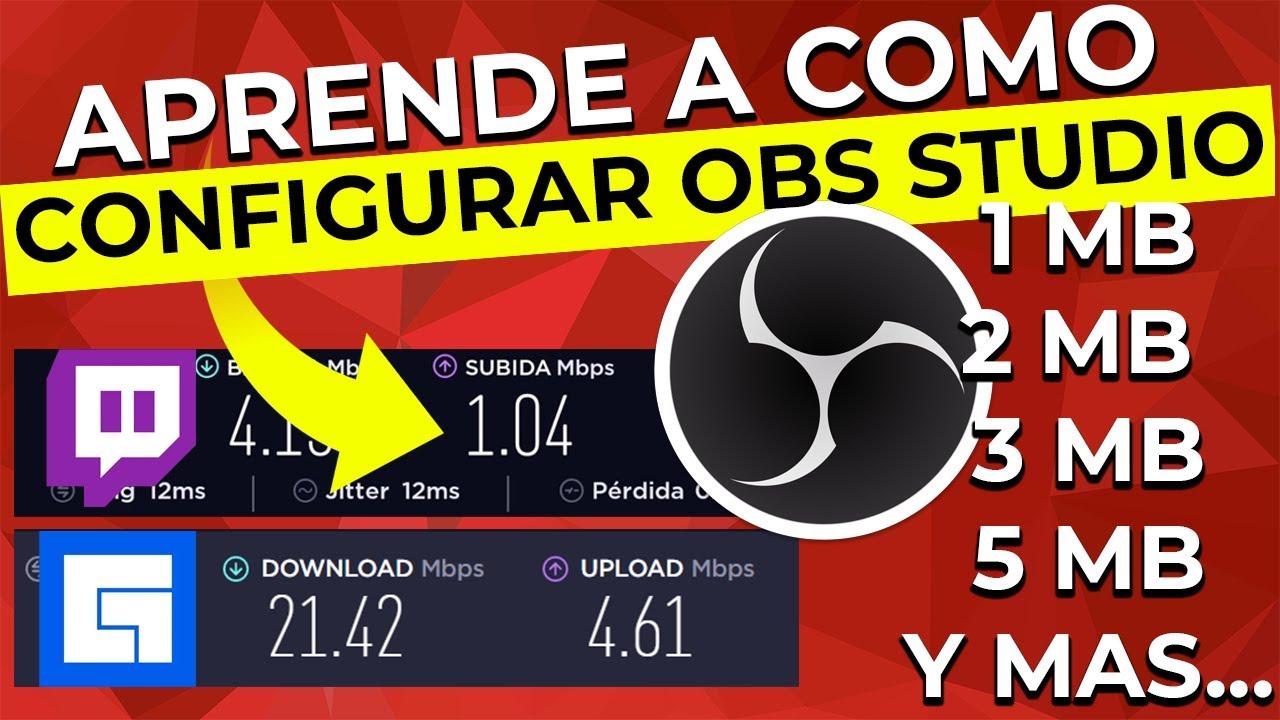
If you're starting to stream and notice that your Twitch broadcast is choppy, pixelated, or cuts out, it's almost certain that your problem lies with How do you have OBS Studio configured on Windows 11?It's not enough to just install it and start streaming: if you don't properly adjust parameters like resolution, bitrate, or encoder, no matter how good your PC is, you'll see lag, delays, and dropped frames.
The good news is that with a configuration for low-resource PCs you can get a Stable, lag-free, and high-quality stream Even with modest equipment, as long as you adjust the settings to your hardware and connection. In this guide, you'll see, step by step, everything you need to adjust in OBS Studio to stream smoothly on Twitch from Windows 11, understanding what each setting does and which values are best.
Basic requirements before setting up OBS Studio
Before you start fiddling with options like crazy, it's important to review what you need at the level of hardware, internet connection and software To ensure your stream has a solid foundation. If any of these points fail, no matter how much you tweak OBS, you'll continue to have problems.
First, your PC should meet certain minimum requirements: a modern quad-core processor, at least 8 GB of RAM (16 GB is better if you're going to play games and stream from the same computer), and a graphics card compatible with hardware encoding (NVIDIA with NVENC, AMD with AMF, or, failing that, Intel's integrated graphics with Quick Sync). This doesn't mean you can't stream without a dedicated graphics card, but it will give you much more headroom.
The second pillar is your connection. To stream without lag on Twitch, what matters most is the upload bandwidthAs a reference, for a good quality 720p60 live stream you'll need at least 5 Mbps upload speed, and for 1080p60, it's recommended to start with around 8 to 10 Mbps. It's always better to have some headroom because not everything your speed test shows can be used for streaming.
Finally, in Windows 11 it is key to keep the system updated and with the GPU drivers up to dateSince hardware encoding and stability improvements often come through these updates, uninstalling programs that capture screens, recording overlays, or aggressive optimization software can also prevent conflicts with OBS.
One detail that many overlook: if you can, always use Ethernet cable connection Instead of Wi-Fi. It's not just about top speed, but also stability and latency. A Wi-Fi connection with frequent dropouts is a recipe for dropped frames during your live streams.
Initial installation of OBS Studio on Windows 11
Once you've verified that your equipment meets the basic requirements, it's time to install and prepare. OBS Studio on Windows 11 to link it to your Twitch account. It's a simple process, but it's best to do it carefully to avoid silly mistakes.
Always download OBS from its official website to ensure you get the latest and junk-free versionRun the installer as administrator and follow the default steps; there's no need to select any unusual options. If you need to expand its features, learn how to install plugins in OBS StudioWhen it's finished, open OBS for the first time and let its interface load, which can be a little overwhelming at first if you've never seen it before.
OBS usually offers a automatic configuration wizard The first time you open it, it can serve as a starting point, but if you're looking to fine-tune your Twitch settings to eliminate lag, it's best to use it only as a guide and then adjust everything manually according to your specific situation.
Before touching advanced settings, create at least a basic scene with a source of game or screen capture And if you have a webcam, add that too. If you're using a USB microphone, see how. Set up the Blue Yeti on Windows 11This way, when you run tests, you'll see something similar to what your actual stream will look like, and you can check if the configuration holds up when the PC is really working.
It's also a good time to set up the audio mixerMake sure OBS is receiving both desktop audio (game sounds, music, etc.) and microphone audio, and that the levels aren't clipping. This doesn't affect video lag, but it does impact the overall quality of your stream, and it's easier to get it set up from the start. If you're using Discord, you can integrate chat and audio in your stream to better manage communication with the audience.
How to properly link OBS with Twitch
To stream on Twitch from OBS, you need to connect your account or enter a transmission keyDoing it right is not only important for convenience, but also for security and to avoid authentication problems in the middle of a live broadcast.
The easiest way in Windows 11 is to go to the OBS settings section, enter the streaming service section and choose Twitch as a destination platformFrom there you can log in with your Twitch account directly to OBS, which simplifies the whole process and allows the program to configure some parameters automatically.
If you prefer to do it manually, you can copy your from your creator dashboard on Twitch. stream key and paste it into OBS. It's crucial that you don't share this key with anyone and that you don't display it on screen under any circumstances, because whoever has it can broadcast on your channel as if it were you.
Once the account is linked, OBS can detect the nearest ingest server or the best in terms of latency. Usually, leaving it on automatic selection is sufficient, but if you experience connection problems, you can try manually switching to another server within the region closest to your location.
With Twitch now linked, you'll see that some settings, such as the recommended output resolution or suggested encoder, may change. Even so, it's advisable to review everything manually, because the Twitch and OBS assistant tends to be overly optimistic regarding the actual capacity of many home connections.
Ideal video settings to avoid lag on Twitch
Video settings are one of the key factors in reducing lag. This is where you decide the base resolution, output resolution, and FPSChoosing the wrong options often leads to unstable streams, micro-cuts, or excessive CPU or GPU usage.
In the OBS video settings, you'll find the canvas (base) resolution and the output (scaled) resolution. The former should match the resolution you're playing at or capturing your screen at, while the latter is what's actually sent to Twitch. For most creators, it's best to set the canvas (base) resolution. output resolution 1280×720 if your equipment or connection is just adequate, or 1920x1080 only if you have plenty of resources and upload speed.
The number of FPS (frames per second) also has a big impact. Twitch supports 60 FPS, but forcing that rate isn't always a good idea. If your computer is struggling, lowering the frame rate to 30 stable FPS It usually provides a smoother experience than trying to run at 60fps with stuttering. In many games, especially those that aren't very fast-paced, the audience won't notice much of a difference.
Regarding scaling filtering, Lanczos's setting offers better quality by reducing resolution, but it consumes slightly more resources. If you're on a tight budget, you can opt for... Bilinear or Bicubicwhich are lighter. The important thing is to prioritize streaming stability over a minimal extra sharpness.
It is also recommended that in Windows 11 you configure the game display to maintain a stable update frequency And if you're using V-Sync or FPS limiters, make sure the settings don't conflict with the OBS capture. Sometimes, perceived lag comes from discrepancies between the game's FPS and the stream's FPS.
Choosing the right encoder: CPU vs GPU
Another of the most important settings for lag-free streaming is the choice of the video encoderOBS allows you to encode using the CPU (x264) or the GPU via NVENC on NVIDIA, AMF on AMD, or Quick Sync on Intel. Depending on your hardware, the choice can make a huge difference.
If you have a relatively modern NVIDIA graphics card, ideally you should use NVENC (new)This offloads almost all the encoding work to the GPU without significantly impacting game performance. This typically results in less lag in both streaming and gameplay, and a much lower CPU load.
On systems without a powerful dedicated graphics card, you can use Quick Sync or the x264 software encoder. In the latter case, you have to keep a close eye on CPU usage, because if it spikes to very high values, OBS will start to... losing frames due to encoding overload And your live stream will be choppy even if the connection is good.
Within each encoder, you can choose a preset or quality/speed setting. In NVENC, for example, it's common to choose the option of quality or top qualityBut if your graphics card falls short or you play very demanding titles, sometimes it's better to lower the encoder quality a bit in exchange for maintaining a smooth stream.
Keep in mind that Twitch has its own limitations: there's no point in using extremely high bitrates if the platform is going to limit them. Therefore, what you're ultimately looking for is a balance between Visual quality, resource utilization, and stability, rather than squeezing every parameter to the maximum without thinking about the whole.
Configure the bitrate for Twitch without overloading the connection
Bitrate is the amount of data per second you send to Twitch. The higher the bitrate, the better the stream will look, but also... You will need more upload bandwidthIf you adjust it above what your connection can reliably handle, you will experience dropouts and network lag.
For 720p streams at 60 FPS, many creators move between 3500 and 4500KbpsAt 1080p60, the typical range is between 6000 and 8000 Kbps, although Twitch usually recommends not exceeding 6000 Kbps for most users. It's best to run a speed test and allow a safety margin relative to your maximum upload speed.
In OBS, in addition to the video bitrate, you can configure the audio bitrateFor Twitch streams, a bitrate between 128 and 192 Kbps is usually sufficient for clear audio without using too much bandwidth. If you need to capture multiple sources, see how. Document desktop audio with OBSRemember that every little bit counts, so it's not a good idea to set the audio to an excessively high bitrate if you're struggling with upload speed.
If during your live streams you see the OBS indicator change to yellow or red and show many frames lost over networkThis indicates that your connection can't handle the set bitrate. In that case, the most effective solution is to gradually lower the bitrate until the interruptions disappear.
Another thing to check is whether other devices on your network are consuming a lot of upload bandwidth (cloud backups, downloads, video calls, etc.). Even with a good bitrate, if you share the connection with other people, you're likely to experience lag in the transmission if someone is overloading the line.
Optimize Windows 11 to reduce streaming lag
Even if OBS is properly configured, if Windows 11 is full of background processes or has certain features enabled, you may notice stutters, micro-stutters, or CPU usage spikes that affect the live broadcast. That's why it's advisable to make some adjustments to the system.
Start by disabling programs you don't need while streaming: download clients, apps that update automatically, third-party software that adds overlays to games, etc. Every extra process competes for resources with OBS and the game, and sometimes something as simple as an antivirus scanning in the background can cause lag.
In Windows 11 power settings, select a high performance plan or maximum performance mode if you're using a laptop plugged into a power outlet. Power-saving plans can lower the CPU or GPU frequency and cause instability when the load suddenly increases, such as when starting an intense battle or a complex scene.
It also helps to disable the Xbox Game Bar, background recording, and any other features of GameDVR It might be capturing video while you're already using OBS. Having two systems recording at the same time is a recipe for disaster in terms of performance.
Another trick is to assign OBS a slightly higher priority in the Task Manager, so that Windows 11 gives it preference over other processes. It's not advisable to set it to real-time priority, but rather to high or above normal, so that the video encoding always has sufficient resourcesIf you experience failures, review guides on cases such as when OBS freezes when starting to record.
Monitor live performance and detect bottlenecks
An important part of streaming on Twitch without lag is not just setting up, but monitor what is happening While you're live, OBS offers several tools for this, and if you use them, you can react before the stream becomes unplayable.
At the bottom of OBS you'll see a status indicator that shows FPS, CPU usage, current bitrate, and, most importantly, the percentage of frames lost due to encoding or networkIf those numbers go up, it's a clear sign that something is wrong, whether it's the connection or the performance of the equipment.
It's also a good idea to have the Windows 11 Task Manager or a performance monitor open to see if the CPU, GPU, or RAM are reaching their limits. If you notice the CPU is constantly at 90-100% usage, you'll probably need to... lower resolution, FPS, or change encoder to lighten the load.
On Twitch, you can review the dashboard and statistics of your past streams to see if there were many interruptions or drops in quality. Relating that data to what you were doing at the time (a specific game, many sources on screen, etc.) will help you identify patterns of problems.
It's good practice to do test streams in private mode or using a test server Before major events or important streams, you can calmly adjust the settings until you find the point where everything remains stable.
Recommended settings based on your PC's power
Not all computers are the same, and that's why there's no single configuration that will work for everyone. It's helpful to have typical configurations according to the hardware level that you have, and then adapt them slightly to your specific case.
For entry-level PCs, with basic quad-core CPUs and modest or integrated graphics, streaming on [platform name] usually works well. 720p30with a bitrate of around 3000-3500 Kbps and, if possible, using hardware encoding. In these cases, it's best not to overuse scenes full of effects and animations.
In mid-range systems, with six-core processors and a decent GPU, you can aim for 720p60 or even 1080p30with bitrates between 4000 and 6000 Kbps. Here, NVENC or a good Quick Sync usually give very stable results without putting too much strain on the game.
If you have a high-end device with a powerful CPU and a modern graphics card, you might consider 1080p60 with bitrates close to Twitch's recommended limit. Even so, it's still a good idea to moderate a bit and allow some leeway so the connection isn't running at 100% capacity all the time.
In any case, the idea is that you always prioritize the stability and absence of lag versus the absolute highest quality. A slightly less crisp but fluid live performance is usually much better received than one that is very beautiful but full of cuts and glitches.
Ultimately, setting up OBS Studio on Windows 11 to stream to Twitch without lag comes down to finding the right balance between your PC's capabilities, your internet connection's limits, and what your audience expects. By carefully adjusting the resolution, FPS, encoder, bitrate, and optimizing your system, it's perfectly possible to achieve stable and enjoyable streams without needing a top-of-the-line machine.


Passionate writer about the world of bytes and technology in general. I love sharing my knowledge through writing, and that's what I'll do on this blog, show you all the most interesting things about gadgets, software, hardware, tech trends, and more. My goal is to help you navigate the digital world in a simple and entertaining way.