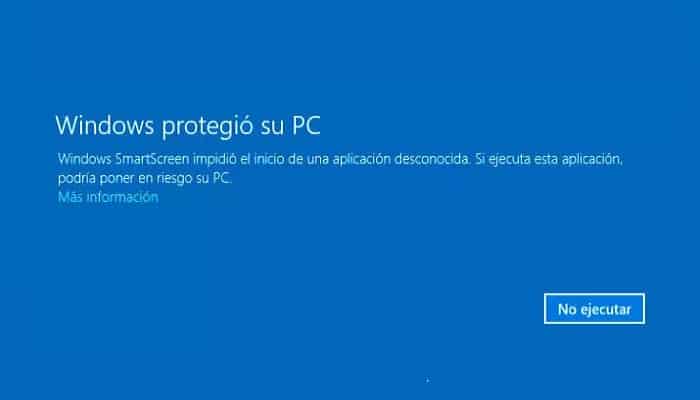
Some Windows users have been asking us for advice after the Windows SmartScreen feature apparently blocked the opening of Microsoft's own applications.
Affected users report that the error "Windows SmartScreen cannot be accessed at this time " occurs when they try to open applications from the built-in Windows suite (Maps, Alarms, Photos, Mail, etc.).
What is Windows Smart Display?
SmartScreen is a cloud-based anti-malware and anti-phishing component included with Windows 8 and 10. It is typically used with the Internet Explorer, Outlook.com, or Microsoft Edge browsers.
Whenever SmartScreen is inactive or unavailable on an end-user's PC, the machine will not be able to download anything through official and unofficial channels.
What causes the error cannot access Windows SmartScreen?
After investigating the issue and looking at various user reports, we got a pretty good idea of what factors could lead to the appearance of this problem. Below is a list of culprits that are likely responsible for the Windows SmartScreen cannot be accessed error:
- Corrupted Windows account: Certain inconsistencies with your Windows account can trigger this issue. Users in a similar situation have resolved the problem by creating a new one.
- SmartScreen is disabled from the Security Center Windows Defender: This particular error can occur if the user or a third-party application has disabled the SmartScreen Filter.
- SmartScreen is down due to an MS issue: Since SmartScreen is a cloud component, there have been cases in the past where this security component was down for each user for two hours until the respective maintenance was completed.
- The error is caused by a proxy entry: Several users have reported that the issue was resolved as soon as they disabled their proxy in the network settings.
How to fix Windows SmartScreen cannot be accessed at this time error?
If you're currently having trouble resolving the same issue, this article will provide you with a few verified troubleshooting steps. Below is a collection of methods that other users in a similar situation have used to resolve the " Windows SmartScreen cannot be accessed right now " error.
For best results, follow the methods in the order presented until you find a solution that successfully addresses the problem for your particular scenario. Let's get started!
Method 1: Make sure SmartScreen is enabled
Before exploring additional remediation strategies, make sure that SmartScreen Filter is enabled on your particular machine. You can easily verify this by accessing the built-in Windows Defender Security Center.
Here's a quick guide to make sure SmartScreen is enabled on your computer:
- Press the Windows key + R to open a dialog box Run. Next, you have to write the following command as shown below: ms-settings: windows defender and press where it says Log in for the tab to open successfully Windows security of the application Configuration.
- Click the button Open Windows Defender Security Center in Windows Security.
- Inside the Windows Defender Security Center, you need to click on Application and browser control.
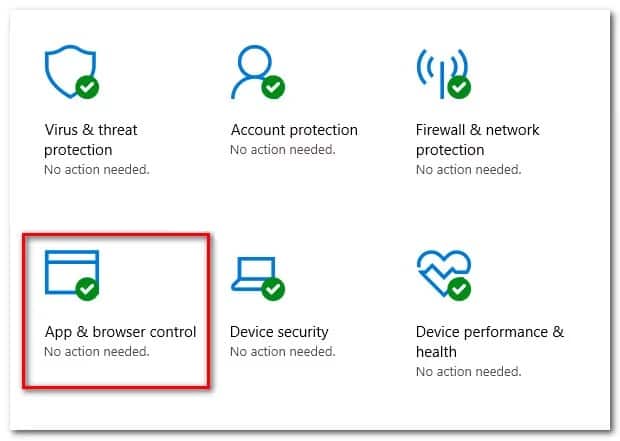
- Make sure that the Check apps and files option is set to Warn. Then check if the same is true for applications SmartScreen for Microsoft Edge y SmartScreen for Microsoft Store.
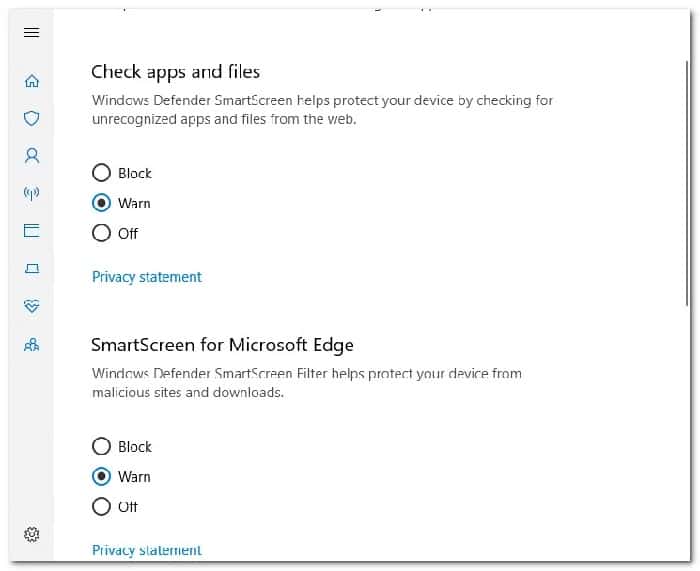
- If SmartScreen was disabled, you should restart your computer after making the changes and see if the error is resolved at the next startup.
If you still cannot access Windows SmartScreen at this time , meaning the error continues to occur, you can try the following method that we will explain below.
Method 2: Check if SmartScreen is down for maintenance
Another possible scenario is that the SmartScreen component is scheduled for maintenance. Whenever this happens, the SmartScreen component will be inaccessible to many users simultaneously.
Before taking any potentially unnecessary steps, take a moment to check Microsoft's communication channels or forums to see if there's an announcement about a scheduled (or unexpected) maintenance session. One of the best places to start your search for answers is Microsoft Answers or the Windows Twitter network.
You can also do an online search to see if any recent SmartScreen topics have appeared. If you confirm that SmartScreen is not down for maintenance, continue with the next method below.
Method 3: Disable the proxy server (if really necessary)
Several users have reported that the problem was solved as soon as they disabled the use of a proxy server via the built-in way. Apparently, certain proxy servers can interfere with the SmartScreen component and make it unusable.
Note: If you are not using a proxy server, ignore this method and continue to the next one.
To disable the proxy server entry on your particular machine, follow the guide below:
- Press the Windows key + R so that a Run dialog box can open. Within this dialog box you will type or paste the commands that we show you below: ms-settings: network-proxy and press Enter to open the tab proxy of the application Configuration.
- When you are inside the tab proxy, you will scroll down to where it says Settings proxy manual and make sure that the switch associated with Use a proxy server beene disabled.
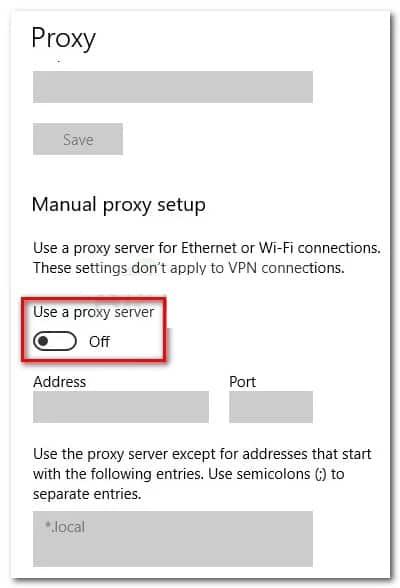
- Restart your machine and check if the issue is resolved at the next startup.
If the problem is still not resolved, continue with the next method below.
Method 4: You can create a new Windows account
Some affected users have reported that the problem was resolved after creating a new Windows user account. While this procedure will cause you to lose a few settings applied through your user account, it is generally effective in bypassing the " Windows SmartScreen cannot be accessed at this time " error.
If you decide to create a new Windows user account, please follow the instructions below:
- To start you will press the Windows key + R so that a Run dialog box can open. You must then type or paste these commands: ms-settings: otherusers and press the key Log in to open the tab Family and other people from the menu Accounts.
- Next, you need to make sure you click where it says Add someone else to this PC, then click I don't have this person's login information.
- Enter your user credentials (email, password, country and date of birth) and press the button Next.
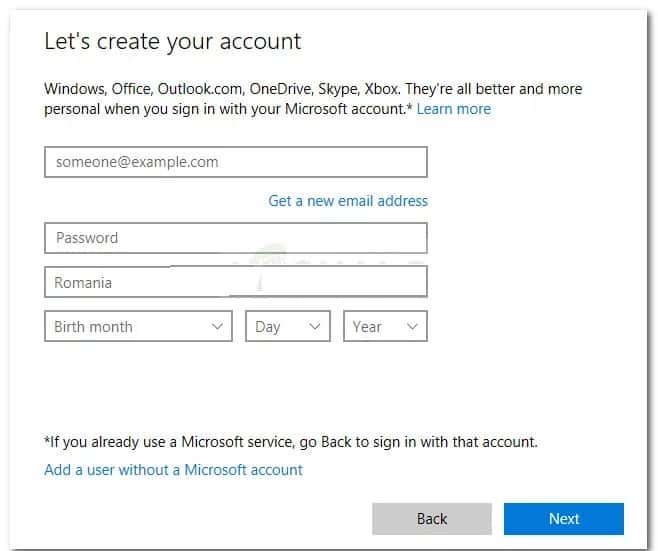
Note: If you want to create a new local user account, click Add a user without a Microsoft account.
- Once you are done with creating your new Windows account, click on the Start icon, followed by this you must click on the account icon and select Close session.
- Now, from the login screen, select your newly created account to log in with it.
- After you've logged in, see if the issue is resolved by trying to open a native Windows app.
If you put each of these methods into practice and follow the steps to the letter, you will be able to successfully fix this error. If you know of another potential solution, do not hesitate to share it with us in our comments section below.
Also, if you are a fan of technological information, you can visit our website whenever you want, we have a wide variety of information for you. See you in our next publication.
