In case you didn't know, Windows 10 allows users to set up multiple local user accounts. These accounts can be customized and kept separate, creating unique personal environments on a computer. Whether you plan to share a device with friends or family, or simply want to manage user accounts in Windows 10 , follow our guide.
It's important to note that there are two types of user accounts: administrator and standard user. Every computer needs at least one administrator account to install new applications, apply updates, and manage system settings. In this guide, we'll show you how to change your account to an administrator if needed.
In Windows 10 terminology, a local user refers to an account created without a Microsoft account. This means you won't be able to use the same account on a different device, and you'll lose some cloud features. However, you can still customize and manage your account on your computer locally.
Below we explain how to manage user accounts in Windows 10.
How to manage user accounts in Windows 10 and create a new user
Creating a new user account is easy with the Windows 10 settings app. You can also create a Microsoft account to transfer accounts and files between computers.
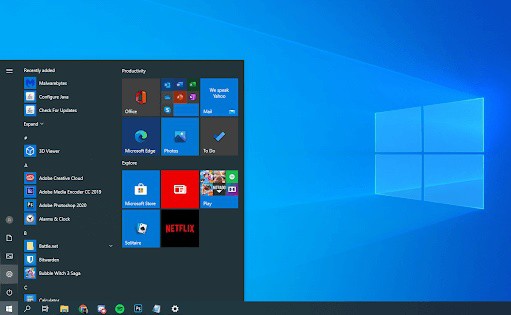
- Click on the menu Home on your taskbar. This icon has the Windows 10 logo. If you are not familiar with the Windows 10 interface, we recommend that you look for information about the Introduction to Windows 10 surfing the web.
- Select the icon Configuration, indicated by a gear. Alternatively, you can use the keyboard shortcut Windows + I to get to this app faster.
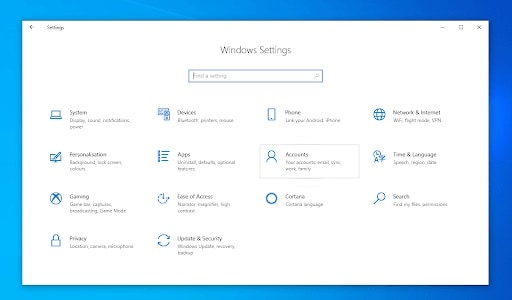
- Click on the tile Accounts.
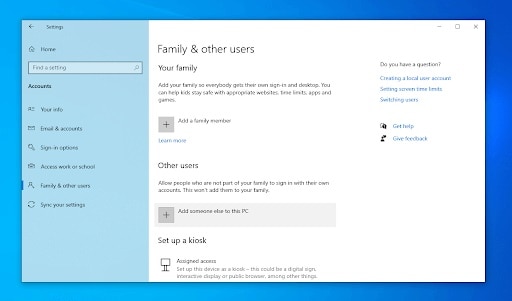
- Change to category Family and other users using the panel on the left side of the screen. You should see a list of all current users on your computer.
- Click the button Add another person to the PC.
- To add a new local user, select the option I don't have this person's login information.
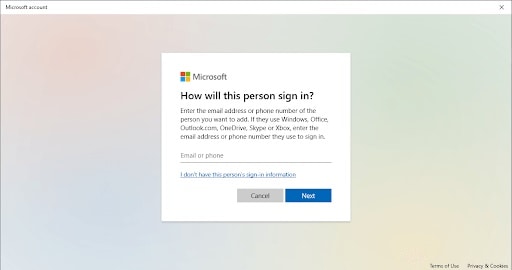
- Click on the option Add a user without a Microsoft account.
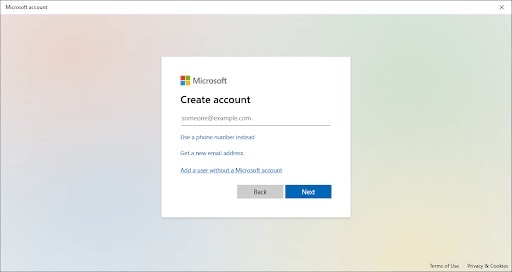
- Enter the Username If necessary, you can also include a password and a password hint. This will give the account user additional privacy. In the future, they will always be able to change all this information.
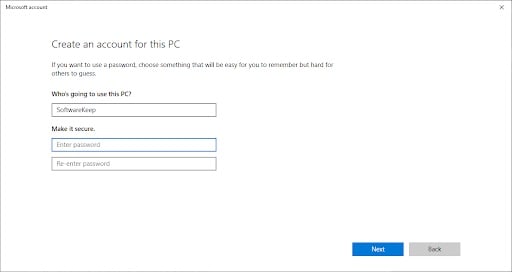
- Click on Next to finalize the new account.
How to customize a local user in Windows 10
Each user account on your computer can change its username, picture, and password at any time. The following guide will show you how to customize your local user account on a Windows 10 device.
- Click on the menu Home in your task bar.
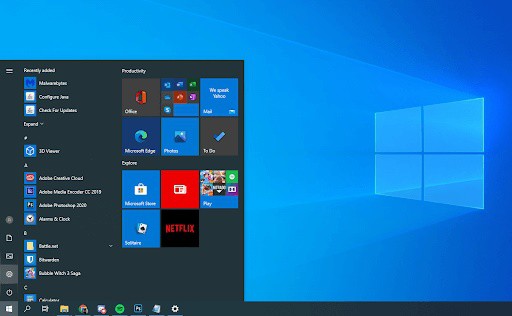
- You will immediately see your current user image appear on the left side of the panel. You need to click on it and select the option that says Change settings from the account within the context menu.
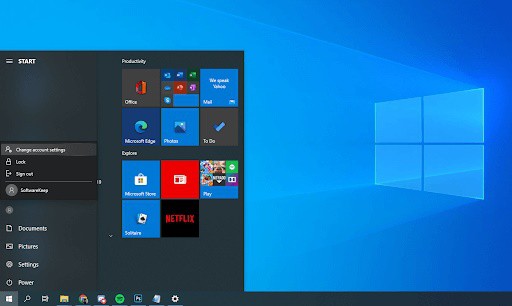
- Then, within this section, you can modify your profile photo or take a new one using the camera and manage your local account.
- In case you have a Microsoft account connected, you need to click on the link Manage my Microsoft account to be able to modify settings such as password and security.
You can always come back to this menu and make changes when needed.
How to make a local user an administrator in Windows 10
When you create a new account in Windows 10, it will automatically be assigned as a standard account without administrative permissions. This means that most accounts on a device won't be able to install new apps and change system settings without contacting an administrator.
If you want to change an existing account into a full-access administrator account, follow the guide below.
- First, you need to click on the menu Home in your task bar.
- Then, you will select the icon of Configuration, indicated by a gear. Alternatively, you can use the keyboard shortcut Windows + I to get to this app faster.
- To continue with the process, you have to click on the tile Accounts.
- Change to category Family and other users using the panel on the left side of the screen. You should see a list of all current users on your computer.
- Select the account you want to modify by clicking on it once. Click the button Change account type now visible.
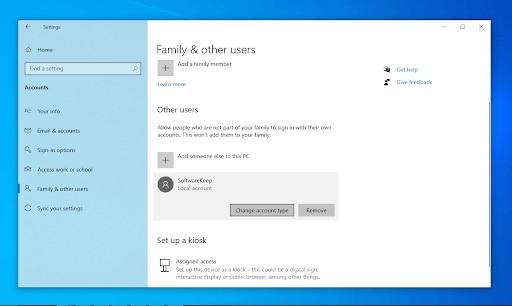
- Next, you need to click on the drop-down menu and change from Standard User to Administrator.
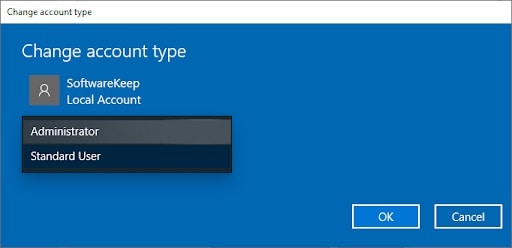
- After this, you must also click on the button Accept. The account now has full access and administrative permissions on your device.
How to delete a local user in Windows 10
If you no longer need an account, you can easily delete it using the guide below. Make sure to save all files stored in the account before permanently deleting it from the device, as this action is not reversible.
When you're ready to delete a local user, follow this guide.
- To start, you have to click on the menu Home on the taskbar.
- Then, you need to select the icon of Setting, indicated by a gear. Alternatively, you can use the keyboard shortcut Windows + I to get to this app faster.
- Click on the tile Accounts.
- Change to category Family and other users using the panel on the left side of the screen. You should see a list of all current users on your computer.
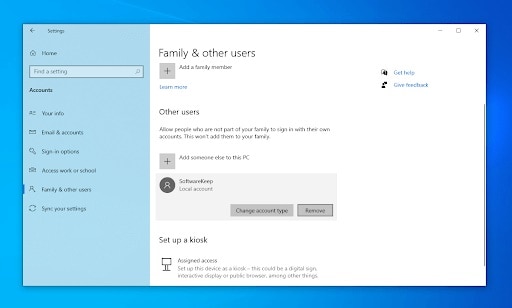
- Select the account you want to delete by clicking on it once. Click the button Delete now visible.
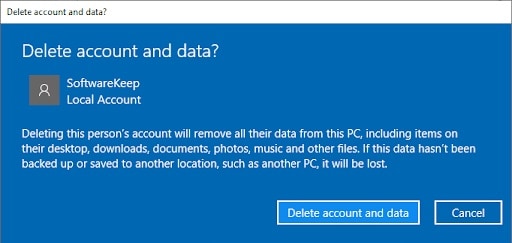
- It is important that you make sure you read the warning before clicking the button. Delete account and data. Wait to that Windows 10process the request and delete the local user.
Final Thoughts on Managing User Accounts in Windows 10
We hope that this guide has been able to show you everything you need to know about what you need to do to manage user accounts in Windows 10. If you ever need further assistance, our portal has different posts that can help you with any of your questions.
If you liked our guide, please share it. Also, in our comments section you can share your experiences with us. See you in our next post. Thank you for choosing us.

My name is Javier Chirinos and I am passionate about technology. Ever since I can remember, I have been interested in computers and video games, and that passion has turned into a job.
I have been publishing about technology and gadgets on the Internet for over 15 years, especially in mundobytes.com
I am also an expert in online marketing and communication and have knowledge in WordPress development.