- The SYSTEM_SERVICE_EXCEPTION error is usually caused by faulty drivers, corrupted system files, or hardware problems.
- Updating Windows is essential. drivers and analyze the system with tools such as SFC, DISM, CHKDSK and the memory checker.
- In many cases, the problem is solved by removing conflicting software, restoring the system, or adjusting driver settings.
- For complex cases, you can use WinDbg, Driver Verifier, and system backups/images for advanced repair.
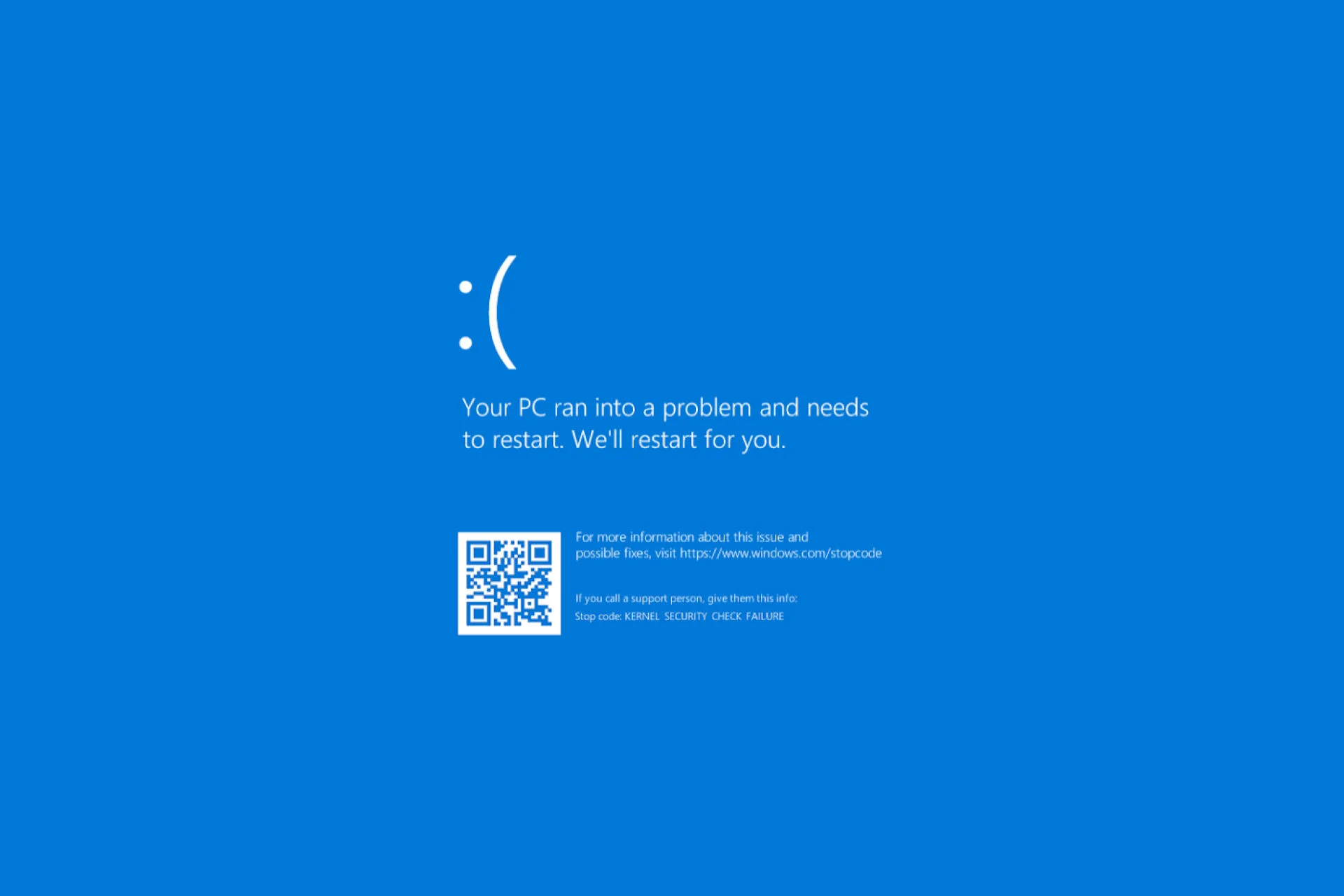
When a blue screen appears with the message SYSTEM_SERVICE_EXCEPTIONIt's normal to panic a little: the PC restarts, you lose what you were doing, and you're not sure what happened or if it will happen again. The good news is that, in most cases, this error can be fixed without needing to... forma tear nor do anything too extreme.
This type of BSOD (Blue Screen of Death) usually indicates that Something went wrong while Windows was executing system code with elevated privileges.This is usually caused by a faulty driver, a corrupted system file, a memory problem, or even conflicting software. Let's look, step by step, at exactly what the error means, why it might appear, and all the practical ways to try to fix it in Windows 7, 8, 10 and 11.
What is the SYSTEM_SERVICE_EXCEPTION (0x0000003B) error?
The arrest code associated with this screenshot is usually 0x0000003B, identified as SYSTEM_SERVICE_EXCEPTIONOn a technical level, Microsoft explains that it occurs when An exception is thrown while a system service routine is running.That is, when a system thread (not a simple user process) encounters a situation it doesn't know how to handle. If you need interpret error codes To find the cause of a BSOD, there are guides that help you with bug checks.
In many screenshots you will see, in parentheses, a file with the extension .sys , the ntfs.sys o nvlddmkm.sysThat name is a big clue, because It usually corresponds to the controller or system component that caused the failure (for example, the NTFS file system driver or the graphics driver of NVIDIA). If the dump appears ntoskrnl.exeConsult specific articles on screenshots with ntoskrnl.exe to delve deeper into that lead.
These parameters The technicians who perform bugcheck 0x3B are usually the following:
- Parameter 1: exception code that caused the error checking (for example, 0xC0000005 STATUS_ACCESS_VIOLATION, which indicates an invalid memory access).
- Parameter 2: direction of the instruction that originated the failure.
- Parameter 3: address of the exception context register (processor register information at the time of the error).
- Parameter 4: normally 0 and is not used.
On a practical level, this means that A kernel-privileged component has attempted to access memory incorrectly.: null pointers, random addresses, corrupted data structures, prematurely freed memory blocks, etc. And that almost always points to problematic drivers, corrupted system files, or hardware failures.
Possible causes of SYSTEM_SERVICE_EXCEPTION BSOD
prioritizing The right checks will save you time: the same symptom can have very different origins, but there are a group of typical causes worth reviewing. Knowing them helps you decide where to start looking.
In most cases, the origin lies in one of these common scenarios:
- Outdated, corrupt or incompatible drivers, especially in terms of graphics, storage, network (netio.sys) or antivirus/firewall.
- Corrupted system files due to power outages, unstable power, failed upgrades or malware.
- Hardware issues: faulty RAM modules, damaged sectors on the disk/SSD, conflicting peripherals, or even components that overheat.
- Malware or spyware that replace system files with modified versions to go unnoticed.
- Unstable overclocking CPU, GPU or memory, even if it has been "removed" afterwards if there are residual settings or damage.
- Problematic applications newly installed (VPNs, third-party antivirus, tuning tools, manufacturer utilities, camera software, etc.).
Often the BSOD appears in a seemingly random way: while playing, when you open the Task Manager, when the computer is at rest or just after logging inThis fits quite well with driver conflicts or a corrupted file system/Windows installation.
Identify whether the problem is with software, drivers, or hardware.
Before you start trying things haphazardly, it's a good idea to try Specify whether the origin is primarily software or hardware-related.because that way you don't waste time.
Helpful clues to guide the diagnosis:
- If the screenshot mentions a file type nvlddmkm.sys, atikmdag.sys, ntfs.sys, dxgmms2.sys, usually graphics driver, file system, or graphics components.
- If the error starts right after installing a program, driver, or accessoryIt is very likely that the culprit is that recent change.
- If, when passing tools like CHKDSK, SFC and DISM Many errors appear that are corrected; it is possible that there were serious damage to system files or the disk.
- If you see other symptoms such as Applications closing on their own, very slow performance, high CPU/GPU usage for no clear reason, or freezes even when idle.Both drivers and hardware should be suspected.
- if the team Windows doesn't even start normally. and it gets stuck in a loop of screenshots, you'll have to Use safe mode or the recovery environment for testing.
Remember that many other users have already encountered the same error, so Search the internet for the full message from the screenshot along with the .sys file name It usually gives very specific clues and even proven solutions for that case.
Update Windows and system drivers
One of the simplest and most effective steps is to make sure that Windows and the most important drivers are fully updatedOften the conflict is caused by an old driver or a bug that has already been fixed by the manufacturer.
To update Windows from within the system itself:
- Click on the start button and enters Configuration (gear icon).
- Access the section Update and security.
- In the section Windows Update click on Search for updates.
- Install everything important and recommended, and then restart the pc.
In addition, it is advisable Manually update key driversespecially if you have a dedicated graphics card.
- For cards NVIDIAuse GeForce Experience or download the driver from the official website.
- For cards AMD, uses AMD Software: Adrenaline Edition or the official website.
- For integrated graphics Intel, you can use Intel Driver & Support Assistant.
If you want to check all system drivers at once, you can use tools like Driver Booster or other similar solutions that detect outdated drivers and guide you through the update process. However, it is recommended. create a restore point before applying too many changes at once.
Check the disk and file system with CHKDSK
A classic that remains very useful is CHKDSKThe disk checking tool that existed back in the days of MS-DOS remains essential for detecting errors today. bad sectors and file system errorsThis can trigger error messages like SYSTEM_SERVICE_EXCEPTION, especially when it is cited. ntfs.sys.
To run CHKDSK with repair options:
- In the Windows search bar, type Symbol of the system.
- Right click and select Run as administrator.
- In the black window, type the command chkdsk / f / r and press Intro.
- If it tells you that the disk is in use and asks you to schedule the check for the next restart, respond with Y and press again Intro.
- Restart your computer and let CHKDSK do its job, even if it takes a while.
Please note that this check can be very slow, especially on large disks or disks with many files, but It is essential to rule out or correct physical and logical errors on the disk.
Repair system files with DISM and SFC
Another recurring cause of this BSOD is the corrupted system filesPower outages, interrupted updates, malware, or even poorly designed drivers can leave Windows in an unstable state. That's what drivers are for. DISM y SFC, two integrated utilities that work in tandem.
Recommended flow To repair the image and files:
- Open a console with administrator permission (System symbol or PowerShell).
- First, run DISM to repair the Windows image:
dism /online /cleanup-image /restorehealthThis command checks and repairs the Windows image used as the basis for system files, usually located in C:\Windows\WinSxSDepending on the connection and system status, it may take several minutes.
When DISM finishes, run the system file checker:
sfc /scannowThis analysis covers all protected system files and replaces those it detects as corrupt or modified using the image repaired by DISM. If SFC reports that it has found and corrected errors, It is advisable to repeat the command once or twice until it shows a clean state.
In case Windows does not Boot You can also launch these commands from a... Windows installation USB accessing the Advanced Options > Command Prompt in the recovery environment.
Remove recent software and use System Restore
We often complicate our lives when, in reality, the problem started right after... install a new programCertain security applications, VPNs, webcam software, manufacturer utilities, or overclocking tools can affect sensitive areas of the system and cause these types of failures.
You should ask yourself Since when did the blue screen of death start appearing? and what you installed or changed after that. If you have strong suspicions, try this:
- Open the option Add or Remove Programs (or “Applications and features”).
- Sort the list by Instalation date.
- Uninstall the applications added just before the BSODs appeared.
- Restart and check if it stops failing.
Some programs that frequently cause problems in this context are Third-party antivirus software (McAfee, Bitdefender in some versions), VPN clients (Cisco VPN), motherboard utilities (Asus GameFirst, MSI Live Update), webcam software, image editing tools and similar. Sometimes it's enough to disable them; other times, it's better to remove them completely.
If the system remains the same even after uninstalling the suspicious software, a good option is return to a restore point prior to the problem:
- In the search engine write restore point and open Create a restore point.
- In the System Properties window, within System protection, click on System Restore.
- Choose the Recommended restoration (usually coincides with a major update or installation) or brand Choose another restore point to select a specific date.
- Follow the wizard and let Windows revert to its previous state.
This process does not delete your personal filesHowever, it does undo program installations and configuration changes made after the chosen point, which is very helpful in reversing recently introduced errors.
Virus and malware analysis
Although it is not the most common cause, it should not be forgotten that Some types of malware replace system files with manipulated versionsThis is precisely so it can run with elevated privileges without you noticing. This can lead to instability and, of course, system exception errors.
To be on the safe side, it's advisable to do a full system scan with your usual antivirus. You can also use Microsoft Defender on Windows 10/11:
- Go to Settings > Update & security > Windows Security.
- Sign in Antivirus and threat protection.
- Choose complete exam or even offline analysis.
If the analysis detects and eliminates threats, it's a good idea. repeat SFC and DISM Then, to make sure that all system files are in good condition.
Check the RAM memory with the diagnostic tool
Memory is another sensitive point: faulty RAM modules or incorrectly adjusted timings/voltages (very typical after overclocking) can cause invalid memory accesses that fit perfectly with the code STATUS_ACCESS_VIOLATION (0xC0000005).
Windows includes a basic but useful utility called Windows memory diagnostics:
- Write memory diagnosis in the Windows search box.
- Open the tool Windows memory diagnostics.
- Choose Reboot now and check for any issues.
The computer will restart and perform a series of RAM tests. If it detects errors, it will display them when you log back in. In that case, the recommended course of action is Try testing the modules separately, changing slots, or replacing the faulty memory.If you want a more comprehensive test, you can use MemTest86 booting from USB.
Use the Windows troubleshooter and startup repair
In Windows 10 and 11 you have a additional ally: The Problem Solver and Startup repair integrated into the system, designed precisely to resolve common errors, including many BSODs.
To run the specific solver of blue screens:
- Go to Start > Settings > Update & security > Troubleshoot.
- Sign in Additional troubleshooters (if it appears).
- Look for the option Blue screen and press Run the troubleshooter.
If the problem prevents Windows from starting normally, you can access the Windows Recovery Environment (Win) by clicking Shift + Restart from the login screen or by forcing several shutdowns during startup. Once inside:
- Go to Troubleshoot > Advanced Options.
- Choose Startup repair.
- Let the tool automatically attempt to fix the problems that are preventing a proper startup.
This repair can fix Damage to the boot manager, key startup files, and basic configurations that could be related to the BSOD.
Driver Verifier, minidump analysis and WinDbg
If the error persists despite everything, it's time to get a little more technical. Windows includes tools designed for developers and administrators which allow for more precise location of conflicting drivers.
The first is Driver Verifier (verifier.exe), which is responsible for run real-time tests on the loaded drivers and force a BSOD when it detects anomalous behavior. It's very powerful, but also delicate: You should always have a recent system backup or image. before activating it.
Basic steps to use it:
- Open a Command Prompt as administrator and writes verifier.
- Choose Create standard configuration.
- Choose Select controller names from a list so as not to activate them all, which would be excessive.
- Select the suspicious drivers (e.g., graphics, network, storage) and press Finalize.
- Restart the computer.
From there, if Driver Verifier detects problems in a driver, will cause a new blue screen, but this time with clearer information in the dump file (memory.dmp or files in C:\Windows\MinidumpTo interpret them, you can use tools such as BlueScreenView from NirSoft or directly WinDbg, the official Microsoft debugger.
With WinDbg and the extension !analyzeIt is possible to see details such as:
- El specific driver that was in the stack at the time of the failure.
- The value of KiBugCheckDriver, which often displays the name of the controller involved (for example, «nvlddmkm.sys» (for NVIDIA).
- The exact exception code (for example, 0xC0000005 STATUS_ACCESS_VIOLATION).
If you can identify a specific driver as the culprit, the solution will involve Update it to the latest stable version, revert to a previous version, or uninstall it. If it's a non-critical component, in some cases the manufacturer will have to fix the problem in an update.
When to reset or reinstall Windows
If after trying everything above the BSOD continues to give you trouble, perhaps it's time to consider more drastic measuresFirst of all, make sure you have recent backups of your important files.
In Windows 10 and 11 you have the option to Reset this PC without needing to download anything else:
- Go to Settings > Update & security > Recovery.
- En Reset this PC, press Contac us.
- choose if you want keep my files (deletes programs and settings, but keeps your documents) or Remove all for a cleaner installation.
Another, somewhat more elegant option is to make a repair reinstallation (Repair install) using Windows installation media, which reinstalls the system over the existing one, attempting to preserve programs and data. And as a last resort, you would have a full format with clean installation.
Create system backups and images
One lesson many of us learn the hard way is that it's worth having a complete system image and regular backupsIf you encounter a persistent BSOD like SYSTEM_SERVICE_EXCEPTION again, you save yourself hours of troubleshooting and simply restore the system to a known, stable state.
For this you can use both the built-in Windows tools (such as Backup and restore o File History) such as third-party solutions Mini Tool ShadowMaker and similar. These allow you to:
- Create disk images or system partition images on an external hard drive, NAS or network drive.
- Schedule automatic backups (complete, differential or incremental).
- Generate WinPE-based boot media to restore the image even if Windows does not boot.
The idea is simple: once you have your PC running smoothly, without errors and with everything installed to your liking, you create an imageIf a BSOD appears again in the future that there's no way to remove, you can restore the image and return to that state in a matter of minutes, without having to suffer through endless tests.
The SYSTEM_SERVICE_EXCEPTION blue screen error may seem very serious, but most of the time it's due to unstable drivers, corrupted system files, conflicting software, or minor hardware failures These problems can be calmly diagnosed and resolved with the tools already included in Windows: updates, CHKDSK, DISM, SFC, memory diagnostics, Driver Verifier, system restore, and, if necessary, a good reset Accompanied by a well-made security image; with all that in hand, your equipment should normally return to stable operation without needing to resort to extreme solutions.

Passionate writer about the world of bytes and technology in general. I love sharing my knowledge through writing, and that's what I'll do on this blog, show you all the most interesting things about gadgets, software, hardware, tech trends, and more. My goal is to help you navigate the digital world in a simple and entertaining way.