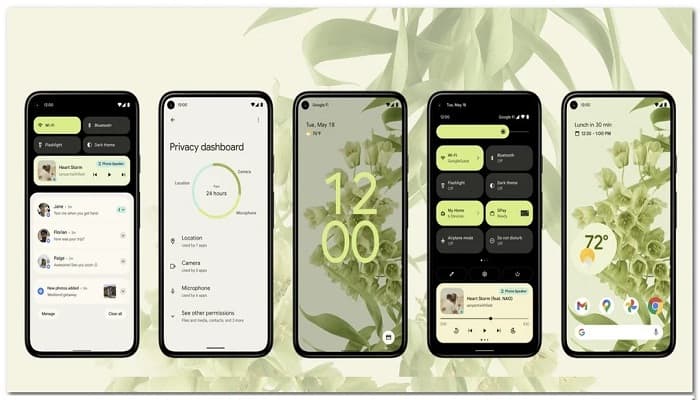
Android 12, codenamed Snow Cone, is the next major release in the Android operating system family. Google announced the OS in its I/O 2021 keynote address, and after months of developer builds, the OS is ready enough to be used as an everyday driver.
With Beta 4, Android 12 has gained enough platform stability that Google has opened it up to the public, hence the public beta. The Android 12 public beta is only available for a limited number of devices, as not all smartphones are compatible.
Since this is a major release, everyone is excited to try out the new features included in Android 12 and for good reason. The operating system is still in beta, so that means there will be bugs here and there.
But if you can't wait for the stable version of the operating system and want to get your hands on it right now, you've come to the right place. We'll show you how to install the Android 12 public beta in this article.
Android 12 Compatible Devices
However, before you proceed, you need to make sure that your device is compatible with the Android 12 beta program. This is not only limited to the well-known Google phones like Pixel, but there are also devices from other companies like Asus, Oppo, among others; that can try out the public beta. Below is the list of phones that are compatible with the Android 12 beta:
- Pixel 3 XL, 3, 3A, 3A XL
- Pixel 4, 4X XL, 4A, 4A 5G
- Pixel 5
- OnePlus 9, Oneplus 9 Pro
- Oppo Find X3 Pro (model CPH2173)
- I live iQOO 7
- Xiaomi Mi 11, Mi 11 Ultra, Mi 11I, 11X Pro
- ZTE Axon 30 Ultra 5G
- along with models from Realme, Sharp and Tecno
Install Android 12 Public Beta
There are several ways to install the Android 12 public beta on your phone. The easiest and simplest way to do this would be to use the Android Beta Program. Please note that the methods mentioned in this article are primarily for Pixel phones.
However, if you wish to install the public beta on any other compatible device, simply follow this link and select your brand. It will guide you through the public beta installation process on your device.
That being said, you can use one of the following methods to install the Android 12 beta on your Pixel device:
Android Beta Program
- To get the Android 12 beta on your phone through the Android Beta program, simply head to the Android Beta portal by clicking here.
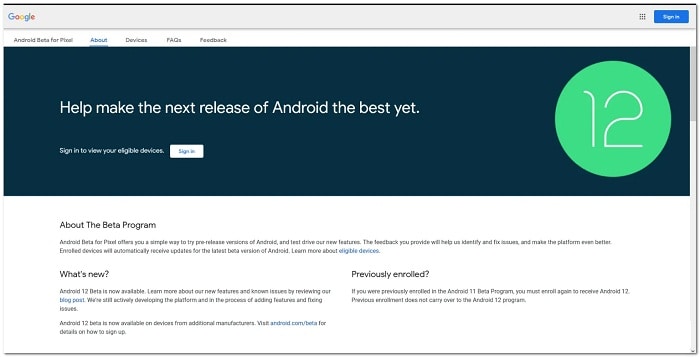
- In the beta portal, start session in the Google account that is connected to your smartphone. Eligible devices.
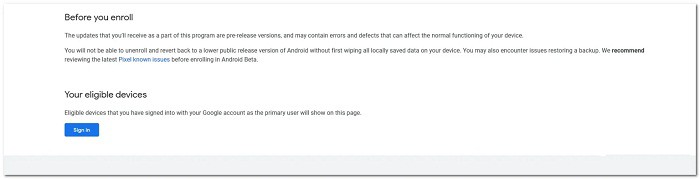
- From the list of devices, select the eligible device and then tap the button opt in.
- After that, simply follow the on-screen instructions to initiate the wireless download of the Android 12 beta on your phone.
Android Flash Tool
In addition to the Android Beta program, you can also use the Android Flash tool to install the Android 12 beta on your phone. This is basically a web-based version of the ADB development tool.
Therefore, you will need a PC with you. Before proceeding, you must ensure that USB debugging and OEM unlocking are enabled on your phone through the developer options menu. To do this, follow the instructions below:
- First, open the app Configuration on your phone.
- There, go to About of the phone on the bottom.
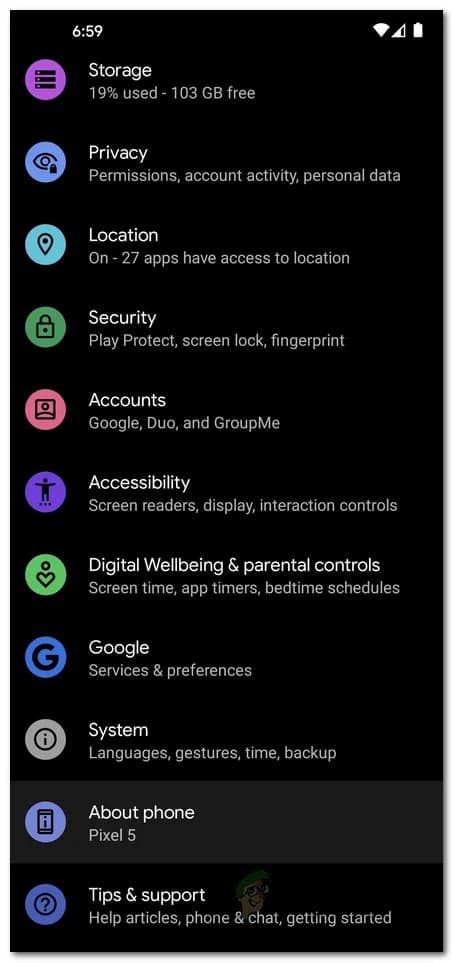
- Once again, scroll to the bottom. Tap the option Build number 7 times quickly.
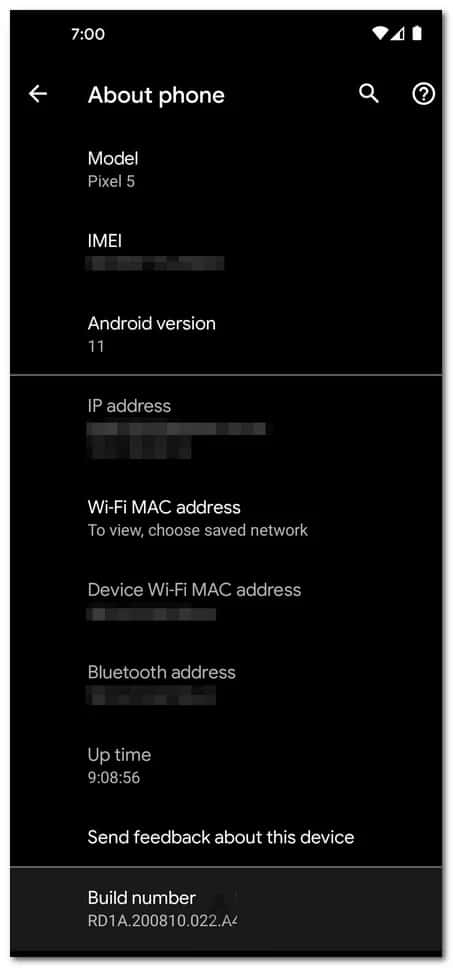
- You will see a message You are now a developer! Message about success.
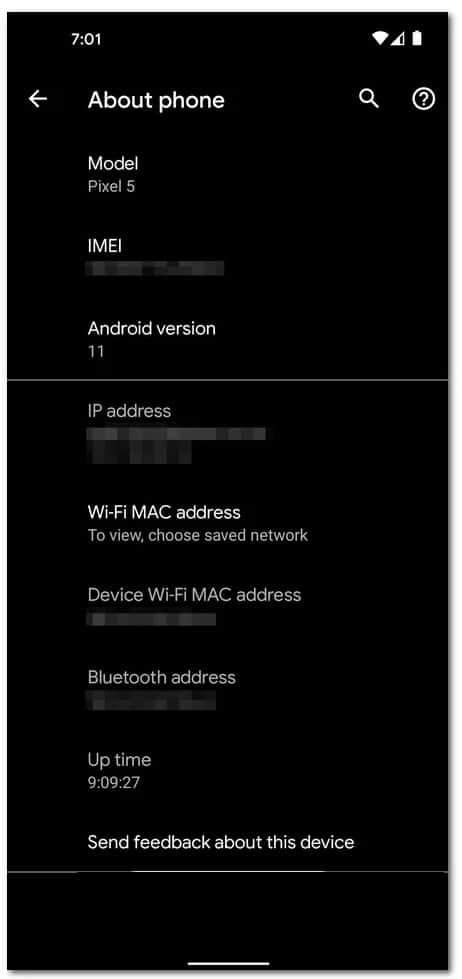
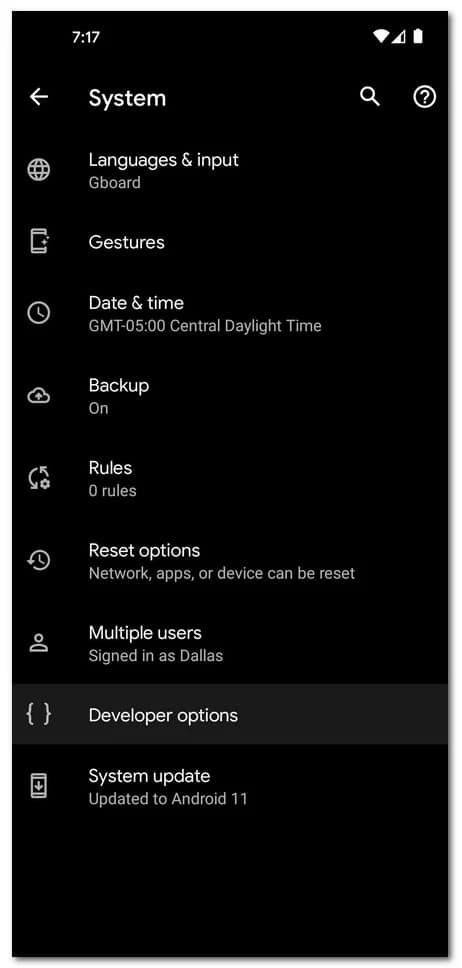
- Go back to Configuration and then head over to System.
- there, play Developer options.
- In the developer options, enable the USB debugging and the oem unlock.
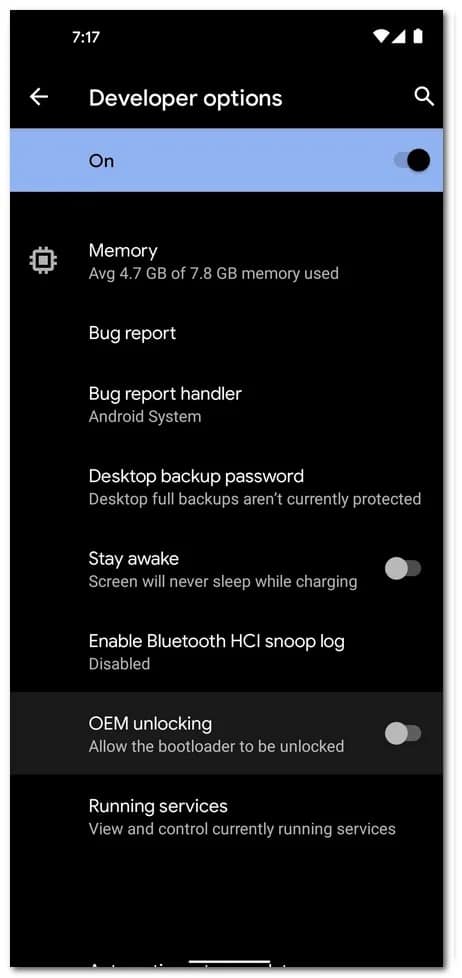
Once you have enabled USB debugging and OEM unlocking, follow the instructions below to install Android 12 beta using the Android Flash Tool:
- First, connect your Pixel smartphone to your laptop or PC. You will need to download the google usb driver from this link here. The website gives you a complete tutorial on how to download and install the USB driver, so go ahead with that.
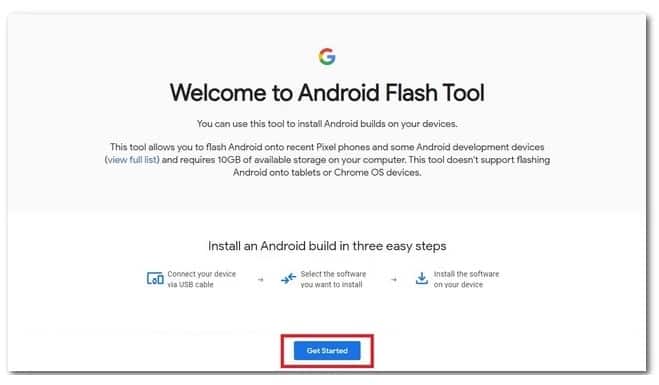
- Once you have installed the Google USB Driver, go ahead and open the Google website. Android Flash Tools clicking here. This requires you to be running the browser Google Chrome, so make sure you open it with Chrome.
- On the website, click the button Contac us.
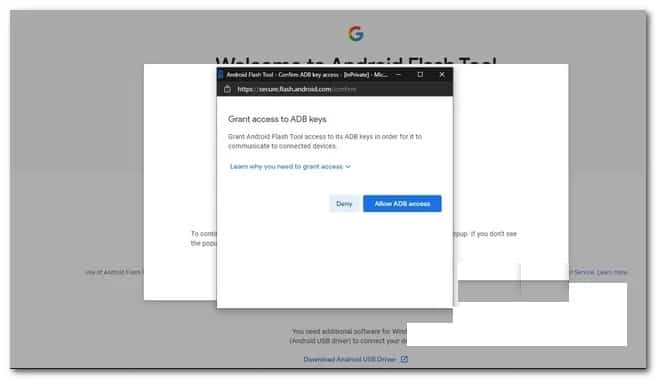
- This will open a pop-up window. Here, you will need to grant access to the ADB keys. To do so, simply click on the button Allow ADB access.
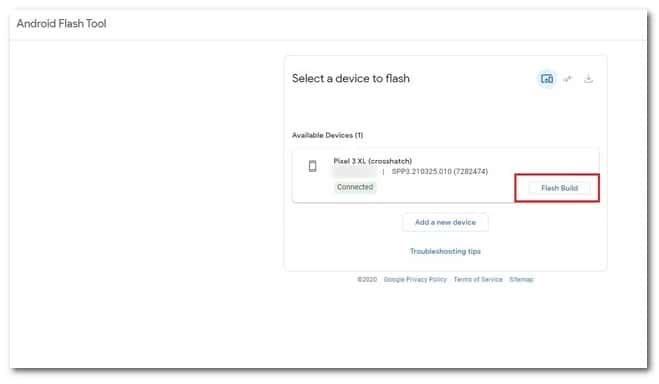
- Once you have granted access, click the button add new device.
- When you click on this, your device will appear in a message below the address bar. Select your device and then click on the button Connect.
- Once done, click on the button Create Flash on the menu Select a device to flash.
- Finally, at this point, you will need to select the latest beta version available from the drop-down menu and then click on the button Install.
- Now, the Flash tool of Android will start downloading the beta version you selected and then install it on your phone.
- Wait for it to finish. Once completed, you will have successfully installed the Android 12 beta on your phone.
If you follow each of these recommendations, you will be able to install the public beta version of Android 12 without any major setbacks. I hope that our guide is very useful for you and that you can achieve your goal.
If you have something to share with us, you can do so in our comments section. We'll see you in a future post where we'll discuss other topics of interest.

My name is Javier Chirinos and I am passionate about technology. Ever since I can remember, I have been interested in computers and video games, and that passion has turned into a job.
I have been publishing about technology and gadgets on the Internet for over 15 years, especially in mundobytes.com
I am also an expert in online marketing and communication and have knowledge in WordPress development.