- The Windows boot process is divided into phases (PreBoot, Boot Manager, OS Loader and kernel) and each one shows different symptoms when it fails.
- Tools such as Startup Repair, BOOTREC, BCDEDIT, and RegBack allow you to repair damaged MBR, boot sector, BCD, and Registry hives.
- The boot log Ntbtlog.txt is activated by boot.ini or BCDEDIT and records loaded and skipped drivers, key to diagnosing failures.
- Combining Boot Logs, Event Viewer, SFC/DISM, and memory dumps makes it easier to locate drivers or updates that prevent Windows from booting.
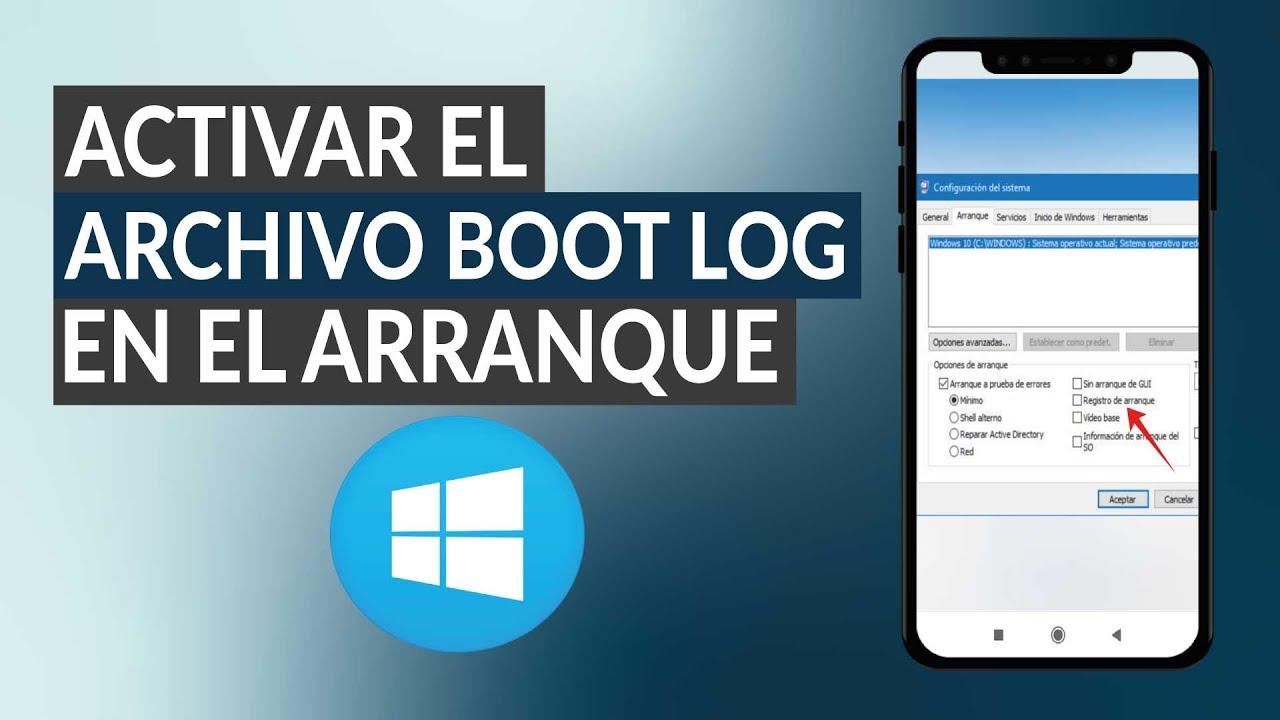
When Windows refuses to boot and gets stuck on a black screen, a restart loop, or a blue screenThe normal reaction is to panic. But beyond the typical automated tools, there is a very powerful resource for understanding what's happening: boot log files or Boot Logsespecially the well-known Ntbtlog.txt.
These logs detail which drivers and components load (or fail to load) during system startup, and combined with other utilities such as Startup Repair, BOOTREC, DISM or the Windows Registry itself, allow you to attack the root of many boot problems, both in computers with classic BIOS and in modern systems with UEFI (boot process in UEFI).
How does Windows startup work and at what stage is the failure?
Before you start reviewing Ntbtlog.txt to paste commands into the consoleIt's important to understand how the Windows boot process is organized and which components are activated at each stage. This allows you to determine if the error occurs very early on (firmware/BIOS), in the boot manager, in the operating system loader, or when the Windows kernel comes into play.
In general terms, the startup cycle of a modern Windows system is divided into four main phases These occur in both legacy BIOS machines and UEFI firmware systems, although the files involved and the paths change slightly:
- Phase 1 – PreBootThe firmware (BIOS or UEFI) performs the POST (Power-On Self Test), initializes the basic hardware, and locates a valid system disk. In BIOS machines, the MBR/PBR is read; in UEFI, the firmware is loaded, and the Windows boot manager EFI application is searched for.
- Phase 2 – Windows Boot Manager: This is where the boot manager comes into play, which looks for the boot configuration and decides which system to start.
- Phase 3 – Windows OS Loader: the system charger (
winload.exeowinload.efi) loads the kernel and drivers marked to be loaded at boot. - Phase 4 – Windows NT Kernel: the kernel (
ntoskrnl.exe) takes control, mounts the system registry hive, loads the driversBOOT_STARTand the system session starts (Smss.exe), which in turn launches the rest of the services and controllers.
Each of these stages has quite characteristic symptoms and error messages.from the typical “Bootmgr is missing” to errors like INACCESSIBLE_BOOT_DEVICE or blue screens right after the Windows logo, and therefore are diagnosed and repaired with different tools.
| Phase | Stage | Equipment with BIOS | UEFI-enabled device |
|---|---|---|---|
| 1 | PreBoot | MBR/PBR (boot code) | UEFI Firmware |
| 2 | Windows Boot Manager | %SystemDrive%\bootmgr | \EFI\Microsoft\Boot\bootmgfw.efi |
| 3 | Windows OS Loader | %SystemRoot%\System32\winload.exe | %SystemRoot%\System32\winload.efi |
| 4 | Windows NT Kernel | %SystemRoot%\System32\ntoskrnl.exe | (same, but now under UEFI) |
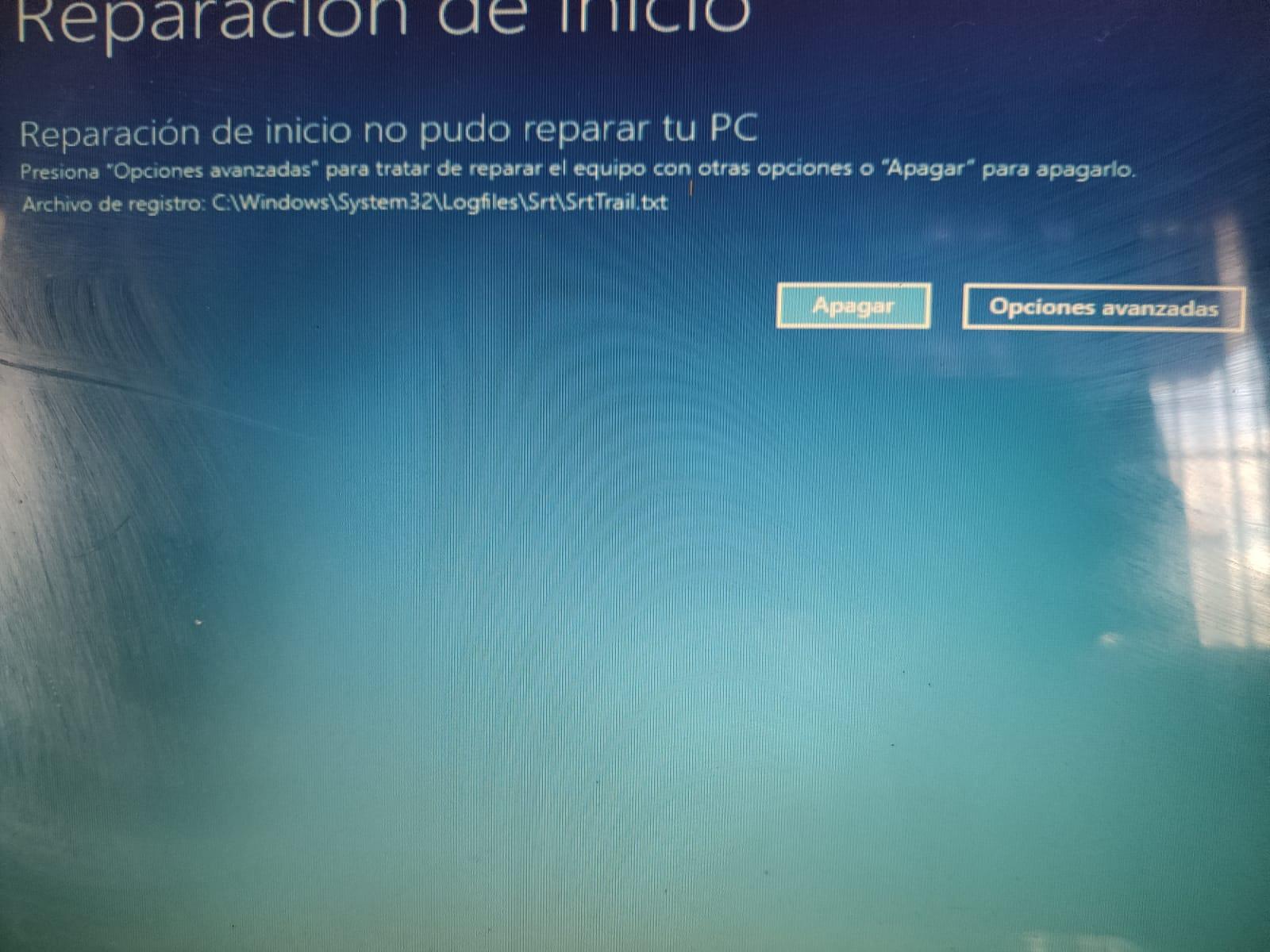
The goal when diagnosing a starting failure is to "catch" at which point in this chain the process breaks downFrom there, we can decide whether it makes sense to look at the boot log file, the SrtTrail.txt from the startup repair, memory dumps, the Registry, or focus on the boot codes (MBR, BCD, Bootmgr, etc.).
BIOS or firmware failures: how to detect them
If the computer doesn't even display the Windows logo If it gets stuck on a black screen with no clear messages, or doesn't even turn on properly, the problem is usually in the firmware itself or in the base hardware.
There are a couple of very simple checks to determine if the system has passed the BIOS phase or it's stuck there:
- Disconnect all external peripherals (USB, external hard drives, printers…). Sometimes the firmware tries to boot from a removable device and gets stuck.
- Observe the hard drive activity LEDIf it does not blink at all during power-up, the process may not be reaching the point where the boot sector is read.
- Try pressing the Num Lock key.If the keyboard indicator does not change, it usually indicates that the system is completely frozen at the firmware or motherboard level.
When the freeze is at this early stage, it is usually due to a hardware failure. (memory, motherboard, power supply, failing hard drive…) and not so much in the case of a boot file problem, so in these cases the analysis of Ntbtlog.txt and similar things don't even get generated.
Errors in the boot manager and loader (MBR, BCD, Bootmgr)
If the machine turns on, the manufacturer's logo appears and then you see a black screen with a blinking cursor If you receive messages such as “Operating System Missing”, “Bootmgr is missing” or BCD-related errors, the problem is already in the boot manager (Boot Manager / Boot Loader) phase.
Some typical messages from this stage make it quite clear what the situation is.:
Boot Configuration Data (BCD) missing or corruptedBoot file or MBR corruptedOperating system missingBoot sector missing or corruptedBootmgr missing or corruptedUnable to boot due to system hive missing or corrupted
At this point, the most effective course of action is to boot from an external Windows installation medium. (USB/DVD created with the Microsoft tool or an ISO of the same or higher version) and open a command prompt using the Shift+F10 combination or through the advanced recovery options.
Using the Startup Repair tool
The Windows Startup Repair utility is the first option you should try.because it automates many checks: it checks the integrity of the boot files, attempts to fix the BCD, repairs damaged boot sectors, and generates its own log of what it has done.
The user flow is very simple. when you boot from the installation media of the same version of Windows that you have installed:
- Boot your computer from the Windows installation USB/DVD and, in the initial window, click on Next > Repair the equipment.
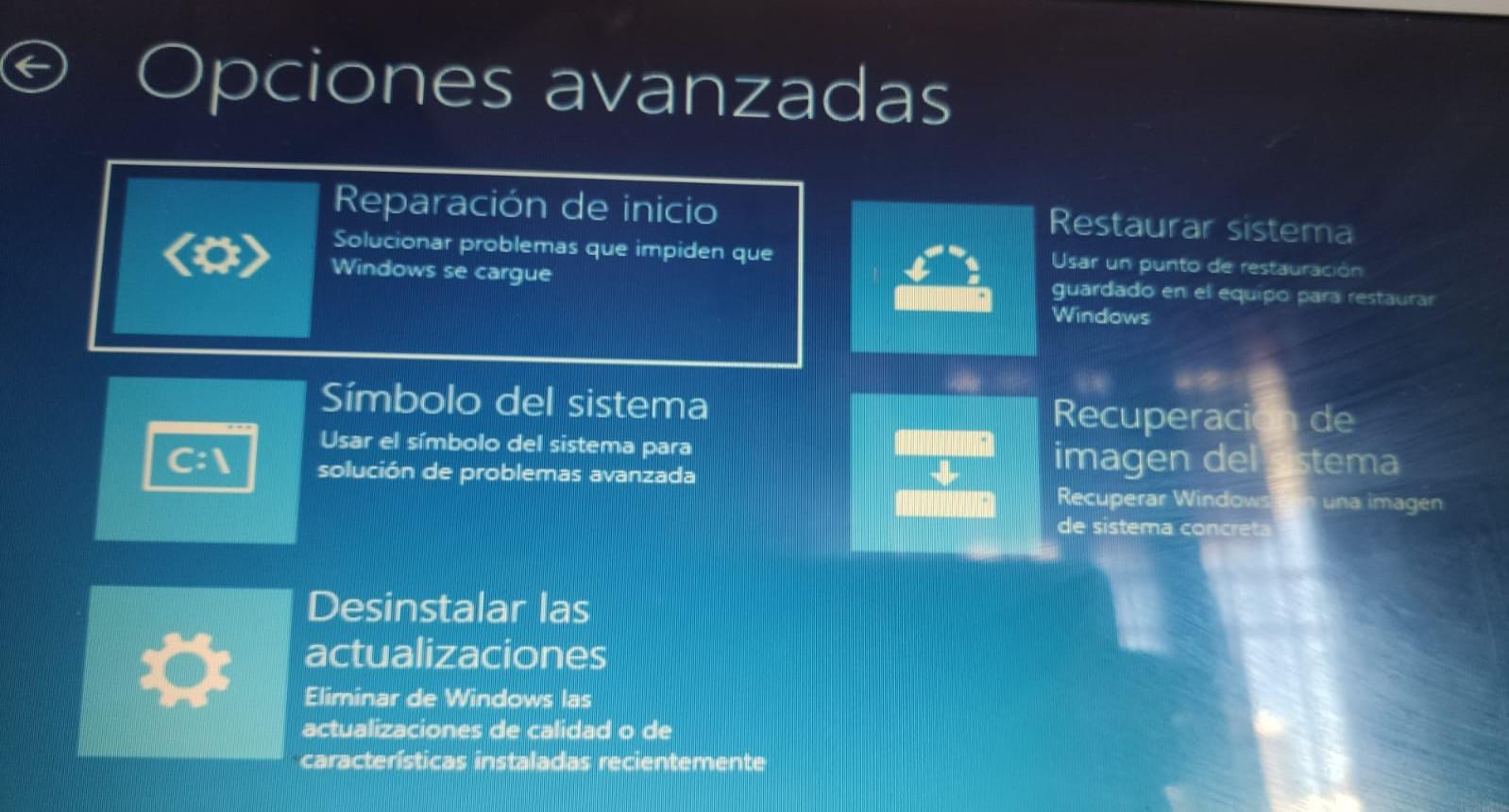
- On the selection screen, enter Solve problems.
- Accede to Advanced options > Startup repair and let the tool analyze the system.
- When it's finished, shut down using the wizard itself and try starting up normally.
Everything this tool does is recorded in the file SrtTrail.txt, located in %windir%\System32\LogFiles\Srt\Srttrail.txtAlthough it's not a boot log in the style of Ntbtlog.txtYes, it is useful to understand what it has detected and what actions it has tried to apply.
Repair the MBR and boot sector with BOOTREC
If Startup Repair doesn't fix the problem, the next classic step is to use the tool BOOTREC ( BOOTREC guide) From the recovery environment command prompt. This utility allows you to rewrite the MBR, rebuild the boot sector, and regenerate the BCD database.
Basic commands for addressing typical MBR and boot sector problems are the following:
- Rewrite the MBR (very useful if another system or a third-party tool has overwritten it):
bootrec /fixmbr - Repair the boot sector of the system partition:
bootrec /fixboot
In some scenarios (especially in UEFI systems with EFI partitioning in FAT32) The dreaded "Access denied" message may appear when running /fixbootIn these cases, you need to check that the system partition is correctly assigned a drive letter, and sometimes mark it as active or manually repair the boot files by copying them. bootmgr and the content of \EFI\Microsoft\Boot.
Correct BCD warehouse errors
When the BCD is corrupt or points to non-existent facilitiesYou'll see more specific errors about "Boot Configuration Data". Here, BOOTREC and BCDEDIT work together (see diagnosis with BCDEDIT).
A typical procedure for regenerating the BCD from scratch is this:
- Scan for detectable Windows installations:
bootrec /scanos - If it still doesn't start after the scan, back up the BCD and rebuild it:
bcdedit /export C:\bcdbackupattrib C:\boot\bcd -r -s -hren C:\boot\bcd bcd.oldbootrec /rebuildbcd - When asked if you want to add the found installation to the boot list, answer yes.
In some cases, an error message will appear stating "The requested system device could not be found." When trying to add the installation; that's where you need to check with diskpart that the system partition is correctly marked, has a letter assigned, and is not damaged.
Replace the Bootmgr file
If after several attempts the errors point directly to bootmgr impairedYou can choose to rename the faulty copy and place a new one from the system reserved partition or from the installation media.
The general idea is to leave the old one. bootmgr safe and copy a working one to the partition where the system resides:
- Identify the System Reserved partition (usually without a letter, in FAT32 or NTFS, about 100 MB in modern Windows) and assign it a letter with
diskpartif required. - In that partition, list hidden and system files with:
attrib -r -s -h - Do the same on the system drive (for example,
C:) to see thebootmgrexistent. - Change the name of the
bootmgrdamaged, for example:ren C:\bootmgr bootmgr.old - Copy the
bootmgr"healthy" from the system reserved partition to the root of the Windows drive. - Restart and check if it starts up.
Restore the system registry subtree
When errors indicate that the system hive cannot be loaded (“system hive missing or corrupted”), the problem shifts from a purely boot-related issue to a Registry problem. In these cases, it's usually necessary to restore the Registry subtrees from a valid backup (you can see techniques for Improve the Registry with RegScanner).
From the WinRE recovery environment or an ERD repair disk You can copy the content of C:\Windows\System32\config\RegBack a C:\Windows\System32\configoverwriting the damaged files (SYSTEM, SOFTWARE, etc.). If it still doesn't boot, you would need to restore a full system backup and then restore only the necessary hives.
Kernel phase: blue screens, loops, and crashes after the logo
If you already see the Windows logo, even the spinning "wheel" icon of dotsBut if suddenly a blue screen appears, it freezes, or a black screen simply appears, the problem is most likely in the kernel phase or in the drivers that are loaded at that stage.
Some typical symptoms of failure in this phase are well known:
- Stop code right after the splash screen (for example,
0x00000C2,0x0000007B, etc.). - Error of
INACCESSIBLE_BOOT_DEVICE, with the stop identifier 0x7B, which implies problems accessing the boot disk. - The spinning dot wheel remains indefinitely in "busy system".
- The screen goes black after the Windows logo appears, with no messages.
In these situations, recovery options are based on starting in a limited way and then diagnose using tools such as the Event Viewer, boot logs, memory dumps, and the Registry itself.
Try Safe Mode and Last Known Good Configuration
Safe Mode remains a classic because it loads only the bare minimum. so that Windows starts up, leaving out a large part of the third-party drivers and services that could be causing the problem.
From the Advanced Boot Options You can try:
- Safe Mode
- Safe mode with networking
- Last known successful configuration (if available in your version)
If the team manages to get going in any of these variationsOne of the first things recommended is to open the Events viewer and review system and application logs around the time the symptoms started, copying relevant events for calm analysis.
A clean start to locate conflicting services and drivers
When the problem points to a third-party service or controller (antivirus, backup software, special storage drivers, etc.), it is very useful to perform a "clean boot" with the tool msconfig.
In System Settings you can select “Selective startup” and gradually disable non-critical services, especially those not from Microsoft, until you locate the one triggering the startup failure. Once found, you can permanently disable it and return to a "normal startup".
If the problem lies in driver signing (especially in x64 systems with Secure Boot or signature requirements)Another way is to start with the "Disable mandatory use of signed drivers" option and analyze which driver requires a signature or is causing a conflict, following the guidelines in Microsoft's specific articles on this type of problem.
INACCESSIBLE_BOOT_DEVICE error (STOP 0x7B)
The error INACCESSIBLE_BOOT_DEVICE It is one of the most feared because it implies that Windows cannot access the drive from which it should boot: inadequate storage drivers, third-party filters, changes in the SATA/RAID controller mode in BIOS, etc.
An advanced method for dealing with this error involves filtering third-party drivers in the Registry from the recovery environment:
- Boot into WinRE using an ISO of the same version of Windows or higher.
- Open the Registry Editor and load the system hive, giving it a temporary name, for example test.
- Go to the key:
HKEY_LOCAL_MACHINE\SYSTEM\ControlSet001\Control\Class - Find entries UpperFilters y Lowerfilters that refer to drivers that are not from Microsoft.
- For each suspect driver, clear the contents of the corresponding filter value.
- Look for other similar occurrences in the hive, modify them carefully, and unload the hive when you're finished.
- Restart the system in Normal Mode and check if the 0x7B error has disappeared.
If the problem started right after installing Windows updatesIt may be necessary to remove pending packages or revert update actions with DISM, changing values in the Registry (for example, the service TrustedInstaller) and even renaming files like pending.xml en WinSxS to unblock the process.
Enable boot logging in Windows
At this point, the protagonist of this article comes into play: the archive Ntbtlog.txtThis file is the classic Windows boot log; it records the drivers and components that are loaded (or fail) during startup, allowing you to detect, for example, which specific driver is preventing the system from starting up.
BootLog is not enabled by defaultBut activating it is very simple and you can do it in two main ways: through boot.ini in older systems or with bcdedit In modern versions like Windows 10 and later, it's very useful to combine it with techniques for analyze with BootTrace.
Enable BootLog on boot.ini based systems (Windows XP and similar)
On older computers, the boot configuration file is boot.ini, which is located in the root of the drive where Windows is installed (usually C:) and is marked as a hidden and system file.
To edit it, you must first show the protected system files. From the folder options, locate boot.ini and open it with Notepad. There you'll see a line similar to this (although with different parameters):
multi(0)disk(0)rdisk(0)partition(1)\WINDOWS=»Microsoft Windows XP Professional» /noexecute=optin /fastdetect
To activate boot logging, simply add the modifier /BOOTLOG at the end of that lineresulting in something like:
multi(0)disk(0)rdisk(0)partition(1)\WINDOWS=»Microsoft Windows XP Professional» /noexecute=optin /fastdetect /BOOTLOG
Once the file is saved, the system will begin generating the boot record at each startup.Additionally, in emergency situations, logging can be enabled on a case-by-case basis from the advanced boot menu: by pressing F8 just before Windows starts and choosing the "Enable boot logging" option.
The generated file is always called Ntbtlog.txt and it is saved in the Windows folder, normally in C:\Windows, ready to open with Notepad and check which drivers have loaded correctly and which have not.
Enable and disable BootLog with BCDEDIT in Windows 10 and later
In modern systems that use BCD (Windows Vista and later, including Windows 10)The boot configuration is no longer managed with boot.inibut with the boot configuration data store and the tool bcdedit.
To enable boot logging on a specific system You need to know the identifier (ID) of that loader within the BCD. This is obtained by running the following command in a command prompt with administrator privileges:
bcdedit
In the “Windows Boot Loader” block you will see a line called “Identifier” which could be something like {current} or a different GUID. Using that ID, you can activate BootLog like this:
bcdedit /set {ID} bootlog Yes
To deactivate it, simply change the value to “No”.:
bcdedit /set {ID} bootlog No
After the next restart, if logging is enabled, Windows will generate the file. Ntbtlog.txt on the indicated route with all the necessary information about the controllers and modules involved in the startup, which is extremely helpful in diagnosing capricious faults.
Interpreting Ntbtlog.txt and other boot logs
Although at first glance Ntbtlog.txt it looks like a simple list of linesThe key is understanding what pattern we're looking for. In this file, you'll see entries indicating that a controller has been loaded successfully or skipped.
The trick is to locate drivers that fail just before the crash or restart occurs....or those that clearly don't belong to Microsoft and could be causing conflicts (antivirus drivers, disk encryption, backup solutions, etc.). Combining this information with Event Viewer events and, if available, memory dumps, can greatly narrow down the problem.
In many cases, memory dumps explicitly point to a specific driver file. (for example, \Windows\System32\drivers\stcvsm.sys (missing or damaged). The general recommendations in this type of case are:
- Review what functionality that controller provides and whether it is critical for startup.
- If it is a non-essential third-party driver, disable it by loading the system hive in the Registry from WinRE.
- Run the System File Checker (
sfc) in offline mode if system file corruption is suspected. - If widespread Registry corruption or recent installation of multiple drivers/services is suspected, rename the old hives (adding
.oldto the names inC:\Windows\System32\configand restore the backups ofRegBackthen attempting a normal start.
Sometimes, especially after a major Windows update, the problem when repairing with DISM It comes from the original image versionIf the ISO used for restoration does not closely match the installed version, DISM It returns error 0x800f081f (“The source files could not be found”). In these cases, it is advisable to check with dism /get-wiminfo the exact version of the image (install.wim o install.esd) and find an ISO that actually corresponds to the build of the system to be repaired.
In short, boot registers like Ntbtlog.txt, the Startup Repair SrtTrail, memory dumps, and logs of DISM y SFC They form an information “ecosystem” This tool allows you to reconstruct what happens during each boot: what loads, what is skipped, what becomes corrupted, and what changes (drivers, updates, antivirus software, or various utilities) have broken the process. By combining these tools with MBR, BCD, Bootmgr, RegBack, and clean boot repair techniques, the chances of recovering a Windows system that won't boot without a complete reinstall are much higher than they might initially seem.

Passionate writer about the world of bytes and technology in general. I love sharing my knowledge through writing, and that's what I'll do on this blog, show you all the most interesting things about gadgets, software, hardware, tech trends, and more. My goal is to help you navigate the digital world in a simple and entertaining way.