If you miss the legendary Paint program but work on Linux or macOS, you've come to the right place . There are simple editors for drawing, annotating, and basic retouching, as well as more powerful options that remain easy to use. Here, we've gathered all the top alternatives featured in the best current guides and lists, all in one article.
The idea is simple: to offer you Paint alternatives that are fast, free, or cost nothing, and that work natively on Linux and macOS . We've also included some web utilities and more advanced tools if you want to take things a step further, along with installation and compatibility tips to help you get started.
What we look for when we talk about alternatives to Paint
Paint is synonymous with basic editing: pasting a screenshot, cropping, drawing an arrow, adding text, and getting by . That's why the most appealing alternatives on Linux and macOS are those that maintain immediacy and simplicity, although many incorporate extras like layers, effects, or support for more formats.
An important point for users coming from Windows : Paint can be installed with Wine on Linux . Even so, most prefer a native option for convenience, performance, and stability, something that is perfectly viable today thanks to the variety of free and cross-platform projects.
Native and simple options for macOS
- Before going to third parties, remember that macOS comes standard with a tool that covers much of what Paint did.: Preview. Although many see it as a viewer, its markup bar lets you crop, rotate, adjust color and size, draw freehand, add shapes and text, and even sign documents. PDF.
- Preview stands out for its immediate accessibility and for integrating the most used basic functionsIf you're into quick notes and clippings, this may be enough, without the need to install anything else.
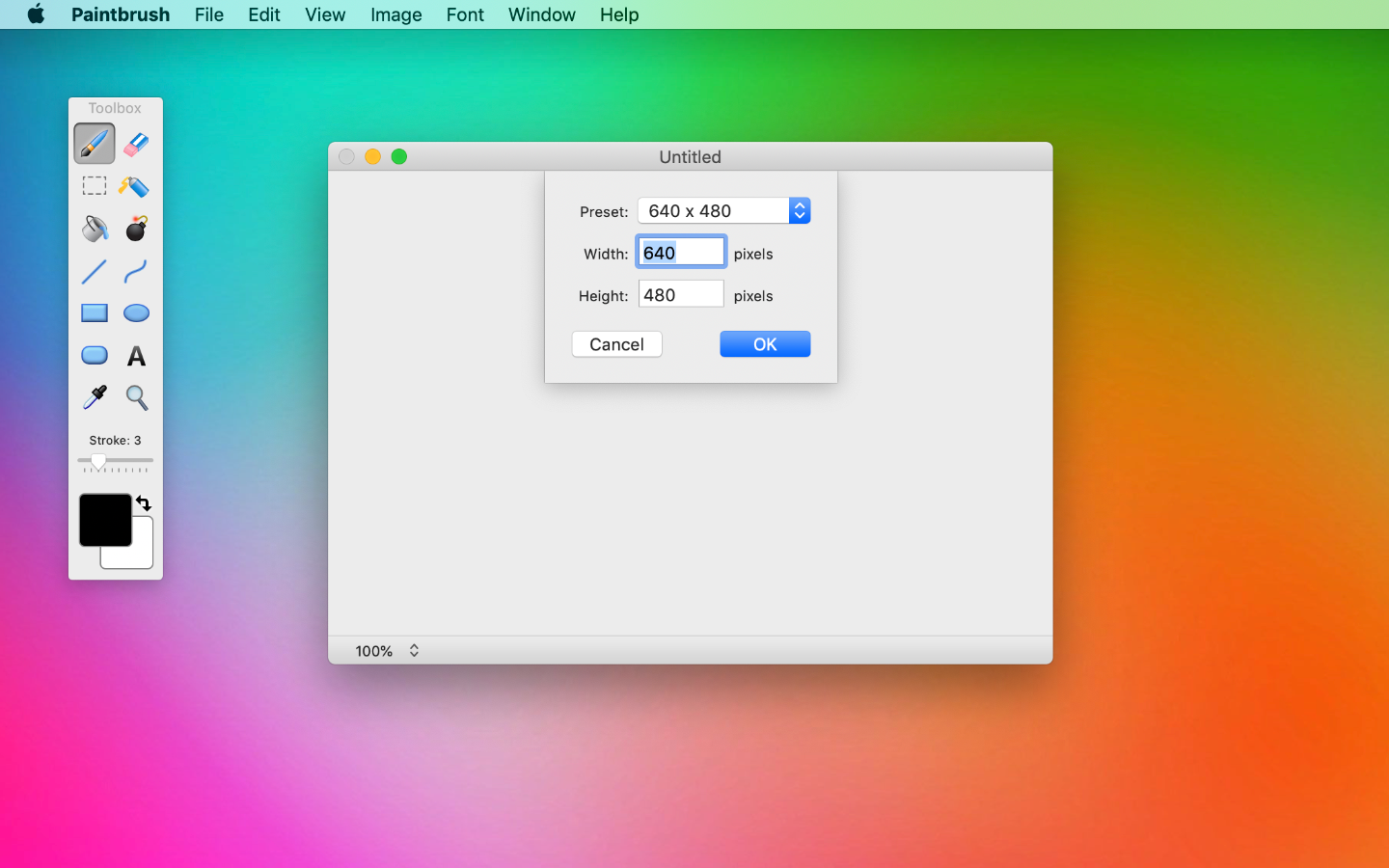
- Paintbrush is another classic on macOS when you're looking for something that feels like the old-fashioned Paint.The interface is very similar: a bar with basic tools (pencil, brush, airbrush, paint bucket, text), a color picker, and a canvas ready for editing.
- Beware of Paintbrush: you won't find it in the macOS App Store.. It's downloaded from the official website, but it's worth it if you want a simple, straightforward, and distraction-free clone.
- Paint S is clearly inspired by Paint, but goes one step further. It allows you to draw, crop, rotate, scale, write text, and, very importantly, supports layers and most common image formats. Plus, you can paste images from other applications, even from the browser, just like you would in Windows.
- The Seashore Project (Seashore) is free and open source, and falls somewhere between basic and semi-professional.. It offers selection, lasso, magic wand, pencil, brush, text, clone, and paint bucket options. It has layers and a handy color picker in the top right corner, while maintaining a simpler interface than GIMP.
- Tux Paint is ideal if you have little ones at home or if you want a fun environment to draw in.Designed for children ages 3 to 12, it's free (GNU License), cross-platform, and open source. It includes a basic canvas, intuitive tools, and fun effects like distortion, confetti, and a flower brush.
- Pinta, free and open source, is another great ally on macOS.It combines a simple interface translated into Spanish with useful functions: selection, zoom, magic wand, cube, area cloning, geometric shapes, and layers to organize compositions without complicating things.
- FireAlpaca, available for macOS and Windows, is geared toward digital drawing., common in programs to make speed paint without overwhelming you. It's not meant to be an exact clone of Paint, but you can use its basic tools (selection, pencil, fill, text) with a gentle learning curve thanks to its simplified interface.
Simple equivalents for Linux
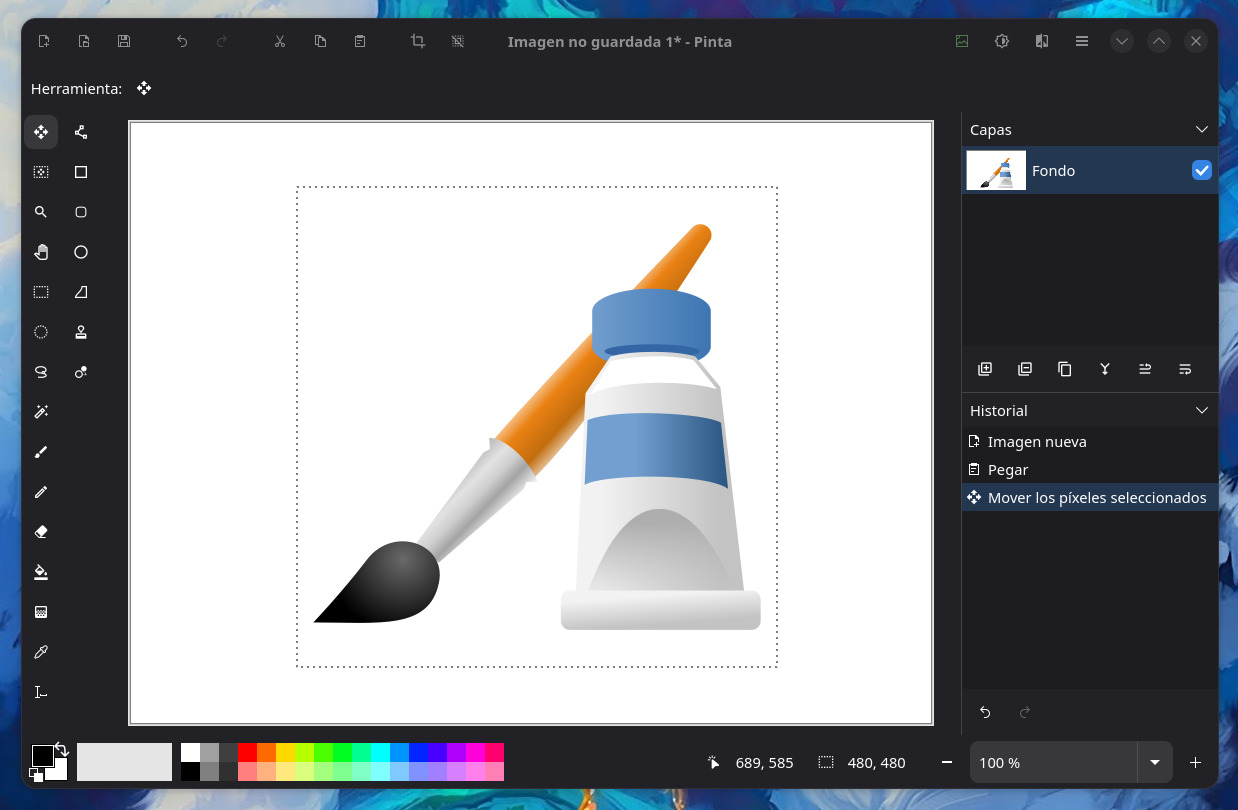
- Pinta also shines on Linux if you're looking for something very close to PaintIt maintains that perfect combination of simplicity and a boost of power: it's one of the most solid recommendations for drawing, annotating, and retouching without headaches.
- XPaint does not imitate the classic Paint interface, but it is simple and functional.If you don't mind a different aesthetic as long as the experience remains simple, it's an option worth considering.
- GNU Paint (gpaint) is a Paint clone within the GNU ecosystemIts similarity to Microsoft's editor is high, with some advanced additions that give it a bit more scope if you need more than the basics.
- KolourPaint, from the KDE project, is probably the one that most resembles classic Paint. Free and easy, perfect for quick edits: draw, annotate, select, rotate, and create shapes without wasting time in complex menus.
- Grafx (with a retro aesthetic reminiscent of Commodore Amiga's Deluxe Paint) will make nostalgic fans happy.It performs the usual drawing and simple editing functions, adding that '80s feel that sets it apart from the rest.
- ImageMagick is not a Paint clone, nor does it claim to be one, but it is a heavyweight for editing and converting images.. It has a distinct interface and a processing-oriented base (including a processing line) commands), in exchange for enormous power for batch tasks and advanced operations.
With this wide range of options, it's easy to cover any basic or intermediate scenario : from pasting and cropping screenshots to painting with advanced brushes, working with layers, automating tasks, or collaborating live. Choose according to your platform, your project type, and the time you want to dedicate to learning new tools, and you'll find a Paint replacement that's right for you.


Passionate writer about the world of bytes and technology in general. I love sharing my knowledge through writing, and that's what I'll do on this blog, show you all the most interesting things about gadgets, software, hardware, tech trends, and more. My goal is to help you navigate the digital world in a simple and entertaining way.