- Automating Windows maintenance saves time and prevents errors
- Tools like Windows Maintenance Tool integrate multiple functions
- Security and good practices are key when using scripts in any environment.

In the world of computing and systems administration, one of the biggest challenges regularly faced by both home users and advanced technicians is the maintenance and troubleshooting of Windows systems . This becomes even more apparent after a major operating system update, at which point issues ranging from minor peripheral malfunctions to critical errors that affect performance can arise. In response to these problems, various maintenance scripts and tools have emerged , capable of automating complex and routine processes.
In this article, we'll delve into the concept of maintenance scripts in Windows , focusing specifically on the Windows Maintenance Tool . We'll explore its usefulness, how it works, its security implications and best practices, as well as complementary alternatives. Our goal is clear: to provide you with a practical, detailed, and up-to-date overview that will help you decide if these scripts can make your life easier and understand the true scope of these tools in the daily administration of Windows 10 and Windows 11.
What are maintenance scripts in Windows?
Un script maintenance in Windows is nothing more than a sequence of automated instructions, usually written in languages such as PowerShell or the classic batch file (.BAT), whose objective is perform diagnostic, cleaning, repair or optimization tasks systematically and without manual intervention step by step. These scripts can solve minor problems (such as Temporary files accumulated or corrupted caches) to complex errors in the file system, the Windows registry or the service itself Windows Update.
The main advantage of scripts is that they automate operations that would normally require advanced knowledge and the use of several commands scattered across the console. Thus, a single executable file can group tasks that would otherwise demand time, precision, and experience from the user. In this way, both non-technical users and administrators save effort and avoid errors resulting from manual procedures.
Windows Maintenance Tool: Automation at the service of the user
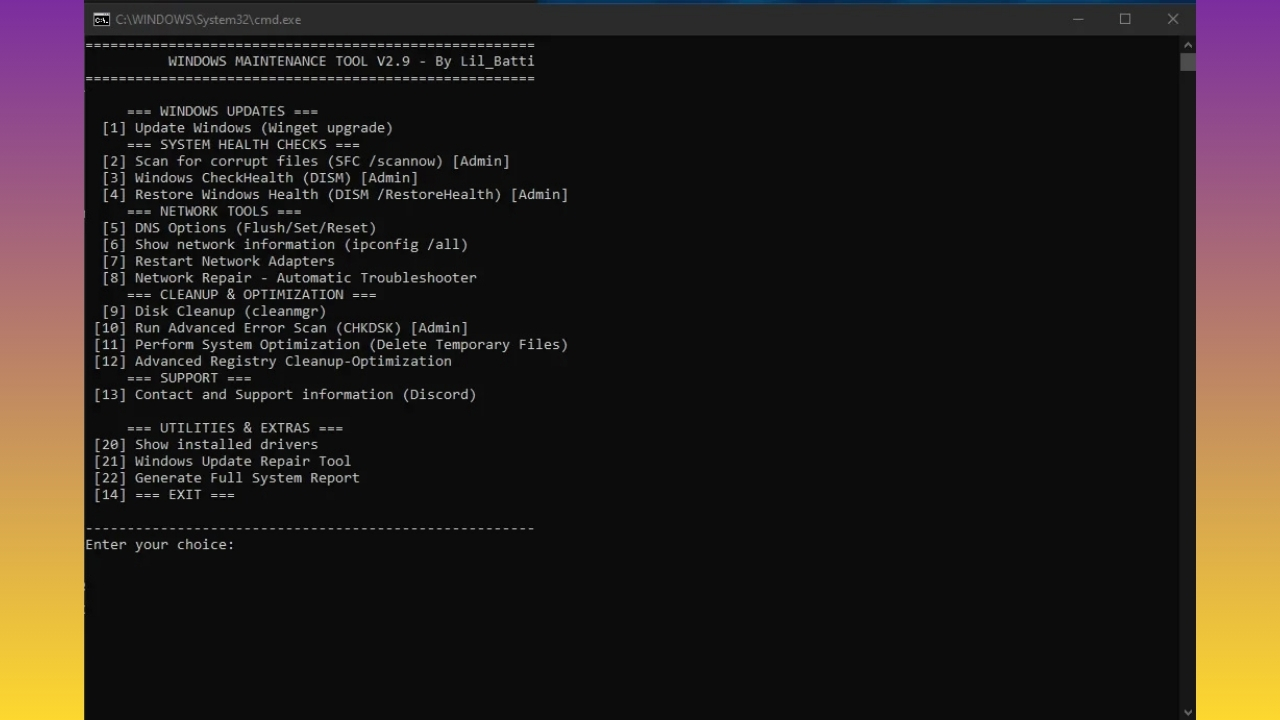
One of the names that has been making the rounds lately is Windows Maintenance Tool , a community-developed tool— available on GitHub —that brings together, in a simple interface, the most common maintenance and repair utilities recommended by Microsoft . Its purpose is clear: to facilitate the diagnostic and recovery process for recurring errors after Windows 10 and Windows 11 updates, many of which can render basic devices like webcams unusable or cause audio and connectivity problems.
From the moment you run it, the tool offers a numbered menu of actions : each option corresponds to a specific operation, from repairing system files to cleaning up unnecessary files, restarting key services, and optimizing PC performance. This way, the user only needs to choose the corresponding number for the task they require, without having to remember commands or navigate through complicated menus.
Main functions grouped in Windows Maintenance Tool
This utility covers a range of essential tasks, dividing them into different categories so that, with just a couple of clicks, you can keep your system practically like new. The operations it covers include:
- Checking and repairing system files: Use built-in Windows tools like SFC (System File Checker) to scan and repair damaged files crucial to the functioning of the operating system.
- Windows Update Diagnostics and Repair: Fixes issues related to updates not installing or blocking, restarting services, and removing corrupted caches that may prevent security updates from being applied correctly.
- System cleaning and optimization: Delete temporary files, free up disk space and, in the case of SSD and HDD, performs defragmentation or optimization operations appropriate for each type of disk.
- Network and connectivity management: Resets network adapters, clears the DNS cache, and allows you to reconfigure alternate DNS servers, ideal for troubleshooting issues when your internet connection is unstable or simply won't load pages.
- Registry backup and restore points: Before making any sensitive changes, it automatically backs up the Windows registry, ensuring you can reverse any changes if something goes wrong.
- Display and system information: Generates detailed reports on the status of drivers, the Windows version and other essential elements for monitoring your computer.
Thanks to this layout, the user can address the main maintenance areas from a single dashboard, covering most common issues without the need for advanced knowledge.
Command Automation: How It Simplifies the User's Life
One of the great achievements of Windows Maintenance Tool and other similar scripts is the console command automation. Normally, to access all these functions you should open the command line or PowerShell with Administrator permissions, write complex instructions (such as sfc /scannow o DISM /Online /Cleanup-Image /RestoreHealth), remembering options, paths, and dealing with warning messages. This environment can be confusing for the average user, and syntax errors can have unforeseen consequences.
The developers of these scripts have managed to transform all that complexity into a simple, guided text interface : the program displays a list of tasks, the user selects one, and the tool takes care of the rest, executing the correct commands in the proper order. This minimizes risks, speeds up problem-solving, and makes these powerful tools accessible to the general public.
Requirements, installation, and best practices before using maintenance scripts
Using scripts for Windows maintenance is simple, but it requires following some basic security and preparation recommendations to avoid problems:
- Always download from legitimate sources: It is essential to obtain these scripts from official repositories such as GitHub, avoiding third-party links that may contain modified or malicious versions.
- execution permissionsMost of these tools require running as Administrator. If you forget to do this, modern versions of the Windows Maintenance Tool usually restart automatically, requesting the necessary permissions, but it's a good idea to double-check this.
- Make a backup or create a restore point: Although these scripts often include automatic registry backups, it never hurts to create a manual restore point before making major changes to your system.
- Use them preferably in controlled environments or in virtual machines for testing.If this is your first time using this type of tool, testing it in a non-production environment will help prevent any potential errors.
By following these tips, the risk of problems is minimal and you can benefit from all the advantages of automation without complications.
Typical usage structure: Options menu and categorization
Unlike other assistants, Windows Maintenance Tool and similar scripts typically use a numbered menu grouped by categories . For example, you might find sections such as:
- system check: Look for corrupt files, check the status of Windows and restore damaged settings.
- Cleaning and optimization: Delete temporary files, clean up disk, optimize SSD and defragment HDD.
- Network maintenance: Resetting adapters and DNS, checking connectivity.
- Managing drivers and updates: Show installed drivers, repair Windows Update, install pending patches.
- Report generation: Summaries of the current state of the system.
The ease of use lies in the fact that each task is clearly identified , explained in one or two sentences, and you simply select the corresponding number to execute it. Long technical guides and manuals full of commands are a thing of the past.
Examples of essential maintenance scripts
Automation isn't limited to a single program. There are countless useful scripts that you can adapt, customize, or combine to suit your needs. Below are some of the most effective ones and the areas they typically cover:
Clean up temporary files
Temporary files are one of the main causes of system bloat and slowdown. A basic PowerShell script can remove them from key locations such as C:\Windows\Temp and your user folder, freeing up space and avoiding conflicts. For a deeper understanding of how to manage these files, you can also consult What they are and how to manage them correctly.
Disk defragmentation and optimization
Keeping traditional hard drives (HDDs) defragmented and optimizing SSDs is vital for performance. A well-configured script can detect the drive type and automatically apply the correct operation (defragment or TRIM ). For specific recommendations, see how to prevent Windows from automatically installing drivers.
Upgrade system
Having the latest version of Windows and its security patches significantly reduces the risk of vulnerabilities. Scripts that automatically install updates ensure your system is protected at all times. To check your system's status, you can also consult how to obtain all system information.
Verifying the integrity of system files
Errors and crashes often result from corrupted or missing critical files. Commands like sfc /scannow or using DISM allows you to scan and repair these issues automatically. To better understand how to perform these diagnostics, review manage and analyze bug reports.
Free disk space
Use native tools like cleanmgr /sagerun:1 Using scripts, you can delete accumulated and unnecessary files, keeping your computer agile and efficient. It may also be helpful to consult How to clear the cache in Windows 11.
Advanced Automation: Programming and Complementary Tools
Automation can go beyond manual scripting. Platforms like Lunixar allow you to schedule the regular execution of these scripts , creating automated routines that keep devices in perfect working order. This way, the user doesn't have to worry about running the scripts manually, which speeds up the process and reduces the margin of human error in preventative maintenance. To learn about other options, see how to show hidden devices in Windows 11.
Furthermore, for corporate or technical users, there are centralized administration and deployment solutions , such as Configuration Manager (formerly SCCM), that allow for the scalable and controlled creation, approval, distribution, and monitoring of PowerShell scripts across large fleets of computers. These solutions include role-based mechanisms (author, approver, executor), permission control, execution scheduling , and real-time monitoring of results, all under high standards of security and traceability.
Managing scripts from Configuration Manager: Professionalizing maintenance
For medium and large businesses, simply running scripts locally may not be enough. In this context, Microsoft Configuration Manager offers robust functionality for comprehensive script management in Windows environments. What does this mean?
- Centralized creation and editing of PowerShell scripts, facilitating collaboration and reuse.
- Managing roles and permissions: Differentiates between the users who write the scripts, those who approve them, and those who execute them, providing added security and control.
- Execution on individual devices or complete collections, even at times scheduled according to the needs of the company.
- Organization by folders and categories, allowing you to locate and manage large volumes of scripts intuitively.
- Monitoring and collecting results in real time, with output in JSON format usable for automatic reporting and analysis.
- Advanced Parameter Configuration, to adapt the same script to different scenarios according to variables entered by the user or administrator.
This entire ecosystem takes maintenance automation to the next level, ensuring consistency and traceability in enterprise environments and minimizing the risks associated with manual and decentralized management.
Technical requirements and security criteria for advanced script management
Implementing maintenance scripts in a professional environment requires compliance with a series of technical requirements and best practices :
- Powershell updatedTo ensure compatibility and security, customers should use at least PowerShell 3.0 or higher. Some advanced features will require newer versions.
- Updated clients and serversCentralized deployment using Configuration Manager is only available starting with certain versions (for example, client version 1706 or higher).
- Precise assignment of permissions: Different roles should be assigned only the required permissions to prevent unauthorized execution or accidental modifications to scripts.
- Parameter validation: When introducing variables into scripts, it is advisable to set strict validations (length, regular expressions, supported formats) to avoid erroneous executions and maintain system integrity.
- Record control and auditing: Configuration Manager and other management systems generate logs details of each operation (located by default in routes such as
C:\Windows\CCM\logs,C:\SMS_CCM\LogsyC:\Archivos de programa\Configuration Manager\Logs), vital for monitoring and diagnosing incidents.
These measures not only enhance security, but also ensure that automation doesn't lead to unexpected problems due to configuration errors.
Practical examples and structure of professional scripts
The versatility of scripts allows them to cover a wide range of needs. Here are some representative examples based on recommended standards:
Creating custom folders and files
A script can prompt the user, via parameters, for the name of the folder and file to be created, automatically generating the structure in the system.
Getting the operating system version
To inventory or monitor your device fleet, other scripts allow you to query and return the version of Windows installed on each machine. If you'd like to learn more about how to manage these tasks, see .
Parameter validation using regular expressions
When working with user or device input, PowerShell's regular expression (RegEx) validation functionality prevents the entry of invalid data, improving the reliability and robustness of automations. For practical examples, see what listdlls are and how to use them in Windows.
Script output and results monitoring
One of the key aspects of advanced script management is the interpretation and analysis of the output . When using platforms like Configuration Manager, the output is returned in JSON format , making it easier to read and use in automated reports or integrations with other management systems.
It's important to note that the output must be concise (limited to 4 KB by default) and, for complex results, may require additional transformations. The system differentiates between valid output (objects, expected results) and error messages, allowing for detailed status monitoring after each execution.
Special cases and additional considerations
Sometimes, we encounter specific situations such as environments without console access (for example, on shared hosting or servers where direct script execution is not possible). In these cases, extensions or web platforms exist that allow remotely running maintenance scripts, although their capabilities are usually limited compared to direct execution via the console or specialized tools.
The flexibility of the Windows environment and the large developer community have led to the creation of numerous alternatives to cover everything from managing enterprise servers to maintaining home PCs. In all cases, the priority should be keeping the system updated, clean, and secure , combining the use of automated scripts with good preventative practices such as regular backups and the periodic removal of suspicious software.
Access and execution of scripts from different platforms
Running maintenance scripts isn't limited to local use on Windows. In mixed or remote administration environments, servers can be accessed via SSH from Linux , macOS, or even Windows (using native SSH clients, PowerShell, PuTTY, or the Windows Subsystem for Linux). This facilitates centralized, cross-platform management, which is so important in modern businesses and data centers. To improve efficiency in these tasks, you can also learn how to play Windows games on a Mac.
Each environment has its own unique characteristics, but the common goal is to simplify and standardize routine tasks, making management much more efficient and less prone to human error.
Standard options and parameters in maintenance scripts
Most professional scripts include standard options and parameters that extend their utility and customization:
- -help: Displays help and available options.
- –conf: Allows you to specify custom paths for configuration files.
- –dbuser and –dbpass: For scripts that manage databases, enable the use of alternative credentials.
- –memory-limit: Adjusts the memory limit for script execution, adapting it to the needs of each case.
- –quiet: Suppresses the output of non-critical messages, useful for automated executions.
- –wiki: In MediaWiki environments, defines the wiki ID to operate on.
These parameters ensure that the scripts are reusable and adaptable to different scenarios, improving their robustness and applicability.
Preventing and resolving common errors
Using maintenance scripts, while safe, can lead to errors due to environment configuration, insufficient permissions, or version incompatibilities. To minimize problems:
- Always check the version of the components (PowerShell, operating system, etc.).
- Review the logs generated after execution to identify possible incidents.
- If any script does not run correctly, check the environment variables and permissions assigned to the user..
In most cases, proper preparation and following the developers' recommendations prevent major complications.
Automation and continuous optimization
The true potential of maintenance scripts becomes apparent when they are integrated into a continuous optimization strategy . By scheduling automated tasks, whether through tools like Lunixar or using the Windows Task Scheduler, you can ensure that the most important operations (cleaning, updating, diagnostics) are performed regularly, without manual intervention. For ideas on automation, see how to calibrate and adjust the touchscreen in Windows 11.
Similarly, in business contexts, integrating these routines into broader IT management processes (for example, through scripts integrated into group policies or RMM solutions) results in a significant reduction in incidents and better utilization of available technical resources.


Passionate writer about the world of bytes and technology in general. I love sharing my knowledge through writing, and that's what I'll do on this blog, show you all the most interesting things about gadgets, software, hardware, tech trends, and more. My goal is to help you navigate the digital world in a simple and entertaining way.