- Official support: Windows 11 on Quest 3/3S via Mixed Reality Link with multiple high-resolution monitors.
- Total flexibility: passthrough or virtual environment, 16:9, 21:9, 3:4 formats and ultrawide option.
- Connect to local PC or Windows 365 and change teams, forgetting the previous pairing if it gets "stuck".
- Horizon OS updates: generic keyboard, Hand Tracking 2.3, Instagram DM, Gallery and subtitles in calls.
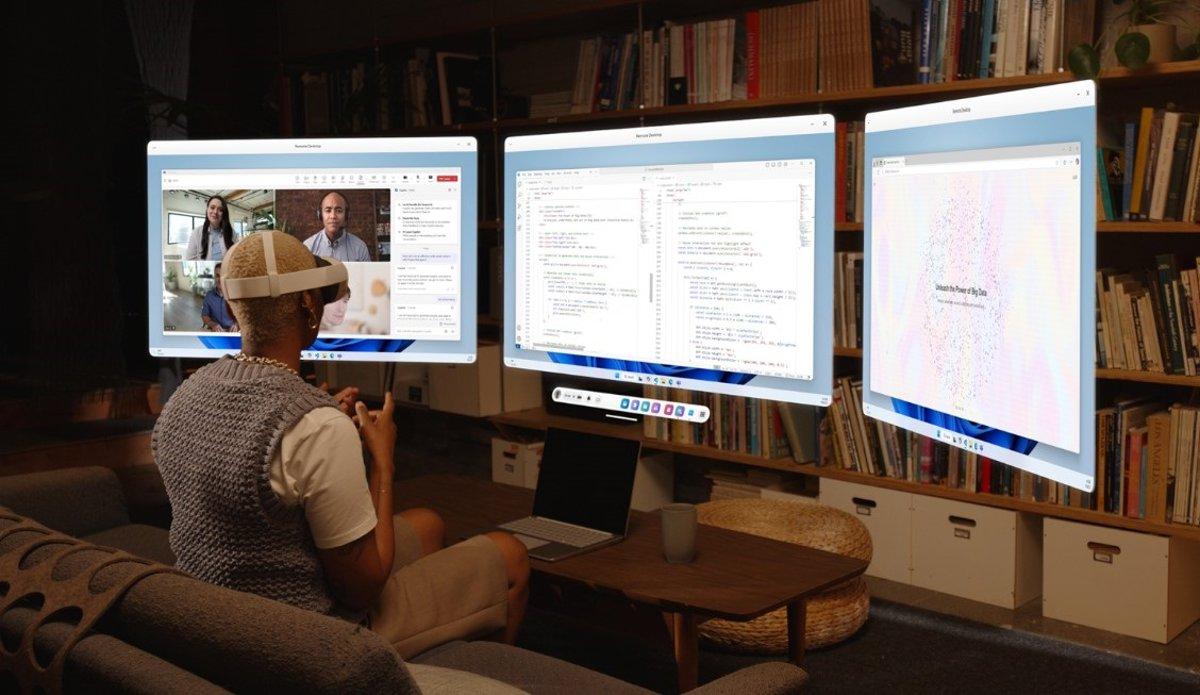
With the advent of Windows 11 remote desktop to Meta Quest 3 and Quest 3SMicrosoft and Meta have finally made the idea of working surrounded by infinite screens a reality, without taking up any extra space on your desk. We're talking about an official integration that allows you to open multiple high-resolution virtual monitors in the viewer and control your PC as if you were sitting right in front of it, but with the advantage of being able to move around and control your PC. switch between mixed reality and fully virtual reality.
It's not a one-off experiment or a strange trick: this feature is the result of a collaboration between the two companies and is implemented through the app. Mixed Reality Link for WindowsIn addition to connecting to your physically present computer, it also allows you to access your Cloud PC with Windows 365And the best part is that the experience feels natural: you put on the headset, look at the keyboard, select Pair, and you're ready to get to work, whether at home, in the office, or in a hotel while traveling with a immersive experience focused on productivity.
What is Mixed Reality Link and what does it offer on Quest 3 and 3S
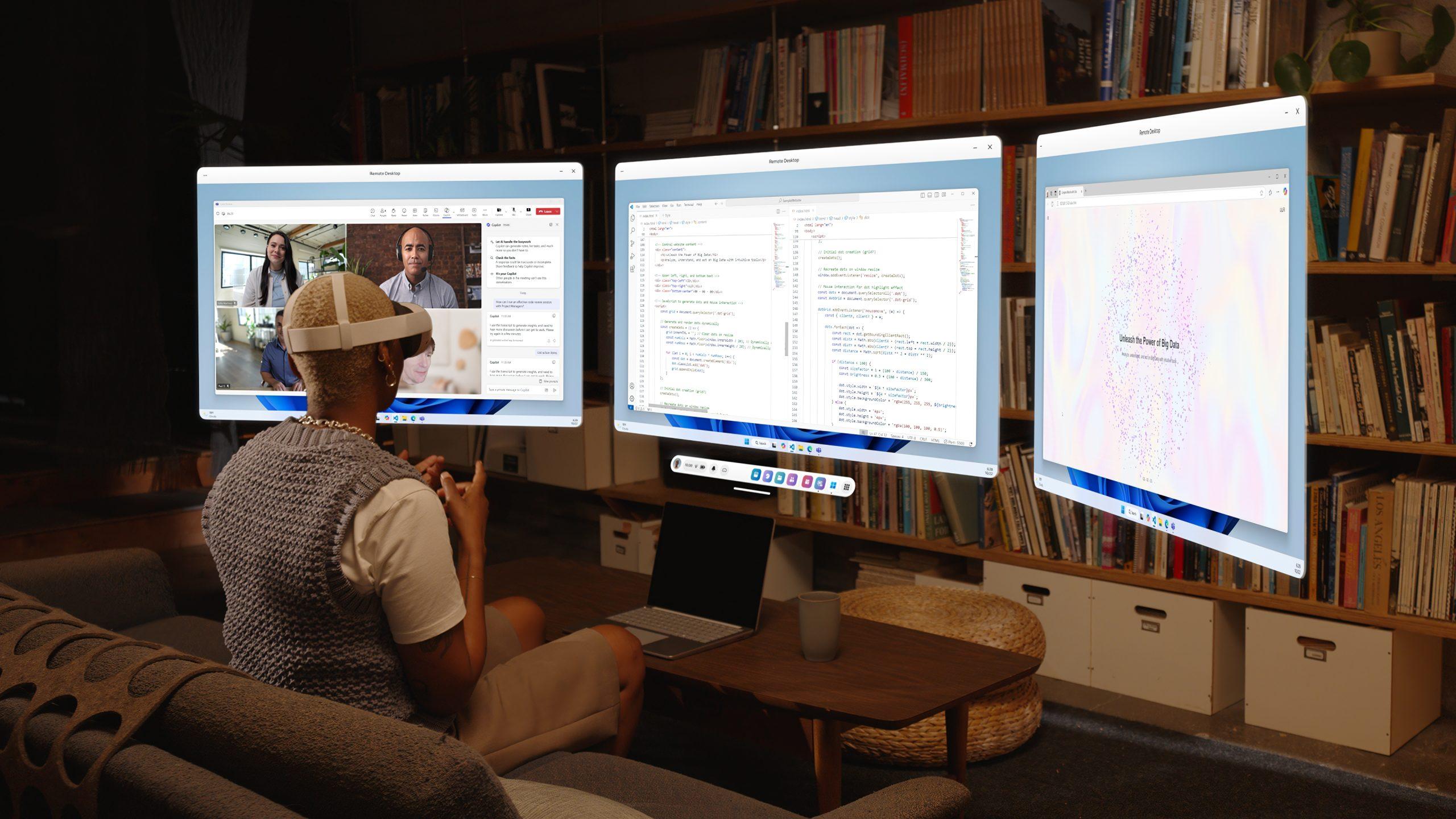
The new official function of windows 11 remote desktop It arrives on Meta Quest 3 and Quest 3S via Mixed Reality Link, a Windows app that acts as a bridge between your headset and PC. Its goal is to take full advantage of Windows 11—and also Windows 365— inside the visor, so that the headset becomes a natural extension of the computer and you can open applications, write, browse and manage tasks with multiple virtual monitors.
As Microsoft explained on its blog, the goal is clear: to allow you to work reliably from anywhere, with crisp, stable displays, and direct interaction with your desktop as if you were physically present. This vision aligns with what Meta has demonstrated since Horizon OS version v72—when the feature first launched. experimental— until its widespread deployment with the latest compatible firmware of the viewer, creating a mixed reality productivity solution that does not depend on strange accessories or impossible cables.
Multiple screens and aspect ratios
The system allows you to manage multiple high-resolution virtual monitors simultaneously. Various reports indicate that it is possible work with up to three virtual screens and, in addition, choose the aspect ratio Choose the aspect ratio that best suits you: the default setting is 16:9, but you also have the option of 21:9 for those who love the ultrawide format, and even 3:4 if you need a vertical view for chat, code, or long documents.
This flexibility is very useful because You're not tied to a single formatFor example, you can set up a main 16:9 screen for your primary workflow, and a secondary vertical screen for email or notes, with the option to activate a ultrawide mode that expands your view as if you were standing in front of a huge curved screen without visual distractions.
Environments: passthrough or fully virtual
Another key point is the freedom to choose your work environment. You can stay in passthrough modeSo you can see the real world through the headset's cameras, or immerse yourself in a 100% virtual environment if you need to disconnect from stimuli. Microsoft presents it as the possibility of disconnecting from interruptions with a private space, relying on Windows 11 settingsor to combine the physical and the digital to continue to see your surroundings while performing tasks in Windows.
The practical result is that you can take your office anywhere: at home, in the office, or while traveling, with the convenience of switching between mixed and virtual reality as needed. The experience feels consistent with the evolution of the Quest 3, which has already earned a reputation as one of the best mixed reality headsets of the market in its price range.
Comparison with Apple Vision Pro
The proposal is reminiscent of what Apple offers with Vision Pro, where the macOS virtual desktop allows users to work in front of an immersive canvas. With Quest, Microsoft is bringing a similar approach to the Windows ecosystem: multiple screens, high resolution and ultrawide modeThe operational difference is that, currently, Quest requires an active network connection, while Apple's alternative relies on more direct connection methods to MacHowever, Meta and Microsoft's strategy focuses on integrating this feature more and more natively into Windows 11.
Beyond the comparison, what's interesting is that this solution is no longer a closed experiment. After the preview phase—presented in late 2024 with Horizon OS v72—Meta and Microsoft have officially released The feature has been stabilized with the latest compatible version of the viewfinder system, consolidating a clear and focused roadmap to real productivity.
How to get started, requirements and availability
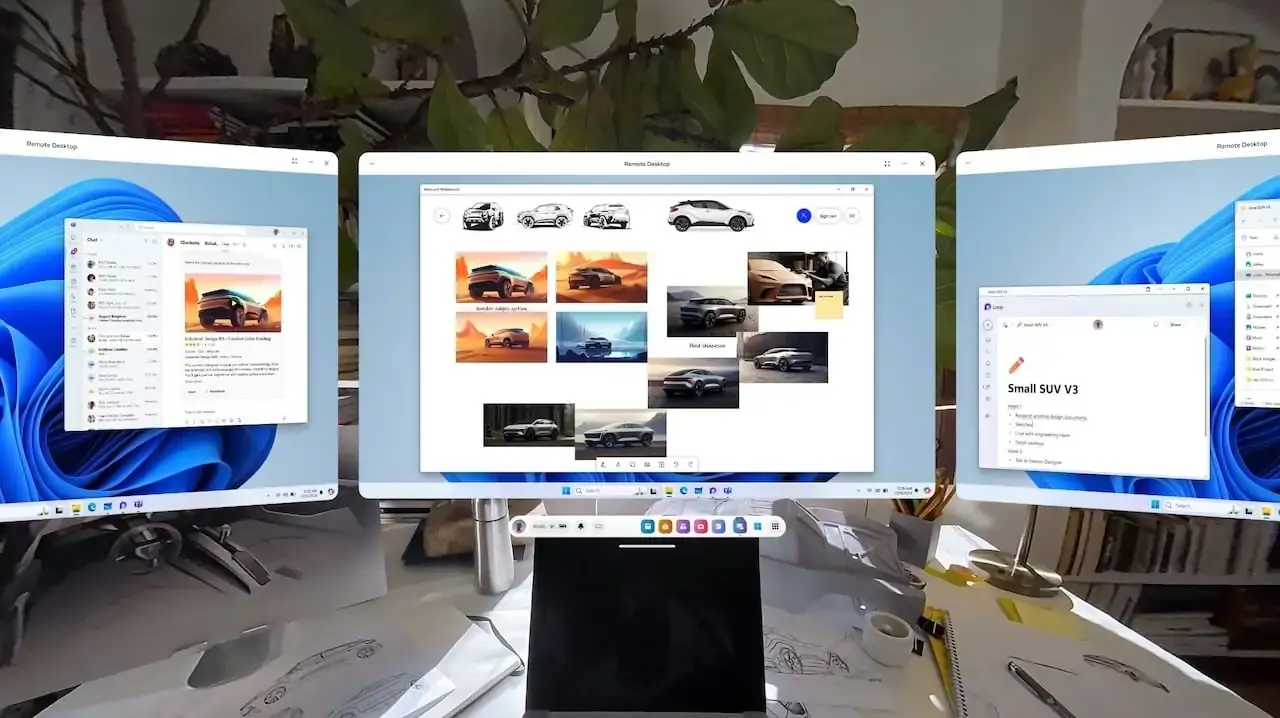
To get it up and running you need a PC with Windows 11 (22H2 or higher) and the Mixed Reality Link app for Windows, which can be downloaded from the Microsoft Store. On the headset, it's advisable to have the system updated to the latest compatible version, because the remote desktop availability It has been officially rolled out with the evolution of Horizon OS, which supports the feature on Quest 3 and 3S. During the experimental phase of v72, it was activated from the advanced features section; today it is more seamlessly integrated with the pairing flow of the viewer.
Once the app is installed on your PC and the option is configured on the headset, the process is very straightforward: when you put on the headset, look at your keyboard and the button will appear. MatchSelecting this option projects your Windows desktop onto the viewer with your virtual displays. There's also the classic method of creating a unit’s QR code from the PC and scan it with Quest, a method that became popular during the testing phase in v72 to simplify the first pairing.
- Install Mixed Reality Link on your Windows 11 PC and complete the initial wizard to enable the secure connection.
- In the viewfinder, make sure the function of remote Desktop It is visible in Settings and updates to the latest version of Horizon OS available for your Quest 3 or 3S.
- When you put on your helmet, Look at the keyboard and press PairOr use the QR option if you prefer it for the first link.
- If you work with Windows 365Log in to your PC in the cloud and take advantage of remote desktop without relying on the hardware .
The support includes two scenarios: connection with a local PC Windows 11 or access to your virtual PC in the cloud via Windows 365. This second option is especially useful if your laptop doesn't have enough graphics power or if you travel frequently and prefer to centralize your work environment in the cloud with the same desktop available from anywhere.
Switching paired PCs and resolving "stuck" pairings
It may happen that, after the first link, the viewer connects always to the same PC and it doesn't show you the list to choose another one. If this happens to you, there are several actions that usually work without needing to pay for third-party solutions like Virtual Desktop: normally it's enough to forget the paired team from the headset settings or from the Mixed Reality Link app itself.
On Quest, look for the settings section related to PC or Windows Remote Desktop and check if anything like this appears. “Manage linked devices” or “paired PCs”. There is usually a Forget/Delete option so that when you open the remote desktop again, the viewer will prompt you to pair and allow you to do so. choose another computerIt's also a good idea to restart the viewer after removing the pairing, to force a clean detection.
On the PC, open Mixed Reality Link and go into its settings section. Find the list of authorized viewers or devices and remove the previous link. If you used the QR code method, delete that association so that the next one Boot from the app Generate a new invitationCheck that both computers (the old and the new) are turned on, on the same network, and discoverable; if only one responds to the network broadcast, the viewer will tend to connect to that one by default.
Another helpful tactic is to disable the app. Mixed Reality Link On the first PC, leave it open for a few minutes. Open the viewer, access the remote desktop, and it should offer you the path to pair another available machine. Once the new link is established, reopen the app on the first computer and add both to your list so you can... switch between PCs Without friction. And if all else fails, reinstalling Mixed Reality Link and repeating the initial pairing usually clears any expired tokens or permissions.
Current limitations and required network
Today, Quest needs a active network to connect to the PC, something to keep in mind if you work on a plane or in places without a stable connection. This is the main drawback compared to proposals with a more direct connection to the computer, although Meta and Microsoft have commented on their intention to integrate the feature even further within Windows 11 In future versions, reducing friction and auxiliary steps with There.
That said, when you're on a proper local network, the experience is smooth and consistent. You can choose between passthrough or virtual environment depending on your context, and deploy three virtual monitors to cover almost any demanding workflow: editing, office applications with several apps, programming with documentation in view or project management with parallel panels.
Viewer prices and positioning
Regarding hardware, Meta Quest 3 is marketed for around 499,99 dollars or 549,99 euros depending on the configuration, while the Quest 3S—the most recent entry-level model—starts from 299,99 dollars or 329,99 euros in its 128GB variant. With these prices, Meta positions mixed reality for productivity at a more accessible cost than other high-end alternatives, reinforcing interest in setting up an immersive work setup without breaking the bank.
Added Horizon OS features that complement the experience
Alongside remote desktop, Meta has been improving the system with new features that, while not essential for using Windows 11, Yes, they elevate everyday lifeAn example is the evolution of keyboard tracking in VRFrom relying on specific models, it moves to a more general approach that tracks virtually any nearby keyboard and displays it through passthrough, so you can type safely even while wearing the headset.
Another important improvement comes with Hand Tracking 2.3which refines gestures like pinching and dragging, stabilizes the pointer, and improves responsiveness in tight spaces or with poor lightThis is extremely helpful if you want to use the headset on a train, in a plane, or in bed—scenarios where accuracy and precision are crucial. reliability The hands-on controls make all the difference.
On the app front, Quest now integrates I Messenger In its headset version, it allows you to send text or voice messages and share Reels, Stories, and posts without removing your headset. This is a plus for those who alternate between work and personal or professional communication without having to switch devices.
Also included is one Multimedia gallery The updated app is designed to manage screenshots, video clips, and other content saved in the viewfinder. It makes it easy to mark favorites, back up, and organize your collections—useful for those who document their setup or share content. productivity demonstrations and tutorials.
Finally, Meta has incorporated subtitles in calls Created using the People app, converting audio to text to improve accessibility. This feature is key for communicating with deaf or hard-of-hearing people. hearing problems, and represents a further step in making the viewer a useful tool beyond entertainment.
From preview to official availability
The story of this function begins publicly in Goal Connect 2024where a “seamless” integration between Quest and Windows was announced. Horizon OS v72 began as an experiment with the now-famous floating Connect button and the option to pair with Microsoft Mixed Reality Link. From there, Microsoft refined the Windows app and Meta refined the matchmaking flow in the viewer, until the official launch in the latest compatible versions.
The medium-term plan involves make it so you need fewer steps each time. And that much of the magic lies in Windows 11. For now, downloading Mixed Reality Link is still the way, but the goal is for Microsoft's operating system to "talk" more directly to the headset so that connecting the desktop is as normal as plugging in an external monitor, with less technical friction for the user.
Until that deeper integration arrives, what we already have is more than enough for many professionals: three virtual monitorsFlexible aspect ratios, an ultrawide option, and the choice to work while viewing your surroundings or isolating yourself from visual noise. Add to that the ability to use Windows 365, and the viewer becomes a window to a cloud-based PC. always identicalregardless of the physical device you connect from.
For a complete experience, take care of the network: a Stable Wi-Fi And low latency makes all the difference between a remote desktop that feels local and one with minor stutters. If your router It allows this, activates a less saturated band, or dedicates an SSID to the headset and PC; adjusting the distance and avoiding interference usually improves the performance significantly. sharpness of virtual screens.
In specialized communities and forums, users are increasingly sharing Tricks For everyday use: from placing the keyboard in a well-lit area for better tracking, to setting up a main 16:9 monitor with a secondary 3:4 monitor in portrait orientation for notes or messaging, or even Rename and organize virtual desktopsWith a little practice, your flow will adapt quickly and you'll see that move windows in 3D It ends up feeling as natural as switching between desktops on a traditional PC.
It's clear that Microsoft sees mixed reality as more than just entertainment: the official arrival of Windows 11 on the Meta headset brings a desktop with "superpowers" to many people at a reasonable cost, and opens an interesting door to hybrid work. All this without losing sight of small system improvements—keyboard, hands, messaging, gallery, and subtitles—that just a couple of years ago seemed futuristic details.
If you had any doubts about whether this was just hype or a simple technical advancement, the current version is now fully usable. Mixed Reality Link is no longer a novelty but has become an essential app for anyone who wants to convert Meta Quest 3 or 3S in a versatile workstation, with the advantage that you can switch between various modes, multiple PCs (including the cloud one) and multiple screens without taking up physical space or carrying monitors portable.
Everything points to the ecosystem continuing to grow: Meta strengthens the viewer's foundation with useful features, and Microsoft simplifies the integration with Windows. If you already work with three physical screens, you'll feel right at home; and if you've never tried it, you'll discover that have virtual panels For email, chat, documentation, design, or console use, it's a healthy habit that improves focus. From here, the natural evolution is higher image quality, lower latency, and more native integration in the system.
One last funny note: yes, you'll be working like in a sci-fi movie with giant screens in the air, but watch out for the office furniture if you move around too much. With passthrough mode active, you'll see your surroundings and can avoid collisions; if you're going to isolate yourself virtually to concentrate, it's a good idea to mark out a clear and comfortable space. With four fine-tuning settings, the setup becomes very natural And you won't want to go back to the desk overloaded with physical monitors.
After months of testing and with the official rollout already underway, this union between Meta and Microsoft crystallizes into a tangible tool that combines power, flexibility and mobility. Windows 11 remote desktop On Quest 3/3S, you get serious virtual monitors, passthrough when you need it, a spectacular ultrawide mode, and the ability to switch to the cloud PC when necessary—all enhanced with system improvements that make the headset more complete. If you were looking for a real reason to take your work to mixed reality, this is the moment.

Passionate writer about the world of bytes and technology in general. I love sharing my knowledge through writing, and that's what I'll do on this blog, show you all the most interesting things about gadgets, software, hardware, tech trends, and more. My goal is to help you navigate the digital world in a simple and entertaining way.