- Microsoft Family Safety lets you create family groups and customize rules for each member.
- Content filters, time limits, and purchase controls ensure digital security and balance.
- The app offers detailed reports, alerts, and location features for parents' peace of mind.
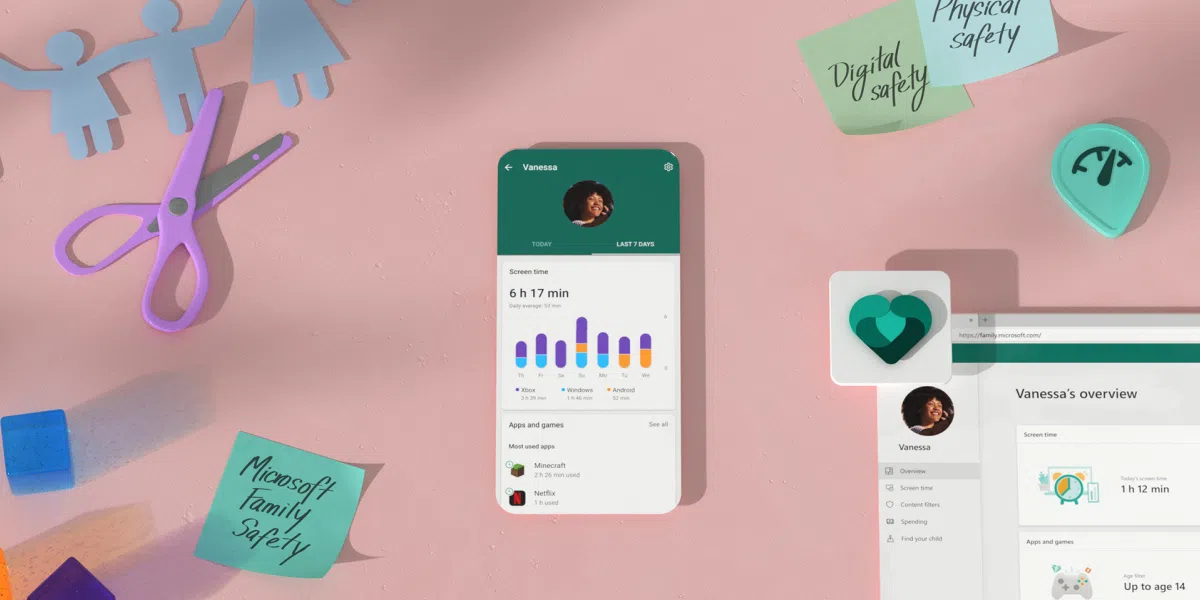
In today's digital world, where various devices are part of the daily lives of adults, teenagers, and children, managing screen time and digital safety has become a necessity for many families. With so many online activities—from studying and playing games to socializing and consuming multimedia content—parents and guardians are looking for effective tools to responsibly monitor and regulate their children's access to and time spent on screens.
Microsoft Family Safety is emerging as a comprehensive and easy-to-implement solution for those who want to set limits, filter content, and receive detailed reports on device usage. This article offers a thorough and practical guide on how to use Microsoft Family Safety to control device usage , making the most of each feature and ensuring your family's digital habits are balanced and safe.
What is Microsoft Family Safety and why is it useful?
Microsoft Family Safety is a cross-platform application developed to allow families to control, protect, and monitor the use of digital devices such as computers, tablets, smartphones, Xbox consoles, and Microsoft Edge browsers . The application is notable for its flexibility, compatibility with various operating systems , and customization options based on the age and needs of each household member.
Its main value lies in fostering healthy digital habits , offering a safe environment for young people, filtering inappropriate content, and managing screen time. Furthermore, it allows parents to receive usage reports, limit purchases, and adjust permissions from anywhere, all through a clear and simple interface.

How Microsoft Family Safety Works: The Basics You Need to Know
The foundation of this tool is the family group : a group of people connected through the application and their Microsoft accounts. Each group can be managed by one or more organizers (usually adults), who are responsible for defining rules and boundaries, while the members, generally children, benefit from a regulated and safe digital environment.
- Compatible with Windows 10 Windows 11, Xbox and devices Android. In addition, it offers useful functions in iOS through the app itself.
- Allows you to create individual profiles to customize limits for each member.
- Includes web filtering and search options to prevent access to inappropriate content.
- Provides detailed reports of screen time and the use of each application or game.
- Provides alerts and notifications when trying to download or access blocked content.
Step by step: How to create and set up your family group in Microsoft Family Safety

The first step is to create a family group and add the members you want to monitor. Here's a detailed process:
- Accede to account.microsoft.com/family and sign in with your Microsoft account (or create one if you don't have one, it's free).
- Download the application Microsoft Family Safety from Google Play Store (for Android) or App Store (for iOS), both on your device and on the minors' device.
- From the app or the web, select the option to create a family group. Enter the first organizer's details and define their profile.
- Invite other members using their email address or phone number. It's essential that every user has a Microsoft account, including minors.
- When you invite the minor, choose their role as 'Member'If you want another adult to also be able to manage restrictions, assign them the role of 'Organizer'.
- Complete the invitation: the minor will receive a verification code that they must enter to join the group. Confirm and accept their participation.
- Finally, you can activate the option of receive activity reports and adjust other preferences, although this can also be done later.
Once you add your child, their profile will be linked to your family group, and you can continue customizing limits and safety settings.
Syncing devices and enabling parental controls
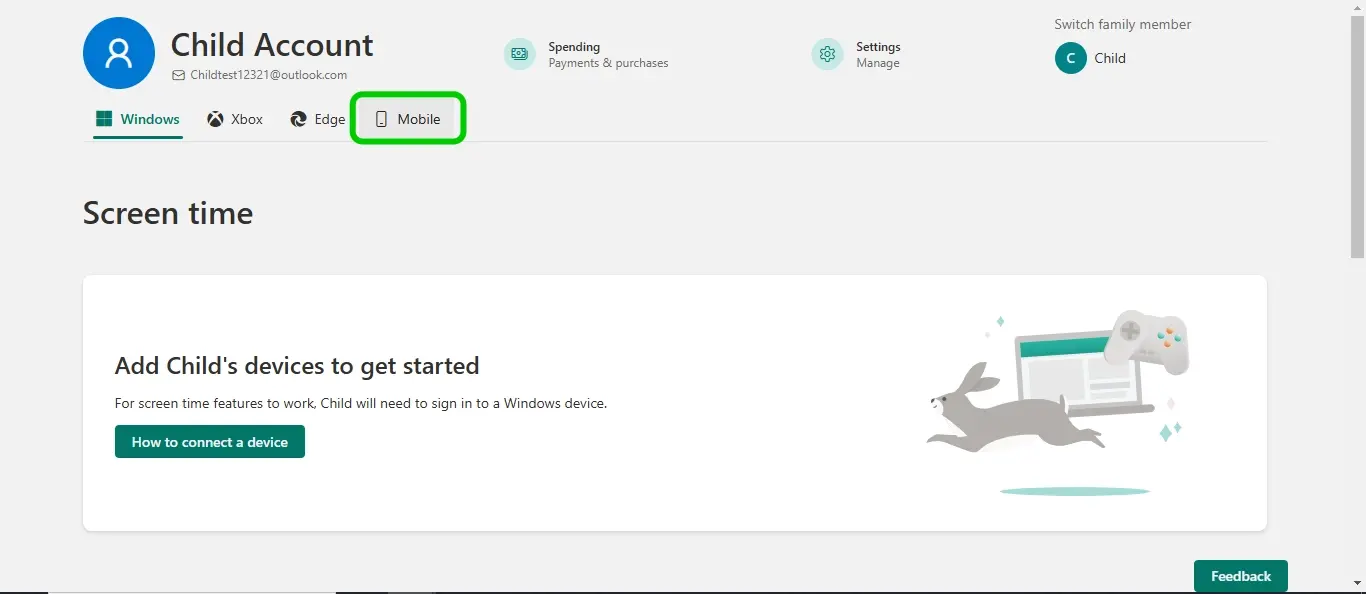
The next essential step is to link your child's devices to their Microsoft Family Safety profile. This will allow you to monitor and limit screen time, block apps or websites, and receive reports on their digital usage.
- Install the Family Safety app on your child's mobile phone, Windows PC, or Xbox console and sign in with their Microsoft account.
- Grant all necessary permissions during installation for full control.
- Link the device by following the steps in the app to associate it with the profile of the minor in the family group.
Remember that Family Safety can only effectively control devices that are properly linked and use compatible browsers like Microsoft Edge . Other browsers will be automatically blocked to prevent filters from being bypassed.
Setting Screen Time Limits: How to Manage Schedules and Breaks
One of Family Safety's greatest strengths is the ability to set usage limits on both devices and specific apps . This is especially useful for promoting healthy routines and preventing technology overuse.
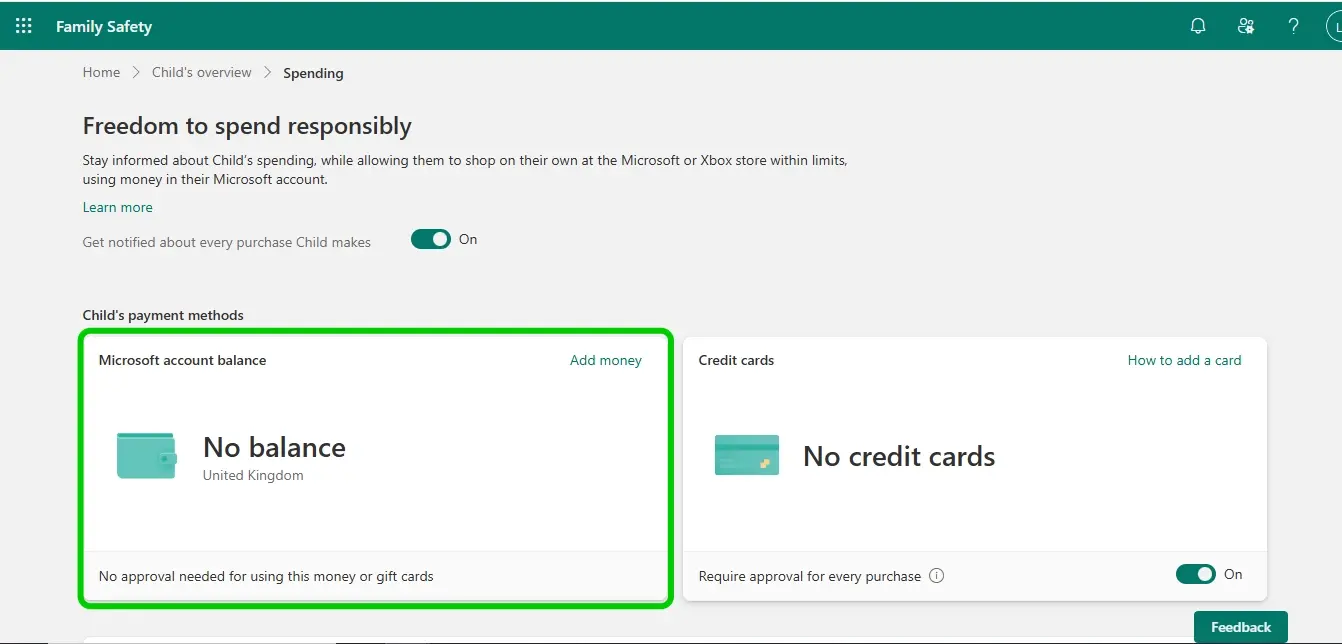
To configure these controls, follow these steps:
- Access the Family Safety app or web platform.
- Select the profile of the minor to whom you want to apply limits.
- Define the maximum daily wear time of each device (for example, 2 hours on the PC and 1 hour on the Xbox).
- Establishes custom time slots depending on the day (school days, weekends, holidays, etc.).
- En mobile devices, Can assign specific limits to specific applications (for example, 30 minutes of YouTube daily or 1 hour of a game).
Keep in mind that on Android and iOS devices, time limits are typically applied per app, not the entire device, unlike on Windows and Xbox, where you can restrict usage globally.
Content filtering and protection against inappropriate sites
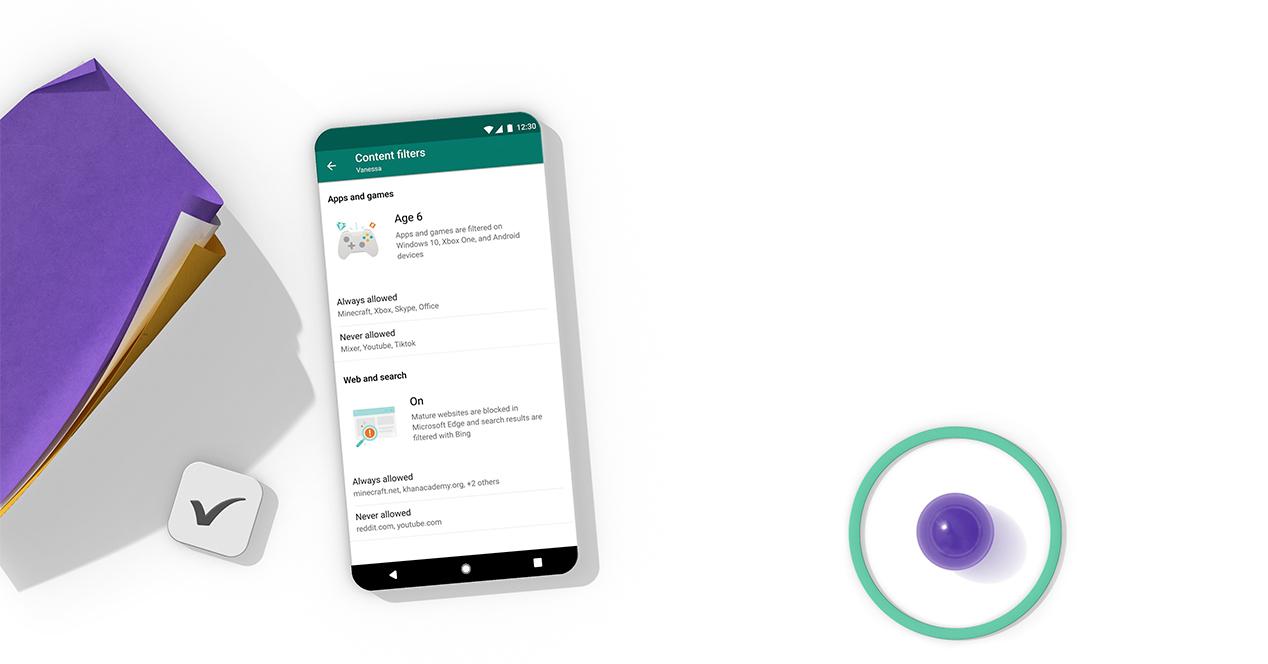
Another pillar of Microsoft Family Safety is the content filter and safe search , designed to prevent children from accessing pages or results inappropriate for their age while browsing the internet.
The system automatically blocks other browsers so the restrictions can't be easily bypassed. The filters work primarily in Microsoft Edge on Windows, Xbox, and Android.
- Activate web and search filter from the child's safety settings.
- Choose your desired restriction level: from blocking only adult content to allowing only pre-approved sites.
- If a minor attempts to access a restricted page, they will receive a notification and can request access, which only the organizer can approve.
Alerts, reports and monitoring of digital activity

Family Safety offers daily and weekly screen time reports , showing when, how, and for how long devices and apps have been used. This helps parents make informed decisions about managing digital time.
- Check the "Today" section of the app to see a summary of your child's daily usage.
- Analyze details about apps, games, and websites visited on each connected device.
- Receive notifications when your child requests to download an app or attempts to access blocked content.
- Activate the option receive a report by email to always be aware of minors' digital activity.
Control of purchases, expenses and additional permits
In addition to screen time and filters, Microsoft Family Safety allows you to manage children's digital spending and purchases on the Microsoft platform.
- From the family account, you can add economic balance to the minor's account, restricting spending to that amount.
- Receive an alert to approve or deny each time your child wants to make a purchase in the Microsoft Store.
This feature is ideal for preventing unauthorized purchases of games, apps, or movies and for teaching children to shop responsibly.
Real-time location and monitoring
Microsoft Family Safety also includes location features to know where family members are at any given time.
- Activate the shared location to see when minors arrive or leave important places, such as home or school.
- View real-time location from the app and receive push notifications based on your settings.
These functions should be used as a tool for security and trust, not for constant surveillance, always encouraging open communication within the family.
Advanced customization and extra options
Beyond the basic controls, Family Safety allows you to adjust many additional details:
- Create personalized schedules for each day of the week.
- Deny or approve individual apps and games based on age or content.
- Define secure or restricted locations for automatic notifications.
- Quickly change the role from member to organizer and vice versa.
This way, you can adapt the digital experience to the needs of each home and evolve the limits as children grow or their routines change.
What to do if you have problems? Microsoft Family Safety solutions and support
If you encounter any issues—for example, difficulty signing in or syncing a device—Microsoft offers multiple resources to help:
- Use the login help tool on the official Microsoft support page.
- Take advantage of the option 'Contact technical support' from the app or the web to describe your problem and receive personalized attention.
- Check out the FAQs and troubleshooting guides provided by the app itself.
Microsoft's support system typically provides quick and straightforward answers to ensure Family Safety is always running optimally.
Is Microsoft Family Safety free?
Downloading and using the core features of Microsoft Family Safety is completely free on both Android and iOS, and it's also included on Windows and Xbox. Only some advanced features may require a Microsoft 365 Family subscription, which is especially useful for large families or those needing extra controls.
Are there alternatives to Microsoft Family Safety?
While Family Safety is very comprehensive, there are alternatives like FamiSafe and parental control tools specific to Android, iPhone/iPad, or Google Family Link. FamiSafe, for example, allows for even more detailed monitoring of social media and is ideal for those who want comprehensive management from a single account, regardless of the device's operating system.
However, Family Safety's integration with the Microsoft ecosystem, its ease of use, and the ability to manage from anywhere make it the best choice for households with multiple Windows, Xbox, and Android devices.
Implementing Microsoft Family Safety at home means taking a step forward toward a more responsible and secure digital life. Parents can control screen time, filter content, and receive clear reports , while children learn to use technology in a balanced way. All of this is achieved by maintaining respect and communication within the family, so that technology is an ally, not a risk.


Passionate writer about the world of bytes and technology in general. I love sharing my knowledge through writing, and that's what I'll do on this blog, show you all the most interesting things about gadgets, software, hardware, tech trends, and more. My goal is to help you navigate the digital world in a simple and entertaining way.