- En WhatsApp Desktop (Microsoft Store) files are saved in AppData\Local\Packages within LocalState\shared\transfers.
- In WhatsApp Web, they are not saved automatically: you must download and choose the folder; multiple files arrive in .zip format.
- For large volumes, connect your mobile device via USB (MTP) or synchronize with Google Photos; Drive/iCloud backups are not browseable.
If you use WhatsApp on your Windows computer , whether with the native Microsoft Store app or through a web browser, it's normal to wonder where the photos, videos, and documents you view or download end up . The location changes depending on whether you use WhatsApp Desktop (app) or WhatsApp Web (browser) , and there are also important nuances if you want to clean, move, or back up those files.
On Android, everything typically ends up in the phone's "WhatsApp" folder, but on Windows, it works differently. The Microsoft Store desktop app has an internal application folder where downloads managed by the program itself are saved, while on WhatsApp Web, you manually choose where to save them; if you don't download, you only view them temporarily. Let's explore all the paths, options, and tricks to keep things under control.
Where does WhatsApp Desktop store its files on Windows?
If you use the official WhatsApp application installed from the Microsoft Store, automatic downloads and files you open from chats are copied to a folder in your Windows user profile. The most common route is: C:\Users\<usuario>\AppData\Local\Packages\5319275A.WhatsAppDesktop_cv1g1gvanyjgm\LocalState\shared\transfers. Replaces by your Windows account name. That's where images, videos, and documents usually end up. which the app manages in the background.
It's best not to mess with the contents of that folder too much, as it's part of the app's storage and contains files that WhatsApp needs to function properly. If you want to free up space without causing problems , open a chat, go to its info, and navigate to "Media, links, and documents." From there, you can select multiple items and delete them. You'll also see specific tabs for "Files" and "Links" to filter by type.
An additional recommendation when your goal is to clean up rather than keep things: delete from the WhatsApp Desktop interface itself and let the app update its content index. Manually deleting from "LocalState\shared\transfers" can leave orphaned references and take up space without you noticing in the app.
If you use WhatsApp Web: how they are downloaded and where they are stored
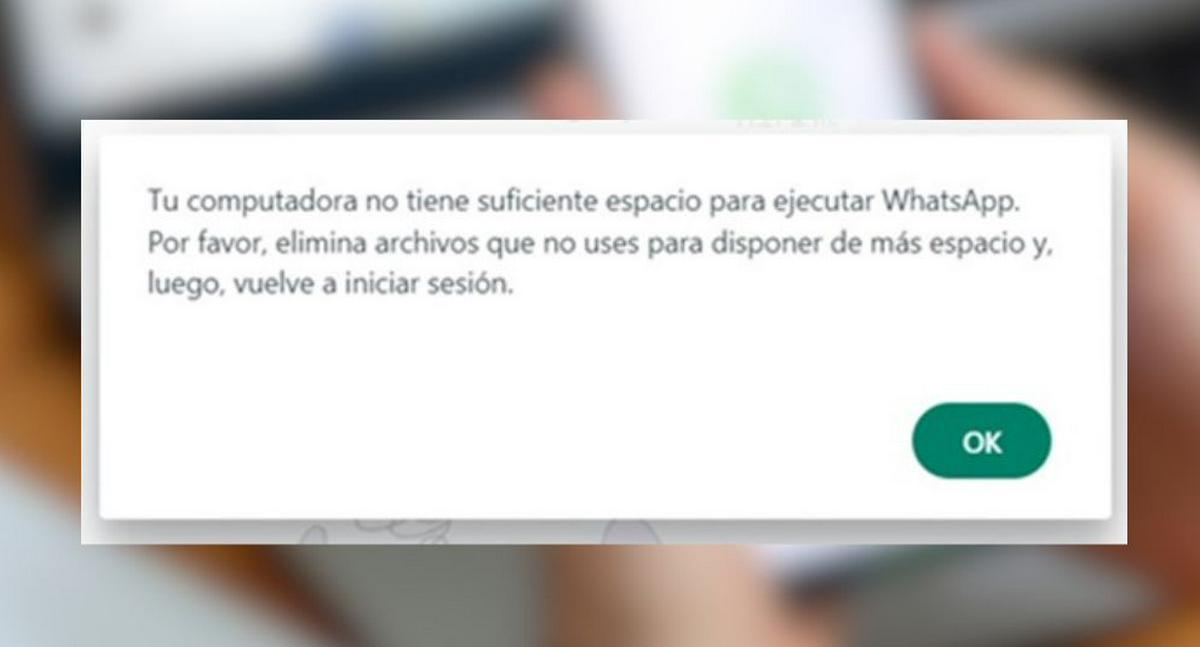
With WhatsApp Web, you access your chats in your browser, and the files aren't automatically saved to your computer unless you download them. When you only open or preview a chat, the content is temporarily managed by the browser. To actually save it, you have to download it.
First, make sure you're using a compatible browser: it works in Google Chrome , Mozilla Firefox, Safari, or Opera . It's not compatible with Internet Explorer. Go to web.whatsapp.com on your PC, open the mobile app, and under "Linked devices," scan the QR code. In a few seconds, you'll see your conversations on your computer.
To locate files from a specific chat, click on the contact or group name and go to "Files, Links, and Documents." All photos and videos will appear there , and the "Documents" and "Links" tabs will show the rest of the items. You can select multiple items at once; if you do, the browser will download a ZIP file . If you select a single file, you can choose the save location according to your browser settings.
Keep this in mind: some people think that "since they appear on screen, they're already on the computer," but that's not the case. They're only saved to your PC when you click Download and save them . Otherwise, the browser cache manages that preview and then releases it.
WhatsApp app for Windows: installation, opening and access
You might download WhatsApp for Windows, close it, and then not find it in the Start menu. Don't worry. The current native app is installed from the Microsoft Store and is different from the classic .exe file, which sometimes only serves as the installer. Search for it in the Start menu by typing "WhatsApp," or open the Microsoft Store (type "Store" in the Start menu), search for "WhatsApp," and launch it from there; if you want, pin its icon to the taskbar. The .exe file you still have might just be the installer and not the app launcher.
Since summer 2022, WhatsApp for Windows has been a faster and more stable native application. It doesn't require your phone to be constantly on or connected to the same network after the initial pairing. The process is identical to the web version: on your phone, go to "Paired Devices," scan the QR code, and you're all set. It includes a dark theme and keyboard shortcuts for opening emojis, GIFs, and speeding up audio, among other features.
Save files from the desktop app
With the desktop app, it's very simple: right-click on an image and choose "Save as…" to select a folder on your PC. If you left-click to enlarge the image, you'll see a menu in the upper right corner with "Save as" and "Open in another application."
If you prefer to change the image format, copy and paste it into an editor like Microsoft Paint. From there, you can save it as PNG, JPG, or other formats in the folder of your choice. This option is useful when the app uses a default format that you don't want.
Cleaning and managing space in Windows
If you suspect WhatsApp or other apps are hogging your disk space, Windows offers a centralized view to check. Go to Settings > System > Storage and see what's taking up the most space. From there, you can free up space with Storage Sense and review your installed apps.
For specific WhatsApp cleanup, the safest way is to do it within each chat: go to chat info > Media , select the items you no longer need, and delete them. Repeat this process in the "Files" tab if you want to delete large documents. This prevents inconsistencies in the app's database .
Connect your mobile phone to your PC and copy the Media folder
Another way to transfer everything to your computer is to connect your phone via USB using data transfer mode. On Android, enable the MTP protocol so your phone appears as a media device. You'll see WhatsApp's folder structure and can copy whatever you need.
If your PC doesn't detect your phone, try the following: change the USB port and, if possible, the cable (some cables only charge and don't transfer data); check on your phone that you've selected the correct transfer mode; restart both devices in case there are any frozen processes; update the drivers from "Device Manager"; and run the Windows USB troubleshooter , which sometimes reveals the source of the problem.
Cloud backups: Google Drive and iCloud
WhatsApp allows you to back up chats and files to the cloud, but there's an important detail. Android backups to Google Drive aren't easily navigable or downloadable . They exist and can be used to restore your data to your phone, but you won't see them as a folder with individual photos. The good news is that they don't count against your Drive storage quota, according to the agreement between WhatsApp and Google.
If you want to view your photos on your PC conveniently without cables, you can use Google Photos. First, in WhatsApp on your phone, go to "Storage and data" and enable automatic photo downloads (preferably over Wi-Fi). Then, in Google Photos on your phone, enable "Backup and sync." In Albums, find "WhatsApp Images" and enable backups . Finally, access Google Photos from your PC's browser and download individual photos or an entire album.
On iPhone , backups are stored in iCloud and work the same way: they can be used to restore chats, but not to browse file by file from your computer. Go to WhatsApp > Settings > Chats > Chat Backup, and make sure iCloud is enabled in your iOS settings . When you restore on a new iPhone, your chats and attachments will be restored.
Create a chat with you to share files.
A useful and private trick for transferring files between your phone and PC is to have a private conversation with yourself. The easiest way is to create a group, temporarily add someone (for example, a family member), and ask them to leave; then you're left alone. Another option is to save yourself as a contact in your address book and open the chat from within WhatsApp.
With this "personal" chat, you can send yourself notes, photos, and documents at any time. When you no longer need them, simply clear the conversation from the menu and start over. It's handy for organizing by topic (work, travel, bills) by creating several "one-on-one" groups.
Export complete chats with or without multimedia
If you need to keep an entire conversation readable on your computer, the export function is perfect. On Android, go to Settings > Chats > Chat history > Export chat , select the conversation, and choose whether to attach media. In the final step, share via email, Bluetooth, or another method , and save the .zip file along with a .txt file and, if you choose, any photos and videos.
On iPhone, open the chat, tap the contact or group name, and select "Export Chat." Check "Attach Files" if you want to include media and choose how to send the package (email, messages, or other). Note that view-only messages are not exported ; they won't appear in your chat history.
Other options: third-party tools and local network FTP
There are backup and transfer utilities that centralize the process, such as MobileTrans. The typical workflow is to connect your phone via USB, select "WhatsApp Transfer/Backup," and let it create a backup for you to restore or migrate . It's convenient, but it's usually a paid service , so consider whether it's worth it compared to the official options.
Another wireless alternative is to use FTP from your file manager on your mobile (Many include it). Activating it will show you an address like this. ftp://192.168.X.X:XXXXEnter that URL into your browser or an FTP client on your PC, and access phone folders via Wi-Fi To copy, for example, WhatsApp/Media/Images or Documents. Both devices must be on the same network.

Passionate writer about the world of bytes and technology in general. I love sharing my knowledge through writing, and that's what I'll do on this blog, show you all the most interesting things about gadgets, software, hardware, tech trends, and more. My goal is to help you navigate the digital world in a simple and entertaining way.