- WhatsApp It offers multiple layers of protection: end-to-end encryption, two-step verification, chat locking, and advanced privacy features.
- The Privacy menus allow you to control who sees your information, who can add you to groups, and how calls, statuses, and temporary messages are managed.
- Security also depends on properly managing backups, linked devices, and updates, as well as understanding what data is shared with Meta and third parties.
WhatsApp has become such a common tool that many people no longer imagine daily life without it. Precisely because of this dependence , understanding all its privacy and security features is no longer optional: it's key to avoiding unpleasant surprises, scams, and prying eyes on your conversations.
Over the past few years, but especially in the most recent updates , the app has incorporated a huge number of settings related to account protection, controlling who sees your information, locking chats, managing backups, and even adding new layers of advanced privacy. In this comprehensive guide to WhatsApp privacy and security , we review, in detail and in clear language, everything you can do to protect your profile and chats on both Android and iOS.
End-to-end encryption and basic privacy layers
The cornerstone of security on WhatsApp is end-to-end encryption . This means that your messages, calls, and video calls become a kind of "secret code" that only you and the person you're talking to can decipher. Neither WhatsApp itself, nor Facebook , nor your mobile carrier can read the content of conversations protected by this system.
When you open a chat and tap on the contact's name, you'll see information about the encryption. The app assigns unique encryption keys to each user and manages them in an internal directory. When you check a chat's encryption, WhatsApp compares the displayed key with the one stored in its directory to verify that the conversation is genuine and that no one is trying to impersonate the other person.
In addition to encryption, WhatsApp has long included several settings to control what information you share with others: last seen time, profile picture, status updates, read receipts (the famous blue double check), and even who can add you to groups. Properly adjusting these settings is an essential first step in reducing the exposure of your private life.
Another key pillar is two-step verification , a system that adds a second layer of protection when registering your number on a new device. Without this additional PIN, it's much harder for an attacker to hijack your account, even if they obtain the SMS verification code.
Account protection, device verification, and automatic security codes
Recently, WhatsApp has launched several security features that are automatically activated with the latest versions of the app. You don't need to configure anything to benefit from them , but it's helpful to know how they work to understand the extent to which they protect your account.
The first is account protection, which activates when you try to transfer your number to a new phone. If someone tries to set up your account on another device, the app will ask you to confirm the transaction from your old phone. This acts as an alert against unauthorized account theft attempts and prevents many attacks based on SIM hijacking or verification code spoofing.
The second major new feature is device verification , designed to combat malware on mobile devices. Certain malicious programs attempt to take over your phone and use your WhatsApp to send spam or dangerous links. With this feature, the app authenticates the account's connection to the server so that third parties cannot intercept the authentication key and take control of your chats without your knowledge.
Automatic security codes have also been added for encrypted chats. When you go to a contact's information screen and tap the encryption option, WhatsApp automatically compares the keys without you having to perform manual checks. This makes session verification more convenient and less prone to user errors.
These features enhance security without adding extra complexity to the app's use, which is important so that protection doesn't depend solely on the user being tech-savvy. Even so, basic best practices are still necessary, such as being wary of anyone who asks you for codes via text message or phone call.
Enhanced privacy features in chats: blocking, secret codes, and ephemeral messages
If you have particularly sensitive conversations or simply want to further protect certain chats, WhatsApp offers several extra layers of security. Chat locking is one of the standout features in this regard: it allows you to move specific conversations to a private folder that can only be opened with your fingerprint, Face ID, or a similar locking method.
To block a chat, simply enter the conversation, tap on the contact or group name, and look for the "Block chats" option . Once activated, that chat disappears from the main list and is moved to a folder called "Blocked chats," accessible only with your biometric data or the security mechanism you have configured on your phone.
In a recent update, the app has gone a step further and introduced a secret code to completely hide certain chats without even showing the blocked chats folder. By setting this code, the conversation will only appear if you type it into WhatsApp's search bar, so at first glance, no one will know that the chat exists.
Another important tool for multimedia privacy is the View Once feature . With it, you can send photos, videos, or even voice notes that the recipient can only open once. After they play or view them, they disappear from the chat and are not automatically saved to the recipient's gallery.
To activate it, select the image or file you want to send, and on the screen before sending, tap the icon with the number "1" that appears in the text field. You'll see a message indicating that the photo or video is set to be viewed only once. This reduces the risk of that content being stored on the other person's device , although you should always keep in mind that someone could take a screenshot with another phone.
Related to these measures are disappearing messages , which allow chat messages to be automatically deleted after a certain period of time. This option doesn't prevent the other user from taking screenshots or copying the content, but it limits the available history within the conversation and reduces the impact if someone gains access to your unlocked phone.
Two-step verification: how to activate, change, and deactivate it
Two-step verification is one of the most important settings for keeping your account secure. It consists of a six-digit PIN that is requested every time you try to register your phone number on a new device, in addition to the code that WhatsApp sends you via SMS or call.
To activate it, open Settings > Account > Two-step verification and select “Activate” or “Set up PIN.” The app will ask you to enter a six-digit numeric code and then confirm it. It’s very important that you don’t reuse passwords you use for other accounts or services and that the PIN is easy for you to remember but difficult for others to guess.
WhatsApp offers the option to add an email address associated with verification. This is highly recommended, as it allows you to reset the feature if you forget your PIN in the future. If you choose to provide an email address, you'll need to confirm and save it; otherwise, you can skip this step, but you'll lose this recovery method.
If you forget your PIN and haven't set up a recovery email, you'll have to wait seven full days before you can reset it. After that time, you can reactivate two-step verification with a new code. Keep in mind that this PIN will be required when you switch phones or reinstall the app, making it a very useful tool against account theft attempts.
If you wish to disable the feature, simply go back to Settings > Account > Two-step verification and tap "Turn off." From this same menu, you can also change your PIN or add/change the linked email address. Whatever you choose, never share this code with anyone, even if they claim to be technical support, a bank representative, or even a family member.
Control who sees your information: statuses, photo, last seen time, and groups
Another key aspect of privacy on WhatsApp is deciding what information you share with other users. In Settings > Privacy, you can manage in detail who sees your profile picture, your last seen time, your online status, your status message, your read receipts, and your status updates.
In the status and last seen time section, you can choose whether everyone can see you, only your contacts , or further limit that visibility using custom lists (for example, by excluding specific contacts). This is especially useful if you don't want people you rarely interact with to know when you're online or what you post.
It's also possible to disable the blue double check , that is, the read receipts for messages. If you do this, others won't see if you've read their messages, but you also won't see if they've read yours. It's a kind of reciprocal agreement that, although it might bother some people, offers an extra layer of privacy in your daily use of the app.
In the groups section, you can decide who has permission to add you to a new group: everyone, only your contacts, or your contacts except for specific people. This feature is very useful for preventing strangers or companies from adding you to large groups without your consent, which can sometimes lead to spam or even organized scams.
All of this is complemented by the ability to completely block certain contacts . If you block someone, that person won't be able to call you, send you WhatsApp messages, or see your status updates or profile picture changes. It's a drastic but very effective measure when you're dealing with harassment, persistent spam, or unwanted contact.
Silence calls from unknown callers and hide your IP address
Calls from unknown numbers can become a constant source of annoyance and, sometimes, a gateway to fraud attempts. To nip this in the bud, WhatsApp has added an option to mute calls from unknown numbers : your phone won't ring and you won't see a pop-up notification, although the call will still be recorded in your call history if you want to review it later.
To activate it, go to Settings (iOS) or Settings (Android) > Privacy > Calls and turn on the option to mute unknown numbers. This simple action greatly reduces the likelihood of falling for a video call scam involving persistent calls designed to pressure you or gain your trust.
Another interesting feature is the ability to hide your IP address during voice or video calls. Your IP address reveals approximate information about your location and internet provider, data that could be used maliciously. When WhatsApp routes calls in a way that doesn't directly expose your IP address to the other person, you close another door to potential targeted attacks.
It's worth remembering that even if the calls are silenced, you can still return them if you think they might be legitimate. The key is not to impulsively answer numbers you haven't saved, especially if they claim to be from banks, technical support services, or supposed prizes.
Quick privacy review: the new setup wizard
To make it easier for anyone to review their settings without getting lost in menus, WhatsApp has added a kind of assistant or guided privacy review . It's a centralized summary where the app takes you, step by step, through the main privacy settings.
To access this feature, open WhatsApp and go to Settings (iOS) or Settings (Android) > Privacy . At the top, you should see a box inviting you to start this review. Tapping it will take you through several sections where you can adjust options without leaving the current screen.
In the section about who can contact you, you can decide who can add you to groups, who can call you, and who can message you directly. This way, you have better control over which "entry points" people have to you within the app.
Another part of the assistant focuses on your personal information: who sees your profile picture, your status, your last seen time, whether you appear as "online," and whether read receipts are displayed. Adjusting these settings allows you to maintain a more discreet profile, which is especially important if you have a mix of personal, professional, and other contacts.
The guide also covers privacy features for chats themselves: disappearing messages, notification visibility, backup encryption, and more. Finally, the assistant guides you through options for adding account protection, such as app locking with biometrics and the aforementioned two-step verification with a PIN.
Advanced chat privacy: preventing content from leaving WhatsApp
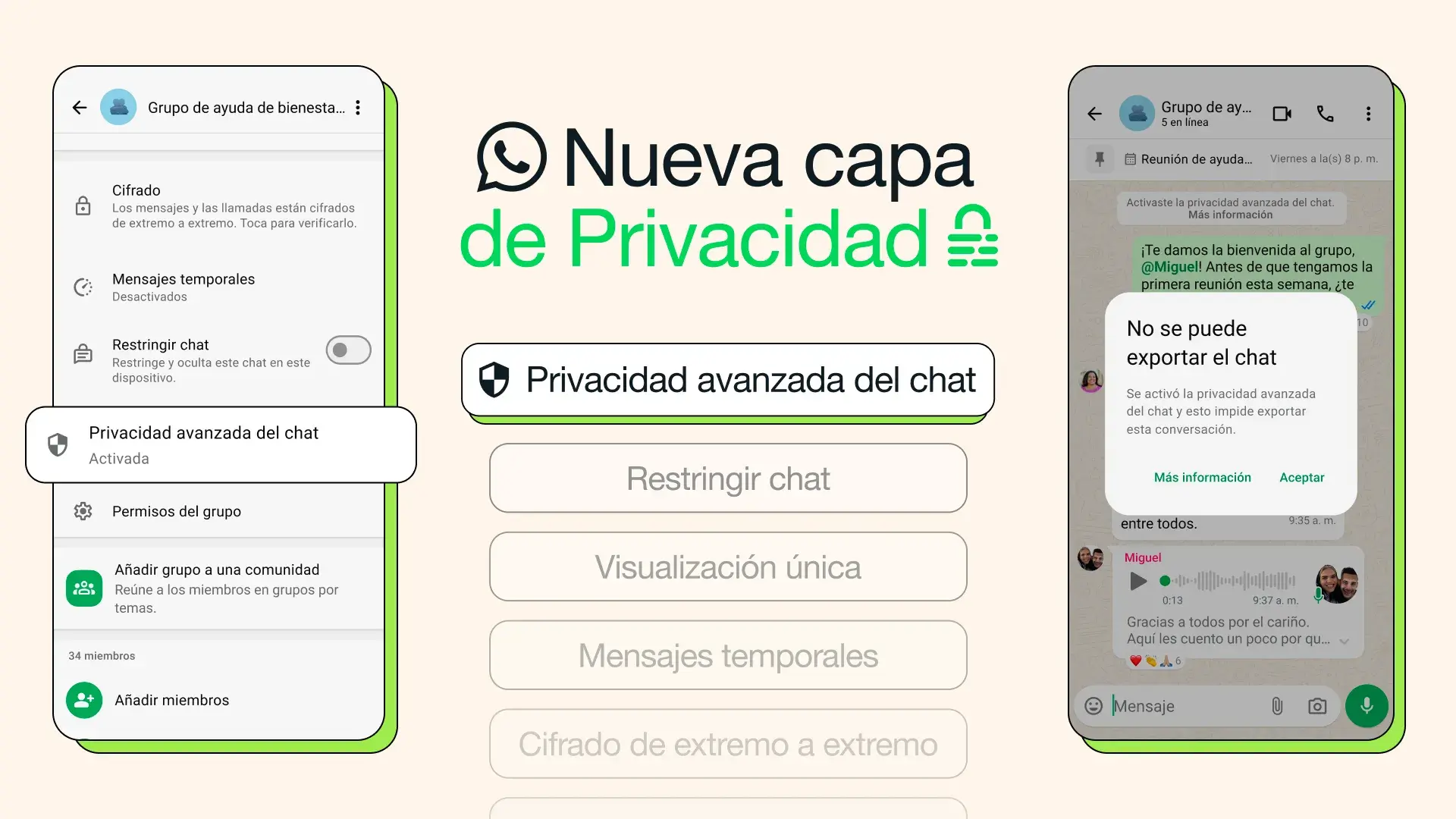
In addition to traditional security layers, WhatsApp has introduced a feature called Advanced Chat Privacy . Its aim is to prevent conversation content from leaving the app without the consent of the participants.
When you enable this option in a chat or group, restrictions are applied, such as preventing the conversation from being exported , limiting automatic file downloads to your phone, or preventing messages from that chat from being used as a source for artificial intelligence functions . This provides a more controlled environment, especially useful in groups where sensitive topics are discussed.
Imagine, for example, a health support group, a neighborhood organizing channel, or a work environment where sensitive documents are shared. By activating Advanced Chat Privacy, participants can feel more at ease knowing there are fewer ways for what's discussed to end up circulating outside of WhatsApp.
To use it, open the chat in question, tap on the contact or group name, and go to the "Advanced Chat Privacy" section . From there, you can activate the setting. This is currently a first version, and the company has announced that it will expand the options over time to add even more protections.
It's important to remember that this feature doesn't replace common sense: even though the app limits technical export methods, there's always the possibility that someone could take screenshots or manually copy information. Even so, it greatly reduces how easily content can go viral without your knowledge.
WhatsApp channels: what they are and what you should know
WhatsApp channels are a specific section within the app that allows organizations, media outlets, creators, and users to disseminate information to large audiences in a one-way manner. In other words, people who subscribe to a channel receive the posts, but they cannot reply in the chat itself; they can only react with emojis.
This tool is very powerful for publishing news, announcements, or content of general interest, but it also poses privacy and reputational risks. Everything you post on a channel can be seen by all subscribers , downloaded, forwarded, and spread virally on other platforms. Before sharing anything, think carefully about whether you would be comfortable with that content circulating unchecked.
In addition, channels are subject to WhatsApp's terms of service. Publishing illegal, harmful, or fraudulent content is prohibited , as is using these spaces to harass, spread hate speech, or launch scam campaigns. Violating these rules may result in channel closure and even legal action in serious cases.
If you decide to manage one, review the channel's privacy and visibility settings and avoid excessively linking it to sensitive personal information. And if you follow third-party channels, exercise the same caution you would on any social network: don't take everything you read as fact , verify information, and don't share private data publicly.
Backups, message recovery, and cloud security
One of the most often overlooked aspects of WhatsApp security is backup management . The app allows you to save your chat history to Google Drive (Android) or iCloud (iOS), making it easy to migrate your conversations to a new device or restore them if you switch phones.
The problem is that if someone gains access to your Google or Apple account, they could potentially obtain that backup. That's why it's so important to also protect your email and cloud storage with strong passwords and two-step verification. Some attacks don't target WhatsApp directly, but rather the service where the backups are stored.
Remember that you can encrypt your chat backups with a specific password or key. By doing so, you add another layer of protection: even if an attacker obtains the backup file, they won't be able to read it without that key. However, if you forget the encryption password, recovering the content may be impossible.
Regarding message recovery without a cloud backup , in some cases it's possible to retrieve conversations from local WhatsApp files stored on the device. For example, on Android, you could connect your phone to your computer, go to the WhatsApp folder, look for "Databases," and locate files with names like "msgstore-year-month-day.1.db.crypt12." By renaming the main file to one of these and reinstalling the app, you could restore old messages.
This maneuver, however, requires some technical care and does not always work, so the best advice is still to maintain regular, protected and encrypted backups , and check who has access to your associated accounts (Gmail, Apple ID, etc.).
Secure use of WhatsApp Web and linked devices
WhatsApp Web and the desktop version are very convenient for messaging on your computer, but they also pose a risk if you don't log out properly. Leaving your session open on a shared computer allows anyone who uses it later to read your messages or even impersonate you.
To avoid this, it's recommended to log out of WhatsApp Web when you're finished using it, especially if you're on a work computer, at an internet café, or on a home computer. If you forget, you can log out remotely from your phone by going to the "Linked Devices" section in the main menu.
In that same section, the app will show you a list of devices with open sessions , when the last connection was made, and what type of device it is (computer, browser, etc.). If you see something you don't recognize, immediately close that session and change the passwords on your mobile device or any associated accounts as a precaution.
This linked devices panel is also one of the best ways to detect if someone has managed to open your WhatsApp on another device, either physically or remotely. Checking it from time to time is a good digital hygiene practice, as is reviewing which apps have access to your most sensitive permissions.
Keeping the app updated to the latest stable version is the perfect complement: new versions often fix vulnerabilities or bugs that could be used to compromise your privacy. Updating not only gives you new features , but also strengthens your defenses against known attacks.
Data that WhatsApp shares with Meta and third parties
Beyond what you do within the app, it's important to understand how your data moves between companies. WhatsApp is part of Meta, the parent company of Facebook and Instagram , and there's a complex chain of information exchange when you use the app, especially if you interact with business accounts.
According to their policies, when you communicate with businesses through WhatsApp, certain data from your profile may be shared with Facebook and other companies in the group. This information is used to operate the service, improve it, personalize features, suggest contacts, facilitate purchases, and show more relevant ads across other Meta products.
Although Meta insists it doesn't "sell" data in the traditional sense, it does share information with numerous external partners: analytics platforms, advertisers, measurement companies , service providers, researchers, and, when necessary, law enforcement and judicial authorities. This doesn't mean your encrypted messages are being read, but it does mean that certain metadata and usage data may circulate far more than you might imagine.
As a user, you have some leeway to limit this exposure: for example, by avoiding sharing highly sensitive information with business accounts, adjusting your ad settings on Facebook and Instagram, or regularly reviewing privacy policies. Being aware of this data ecosystem helps you decide what you share, with whom, and through which channel.
Finally, it's important to remember that all websites, including those offering cybersecurity information , use cookies and similar technologies to function and improve your experience. Many of these cookies are essential, but others are optional and can be disabled in the website's preferences panel, although this may affect certain features.
WhatsApp has evolved from a simple messaging app into a complex ecosystem where personal life, work, business, and community intertwine. Taking advantage of all the security and privacy options it offers —from end-to-end encryption, two-step verification, chat locking, and advanced chat privacy, to controlling who can see you, call you, or join your groups—makes all the difference between using the tool with a sense of vulnerability and using it with the peace of mind that comes from having every setting under control. Add to this basic best practices (updating the app, closing WhatsApp Web, checking backups, being wary of suspicious links and code, and understanding how your data is shared with other companies), and you'll have a much safer environment for your everyday conversations.


Table of Contents
- 1 End-to-end encryption and basic privacy layers
- 2 Account protection, device verification, and automatic security codes
- 3 Enhanced privacy features in chats: blocking, secret codes, and ephemeral messages
- 4 Two-step verification: how to activate, change, and deactivate it
- 5 Control who sees your information: statuses, photo, last seen time, and groups
- 6 Silence calls from unknown callers and hide your IP address
- 7 Quick privacy review: the new setup wizard
- 8 Advanced chat privacy: preventing content from leaving WhatsApp
- 9 WhatsApp channels: what they are and what you should know
- 10 Backups, message recovery, and cloud security
- 11 Secure use of WhatsApp Web and linked devices
- 12 Data that WhatsApp shares with Meta and third parties