- Zen Browser is a free browser based on Firefox that prioritizes privacy, minimalist design, and high customization.
- It offers vertical tabs, workspaces, split views, web panels, and Glance to improve productivity.
- It inherits Firefox's security and extensions, including support for uBlock Origin and Mozilla account synchronization.
- It is in active development, is cross-platform, and is emerging as a real alternative to Chromium browsers.

If you're tired of the same old browsers and seeing them cluttered with toolbars, assistants, and features you never use, Zen Browser is becoming the quiet, minimalist, and private alternative many users have been waiting for. It was launched relatively recently, but in a very short time, it has managed to attract the attention of specialized media, developers, and users looking for something different from Chrome, Edge, or even Firefox.
Far from being just another passing experiment, Zen Browser is a serious, open-source project with a very active community behind it. It has taken Firefox as its foundation and completely revamped its design, tab organization, and customization options. The idea is clear: to offer a modern, fluid, and privacy-focused experience without forcing you to wrestle with countless hidden settings.
What is Zen Browser and why is it getting so much attention?

In essence, Zen Browser is a free and open-source web browser based on Mozilla Firefox , which uses the Gecko rendering engine. Its development began in 2024 and it is still in its early stages (beta/alpha depending on the branch), but that hasn't stopped it from racking up hundreds of thousands of downloads on platforms like Flathub and millions on GitHub, nor from receiving very positive reviews in publications such as The Register, SlashGear, Genbeta, and Profesional Review.
The creators' approach is to combine three very clear pillars: privacy, modern design, and extreme customization . Zen takes all of Firefox's technological and security foundations, but removes the dead weight of an interface that many consider outdated and cluttered, opting for a more organized and productive way of browsing, heavily influenced by what Arc Browser once offered.
In several analyses and reviews, it has even been called the "natural successor to Arc" and "a Firefox fork on steroids for customization ," especially since Arc's development stalled and many users were left without a truly different browser. Zen fits right in, with a very clear focus on vertical tabs, workspaces, and an aesthetic meticulously crafted down to the smallest detail.
Furthermore, it is a clearly multiplatform project : it is available for Windows, macOS and Linux, with builds for both x86_64 and ARM64 architectures, distributions in Flatpak, AppImage and tarball, and even internal adjustments in the past between "generic" and "optimized" versions that were eventually simplified into a single variant to avoid confusion.
All of this has meant that, even in its early stages of development, Zen Browser has received a very positive reception among advanced users and people concerned about the future of the web , who see in this fork a way to continue using Gecko and the Firefox ecosystem... but with a different interface philosophy.
Privacy and security: a browser that doesn't live off appearances
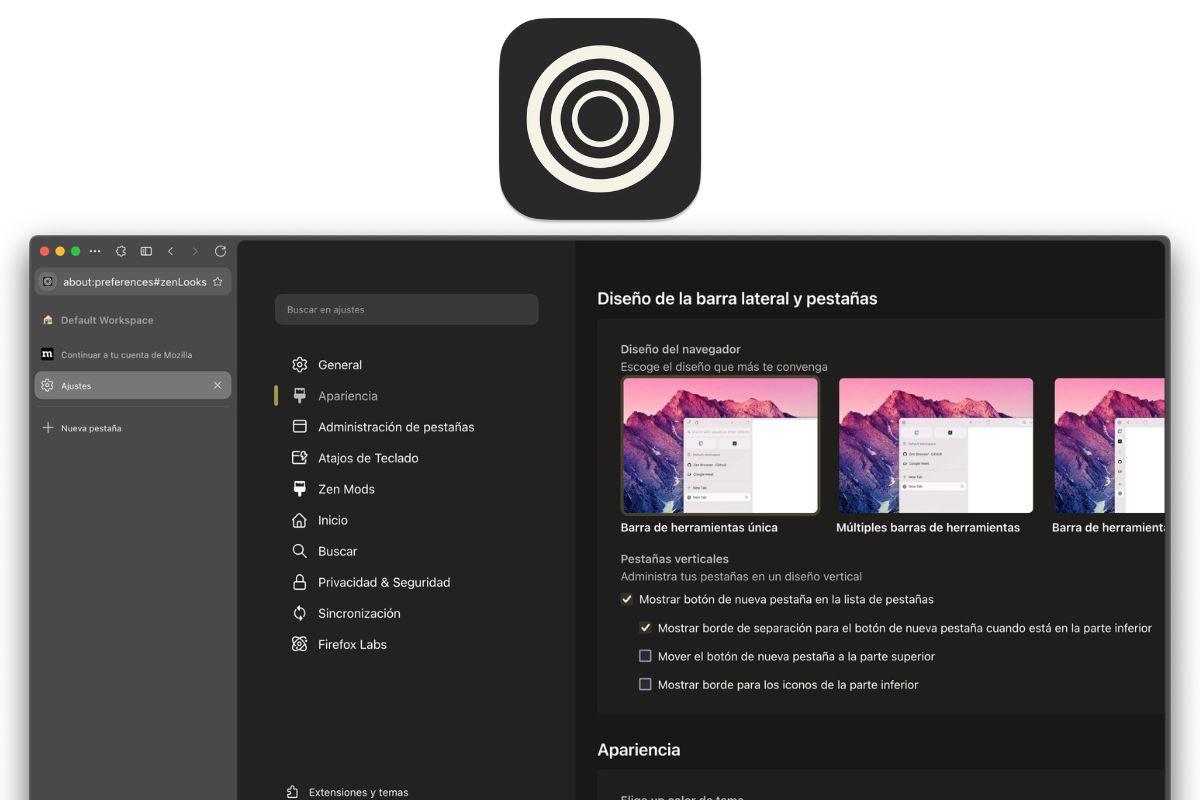
One of Zen Browser's strengths is that privacy isn't just a marketing slogan, but the very core of the browser's design . Built on the Firefox foundation, it inherits many of Mozilla's well-known protections, but also adds its own layer of more aggressive default settings and settings to enhance security and prevent tracking.
It comes standard with protection against trackers and advertising tracking systems , blocking scripts and trackers that attempt to profile your activity. In addition, it features a default "HTTPS only" mode, which forces the browser to always attempt a secure, encrypted connection via HTTPS before accepting anything else.
On a technical level, Zen includes strict SSL certificate validation and OCSP support , verifying that the certificates of the sites you visit are not expired or revoked. If anything seems amiss, the connection is severed to prevent you from ending up on potentially dangerous pages.
It also natively incorporates DNS over HTTPS (DoH) to encrypt domain name queries , making it difficult for third parties (like your ISP or intermediary networks) to clearly see which pages you're trying to open. Along with filters against phishing, malware, and fraudulent websites, it achieves a very high level of protection without requiring the user to install any additional extensions.
Another important aspect is the internal management of passwords, cookies, and cache . Passwords you choose to save are encrypted, adding an extra layer of security should someone physically gain access to your device, and cookies are handled under relatively strict privacy policies. All of this can be customized to your liking in the settings, but the underlying principle is to prevent opaque data collection and any unusual decisions made behind the user's back.
User experience, interface and first impressions
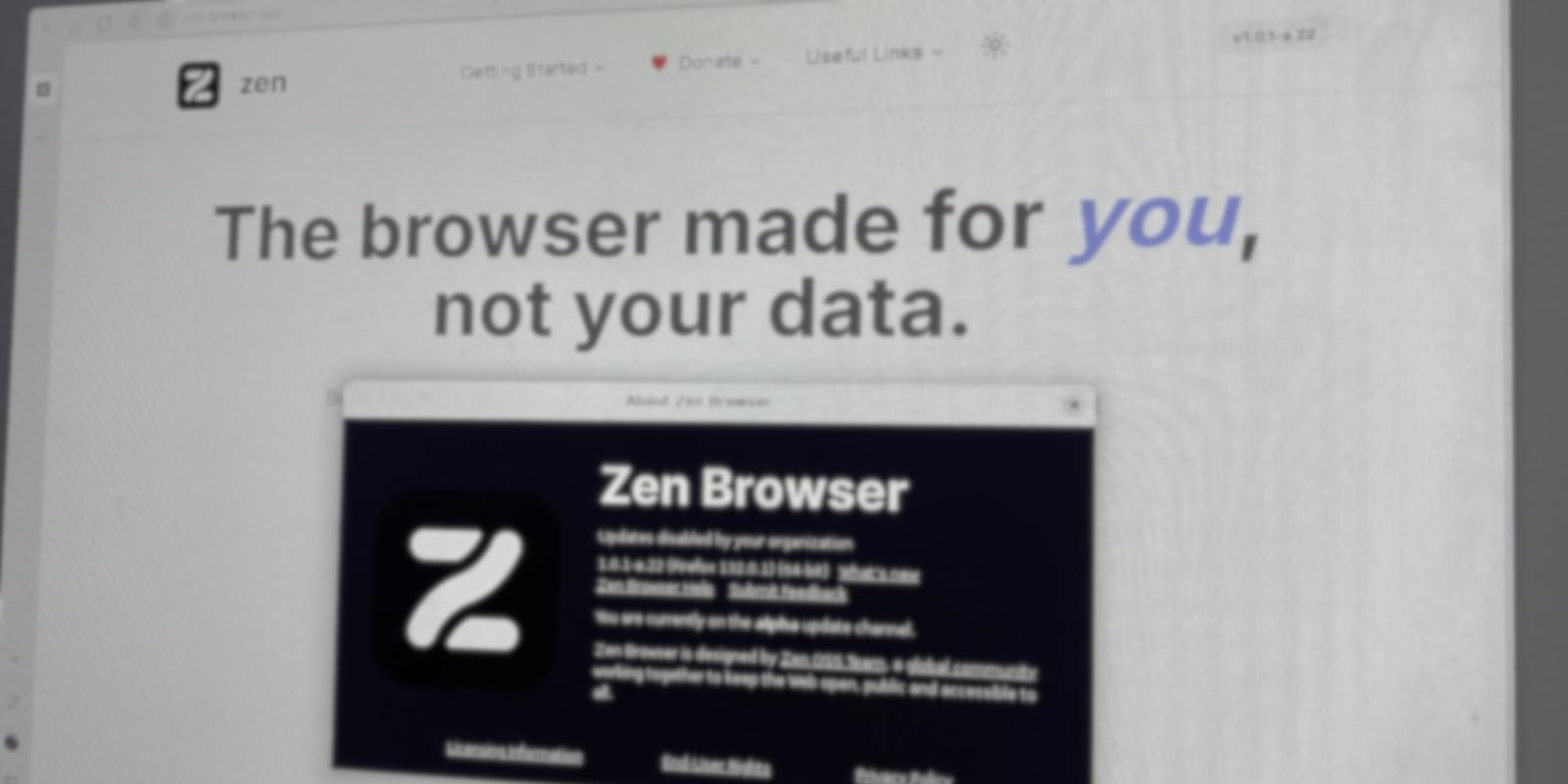
Anyone coming from Chrome, Edge, or even classic Firefox will immediately notice that Zen Browser feels much cleaner and calmer . It doesn't try to overwhelm you with toolbars everywhere: its most prominent feature is a vertical tabbed sidebar, which also integrates the search bar, basic controls, and most of the quick settings.
This sidebar can be displayed expanded, with a title and favicon for each tab, or in compact mode , showing only the icons to save horizontal space. The compact mode can be combined with different interface layouts: sidebar only, top bar plus sidebar, compact sidebar with some elements at the top, etc.
For someone who spends their day reading articles, documents, or news, the feeling of a "clear screen" is one of Zen's greatest strengths . You can focus on the content without feeling surrounded by unused controls, and even hide almost everything with a couple of clicks if you want maximum concentration.
When you open Zen for the first time, you're greeted by a fairly friendly initial setup wizard . It guides you through choosing your accent color, how to align the theme with your system's light/dark mode, your preferred interface layout, and, if you wish, gives you the option to import data from other browsers and select your default search engine.
One practical detail is that, although it's based on Firefox, some things like the language need to be manually configured the first time . From the settings menu, you can select language packs compatible with Firefox, so in just a few seconds you can set it to Spanish if it doesn't do so automatically. From that point on, the entire settings panel is quite similar to Mozilla's, with the advantage that Zen adds its own sections for mods, appearance, and shortcuts.
Key features: vertical tabs, workspaces, and split views
Beyond its visual facelift, Zen Browser shines in how it organizes the tab chaos many of us deal with daily . It doesn't just stack tabs vertically; it adds a series of mechanisms designed to work with multiple pages simultaneously without driving you crazy.
On one hand, you can organize tabs into folders and groups within the sidebar , so you have, for example, one set for work, another for leisure, research, social media, etc. These folders can be collapsed and expanded, helping to reduce visual clutter when you have dozens of sites open.
In addition, there are the custom workspaces , one of the standout features. Each workspace acts as a separate environment with its own tabs, organization, and behavior, perfect for separating your gaming sessions, professional tools, or personal projects without mixing everything up.
Within the same workspace, there are also pinned tabs and essential tabs . Pinned tabs work like in other browsers: they remain even if you close the browser session. Essential tabs go a step further, because they are prominently displayed at the top and remain visible even when the bar is collapsed, becoming something like ultra-fast bookmarks.
Another key feature is split view . This allows you to divide a single window into two (horizontally or vertically) to display two tabs simultaneously. This is incredibly useful for comparing documents, translating text, following a video while taking notes, or reviewing documentation while programming.
Splitting can be activated using keyboard shortcuts (such as Ctrl + Alt + H for horizontal splitting and Ctrl + Alt + V for vertical splitting) , or directly from the context menu by right-clicking a link and choosing "open in split screen." Additionally, Zen includes a graphical configurator next to the address bar for easily repositioning and resizing split panels without struggling with the interface.
Web dashboards, Glance, and other productivity tricks
Another major advantage of Zen Browser is that it tries to save you from needing extensions for things that are practically essential in everyday use . Two clear examples are the web panels and the Glance feature, designed to help you multitask without cluttering everything.
Web panels let you pin websites to an additional sidebar . Imagine always having your translator, email service, social network, or streaming player just a click away, without taking up a whole tab. These panels can be opened and closed as needed, alongside the main page you're viewing.
The Glance feature is another little gem for productivity . It lets you preview the content of a link in a sort of floating window or temporary tab without adding it to your list of "real" tabs. If you click a link while holding down the Alt or Option key, this quick preview opens, and you decide whether to dismiss it or open it as a full tab.
Anyone used to opening links in a new tab "just in case" and accumulating 50 tabs within half an hour can use Glance to review content on the fly and significantly streamline their workflow . Many users admit that once they get used to it, they never want to go back to browsing without this feature.
Furthermore, Zen comes with a powerful system of configurable keyboard shortcuts for virtually any action . From switching between tabs and workspaces to activating compact mode, opening the mods panel, or managing split views, this translates into a truly remarkable speed boost for anyone who uses the browser daily for work or study.
Extreme visual customization: themes, colors, and Zen Mods
If you like to customize any tool to your liking, Zen Browser is probably one of the most customizable browsers available right now . It not only lets you change the theme, move toolbars, or adjust the interface layout, but it also includes its own color editor and a dedicated mod store.
From the appearance section, you can choose different layouts of the interface elements , activate or deactivate compact mode, play with the visibility of the side panel, change how the address bar behaves, and adjust details such as the density of the elements.
The built-in color editor lets you define gradients, accent colors, and even add noise textures to the interface background , achieving a very modern, almost design-app-like look. All this without having to install external themes or resort to advanced CSS, although those who want to go that route can also do so thanks to Firefox's built-in features.
The icing on the cake is the Zen Mods store , a repository created by the Zen developers themselves where the community uploads specific extensions to customize the browser. The idea here is not only to add features, but also to modify animations, rearrange elements, add tab counters, integrated audio players, improve website previews, and much more.
All these mods are free and are managed from the "Zen Mods" section of the settings . It's easy to install and uninstall whatever you want to try, and the only "danger" is that you can spend hours fine-tuning your browser down to the last detail because the customization possibilities are truly enormous.
Firefox compatibility, extensions, and ecosystem
A key advantage of Zen Browser being a fork of Firefox is that it inherits almost its entire ecosystem of extensions and web compatibility . It uses the Gecko engine, so where Firefox works, Zen will most likely work too, without any strange surprises regarding rendering or standards support.
In practice, this means you can install the vast majority of add-ons available in the Mozilla store . If you were already used to using certain ad blockers, password managers, developer tools, or productivity extensions, you can most likely continue using them in Zen without having to look for alternatives.
Furthermore, while Chromium-based browsers are moving towards removing support for Manifest V2 extensions, Firefox has decided to maintain compatibility with important tools like uBlock Origin . Zen, following the same path, also retains these advanced ad and tracker blocking extensions.
Another very practical feature is that Zen allows you to sync data using your Mozilla account . This way, you can share bookmarks, history, passwords, and extensions between Zen on your desktop and Firefox on your mobile device—especially useful considering that, for now, Zen doesn't have an official version for Android or iOS.
Finally, it's worth mentioning that Firefox security updates are integrated into Zen quite quickly . When Mozilla fixes critical vulnerabilities, the Zen team usually releases its own version with the patches included within a few hours, although there's always that slight delay inherent to any fork.
Installation, initial setup, and integration into your daily routine
Installing Zen Browser is quite simple. Just go to its official website and download the version corresponding to your operating system . On Windows and macOS, you'll find classic installers, including support for ARM systems, while on Linux, you can choose from Flatpak packages, AppImages, or compressed files (tarballs), depending on your preference.
During the installer, you can choose between a standard or a custom installation . The latter allows you to decide which components you want to add, which is very useful if you prefer to install only what's necessary or if you want to control where the files and profile are saved.
The first time you open it, the initial setup wizard will help you configure the language, integrate with the system's dark mode, customize the interface design, and import data from other browsers. It doesn't take long and leaves you perfectly set up to start browsing without wasting any time.
In terms of performance, theory suggests that Zen offers similar behavior to Firefox , as they share a common foundation. In practice, many users report that the experience feels light and fast, largely thanks to the minimalist interface, which allows you to remove unused elements, such as the URL that remains permanently visible when you're only reading.
It's true that, being still under active development, Zen can have more stable days than others . Some versions may have an annoying bug, only to disappear shortly after with a subsequent update. If you make it your primary browser, it's advisable to have a secondary browser on hand for emergencies, especially if you work with sensitive information or can't afford any occasional glitches.
Project status, maturity, and who benefits from testing it
As of today, Zen Browser is still considered beta software, or even alpha in some branches . Development is very active, with changes almost daily, including new features, interface tweaks, bug fixes, and continuous improvements based on community feedback.
This has a positive side: you see the browser evolve almost in real time and receive updates very quickly . But it also means that sometimes temporary bugs slip through, minor compatibility issues with some mods, or situations where a certain function doesn't behave as it should until the next update.
In terms of security, it's important to remember that a fork isn't automatically updated when the original project is . If Mozilla releases an urgent patch, you have to wait for the Zen team to integrate, compile, and distribute it. So far, they've proven to be quite agile, but this is still a factor that any security-conscious user should be aware of.
For all the reasons mentioned above, Zen Browser is a particularly good fit for users who value customization, clean design, and privacy , and who are also willing to tolerate the occasional bug in exchange for staying on top of the latest innovations. If you need a completely unchanging and predictable browser, you might want to wait for more mature versions or use it initially as a secondary browser.
On the other hand, if you're coming from Chrome, fed up with Google's omnipresence, or from Firefox, disillusioned with some of Mozilla's decisions, Zen offers a different way to continue leveraging the Gecko engine and the extension ecosystem , but with a much more modern interface, full of tab organization possibilities and a real focus on minimizing distractions.
Looking at the current landscape, where almost all major browsers rely on Chromium and closely follow Google's roadmap, the existence of projects like Zen Browser helps maintain a degree of technological and philosophical diversity on the web. For those seeking a more human-centered browser focused on user experience and respectful of user data, Zen is becoming one of the most interesting options available right now.


Passionate writer about the world of bytes and technology in general. I love sharing my knowledge through writing, and that's what I'll do on this blog, show you all the most interesting things about gadgets, software, hardware, tech trends, and more. My goal is to help you navigate the digital world in a simple and entertaining way.