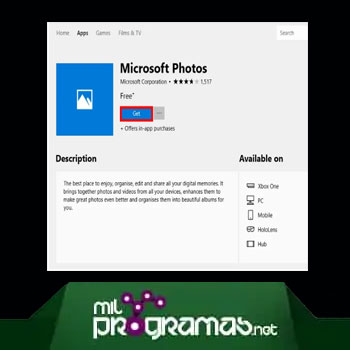
 In this guide, we are concerned with the problem where the process Microsoft.Photos.exe try to access the Internet on devices WindowsMany users reported that their antivirus application (or security utility) flagged the Photos app process as a potentially malicious program.
Since you're here, you probably also saw a message or dialog box in which your antivirus asked you if you wanted to allow communications initiated by the Microsoft.Photo.exe process through your firewall.
At that point, you might have wondered why the Photos app needs to connect to the internet or why your antivirus software blocked it and flagged your actions as suspicious. Well, we have all the answers here.
You might also be interested in: Err_Connection_Refused Error in Chrome: 10 Solutions
What is Microsoft.Photos.exe?
Microsoft.Photos.exe is the process associated with the Microsoft Photos app in Windows 10. The Photos app comes pre-installed on computers; it is the default image viewer.
A good number of users are satisfied with the work that the Photos app does, while others install third-party programs to view images and perform related tasks.
Pro tip: Many PC problems can be fixed using a PC repair tool. PC Repair is a reliable and easy-to-use Windows optimization software developed to fix hundreds of system issues.
Why is Microsoft.Photos.exe trying to access the Internet?
If the Microsoft.Photos.exe process trying to access the Internet on your computer is the original program, we can infer that it tried to access the web for one or more of the following reasons:
- The application is attempting to search for and download updates to its components and packages: Of course, just like Windows updates that are pulled from Microsoft servers, Microsoft Photos also needs Internet access to get its stuff.
- Photos app wants to start sync operations: Microsoft has built the OneDrive sync feature into the Photos app. When users enable OneDrive sync, the program automatically works to upload images to the cloud (installing storage OneDrive). This is where the need for web access comes into play.
- The Photos program may be attempting to send feedback and other relevant diagnostic data to Microsoft: Yes, the app is programmed to use your internet connection to send minor details.
Given the events or scenarios we described, it seems that Microsoft forgot to attach its official digital signature to the Photos app, which explains why your antivirus (or security program) flagged the Microsoft.Photos.exe process as a potentially malicious program.
Antivirus and protection utilities are designed to check the signatures of unknown applications, especially when they attempt to initiate contact with the web; they usually block connections from untrusted applications and inform users of the action they took.
Or perhaps Microsoft integrated its digital signature with the application, but the recognition function is broken or malfunctioning. To be honest, there are several possibilities, and we can't unravel them all or deduce exactly which one is at play.
However, there is one important possibility, which is closer to an outlier, that you should be aware of. There is a small chance that the Microsoft.Photos.exe process trying to connect to the Internet on your computer is a malicious program that has been coded to impersonate the genuine Microsoft Photos process.
The attackers are also aware of information about the Microsoft.Photos.exe process that lacks a Microsoft digital signature, and may have developed exploits to take advantage of this situation.
Why is Microsoft.Photos.exe process always running?
Some users also raised the issue regarding the Microsoft.Photos.exe process or a similar component of Microsoft Photos always running on their computers even when the program itself is not open or active on their taskbars.
If you also launch the Task Manager application and check the utilities running on your system, you'll likely see the Photos.exe process or something similar running. It's important to understand that the Microsoft Photos app was designed and configured to always run in the background, especially since it's the default image viewer on devices running Windows 10.
Like other background apps, whose components remain active at some level even when their windows are closed, the Microsoft Photos app remains active even when you don't have any windows open.
Is Microsoft.Photos.exe a security risk?
If you are sure that the Microsoft.Photos.exe process running on your computer is the genuine program, then you should not have any problems, if you are right. The uncertainties involving this process, however, can constitute sufficient reasons why users start to worry.
On one hand, the general expectation that the Microsoft.Photos.exe process is supposed to be running all the time could play into the hands of attackers , in the same way that the program's apparent lack of a digital signature did.
A malicious or malicious program can be designed to mirror the behavior or activity of Microsoft Photos, meaning it is allowed to wreak havoc or damage while masquerading as a normal utility.
Should I delete Microsoft.Photo.exe?
Considering everything we have said up to this point, defining Microsoft.Photos.exe as a security risk or not is mostly subjective. If you are sure that the process operating on your system is the genuine Microsoft program and you are fine with an unsigned digitally-signed application using your Internet, then you can leave the process or application alone.
However, if you're bothered by an application that's supposed to have a Microsoft digital signature but lacks one, is always running on your computer, and even wants to connect to the web, then you can block its communications using your antivirus or security software.
When the dialog box or window appears asking if you want the program to pass through your firewall , you can click Block or the button that ensures the connection is never made. In your antivirus or security utility's menu or settings, you should also be able to configure it to disable internet access for Microsoft Photos (or its components and processes).
If the Microsoft.Photos.exe process consistently consumes a large percentage of your computer's resources , this is reason enough to suspect something is wrong. If you trace the process's location and find it running from a directory other than C: \Program Files\WindowsApps\(...)\Microsoft.Photos.exe , then your suspicions are justified. You would be wise to investigate further.
On the other hand, if you trust the Microsoft.Photos.exe process you saw, if you are sure that it is the legitimate Microsoft program, you can consider the threat detection or blocking action of your security or antivirus utility as a false positive. In that case, you can create an exception in your firewall rules so that the process's communications are not hindered.
However, you can take certain precautions to minimize the risk of becoming a victim of malware attacks , especially if you're unsure what to believe. For one thing, you can disable, turn off, or delete the Microsoft Photos app. This way, if you find any Microsoft.Photos.exe processes running or trying to connect to the internet, you'll know it's malicious or dangerous.
How to disable the background feature for the Microsoft Photos app
You can disable the background feature for the Microsoft Photos app on your computer so that its components or processes stop running without your knowledge (when the app window is not open). This way, the Microsoft.Photos.exe process is unlikely to try to connect to the Internet, because it will no longer be able to consume system resources unattended. Anyway, here are the steps you need to follow to get the job done:
- Step 1: First, you need to open the search panel on the Windows Start menu screen. You can use the Windows logo button to Windows + the keyboard shortcut for the letter S to perform the task here.
- Step 2: write Background apps in the available text box to perform a search operation using those keywords. Once Background Apps (System Settings) appears as the top entry in the results list, you need to click on it. The Background Apps screen will now be displayed in the application window. Configuration.
- Step 3: Check the items listed as background apps and look for Microsoft Photos. Click the toggle or switch next to it to disable the background feature. That should be it.
How to uninstall the Microsoft Photos app on Windows 10
If you want nothing to do with the Microsoft Photos app on your Windows 10 device, given the complications, uncertainties, and risks associated with it, no one can blame you. The program itself is not worth the trouble. You can easily get rid of it and install a third-party image viewer app as a replacement.
To be fair, there have always been a number of alternatives to Microsoft's Photos app, especially those that don't collect user data and consume fewer system resources than the utility provided by Microsoft.
To uninstall the Microsoft Photos app , you need to run a command in an elevated PowerShell window to force your computer to find its program packages or files and remove them. Here are the steps you need to follow:
- Step 1: First, you need to launch the required PowerShell window (one with administrative privileges):
Use the Windows logo button + the keyboard shortcut S to open the Windows Start menu search panel . There, you should fill in the text field with PowerShell to perform a search using that keyword.
Once Windows PowerShell (application) appears as the top entry in the results list, you need to click on it to launch the necessary program.
If a User Account Control message or dialog box appears asking for confirmation before starting the program, confirm by clicking Yes . The Administrator: Windows PowerShell application window will appear shortly.
- Step 2: At this point, you should write and run this code (by pressing the button Enter on your device's keyboard): Get-AppxPackage *photo* | Remove-AppxPackage
Assuming the code execution operation is complete, you should close the Windows PowerShell application and any other applications that are running on your computer, and then restart your PC.
You might want to know: How to Fix the “Unknown Hard Error” in Windows 10/8/7
How to fix other Microsoft.Photos.exe issues in Windows 10
If the Microsoft.Photos.exe process on your computer is not working properly or you are having problems with the Microsoft Photos application, there are a couple of procedures you can use to force the application to work normally. Here are some of them:
1. Repair and reset the Microsoft Photos app
The repair and reset functions, accessible through the program menu in the Settings app , can force changes that resolve a wide range of issues with the Photos app. It's best to try the repair function first, as its effects are minimal. If that fails, you can try the reset function, which is more disruptive. In any case, follow these instructions:
- Step 1: First, you must start the Configuration (using the logo button) Windows + the keyboard shortcut for the letter I).
- Step 2: Once the Settings window appears, you need to check the main screen list and click on Applications to enter the menu there.
- Step 3: On the screen that appears next, you should review the listed apps and locate the Microsoft Photos app. Click on it to highlight it.
- Step 4: Do click in the link Advanced (which appeared recently). On the next screen, you need to click on the button Repair. Windows will now work to repair the Microsoft Photos app as best it can.
- Step 5: Once the repair operation is complete, you should restart your computer and then check the status of the Microsoft Photos application. If problems with the application persist, you must continue with the next step:
- Step 6: open the window Configuration Again as you did before, navigate to the Applications menu there and then enter the screen Advanced for Microsoft Photos. This time, you need to click on the button resetr.
Your system will now act to reset the Microsoft Photos app, meaning it will be reinstalled and your settings will be reverted to their default values.
- Step 7: Once the reset operation is completed, you need to reboot your system and then check if the Photos app is now working fine.
2. Delete old or outdated Microsoft Photos registry keys
If the repair and reset operations fail to bring about the necessary changes, then you need to fix things through an unorthodox method. Here, we intend to guide you through the registry entry removal operation for the troubled Microsoft Photos app so that it gets a new breath of life.
Okay, we need to inform you about the risks associated with editing material in the registry or the complications that could arise if you make the wrong changes and save them. We recommend that you back up your registry entries, if you have time. It will be helpful if things go wrong. Here are the instructions you should follow to perform the necessary tasks in the registry:
- Step 1: First, you need to launch the Registry Editor application.
Use the Windows key + R keyboard shortcut to launch the Run application , and then fill in the text field in the program window with this code: regedit
Press the Enter key on your device's keyboard. If you see a User Account Control message asking for confirmation of the operation you initiated, confirm by clicking Yes . When Windows finishes executing the code, the Registry Editor window will appear.
- Step 2: Check the items in the upper left corner of the window, click Computer and then continue browsing these directories: HKEY_CURRENT_USER / Software / Classes / Local Settings / Software / Microsoft / Windows / CurrentVersion / AppModel / Repository / Families / Microsoft .Windows.Photos_8wekyb3d8bbwe.
- Step 3: In your current location, you should see a couple of entries. They all contain or are represented by a specific version number (Microsoft.Windows.Photos_2017.35071.13510.0).
If you find more than three entries there, you should assume that outdated keys remained somehow, even after your computer downloaded and installed updates for Microsoft Photos. You should delete the outdated entries and leave only the three most recent entries.
However, Windows will prevent you from deleting the entries. You must first acquire the necessary permissions to succeed. You need to proceed with the instructions below:
- Step 4: Click on an old entry (you can choose any of them) to highlight it. Right-click on the highlighted item to see some options and then choose Properties. The window will now be displayed Properties from the selected old entry.
- Step 5: click on the tab Security and then press the Excuse me.
- Step 6: click Advanced (under the window Select user or group). Click Search now and then fill in the field with your username and then click the button Accept.
- Step 7: Now, assuming that the windows of Properties y Permissions the ones you worked on have been discarded, you need to go back to the previous entry that Windows had to highlight at the beginning. Right click on it and then choose the option Delete.
The deletion operation will continue without any problems this time (given the work you did). Now, you need to perform the same task on the other old entries to acquire the necessary permissions to force Windows to allow you to delete them.
- Step 8: At this point, assuming you're done deleting old entries as we recommended, you should close the program window. Registry Editor and restart your computer.
The Microsoft Photos app, given the serious changes you made to its installation code or data, should now work without problems on your PC.
Other things you can do to resolve issues with the Microsoft Photos app in Windows 10:
You can also take the following actions:
- Update Windows.
- Update Microsoft's own Photos app.
- Run the Windows Store Apps troubleshooter.
- Remove the application package and then restore it.
You need to know: The 7 Best Programs for Editing Photos.
Final thoughts
Given the operations described in this guide and the amount of work involved, you'll likely find Auslogics Anti-Malware useful in some way. If you need to scan your entire system or run checks for suspicious files, this recommended utility will help you with those tasks.
Also, since security is the main topic in our explanations here, you will do better if you strengthen your computer's defense against viruses and malware, and installing that anti-malware application is a step in the right direction.

My name is Javier Chirinos and I am passionate about technology. Ever since I can remember, I have been interested in computers and video games, and that passion has turned into a job.
I have been publishing about technology and gadgets on the Internet for over 15 years, especially in mundobytes.com
I am also an expert in online marketing and communication and have knowledge in WordPress development.