- Windows File Protection and TrustedInstaller protect critical system files from unauthorized modification.
- Only specific processes and controlled mechanisms can modify or replace these protected files.
- Changing permissions or deleting files owned by TrustedInstaller may seriously affect system stability.
You've probably encountered a message on your computer that prevents you from deleting, renaming, or modifying certain files or folders, even if you're the PC administrator. This isn't a bug or a random annoyance: it's a security mechanism implemented by Microsoft for several versions of Windows to ensure the system functions correctly.
At the heart of this protection are two key components: Windows File Protection (WFP, or its enhanced version Windows Resource Protection – WRP) and the TrustedInstaller process. Throughout this article, I will explain clearly and in detail what they are, what they are for, what risks are involved in trying to circumvent them, and how to manage them to avoid problems with your operating system.
What is Windows File Protection (WFP) and Windows Resource Protection (WRP)?
Windows File Protection (WFP), known in more recent versions as Windows Resource Protection (WRP), is a feature that prevents the overwriting, deletion, or modification of files, folders, and registry keys essential to Windows. Its purpose is to prevent programs or users from accidentally or maliciously causing critical damage to the system by manipulating these key elements.
The protection extends to files in important folders such as System, System32, SysWOW64, and even sensitive parts of the Windows root directory. This protects the system core and essential services, ensuring your computer continues to function correctly.
This security measure was originally introduced with Windows 2000 and XP under the name WFP, and was enhanced with new capabilities in Windows Vista and later versions, being renamed WRP. The key to its operation is that if a protected file is modified or deleted, the system automatically restores it from a securely stored original copy.

What role does TrustedInstaller play?
TrustedInstaller is a service and a special user account integrated into Windows, whose primary function is to own and manage the permissions of system files protected by WFP/WRP. It is the "owner" of most critical system files, meaning that even administrators do not have full control over them unless they manually modify ownership and permissions.
When you try to edit, delete, or replace any of these files, the familiar "TrustedInstaller permissions required" message appears. This is a security measure: only TrustedInstaller and system-authorized processes (such as Windows Update or the Windows Modules Installer itself) can modify these items.
This protection greatly reduces the possibility of malware , faulty installers, or the user themselves making fatal mistakes that could leave the system unstable or even unusable.
How does protection work? File permissions and ownership
The key to all this protection lies in the system of permissions and ownership that Windows implements for files and folders. By default, protected files are owned by TrustedInstaller. Only processes running under this special user, or mechanisms like the Windows Modules Installer service, can modify these files.
Even if you use an administrator account, you'll encounter limitations when modifying these protected files. If any program, malware, or user attempts to change them, Windows will prevent it and display access denied or similar messages.
This protection isn't limited to files; it also affects folders and registry keys considered critical, as they contain information about the operating system core or essential services.
What are the consequences of modifying or deleting a protected file?
Modifying, deleting, or reassigning ownership of files or folders protected by TrustedInstaller can cause serious errors in both programs and the operating system itself. The system could fail to boot, update incorrectly, lose key functionality, or become vulnerable to malicious attacks.
Many software installers display errors or fail to complete installation altogether if they attempt to replace protected files. Furthermore, if the ownership of a critical file is somehow changed and it is deleted, the only way to restore normal operation may be through a system repair, restoring from a backup, or even a complete Windows reinstallation.
Therefore, it is not recommended at all to modify the permissions or ownership of TrustedInstaller unless it is strictly necessary and always knowing exactly what you are doing.
How to take control over files protected by TrustedInstaller?
In certain situations, you might need to change permissions on protected files; for example, to fix specific errors or if a bug has reassigned user files to TrustedInstaller control. In that case, you can manually assume ownership by following these steps:
1. Right-click on the protected file or folder and select “Properties.”
2. Go to the “Security” tab and click “Advanced Options.”
3. In the window that opens, go to the “Owner” tab and click “Edit.”
4. Select your user (or the Administrators group) as the new owner.
5. Apply the changes, close and reopen the properties window.
6. Now, in the “Security” tab, click “Edit” and give your user Full Control permissions.
After this, you regain control over the file or folder and can modify or delete it. However, keep in mind that this operation reduces your computer's security and should only be performed on files that are not critical for Windows.

Repair corruption in protected files using System File Checker
If you suspect that files protected by TrustedInstaller are corrupted, it's best not to try to manipulate them manually but to let Windows repair them automatically. You can use the System File Checker (SFC) for this:
1. Open the Start menu and type “cmd”.
2. Right-click on “cmd.exe” and select “Run as administrator.”
3. In the console, type sfc /scannow and press Enter.
4. Let the scan complete; Windows will repair any damaged files by automatically restoring correct versions.
This process uses TrustedInstaller and WRP's internal mechanisms to restore everything to its proper state. Only if this doesn't solve the problem should you consider more advanced methods.

Can malware impersonate TrustedInstaller?
One of the most common techniques used by advanced malware is to impersonate trusted system processes, such as TrustedInstaller. If you encounter a process called TrustedInstaller that consumes a lot of resources even when there are no updates, or if you receive strange pop-ups requesting permissions, it could be malicious software impersonating this process.
To check if the TrustedInstaller on your system is legitimate:
- Open the Task Manager (Ctrl+Shift+Esc) and look for the TrustedInstaller.exe process.
- Right-click and select “Open file location.”
- The original file should be located in C:\Windows\servicing. If it's anywhere else, it's likely malware.
In these cases, it is recommended to use anti-malware tools to clean the system and never attempt to delete TrustedInstaller from legitimate paths, as your system could become unusable.
TrustedInstaller and Advanced Permissions: The Role of Tokens in Windows
In modern Windows systems, process permissions and identity are managed using elements called "tokens." These tokens contain information about privileges, groups, and the user to which each process or thread belongs. For example, even if you are an Administrator, you will need the correct token to impersonate TrustedInstaller and perform certain actions.
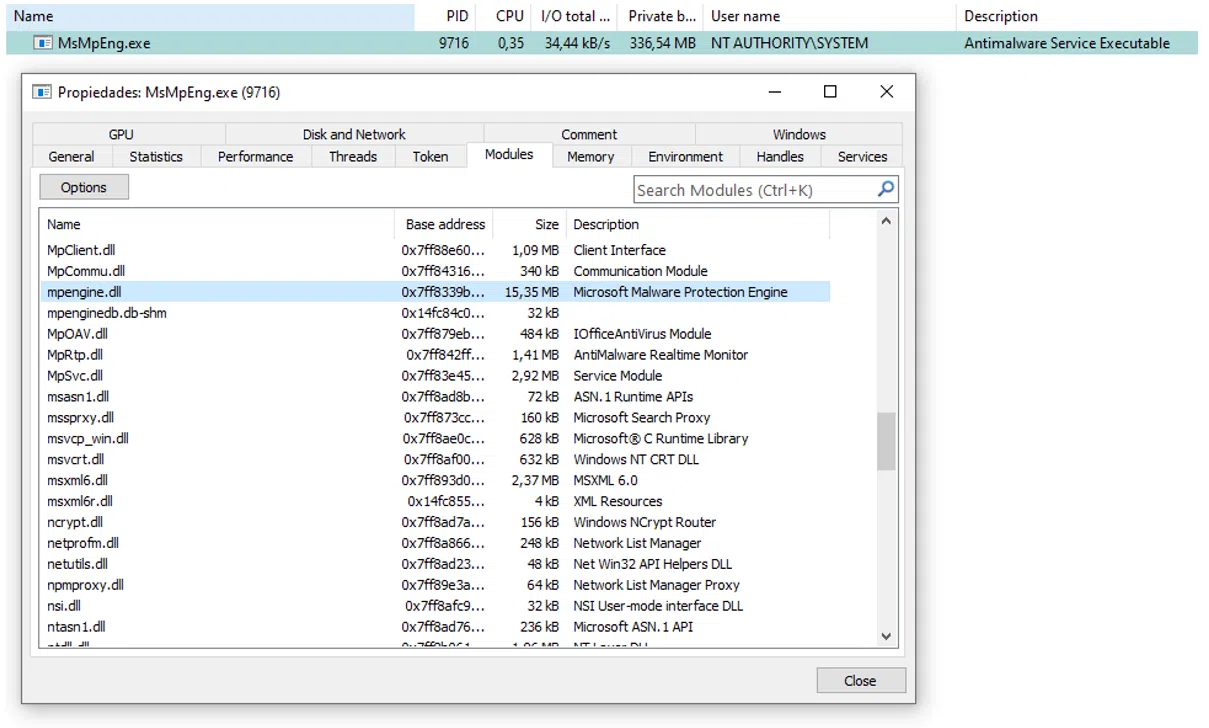
Services like Windows Defender and Windows Modules Installer start under the TrustedInstaller context to have full access to protected files. Some processes even restrict access to these files, preventing even SYSTEM or administrators from manipulating them, reserving that access solely for TrustedInstaller itself.
This stratified privilege structure is responsible for TrustedInstaller having more power over certain files than any other user or group on the system.
What happens when TrustedInstaller or WFP/WRP fails?
If a bug or corruption occurs in TrustedInstaller or Windows File Protection/Resource Protection, you may experience all sorts of errors: from the inability to run applications, to failed updates, to persistent permission denied messages.
The solution in these cases involves first running sfc /scannow and DISM to repair the system. If the problem persists, you might need to restore the system to a previous point, perform a Windows repair, or, in the worst case, reinstall the operating system.
Can I disable TrustedInstaller or Windows File Protection?
It is neither possible nor advisable to disable these protections through normal system settings. Methods exist to take ownership of protected files, but doing so en masse or disabling WFP/WRP entirely leaves Windows completely vulnerable to errors and threats. The update, protection, and repair mechanisms themselves would cease to function correctly.
If for any reason you need to modify protected files, do so one by one, always knowing what you're touching and always having a backup or restore point on hand.
TrustedInstaller and user files: what to do if problems arise
Occasionally, due to third-party program errors or improperly applied updates, your personal files may become under the control of TrustedInstaller. If this happens, you will be prevented from accessing, modifying, or deleting them until you regain ownership and permissions as explained previously. Before taking drastic measures, always check if there is a legitimate reason for this protection. If not, proceed with the manual steps described or contact Microsoft technical support.
TrustedInstaller and malware: prevention and cleanup
Cybercriminals are well aware of the tendency some users have to search for ways to remove TrustedInstaller or disable system protections. This leads them to disguise malicious software as TrustedInstaller or trick users into taking dangerous steps by following dubious tutorials found on unreliable websites.
If you have the slightest suspicion that something is wrong with TrustedInstaller's behavior on your system:
- Verify that the process is on its legitimate path and has not been overridden.
- Perform a full scan with reputable anti-malware tools.
- Never download tools from unknown sources that promise to forcefully remove TrustedInstaller.
Remember, TrustedInstaller, when properly managed and legitimate, is a security ally, not an enemy. Removing or modifying it without reason can leave your computer completely vulnerable.
Managing files protected by TrustedInstaller and Windows File Protection is one of the strongest foundations for preventing human error or external threats from compromising your operating system. If you're unsure whether to touch a protected file, the wisest course of action is to leave it alone. And if you ever need to, act wisely, making backups and being aware of the risks. Windows File Protection (or WRP) and TrustedInstaller are there to help keep your system healthy and running, not to make your life difficult.

Passionate writer about the world of bytes and technology in general. I love sharing my knowledge through writing, and that's what I'll do on this blog, show you all the most interesting things about gadgets, software, hardware, tech trends, and more. My goal is to help you navigate the digital world in a simple and entertaining way.