- OneDrive and SharePoint They automatically maintain a version history, including major, minor, and log versions for critical documents.
- It is possible to restore previous versions and even the entire OneDrive from the web, File Explorer, or the Office 365 applications themselves.
- There are version limits, retention times, and risks of accounts being frozen due to space or inactivity, which should be understood and managed.
- Combining version history, recycle bin, and good naming practices improves document security and traceability.
In everyday use with Microsoft 365 , working with Word , Excel, and PowerPoint documents and files shared on OneDrive or SharePoint is perfectly normal. But when multiple people are editing simultaneously, or when we need to revert to a previous version, things can get complicated if we don't understand how version control and change tracking work in the Microsoft cloud.
If you've ever found yourself surrounded by files like "final_presentation_v3_good_now_yes.pptx" , this article is for you. We'll take a detailed look at how version control works in OneDrive and SharePoint, what logs are in information management, how to recover previous versions (from the web, File Explorer, and the Office apps themselves ), how to restore your entire OneDrive to a previous point, and what limits and retention periods Microsoft 365 uses.
What is version control in Office, OneDrive, and SharePoint?
In the Microsoft 365 ecosystem, version control is the ability to automatically save different "states" of the same file as it is modified. This version history is integrated with OneDrive and SharePoint and works with virtually any type of file: Office documents, PDFs , CAD files, photos, videos, and much more.
Unlike manually saving many files with different names, version history maintains a single file with multiple internal versions , which you can view and restore as needed. This system is complemented by retention labels and the logging concept in SharePoint Online and OneDrive for Business, designed for compliance and records management scenarios.
In organizations that use SharePoint intensively, in addition to the standard version history, there may be so-called "record version control ," which adds a special layer of protection and traceability to certain documents that must be treated as official records (contracts, internal policies, legal documentation, etc.).
Furthermore, many SharePoint libraries differentiate between major and minor versions . Major versions (1.0, 2.0, 3.0…) are typically used for important milestones, such as when a document is released for general review, while minor versions (1.1, 1.2, 1.3…) are used while the file is under development.
Organizations typically configure draft security so that only the file owner and those with approval permissions can see minor versions , while the rest of the team only sees the major, "official" versions. In SharePoint lists, only major versions are tracked, and these are always numbered with integers.
Version control of records in SharePoint Online and OneDrive
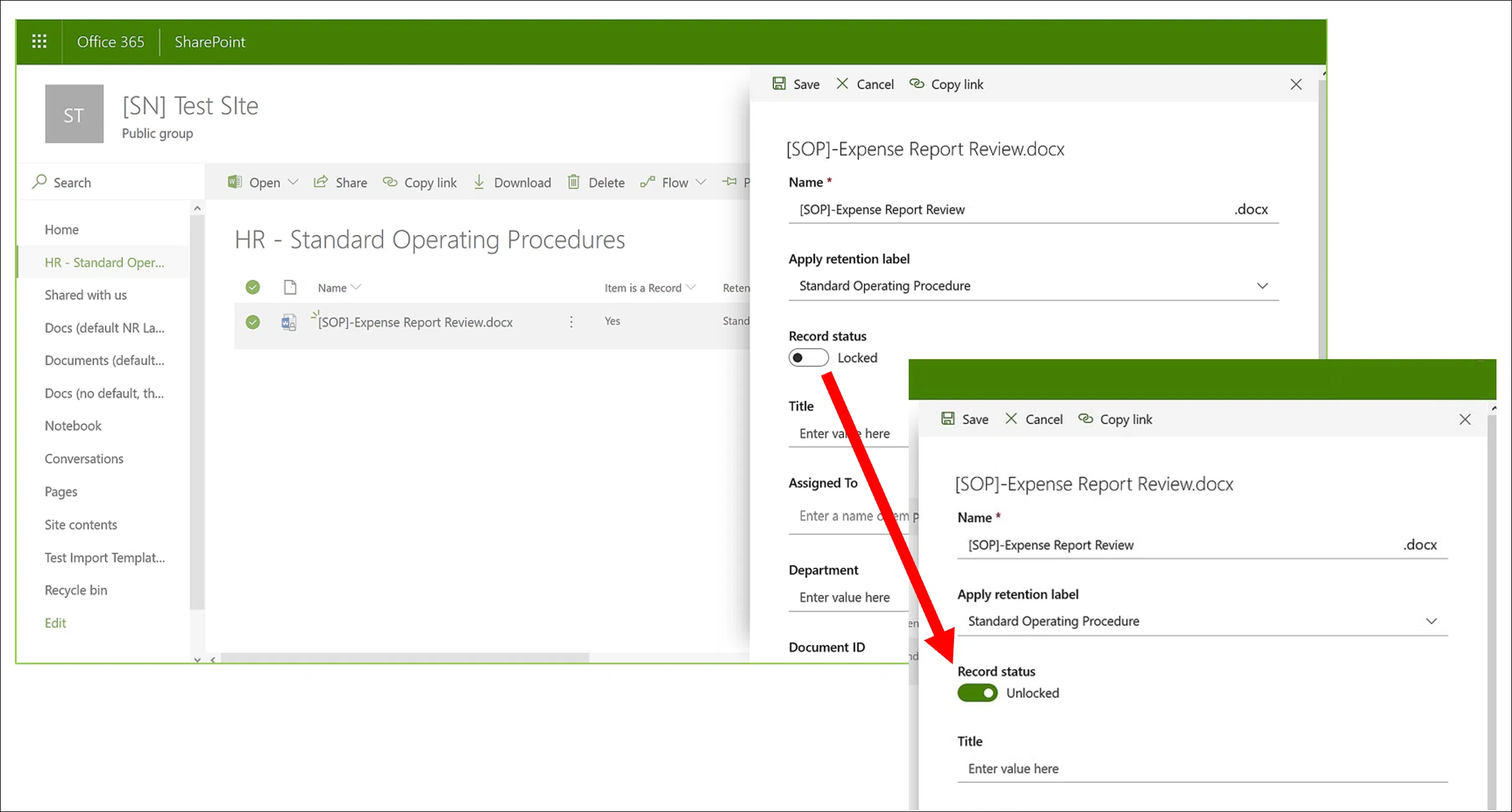
In compliance and advanced document management scenarios, it's common to require certain documents to be considered official "records ," with clear restrictions on what can be done with them (for example, that they cannot be deleted or modified while locked). Even so, it's often necessary to continue working and generating new versions from these records.
Imagine a sales contract: you can mark the signed version as a record to ensure it remains intact, but perhaps later a clause needs updating. In that case, a subsequent version is generated, which can also be marked as a new record, always keeping the previous versions that were already recorded accessible.
SharePoint Online and OneDrive for Business allow precisely this through their record versioning feature . OneNote notebook folders are the major exception: in that specific case, they do not support this type of record versioning.
To use it, you must first apply a retention tag to the document, configured to mark the content as a record . From that point on, a document property called "Record Status" appears, displayed next to the retention tag itself. Depending on how the tag was configured, the initial record status can be "Locked" or "Unlocked."
With this active configuration , you can:
- Edit the document and generate individual versions as recordsThe system alternates the "Record Status" between locked and unlocked. A new version is only kept as a record when the status is "Locked," reducing the risk of accumulating unnecessary copies.
- Have log versions automatically stored in a local repository associated with the siteEvery SharePoint and OneDrive site has a preservation suspension library, and within it is a "Logs" folder where these versions are stored as separate files.
- Maintain a "living" document that keeps the entire version historyIn document libraries, from an item's menu you can consult the version history at any time, seeing at a glance which are registered versions and opening those copies when needed.
If the retention label is set to require a deletion review at the end of the retention period , each record version is evaluated independently. This allows you to decide what to do with each one individually, rather than treating the entire history as a single unit.
By default, record versioning is automatically enabled for any document that has a retention tag applied to it, marking it as a record, and that is published to the site. From the document details panel, any user with the appropriate permissions can change the record's status from "Locked" to "Unlocked" and vice versa. A padlock icon is also typically displayed to visually indicate when the file is locked.
While the document is unlocked, any user with standard editing permissions can modify the file , but not delete it, as it is still considered a record. When editing is complete, the status is changed back to "Locked" to prevent further modifications until it is unlocked again.
Locking and unlocking records: what happens internally
When a retention tag is applied that marks a file as a record, any user with contributing permissions (or lower) can change the record's status from locked to unlocked and vice versa. The internal behavior is very specific and should be understood to grasp what's happening with the files.
Unlocking a record triggers several automatic actions :
- If the site does not already have a preservation suspension library, one is created at that time. automatically.
- Within that library, if the "Records" folder does not exist, it is also created to store registry versions.
- A "Copy to" action is executed, which copies the latest version of the document to the Records folder.Only the most recent version at that time is copied, not the entire history. The filename in that folder usually follows the format .
- The copy that goes to the Logs folder is linked to the version history of the original document., and in the comments field of that version the word “Record” is indicated.
- The original file becomes a new editable versionbut without the possibility of deletion. The "Item is a record" column in the document library continues to show "Yes", reflecting that the document retains its record status even though it can be modified.
When the log is locked again, the original document becomes uneditable . It's important to understand that the copy in the Logs folder is created when the log is unlocked, not when it's locked. Each unlock generates a new log version in the suspension library for preservation.
To view the different record versions, simply select the document in the library and use the "Version History" option in the item's menu. From there, you can see all versions, including those marked as "Record" in the comments field, and open each one if needed.
Locking and unlocking actions are recorded in the Microsoft 365 audit log . The "File and Page Activity" reports can be filtered for events such as "Log status changed to locked" or "Log status changed to unlocked," facilitating compliance checks and internal reviews.
Practical use of version history in OneDrive and SharePoint
From a user's perspective, the most common reason is simply wanting to recover a previous version of a file because content was accidentally deleted, unwanted changes were made, or the file became corrupted. That's what OneDrive and SharePoint version history is for, both on the web and in File Explorer, as well as within the Office applications themselves.
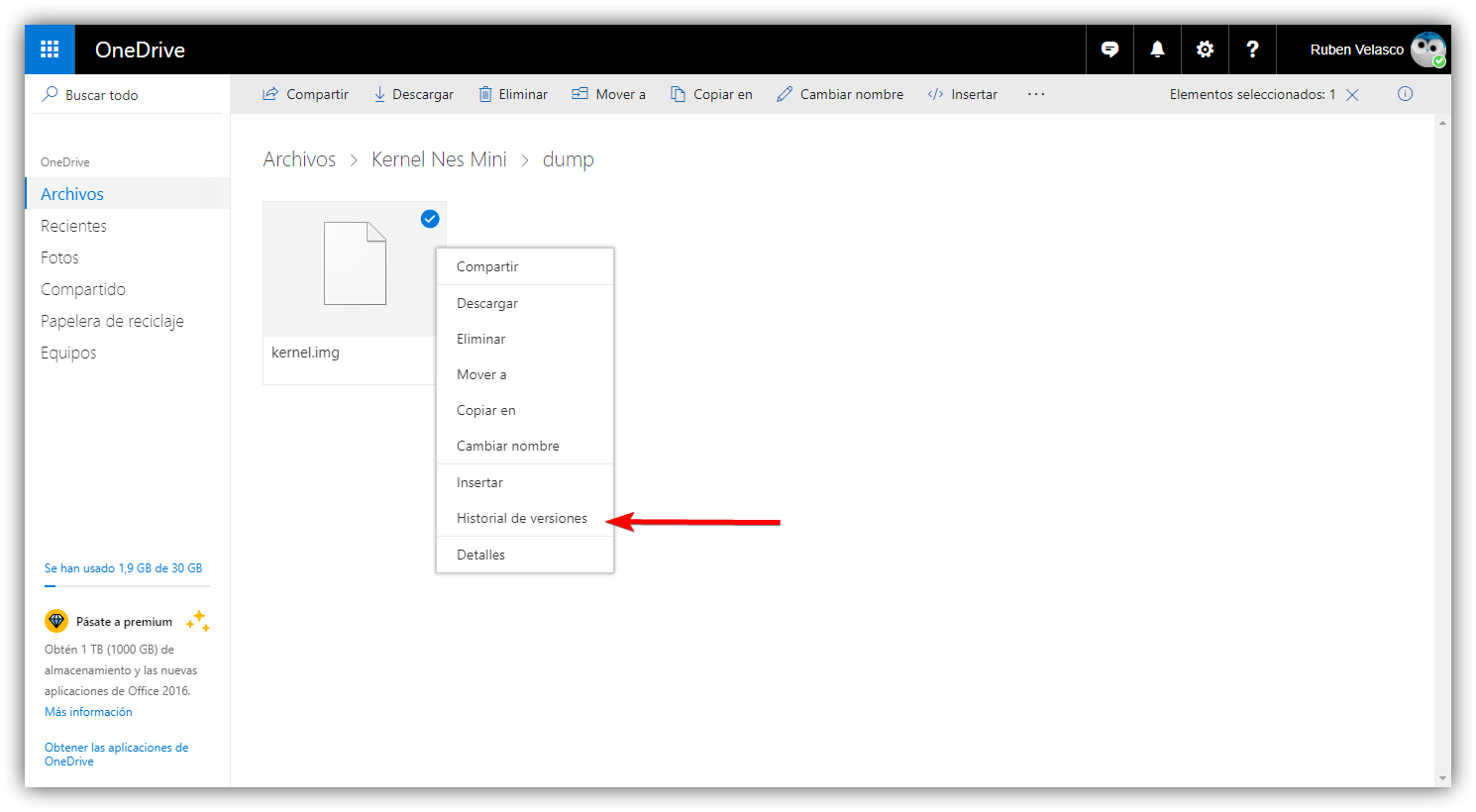
In OneDrive (personal or professional), the basic process from the web is very straightforward: you log in, locate the file, right-click, and choose "Version history ." This opens a panel listing the different versions of the file with the modification date, who modified it, and the file size.
If you're using a Microsoft 365 work or school account, you'll see options with ellipses (...) next to each version in the history panel . From there, you can select "Restore" to make that version the current one. The previous current version doesn't disappear; it's simply moved to a previous version entry in the history.
In the classic view or older versions of SharePoint Server, you can restore a file by clicking a drop-down arrow next to the version number , where you'll also see the "Restore" option. The result is the same: the selected version becomes the current version of the file.
Please note that you can only restore one file at a time ; there is currently no native function to restore multiple versions of multiple files at once from the standard version history.
Version history from File Explorer (sync client)
If you use the OneDrive sync app on your Windows PC , you also have access to version history directly from File Explorer , which is very convenient if you work more from the desktop environment than the web interface.
The procedure is simple: open the OneDrive folder in File Explorer, locate the file you want to recover , right-click on it, and select "Version history." This will open a window listing the different versions of the file stored in the cloud.
From that list, choose the specific version you want to restore, tap the three dots (...) and select "Restore" . Just like in the web interface, the version you restore becomes the current one, and the version that was current just before the restoration becomes an older version, so you don't lose anything.
It's important to know that, again, you can't restore multiple versions of multiple files at the same time using this Explorer feature. Each restoration is done individually.
Microsoft also documents how to use version history in more detail and explains how to locate lost or missing files from OneDrive, which sometimes happens when folders are moved or the synchronization path is changed.
Restore versions from Office 365 applications (Word, Excel, PowerPoint)
When you open a OneDrive document in Word Online, Excel Online, or PowerPoint Online, you can also access the version history directly from within the application . This is very useful for reviewing changes with visual context, seeing exactly what has been modified, and deciding which version you want to revert to.
To do this, open the file in the corresponding app (for example, a .docx in Word Online or an .xlsx in Excel Online ) and go to the menu “File > Info > Version History”. A side panel will open showing the different available versions.
When you select a panel version, you can see it in the main window with the changes highlighted . From there, you'll usually have two options: "Save a copy" (to keep both versions) or "Restore," which makes that version the current one. The "Restore" button isn't displayed for the latest version, as it's already the current one.
This approach is especially practical in collaborative environments, because it allows you to browse through the history, seeing who made each change and when , and decide whether you want to keep an older version without having to leave the application.
Restore all of OneDrive to a previous point
In addition to restoring individual files, OneDrive for Business offers a powerful feature: restoring your entire OneDrive to a previous state . This is especially useful in cases of massive file corruption, accidental deletion of many documents, or malware attacks (such as ransomware).
To use this option, access OneDrive from your browser, click the "Settings" icon in the top right, and select "Restore your OneDrive ." A page dedicated to this function will open.
On that page, you can choose a date to which you want your OneDrive status to revert , with quick options like "Yesterday", "One week ago", "Three weeks ago", or a custom date and time.
The interface displays a graph showing changes to your files over time and a slider to visually mark the point in time you want to return to . Below, you'll see a detailed list of changes (files modified, deleted, or restored), indicating who performed each action and when.
Select the changes you want to revert or the time period you're interested in, and when you're ready, click the "Restore" button . The system will undo those changes and return your OneDrive to the selected state. It's a kind of "time machine" for all your storage space.
Recover deleted files from the recycle bin
When you delete a file from OneDrive, that file is also deleted from all your synced devices , since syncing maintains the same state in the cloud and on your local computers. Therefore, if you accidentally delete something, you usually won't find it on any other synced device either.
The good news is that, as long as the trash hasn't been emptied and the retention period hasn't expired, deleted files can be recovered from the OneDrive web recycle bin . To do this, go to OneDrive in your browser and, in the left panel, click on "Recycle Bin."
You'll see a list of the deleted items, including information such as the deletion date, the username of the person who deleted them, and the original location . Simply select the files and folders you want to recover and click the "Restore" button. The items will be returned to their original location, provided it still exists.
This recycle bin is also subject to a maximum retention period , so files are not stored there indefinitely. It's important to be aware of these limits, especially in corporate environments.
Version limits and retention periods in OneDrive and Office 365
In personal OneDrive accounts, older versions of a file are kept for 30 days . Within that period, you can retrieve up to 25 versions of each file. After that time, older versions may be deleted according to the retention policy.
For Microsoft 365 for organizations accounts, the number of versions stored and the exact behavior depend on the library settings defined by the administrator. There is no single, universal value, as each company can adjust these options according to its needs and storage policy.
Regarding deleted items, the standard maximum retention period for files in the SharePoint and OneDrive for Business recycle bins is 93 days . This limit can be reduced, but not extended, and administrators can adjust it below 93 days. In any case, deleted items are always retained for a minimum of three days.
In libraries that use major and minor versions, there are additional limits: the maximum number of minor versions that can be accumulated for each major version is 511. The maximum number of major versions is configurable. If you attempt to save another minor version beyond this limit using modern clients, the most recent minor version will be overwritten.
If, however, you are using an older client and reach the maximum number of minor versions, you will not be able to save or load changes until a new major version is released . Once released, you will again have space for up to 511 new minor versions associated with that major version.
Managing frozen OneDrive space and accounts
When you exceed your OneDrive storage limit, your account may become "frozen" and enter read-only mode . In this state, although you can still log in, you won't be able to upload files or sync new changes from your devices.
There are two basic ways to resolve this situation. The first is to purchase more storage space by upgrading to a higher subscription plan . After payment, the upgrade may take up to 24 hours to be applied and unfreeze the account.
The second option is to delete files to free up space . From the OneDrive web interface, you can sign in and choose "Unfreeze your account to temporarily access your files." For a period of 30 days, your files will be in read-only mode, giving you time to delete those you no longer need.
During that time, you can download important documents to your local drive and then delete them from the cloud to reduce storage space. If you don't clean up enough within those 30 days, the account will be frozen again, and the temporary unfreezing option will no longer appear. At that point, your only option is to contact Microsoft support.
Another important aspect is inactivity: if you don't access your OneDrive account for a year , the account may be frozen even if you continue using other Microsoft 365 services. To avoid this, it's advisable to log in to the OneDrive web interface at least once a year or maintain some activity with the desktop client.
Best practices for naming and organizing versions
Although version history greatly simplifies management, many people still manually name documents with numbers and dates to maintain some visual control over versions. This system can coexist with version history, provided it is used in an organized manner.
A common practice is to add the date to the beginning of the name in year-month-day format (for example, 230107 for January 7, 2023) and then a numeric suffix to indicate the significance of the change. For example: “230107_memoria_1” for a major first version of a project report.
As minor changes are made, sublevels such as 1.1, 1.2, 1.3 can be added , resulting in names like “230107_memory_1.1”, “230108_memory_1.2”, etc. This indicates incremental adjustments to the same main milestone.
When a major revision occurs, for example after a supervisor's review, the main number can be changed and the file renamed as "230131_memoria_2", making it clear that there is a significant jump from the previous series of drafts.
However, it's worth remembering that true fine-tuning is provided by the version history of OneDrive and SharePoint , especially when combined with the ability to see which user made which changes and when, and with retention and registration labels for documents that require legal traceability.
Comments, commits, and Git-style alternatives
One feature many users, especially those from the software development world, miss is the ability to add clear and structured commit messages to each version , as is done in Git. OneDrive automatically maintains versions, but it doesn't always allow for detailed documentation of what has changed between versions.
In corporate environments that use SharePoint, options such as change and comment tracking , approval workflows, and the use of master versions for milestones help to approximate this type of control. It's not Git per se, but it does provide more context than a simple list of dates and authors.
If you don't have permission to configure SharePoint or modify libraries (common in work accounts), you might be limited to OneDrive's standard options . In those cases, a good naming system, the disciplined use of major/minor versions in libraries where enabled, and the habit of reviewing the history before making large changes can make all the difference.
For more advanced needs, such as retaining versions for longer periods, having additional external copies, or having even more detailed control over the file lifecycle , many organizations opt for specialized backup solutions that also include OneDrive and other Microsoft 365 data within their protection strategy.
This entire set of features—version history, logs, recycle bin, full OneDrive restore, space control, and naming best practices—forms a powerful toolbox for preventing data loss and working more securely with Office and OneDrive , provided you understand it well and use it judiciously.


Passionate writer about the world of bytes and technology in general. I love sharing my knowledge through writing, and that's what I'll do on this blog, show you all the most interesting things about gadgets, software, hardware, tech trends, and more. My goal is to help you navigate the digital world in a simple and entertaining way.