- Windows Ink improves writing, digital ink, and recognition in Office and PDF.
- Office works fine with or without Ink; Adobe PDF usually requires it to be activated.
- On Wacom, Ink is enabled by default and can be unchecked in its properties.
- With Huion, monitor conflicts of drivers; updates, cleans HID and uses OTD if necessary.
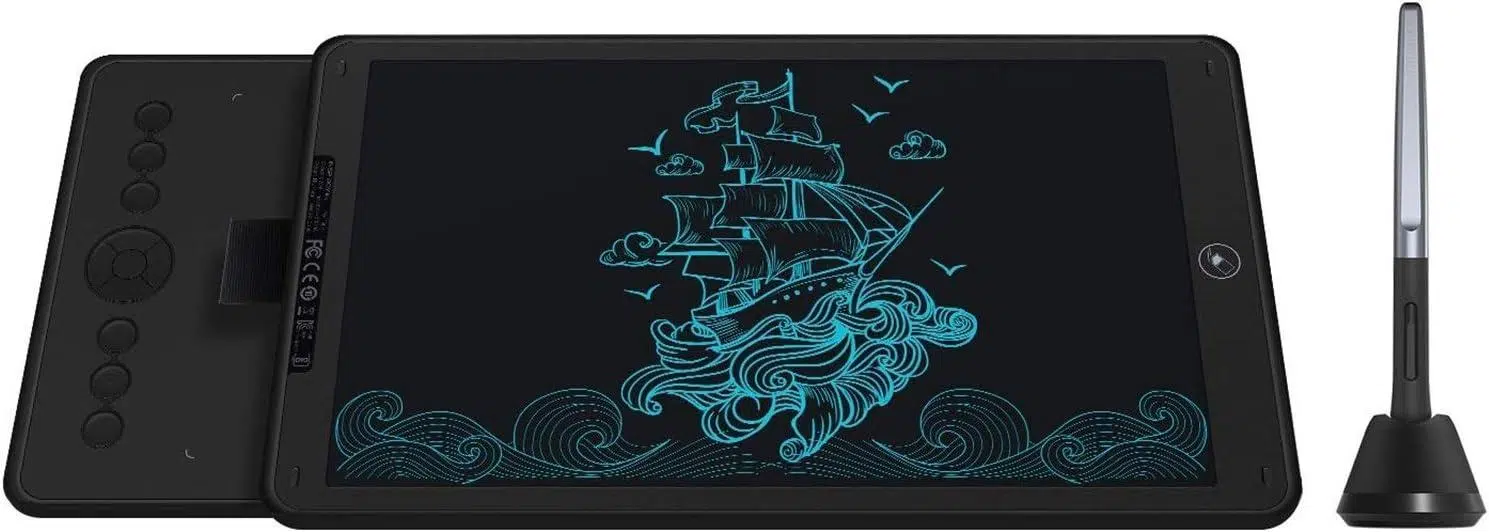
If you use a Wacom or Huion tablet on Windows, you're probably familiar with terms like Windows Ink, the Pen Workspace, and the Draw tab in Office. Properly integrating the tablet, driver, and system makes all the difference between a smooth writing and drawing experience and minor headaches like latency, disabled gestures, or missing tools.
This practical and detailed guide covers the essentials: what Windows Ink does in Windows 10 and 11, how it behaves in Word , PowerPoint, OneNote, and Adobe Reader/Acrobat, which settings to adjust in Wacom Center, when to disable or leave Windows Ink enabled, and how to resolve common conflicts on computers with Wacom and Huion drivers. We also include a relevant legal section about the official Huion platform, because if you share or download resources, it's important to know the rules.
What is Windows Ink and why does it matter with Wacom and Huion
Windows Ink is Microsoft's suite of stylus input features, available in Windows 10 and 11, that integrates with the system and many apps . With the Windows Ink Workspace, you get quick notes, annotated screenshots, and stylus-focused suggestions, as well as digital ink enhancements within compatible applications.
In Office and other compatible apps, you'll find advanced inking and markup tools, especially on the Review or Draw tab, depending on the app. These digital inking tools let you write, highlight, or mark up with precision, taking advantage of pressure, tilt, and stroke smoothing if your tablet and software support it.
Another key feature is handwriting recognition: the system can convert your handwriting into typed text. This streamlines workflows where you take handwritten notes and then need editable text for documents or emails.
If you prefer to enter text without a physical keyboard, the Windows Input Pane lets you use handwriting or an on-screen keyboard directly with your tablet's stylus. It's a quick way to fill in text fields, forms, or searches without putting down the stylus.
Keep in mind an important detail: in certain graphics applications, some gestures are disabled. Specifically, gestures and the long-press action to simulate a right-click may not work, due to how these apps capture the stylus event and manage their own input experience.
Generally, if you use a Wacom device, the option to use Windows Ink is selected by default. This is the default setting to ensure compatibility with apps that rely on Microsoft's ink infrastructure.
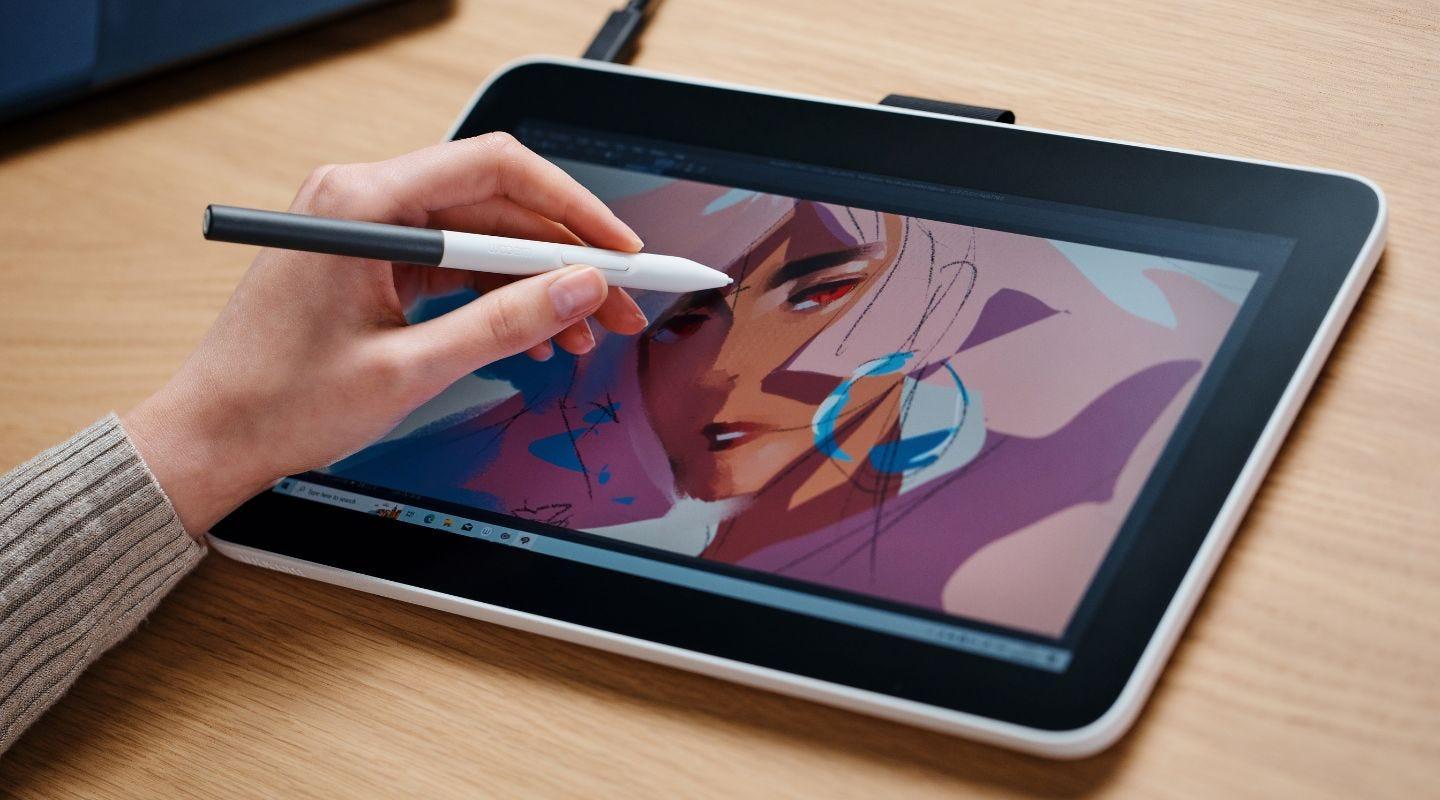
Windows Ink in Office: Word, PowerPoint and OneNote
If you work in Word, PowerPoint, or OneNote, the Draw tab gives you access to pressure-sensitive pens, markers, and erasers with color and thickness options. Many users find that these programs work correctly with or without the Windows Ink box checked in their tablet's driver settings.
With a Wacom Intuos, for example, it's possible to annotate directly on slides or documents without any issues, regardless of that field. This is because Office implements its own robust ink support and can communicate with the tablet both via Ink and through other input methods exposed by the drivers.
OneNote, for its part, is often one of the best showcases of Windows Ink, highlighting its natural strokes, lasso selection, and handwriting-to-typewriting conversion. For note-taking in class or meetings, Ink helps bring the experience closer to that of a traditional notebook.
If you switch between a stylus and a mouse on your desktop, Office handles the input device change seamlessly. The system detects what you're using and adapts pointers and interaction modes on the fly, usually without requiring manual adjustments.
In any case, having Ink enabled can provide subtle improvements in recognition and latency with some hardware and Office version combinations. If you notice smoother drawing or less jitter with the option enabled, leave it enabled in your Word, PowerPoint, and OneNote sessions.
Annotating PDFs with Adobe Reader and Acrobat: When you need Windows Ink
When converting to PDF, some nuances arise. In Adobe Acrobat or Adobe Reader, the Pen tool (Comment > Pen tool) frequently relies on the Windows Ink API to capture the stroke. This means that if you disable Ink in the driver panel, you might lose the ability to handwrite directly on the PDF.
Several users report that they can only draw or write in Adobe if the Windows Ink box is checked in their tablet driver. If you work with PDFs daily , it's advisable to leave this option enabled to avoid losing the pen tool in Comments.
Are there alternatives for annotating PDFs without Ink? You can use third-party apps with their own ink engines, but if your workflow involves Acrobat/Reader, the most effective solution is to keep Windows Ink enabled. This ensures compatibility with highlighting, handwriting, and other native Adobe markup tools.
In mixed environments, a practical solution is to switch per-app when possible: enable Ink for Acrobat and disable it if a specific creative app performs better without it. Not all controllers offer per-app adjustment, but if your dashboard allows it, take advantage of it.
Enabling or disabling Windows Ink on Wacom: key settings
On Wacom devices, Windows Ink is usually enabled by default. If you need to disable it for compatibility reasons, you can do so in a few steps. The approximate process within the Wacom ecosystem is as follows:
- Wacom Center opens. It's the central panel managing your tablet.
- In the Devices sidebar, select your tablet. This is how you access to the specific options of that model.
- Choose Projection Settings (or the properties section linked to screen and pen). The nomenclature may vary slightly depending on the version.
- In Wacom tablet properties, uncheck the "Use Windows Ink" option. With this forces to compatible apps to operate without the Ink layer.
If you notice that Office or Acrobat lose functionality after disabling Ink, uncheck the box and try again. The best balance depends on your software combination and the type of work you do (office applications, annotation, illustration, CAD, etc.).
HUION: Ink, drivers and a real-world case study on Windows 11 23H2
With Huion, the "Enable Windows Ink" checkbox within the control panel also exists, but some users have reported intermittent behavior. One case with Kamvas Pro 16 (2.5K) , driver v15.7.6.753 on Windows 11 23H2, showed that even with the option checked, Windows Ink did not actually launch upon login.
The visible symptom was the Pen Menu in the taskbar: it only appeared when the "HuionTablet" process was closed, at which point Windows Ink would become responsive again. Upon reopening the process , the system functioned fine until the next boot , at which point the problem reappeared.
The same hardware worked correctly on other machines (Windows 10 21H2 and Windows 11 22H2), suggesting a specific interaction with 23H2 or with the installation on that particular PC. A conflict with remnants of drivers from other brands (Wacom) was considered , a very common cause when changing tablets.
The solution that seemed to solidify over time combined several actions: uninstalling duplicate "HuionHID" drivers from Device Manager , letting Windows and the Huion installer perform a clean reinstall, restarting the system, and, crucially, waiting for a Huion driver update. After the update , the Ink not launching issue disappeared.
Meanwhile, OpenTabletDriver (OTD) was a lifeline for some, although at the time it lacked specific features that the official Huion driver provided. If you need immediate stability , OTD can serve as a bridge until the manufacturer resolves the issue with their driver.
There is evidence of a thread with similar issues that could be related to Photoshop, suggesting a situation where creative apps and drivers compete for pen capture. The link shared by the community is : https://www.reddit.com/r/huion/s/8CJL4WIpZA
Practical conclusion for this case: If you notice that the pencil icon is missing and your "Enable Windows Ink" option in Huion seems to be ignored, try temporarily closing the Huion service/process, reinstalling any duplicate HID drivers, and checking for driver updates. If the problem persists , consider using an OTD (On-The-Dash) solution or, as a last resort, try a different computer if you have another environment where you can confirm it works.
Workspace icon vs. disabling Windows Ink: a helpful clarification
There's some confusion between "removing the icon" and "turning off Ink." In Settings > Personalization > Taskbar > Turn system icons on or off, you can hide the Windows Ink Workspace icon. This only affects the icon and its quick access; it doesn't disable the Ink subsystem or app compatibility.
If you really need to disable Ink due to a conflict with an app, do so in your tablet's driver (Wacom or Huion) or, if the software allows it, in its internal settings. Hiding the icon is an aesthetic/ergonomic adjustment, not a technical one regarding pen stroke capture.
Gestures, long presses, and features in graphic apps
Some design applications use their own input engine and override system gestures. In these cases, the ability to press and hold to emulate a right-click or certain Windows Ink gestures may be disabled. This is not a stylus defect , but a design choice to avoid interference with the program's shortcuts and internal tools.
If you work with apps that behave this way, consider whether it's worth keeping Ink active for other tasks (office applications, PDFs) and simply accepting that system gestures won't be available within the creative app. Sometimes, the software itself offers alternative gestures or radial menus to compensate for this.
Input panel and handwriting recognition: a productivity hack
The Windows Input Panel lets you write by hand and have the system recognize your strokes as text, without a physical keyboard. It's very practical for quick searches, titles, or short notes when you're completely focused on writing with your pen.
To improve accuracy, take a few minutes to calibrate and complete the basic recognition training, if available. The more consistent you are with your on-screen handwriting, the better the system will convert your writing to text.
Best practices for avoiding conflicts and improving the experience
If you switch tablet brands or have had multiple drivers installed, completely uninstall the previous drivers and remove duplicate HID devices from Device Manager. Leftover drivers are a common source of conflicts between Wacom, Huion, and other manufacturers.
Always update to the latest stable driver version for your model and the version of Windows you're using (especially 23H2 and later). A manufacturer update can resolve latency issues, Ink startup problems, or compatibility problems with specific apps.
If you experience lag or sluggish screen movement only when logging in, try restarting the tablet driver service. In the case described , temporarily closing the "HuionTablet" process on Huion caused Windows Ink to activate; after reopening it, the system remained stable until the next boot.
Consider disabling Ink only for apps that require it if your control panel supports per-app profiles. This way you retain the best of both worlds: Ink for Office/Acrobat and direct compatibility for tools that prefer their own engine.
If you're using a laptop with aggressive power-saving features, disable USB selective suspend for the port where you connect your tablet. This will prevent micro-disconnections that result in slight lag or stylus reconnections.
For PDFs, if your primary tool is Acrobat/Reader and you need to write by hand, keep the Ink option enabled in the driver. Conversely, if your creative workflow relies on an app that works better without Ink, create shortcuts or profiles to switch quickly.
When to use OpenTabletDriver or other alternatives
OpenTabletDriver is a community-driven option that offers great control and, sometimes, better temporary stability when an official driver fails. As a workaround, it can be key while waiting for an official update, but make sure it covers the features you need (buttons, gestures, pressure, tilt).
If OTD doesn't yet offer a feature critical to your workflow, consider another tablet that works well in your specific environment. Remember to completely uninstall drivers from the previous brand before installing the new one to minimize conflicts.
Huion Official Website Platform User Agreement: What You Need to Know
If you use the official HUION platform to upload artwork or download materials, accepting its Platform Agreement implies your commitment to its terms. HUION may modify or supplement the agreement and will announce any changes on its website; if you continue to publish, it will be understood that you accept the changes, and if you do not agree, you may stop uploading content.
Regarding content uploads, you must ensure that your works do not violate any laws, do not include violent, pornographic, or reactionary material, and do not infringe on the rights of third parties. HUION declares itself a network service provider without the capacity for comprehensive monitoring of violations.
If a rights holder believes that another user has infringed their copyright, HUION will address claims with adequate evidence. Evidence such as the following is requested :
- Identification document of the holder (ID, business license, etc.).
- Proof of ownership and initial publication (original manuscript, certificates).
- Statement of infringement that details the content and location of the allegedly infringed matter.
The materials provided by HUION are intended for exchange between users, not for commercial purposes. If a third party uses these materials for profit and a dispute arises, the responsibility lies with that third party.
In the event of a user's breach of this agreement, HUION may seek compensation for losses, including fines, damages, legal fees, notary fees, and court costs. Furthermore, the platform may modify or remove uploaded content it deems inappropriate and even block the user's ID in serious cases.
Regarding rights and obligations, you confirm that you may upload your original works to the site to share them or make them available for purchase, and that transactions between users do not involve HUION. You also guarantee that your works are original, not plagiarized or adapted without permission, and that they do not infringe copyright regulations.
In your declaration and warranty, you agree that your actions do not infringe upon the rights of third parties (reputation, image, etc.) or contradict any contracts you may have with others. If a dispute arises due to your breach, you will be responsible for managing and responding to any claims received by HUION.
You also consent to HUION disclosing your personal data if requested by government or judicial authorities, or rights holders through legal channels. In the legal section , any dispute relating to this agreement will be submitted to the courts of the jurisdiction where HUION is located, applying the laws of the People's Republic of China, and HUION reserves the right to interpret the terms of this agreement.
Quick diagnostic checklist when something isn't working properly
If the pen is lagging or Windows Ink doesn't seem to load, first check if the Pen Menu icon appears when using the tablet. If it only appears after closing your brand's driver process, suspect a startup or service conflict.
Check Device Manager and remove any duplicate HIDs for the corresponding brand; restart and let everything reinstall. Check driver versions (for example, v15.7.6.753 in the case of Huion) and look for updates.
Try your tablet on another computer if possible. If it works perfectly on Windows 10 21H2 or Windows 11 22H2 but fails on 23H2, you've narrowed down the problem to an issue with that specific version. This information helps the manufacturer's technical support reproduce the problem.
Finally, it specifies which apps absolutely need Ink (Adobe Reader/Acrobat for handwriting) and which ones work fine without it (some creative apps). It defines criteria for leaving it enabled by default and disabling it only where absolutely necessary, or vice versa.
To complete the picture, remember that some system gestures may not be available within specific creative apps. Don't mistake this for a general Windows Ink bug: it's an intentional behavior of those applications.
All of the above paints a clear picture: Windows Ink provides recognition, digital ink, and tools that shine in Office and PDF; Wacom and Huion offer toggles to enable or disable it; disabling the Workspace icon doesn't turn off Ink; and conflicts are usually resolved by cleaning up drivers, reinstalling HID, restarting, and, very often, updating the manufacturer's driver. If you need continuity while waiting for an update, OpenTabletDriver can be a good workaround as long as it covers your essential functions.

Passionate writer about the world of bytes and technology in general. I love sharing my knowledge through writing, and that's what I'll do on this blog, show you all the most interesting things about gadgets, software, hardware, tech trends, and more. My goal is to help you navigate the digital world in a simple and entertaining way.