- Transform your PC with Windows 11 on a Wi-Fi hotspot easily and securely.
- Customize the name, password, and type of connection you share with other devices.
- Troubleshoot common issues and optimize the performance of your shared network.
These days, sharing your internet connection from your computer is an increasingly common need. Whether it's because your router 's signal doesn't reach every corner of your home, because you only have a wired connection, or simply because you want to give your guests access without revealing your main network password, Windows 11 offers some very interesting options for transforming your PC into a true Wi-Fi hotspot.
In this article, you'll discover how to use Windows 11 as a Wi-Fi hotspot step by step, the advantages of this feature, tips for optimizing your connection , and answers to the most common questions. Everything is explained simply so you can set it up yourself, even if you don't have much experience. Take note of every detail and become the perfect digital host.
What is a Wi-Fi hotspot in Windows 11 and what is it for?
The Wi-Fi hotspot feature in Windows 11 allows your computer to share its internet connection wirelessly, creating a private network that other devices (such as phones, tablets, or laptops ) can connect to. Its usefulness extends far beyond simply sharing internet between computers : you can create a local network, share files, provide internet access for guests , or simply address a lack of Wi-Fi in certain areas of your home.
This is especially useful if your computer is connected via Ethernet and you don't have a router nearby, if you're staying in a hotel with only one cable available, or if your router doesn't allow you to create a guest network. Windows 11 turns your PC into a mobile hotspot in minutes , and you can choose your own network name and password.

Advantages of sharing your connection in Windows 11
Using the built-in Wi-Fi hotspot in Windows 11 has numerous advantages worth highlighting. First, it's easy to set up : you won't need to install third-party programs or perform complicated configurations on your router.
Furthermore, you can easily customize the network name and password , increasing security and allowing you to create a separate network for guests or specific devices in your home. This keeps your main network more secure because you don't have to share access to it.
Another major advantage is its versatility in sharing any type of internet connection . You can do this whether you receive the signal via Ethernet cable, Wi-Fi, or even from a mobile network or Bluetooth, depending on what your device supports.
On the other hand, you can control at any time which devices are connected to your access point , and activate or deactivate the feature whenever you want with a simple click. This way, you have complete control over your network and your data usage.

How to create a Wi-Fi hotspot in Windows 11 step by step
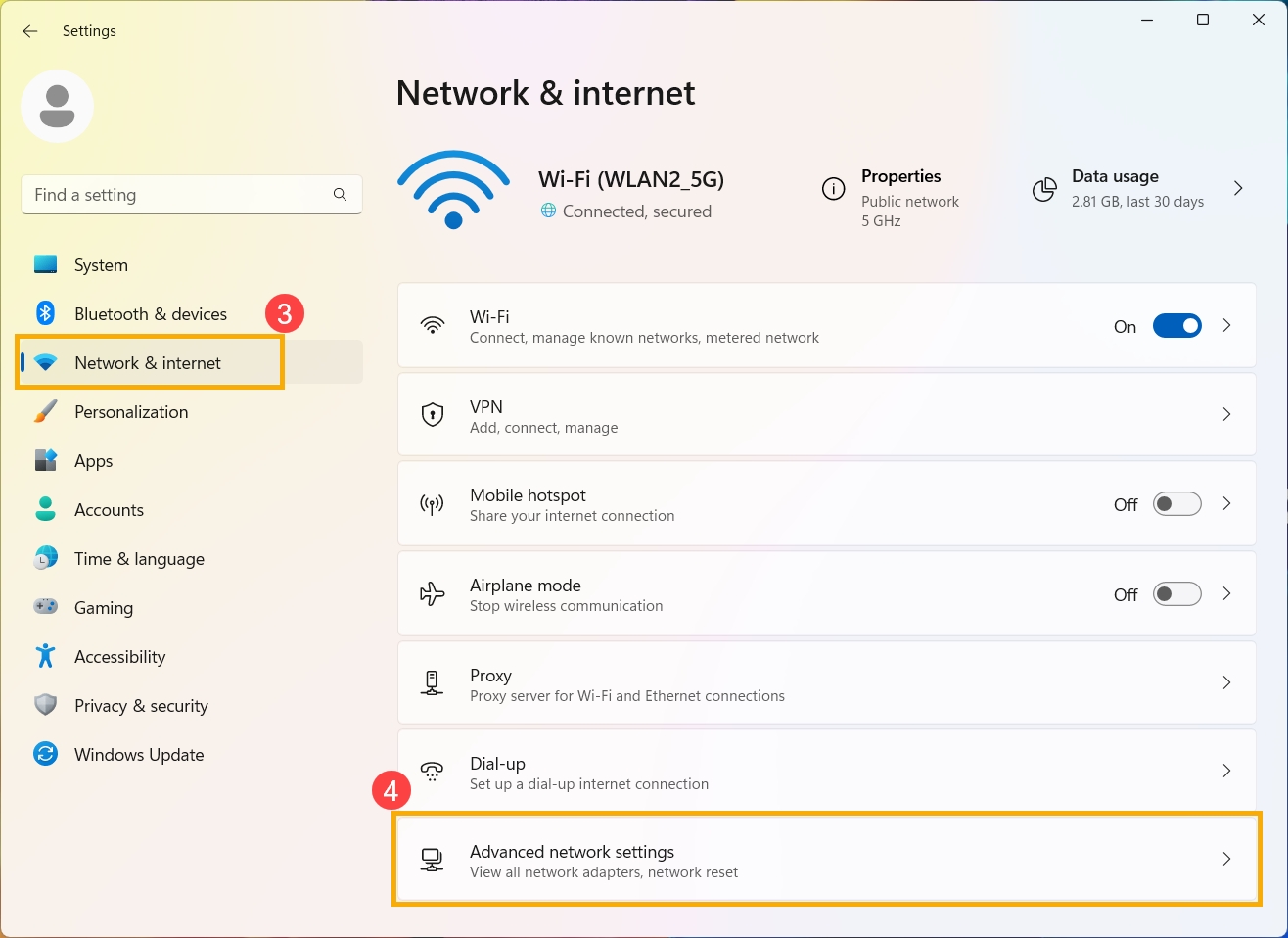
Getting started is much simpler than it seems. If you want to share your connection from your Windows 11 PC, follow these detailed steps that will get you set up in just a few minutes:
- Access System Settings. Click on the Windows start button and select Configuration (you can also use the keyboard shortcut Win + I).
- In the menu on the left, select Network and Internet.
- Within that section, find and click on Mobile wireless coverage area. This is the option that enables the access point from your device.
- Before activating it, click on Edit (it is usually within the section Network properties). So you can Set the name, password and choose the frequency band (2,4 GHz or 5 GHz) of the network you are going to share.
- Enter your preferred Wi-Fi name, a secure password, and select the band that best suits your needs. Click Save to apply the changes.
- Activate “Mobile Hotspot” switchYour device will immediately begin broadcasting the Wi-Fi network. From there, you can view and control the devices that connect to your shared network.
Remember that if you want to keep your access point always on, you can disable the power saving option , which could automatically turn off the shared network when there is no activity.

Advanced Options: How to share different types of connections?
One of the strengths of Windows 11 is its ability to share wired, wireless, and even mobile connections . When setting up your hotspot, you can choose from several options depending on the connections available on your computer:
- Ethernet: If your PC receives internet through a cable, you can share that signal via Wi-Fi with other devices.
- Wi-Fi network: It is also possible to forward the connection you are already receiving from another router via Wi-Fi.
- Bluetooth or mobile data: Some devices even allow you to share a connection received from a mobile device connected via Bluetooth or an integrated SIM card.
To select the connection source you want to share, go to the "Share my Internet connection from" section and select the appropriate option. This way, you can adapt the access point to virtually any situation or environment.

How to connect other devices to your Wi-Fi network created in Windows 11?
Once you've set up and activated your hotspot, connecting any other device is as easy as connecting to any traditional Wi-Fi network. Simply:
- Access the Wi-Fi settings of the device you want to connect (mobile, tablet, console, etc.)
- Find the name of the network you set up earlier.
- Enter the password and Enjoy shared Internet from your PC.
Some devices even allow you to connect by scanning a QR code—check if this feature is available on your PC to make it easier for guests to connect.

Quick control and management from the taskbar
Windows 11 integrates shortcuts so you don't have to open the full settings every time you want to turn your mobile hotspot on or off. Just:
- Click on the quick settings area from the taskbar (next to the clock).
- Find the quick action called Mobile wireless coverage areaIf you don't see it, click the arrow to display more options.
- By clicking the icon, you can activate or deactivate network sharing with a single click. You can also see how many devices are connected.
- If you need to edit the password, name or change other parameters, right-click on the icon and select «Go to Settings» to return to the full administration panel.
This way, you can adapt to any situation and control your network quickly and easily.

Solutions to common problems and optimization tips
Despite the simplicity of the process, minor issues can sometimes arise when trying to share your connection. Here are solutions to the most common problems and some practical tips:
- I can't activate the hosted network: If when using commands , the
netsh wlan start hostednetworkIf you see an error saying the resource is not in the correct state, make sure your network card supports the "Hosted Network" feature and that your drivers are up to date. Not all Wi-Fi cards support this feature. - The "Mobile Hotspot" option is not displayed: This may be due to outdated or incompatible drivers. Update the drivers from the website of the manufacturer of your Wi-Fi network adapter.
- Range problems or weak signal? Try moving your computer closer to the area where you want to provide coverage, or use a 2,4 GHz band for greater range (although 5 GHz is faster, but less stable over distance).
- Can't connect a device? Please check the password you entered or try another device to rule out any issues with your device.
- Device Limitation: Windows 11 allows up to eight devices to connect simultaneously to your shared network. If you exceed this number, some won't be able to access it until you disconnect others.
- Network protection: Always use a strong password, mix uppercase, lowercase, numbers and Symbols to prevent external intrusions.
Additionally, if you're having trouble accessing the internet or the network doesn't appear as available after activation, try restarting your PC and router , checking your network properties, and try again. In more advanced cases, manually reinstall your network adapter drivers to resolve persistent issues.
Alternatives and similar features in Windows 10
If you're still using Windows 10 , the mobile hotspot feature is also available, and its setup is very similar. Simply go to Settings > Network & Internet > Mobile hotspot, edit the network name and password, and turn on the switch to share your connection. The process for connecting devices is exactly the same as in Windows 11.
The main difference between the two versions is the interface design and some customization options, but the essence and benefits of the feature remain just as practical.

Recommendations to improve your experience with the access point
It's always a good idea to follow a series of recommendations to ensure the access point functions optimally and securely :
- Always update your system and drivers to avoid incompatibilities.
- Use different passwords than your main network, this way you will maintain the security of your home or business.
- Activate the hotspot only when you need it and turn it off when you're done, to save battery and avoid unwanted connections.
- If you're experiencing speed issues, try reducing the number of connected devices or changing the frequency band from 5 GHz to 2,4 GHz or vice versa.
- Remember that the performance of the shared network depends on both your connection and the quality of the hardware (network card) of your PC.
These features in Windows 11 make managing and expanding your home network easier , allowing you to get the most out of your computer in new and varied situations. By following these instructions, you can enjoy a personalized, secure, and efficient wireless network tailored to your daily needs.

Passionate writer about the world of bytes and technology in general. I love sharing my knowledge through writing, and that's what I'll do on this blog, show you all the most interesting things about gadgets, software, hardware, tech trends, and more. My goal is to help you navigate the digital world in a simple and entertaining way.