Have you ever wondered how to view, edit, or delete the passwords you've saved in Microsoft Edge ? If you're someone who often forgets them, or simply wants greater control over your data security, knowing how to access these options is essential for your daily digital life.
Microsoft Edge has evolved and now features a comprehensive built-in password manager that allows you to easily manage all your saved credentials, sync them across different devices, and take advantage of advanced security features. Even so, it's common to have questions about the access and actual protection it offers against prying eyes or attacks. Therefore, in this article, I'll explain in detail how to view and manage your saved passwords in Edge , the quickest tricks and shortcuts, extra security tips, and alternative management options that may be of interest to you.
Advantages of the Microsoft Edge Password Manager
Edge 's built-in password manager lets you save and automatically fill in your login credentials. This is especially useful if you manage accounts across multiple services and don't want to memorize dozens of complex passwords . Each time you access a new site, Edge asks if you want to save the password, and the next time you log in, it fills in the username and password for you. This system saves time and reduces the frustration of forgetting passwords.
Furthermore, if you're signed in to Edge with your Microsoft account, all those passwords are securely synced across the devices where you use that profile . This means you can access your passwords on both your computer and your mobile device, making daily work and management much easier.
Classic route to view saved passwords in Edge
If you need to retrieve a password you've previously saved, the process within Edge is simple and designed so that anyone can access it, but prevents unauthorized individuals from easily viewing your data :
- Open Microsoft Edge.
- Click on the three dots in the top right corner to display the “Settings and more” menu.
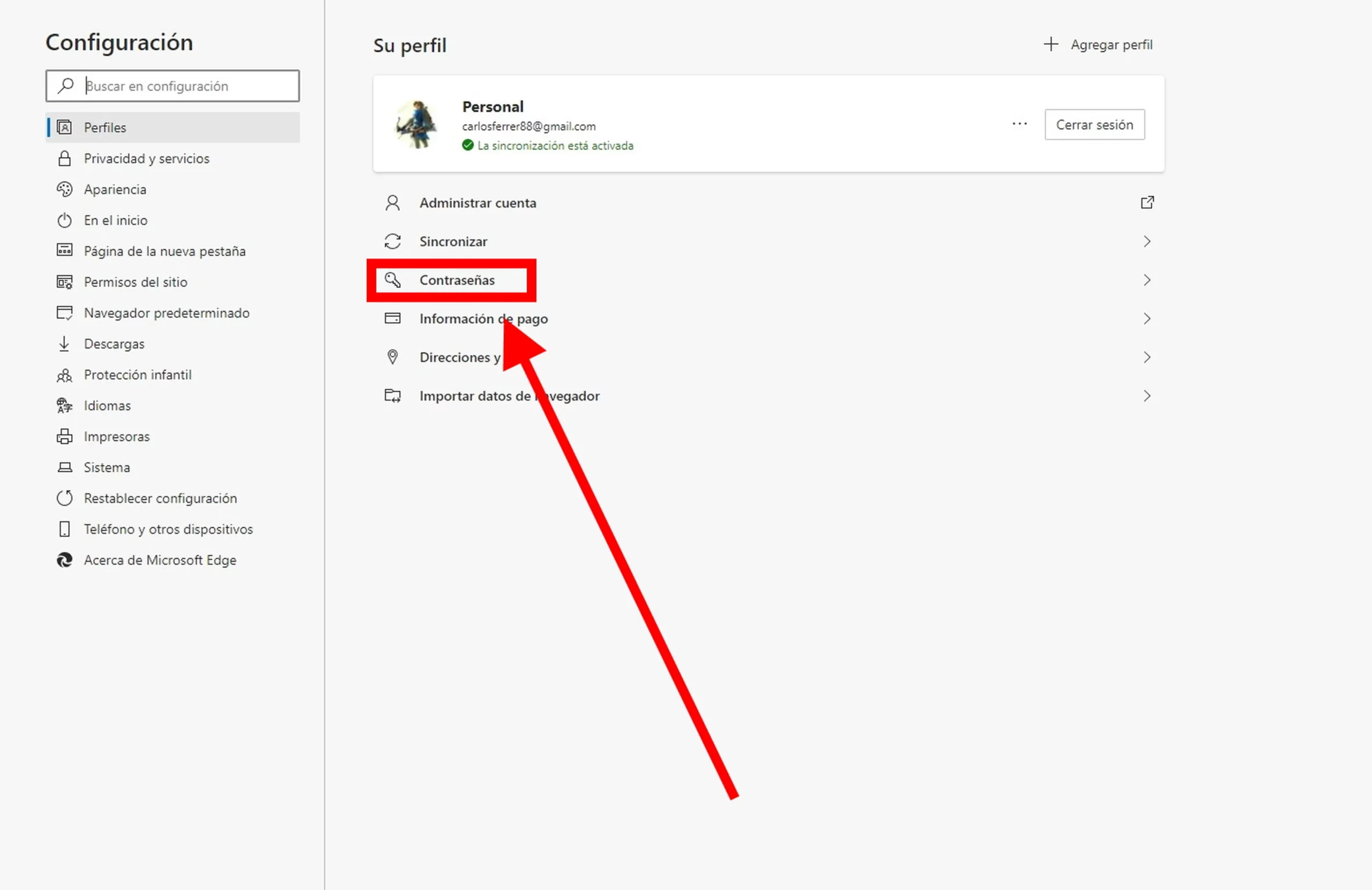
- Select Settings. Within the options, find and click on Profiles.
- Within Profiles, you will see the section Passwords. Click there.
- In the section Passwords saved All credentials that Edge has stored will appear.
For security reasons, passwords are displayed hidden (with dots or asterisks). To view a specific password, simply tap the eye icon next to it. The system will ask you to authenticate using your system password, PIN, or biometric data before displaying the password in plain text.
Quick access via address bar
There's an additional trick to access your saved passwords more quickly , without having to navigate through the settings menus. If you enter the command edge://wallet in the address bar , you'll quickly access the area where Edge manages sensitive information, including stored passwords. This method is especially useful if you frequently check your passwords or want to save time.
Edit and delete stored passwords in Edge
Password management doesn't end with simply viewing them. Editing or deleting passwords is just as easy:
- From the list of saved passwords, locate the account you want to modify or delete.
- Tap the three-dot icon next to the account entry.
- Select the option that interests you: Edit to change username or password, Delete to delete it from the list.
- As a security measure, you'll need to authenticate yourself just like you would to view a key.
This way you can keep your credentials up to date if you change a service's password, or delete accounts you no longer use to avoid unnecessary clutter.
What if I don't remember my Microsoft password?
If your browser asks for your device password or PIN to display a key and you don't remember it , Edge relies on your primary Microsoft account. You can reset your Microsoft password by following the standard steps:
- Click “Forgot your password?” during login.
- Choose your recovery method: alternate email, SMS, security question, or another option you've configured.
- Enter the verification code received.
- Create a new password and finish the process.
Once reset, you'll be able to view and manage your saved passwords in Edge again . This step is essential to maintain your access and control all the critical information associated with your profile.
External solutions: recover passwords with specialized programs
In more complicated situations, you can use password recovery tools like EaseUS Key Finder . This type of software scans your system for credentials stored not only in Edge, but also in other browsers and services. EaseUS Key Finder makes it easy to find, copy, and export all your saved passwords , whether you need to create a backup, migrate to another computer, or simply check what's stored.
With specialized tools, you can also locate software product keys and store them securely . However, remember that these programs should always be used on your own computer, responsibly, and without invading other people's privacy.
Password synchronization between devices
Edge lets you sync information across your computer, phone, and tablet if you sign in with your Microsoft account on all your devices . This means that every time you save a new password, it will be stored in the cloud and available as soon as you open Edge, regardless of whether you're using Windows , Android , or iOS.
To set up synchronization:
- Sign in Configuration > Profiles.
- Activate the option Synchronize and be sure to include the “Passwords” section.
- Repeat the process on your mobile phone or tablet using the same Microsoft account.
This greatly simplifies access and centralized management of your keys . If you switch devices, simply log in and your information will be available, keeping your workflow seamless.
Advanced security options to protect your passwords
Saving passwords in your browser is convenient but not always the most secure option, especially if you share your device with others. Microsoft Edge provides additional protection mechanisms such as multi-factor authentication (MFA) , requiring a second verification to view or modify passwords. This adds an extra layer of security in case someone steals your device or guesses your primary password.
However, for greater security, you might want to consider more advanced solutions such as passkeys or standalone password managers . Passwordless systems eliminate the risk of phishing and brute-force attacks, as they use biometric authentication or one-time codes sent to your mobile phone.
Tips for Creating and Maintaining Strong Passwords
Maintaining security isn't just about having good tools: the quality of your passwords is fundamental . Some key tips that never fail are:
- Always use long combinations, at least 12 characters, that include letters, numbers and Symbols.
- Don't just change letters to numbers in a predictable way (e.g., using 0 instead of o), as many automated attacks are prepared for that.
- Do not repeat the same password across multiple services. If one is compromised, everyone is in danger.
- Rely on random password generators to create strong, hard-to-guess passwords.
If you're afraid of forgetting them, use a password manager to store them securely ; you can even install a third-party extension if you're looking for something more comprehensive than what Edge offers by default.
Edit, delete, and customize your password management in Edge
When you enter the passwords section, you have the option not only to view, but also to edit or delete any stored credentials . This is especially useful if you update your login details for a service and want the browser to always use the latest version.
- To modify a password, click the three dots next to it and select "Edit." Change the details and click "Save."
- To delete a password, follow the same process but choose the “Delete” option.
You will always need to confirm your identity before making changes , either by entering your Microsoft password, your Windows PIN, or using your fingerprint if your computer allows it.
Differences between Edge Password Manager and other password managers
While Edge offers convenience and a reasonable level of security, it's not without risks . If someone logs in with your Microsoft account, they could potentially view or delete your entire list of credentials. Furthermore, browsers can be targeted by malware designed to steal saved passwords.
Therefore, if you're looking for the highest level of protection, consider alternatives like a dedicated password manager (for example, NordPass, Bitwarden, 1Password). These managers use advanced encryption, zero-knowledge architecture, and often offer superior features such as autofill, auto-save, and access key management . You can even find extra features like secure storage for credit cards or addresses.
NordPass, for example, uses XChaCha20 encryption and a zero-knowledge architecture, meaning that not even the company itself can see your keys . Furthermore, it integrates seamlessly with Edge through extensions, making the transition easier if you decide to switch systems.
Why you shouldn't save all your passwords only in Edge?
Saving credentials in your browser is fine for streamlining everyday tasks, but it's not the best option if you manage critical accounts or want maximum security . Any vulnerability or oversight (for example, leaving the browser open on a shared computer) can open the door to security breaches.
An intermediate option is to combine Edge's built-in manager with specialized software that allows you to create copies of your credentials, export them securely, or keep your most important keys outside the browser.

Passionate writer about the world of bytes and technology in general. I love sharing my knowledge through writing, and that's what I'll do on this blog, show you all the most interesting things about gadgets, software, hardware, tech trends, and more. My goal is to help you navigate the digital world in a simple and entertaining way.