
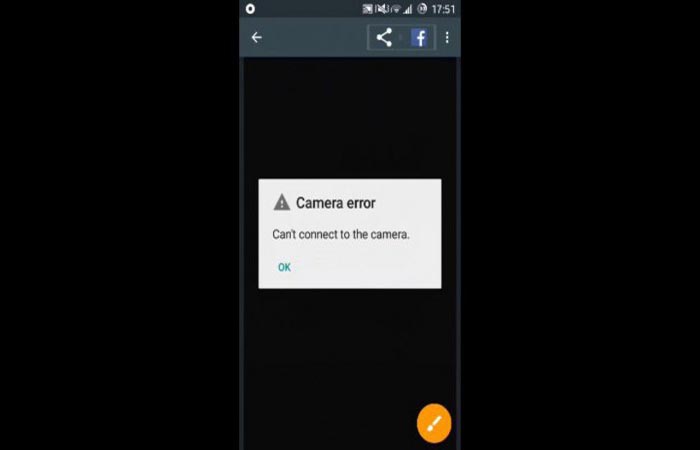
Want to know why your phone's camera isn't working when you try to take pictures? Modern smartphones boast two cameras: a rear (primary) camera and a front-facing camera. The front camera is mainly used for selfies and video calls, and the rear camera for everything else.
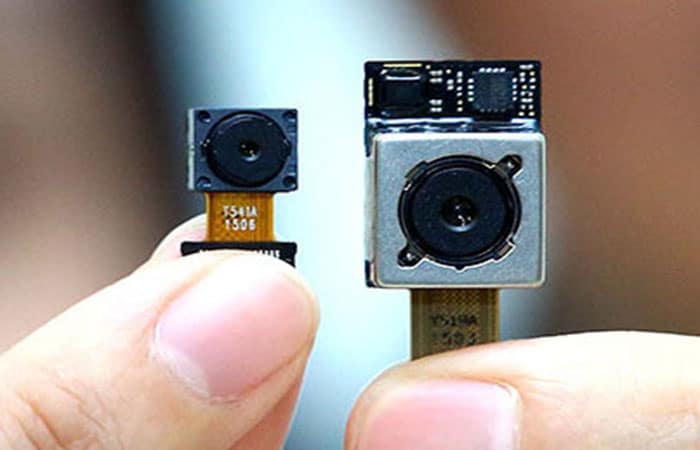
Some smartphones have camera modules that can provide front cameras. But no matter how the module is installed in the smartphone, the camera can stop working. Fortunately, in most cases it is easy to fix, but not always. Here we will show you the solutions and alternatives that you can use when the mobile camera is not working properly.
Cause 1: The mobile camera does not work due to a software failure
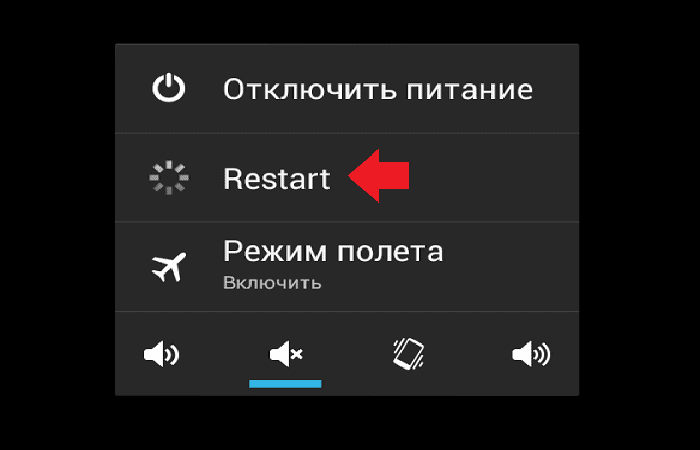
In this case, it means there was a firmware failure, resulting in the phone's camera not working, for example, displaying a black screen . The first thing you should do is restart your smartphone; this simple procedure can resolve a wide range of errors and problems that arise with mobile devices.
Here you can read about: How to Fix Camera Error 0xa00f4244
Cause 2: The mobile camera does not work due to application incompatibility
We care about growth. Remember that the apps you might define are the last ones. They may conflict with the camera app. This is especially true in cases where you decide to replace the stock Camera app.
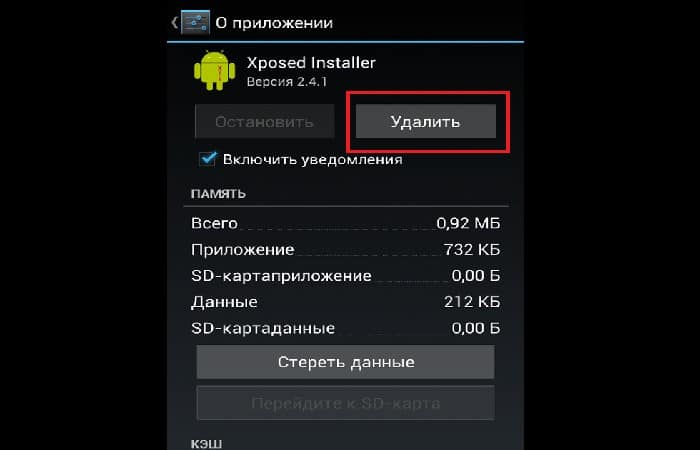
What to do in this case? It is necessary to find a source of the problem and this can be done by removing the defined applications for a certain period.
Cause 3: Mobile camera not working due to viruses and trojans
The camera on your phone often fails due to viruses, Trojans and other malware. What's more interesting is that in many cases, you yourself can be the culprit of infecting your device: simply by installing an application from a third-party source (not Play Market), which contains a malicious file.
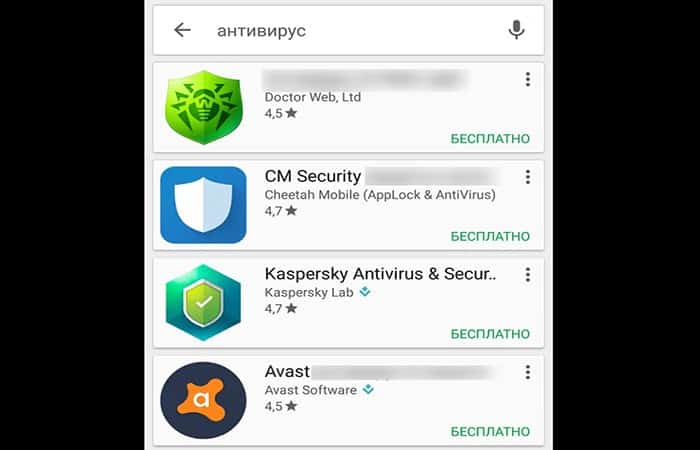
Therefore, viruses can affect camera functionality. In this case, it's worth using antivirus software; the Play Store offers a wide selection, and most apps are completely free to download.
Cause 4: The mobile camera does not work due to lack of firmware updates and installation of new incorrect firmware
If you updated the firmware version, after which the camera stopped working, it is either in the firmware itself or in the fact that something went wrong during the update. In the first case, you need to wait for the manufacturer to update the software, and in the second, reinstall the firmware.

Cause 5: Clean the camera eyepieces
If you see strange noises on the screen when you turn on the camera, the first thing you should do is clean the camera eyes - it may just be dirty. In some smartphone models, the camera module may contain dust, in this case, just cleaning it will do the trick.
Cause 6: The mobile camera does not work because the mechanical module is damaged
The camera on a mobile phone often fails due to mechanical damage to the module. It is enough to drop the smartphone once to break the camera module, and in this case, as you understand, you need to make a replacement. Even if the smartphone is under warranty, the replacement is carried out at the expense of the owner's warranty obligations for problems caused by mechanical impact that do not apply.
When choosing a smartphone, each person is guided by the appropriate configuration. For some, the battery is important, and for others, the sound is important. And some simply choose an ultra-budget phone with low specifications.
Very often, these smartphones develop problems over time . One of these problems is that the phone's camera stops working.
Common reasons for failure
In this part of the article, we will analyze the reasons for this problem and also tell you what to do if the mobile camera does not work.
Firmware
Sometimes it happens that after updating the firmware the phone may start to malfunction and therefore the camera on the phone does not work. The symptoms are that the phone starts to heat up, freeze and some applications start to fail.
Virus
A virus is a malicious program that affects not only the functioning of the system itself, but also the launch of the applications themselves. Perhaps the camera on your mobile phone is not working properly because a virus has been installed on your phone.
mechanical damage
Mechanical damage, such as dropping or hitting your smartphone, can cause the camera on your phone to not work. This can be the main problem, not only with the camera but with other output peripherals on your phone. Most likely, the camera lens has been damaged or the buckle has fallen off.
Contamination
Is your mobile phone camera not working because it is dusty or contaminated? If so, you should discuss the error with the manufacturer, because they did not provide adequate protection for the camera from dust. Due to this, the camera may not work properly.
Conflict with another application
In some cases, the camera stops working when you install an app that conflicts with the Camera App. That is, you have to choose which program you will use: the one installed by the manufacturer or the one you downloaded. But sometimes both programs may not work. This often happens when you have uploaded multiple cameras or photo editions.
Memory card damaged
Since most phones work with memory cards, the default memory is the SD card. But the card is a short-lived device, so if the camera often encounters errors or crashes (especially when recording videos or snapshots), the problem may be related to the flash drive.
Mobile camera not working – Suggested solutions
Now let's look at some methods you can use if your mobile camera is not working properly:
Removal Methods
Now let's talk about ways to eliminate this problem.
The first thing you should do is turn off the phone, take out and put in the battery, and then turn on the smartphone. It is possible that it has a minor glitch in the system, which is easily fixed by restarting it. And if something is more serious, here are the ways to fix it.
- If you are in the firmware, you can help with several options:
-
- Reversal system
- Restart
- Firmware for a newer version
If your phone's camera doesn't work after updating the firmware, you should roll back to the previous version. Restoring is done differently on each phone. You can also try resetting to factory settings. This will delete everything from the phone's memory, but your camera will still work.
If system restore doesn't help, you can also reset the settings; you can manually update the phone to a newer firmware or an older version. The main thing is that the firmware is stable and free of bugs.
One of the most common problems is viruses.
To clean your phone from viruses, you need to download an antivirus and scan your system. If the cause of the camera malfunction is really a virus, the antivirus program will find it, but you only need to delete the harmful files found.
The best antivirus for today is Dr. The Web . You can download it for free from the Play Store.
Mechanical damage is only resolved at the service center.
When you hit your phone, anything can happen. If your phone's camera doesn't work after hitting it, the only option is to take it to a service center. If you decide to take your phone apart and repair the camera yourself, you may end up damaging the motherboard, buckles, and other components.
Therefore, if you are not confident in your skills, it is better not to become an amateur. You may need to replace the camera module and not do it at home.
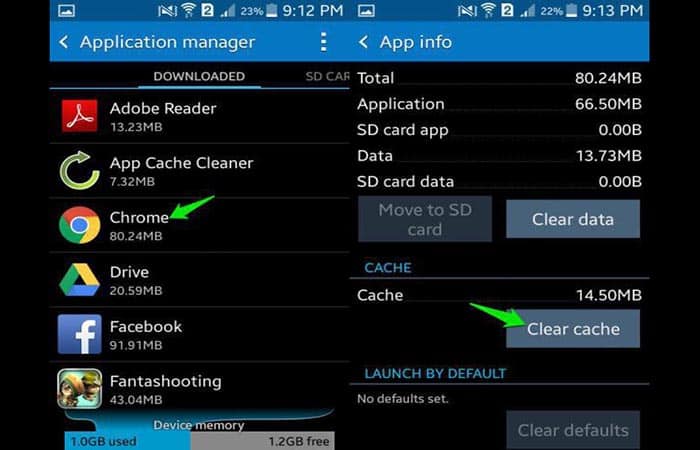
Clear cache
The simplest and most harmless reason is to clear the cache. So, if the cache gets saturated, the access speed will be very slow and therefore the application will skip the access error. So, follow these steps to fix it:
- Step 1:: you go to the settings and then we go to the application
- Step 2:: find the camera.
- Step 3:: Click on it and search for “clear cache«.
- Step 4:: After that, your camera will work again.
Dust removal
To remove dust, you need to contact the service center. The assistant on the phone will help you on the call so that you can do the cleaning. After removing the dust, the camera on your phone will work.
Delete the conflicting application
Finding the culprit of this situation is difficult. If you have installed a specific application, after which you noticed that the camera on your phone does not work, then you should delete the conflicting app. If such a problem did not appear immediately, you should look for a TYK method. Or simply reset to factory settings. The system will be formatted and the camera will come back to life.
Firmware error
You need to flash another firmware. If you have an official firmware installed and the camera on your phone does not work, this will be a manufacturer's error and will be fixed soon. But this happens very rarely. It mainly happens to ultra-cheap Chinese smartphones.
If we are talking about custom firmware, you should contact the firmware creator. Maybe the creator will find a solution or fix that will solve this problem, and maybe not. So the responsibility for installing the firmware is on you! Therefore, carefully read the firmware description and consider all possible errors to avoid such problems in the future.
Change the default memory
Lack of memory is one of the reasons why the mobile camera does not work most of the times. Therefore, you should change the default memory to SD card in the memory settings. If you do not have an SD card, you should delete junk files to make free space for saving new images.
If there is no default memory selection feature in the camera settings, look for this feature in the phone settings.
Restore default camera settings
If you love to dig into camera settings to get the best picture, you may find that in the future your camera will stop working precisely because of these actions. To restore the default settings you need to do the following:
- Step 1:: Go to your phone settings.
- Step 2:: Then go to apps and look for the camera.
- Step 3:: In the list of operations that appears you must select the option that says: «return to default settings«.
Check the memory card if the mobile camera does not work
Sooner or later, your memory card will start malfunctioning. To restore it, you'll need to format it and try special software. It's best to do this on a computer. The software will scan the USB flash drive , correct errors, and so on. After that, insert the flash drive into your phone.
This method will only help you if your camera photos are saved on the SD card.
Other probable reasons
If your phone's camera isn't working, there could be several reasons. For example, a glitch occurred during a phone update, disrupting the camera module's functionality. Additionally, some people attempt to update their devices independently, which can also lead to problems. Viruses and malware can also cause the camera app to stop working on Android.
And of course, a smartphone can fail due to mechanical damage. The most common problems and methods of their solutions are presented below.
Solutions to software errors
- VirusTo get rid of malicious files that could disrupt the work of the camera app on Android, you should install a good antivirus and scan the system.
- Lack of free space. If there is a problem on the memory card or on the phone itself, it can cause the photo module to fail. To solve this problem, simply clear the phone memory and delete unnecessary or unused files.
- Cache "full". The Temporary files are constantly introduced into smartphones. If the cache is full, an error may occur. Therefore, simply delete all temporary data.
- Incorrect settingsIf the photo was saved on the memory card, which was then removed from the smartphone, you just need to restart the phone.
If, after these settings, the mobile camera does not work, the problems may be more general.
Physical malfunction
Before going to the service center, it is advisable to check all possible causes of the failure, even if they sound absurd.
- If the camera on your phone is not working, you should check the Micro SD card. Very often, in smartphones, the photos are not stored on the device itself, but on a thumb drive. If it is not inserted into the phone, the camera will be inactive.
- The second most common reason why the camera on your phone does not work is a contaminated lens. This often happens when you buy cases for smartphones, which accumulate dust and dirt. In case of a malfunction, you should check whether the thumbnail of the photo module has not been contaminated.

If the camera works with interruptions and periodically turns off during the capture process, it is necessary to reconfigure it, following the correct sequence of actions.
How to set up the photo module if the mobile camera does not work
If the camera on Android does not work or fails periodically, you need to perform a few simple steps:
- Reset your smartphone to factory settings: Typically, to do this you need to follow these steps:
- Step 1:: You must go to the menu Gadget and find the option «Backup«.
- Step 2:: After that, you have to select “Factory reset«.
- Step 3:: Before that, it is better to save all important data and transfer contacts from the laptop to the memory card.
- Download and install an Antivirus: After that, you need to clean the system. Download recommended antivirus programs only from Google Play. This can be ensured from malicious files.
- Clear cache: This is done immediately after running the antivirus test. To clean, do the following:
- Step 1:: must go to «Applications" and search "Camera«.
- Step 2:: In the same menu, there will be a button called «CACHE«.
- Clean the lens thoroughly with a special lens towel.If the pictures are still missing, you can try installing another camera application. There are a huge number of such utilities. There are paid, free, more functional programs, and those that only allow you to take photos.
If all else fails, all you have to do is contact the service center.
Conventional cameras are losing popularity : the development of mobile devices and the constant reduction in pricing policies have almost leveled off the cost of mid-range and budget camera models.
In addition, when you buy a smartphone, you also get a mini computer with unlimited possibilities. But it happens that at the most inconvenient moment the camera on the mobile phone does not work. Unlike a regular camera, the list of problems and solutions in repairing the camera on the smartphone is quite extensive. Let's see:
Causes of malfunction
More experienced users can independently determine the nature of the failure. First, it's necessary to review the details and previous actions. This will help identify one of two failure categories: physical or software.
- Physical (mechanical) dysfunctions: The character includes falls, vibrations, shaking, jolts, etc. There are more mundane situations when dust and moisture fall inside the camera sensor. In some cases, the culprit can become memory: internal and microSD card. The result of such problems is often unpleasant for users, especially from an economic point of view.
- Software malfunctions: Regarding the category of with , everything is easy here. These include installing an inappropriate or conflicting application with the camera application, incorrect settings of the operating system and related programs, and installing an imperfect update (including the official one).
More serious reasons: infectious viruses or improper flashing of the device.
To find a solution, you must proceed from simple to complex . Don't immediately disassemble the device or try to repair it. Start with actions that will prevent further damage.
software bugs
- Virus infection: To fix the problem, you need to install an antivirus program, scan and remove all threats.
- Lack of memoryWhen using the internal memory of a smartphone, it can quickly fill up. In this case, the camera will be on, but video recording and receiving photos will be impossible. You must be sure that there is enough free space to perform the camera functions. This also applies to microSD cards that are used to expand the memory.
- Clearing the cache. Temporary files accumulate on the system and while using the camera. This leads to a cache overflow, so it simply lacks the resources to perform actions. It is necessary to perform periodic cleaning. To do this, you need to go to Settings – Applications – Camera. At the bottom of the opened window, the button is available Clear cache.
- Wrong setting. The main problem is usually the choice of space for recording camera recordings. If the option was set to a microSD card, then it was recalled, it is necessary to adjust the settings.
- Conflicting applicationsIf camera problems started after installing an app, you should remove it and check if the device is working properly.
- Incorrect firmware. Sometimes you have to install a firmware. It is very important to install the correct version of the software from the official website. Otherwise, some functions (camera, sound, screen rotation, Wi-Fi) may not work. In the worst case, the device will stop working, so be careful.
- OS upgrade. The standard setting involves automatic updating of the operating system before the new version. Despite the fact that the update is provided by the manufacturer, the accompanying problems often occur, including with the camera. To correct the problem, you can restore the system, that is, install the previous version of the platform, which guarantees the performance of all modules. We also recommend disabling the next automatic update.
NOTE: If your device is under warranty, we recommend contacting a service center or retailer to resolve any issues. Most operating system changes are independent of firmware updates and may void your warranty.
Physical malfunction
Physical damage is a reason to contact the service center for repair. But there are simple solutions that can be effective. These actions can be performed independently:
- Checking the performance and integrity of the memory card. When you save videos and snapshots to the memory card, the camera may generate an error. Flash memory has a limited life cycle. Therefore, we recommend that you test the media information for errors and memory cells.dead«. To find out quickly, you can install a tested memory card into the device and check the camera performance.
- Lens cleaning. The camera sensor is protected by special glass, which can accumulate dust, moisture, etc. In this case, the device will not be able to focus, which will lead to the termination of the work. It is necessary to carefully clean the glass with special means (microfiber, liquid for cleaning the monitor).
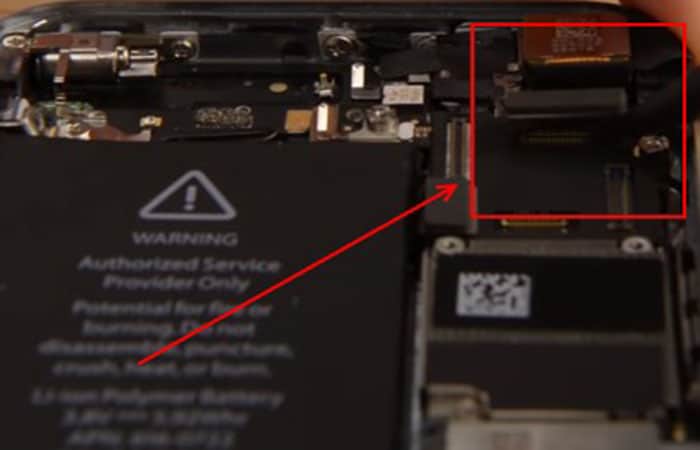
If all of the above options did not solve the problem, then most likely it is related to a critical failure. Such malfunctions are the result of prolonged contact with water, strong shocks, falls and other influences from the outside. This leads to the failure of sensors, stabilizers, and coils. The worst case is considered to be a violation of the integrity of the bridge, which is responsible for the operation of all components of the device.
Recommendations
Serious damage is not always repaired even by service center specialists, so you should be careful when using your mobile. To protect your smartphone from failures, you should follow these recommendations:
You might also be interested in reading about: The 10 Best Software Programs for IP Cameras
Conclusion
If the problem is that the phone's camera isn't working, it's a software issue and can be easily fixed at home. However, if it's a hardware failure or mechanical damage, a qualified technician is required.
Nowadays, even cheap smartphones are equipped with professional photo templates that are not inferior to popular ones. With the help of mobile devices, any user can feel like a novice photographer. And if you install a special program for the camera on Android, you can play with effects and give photos additional charm.
No matter how the devices did not work, some people face the fact that the device camera stops working without any visible reasons. We hope we have helped you understand how to fix this problem.

My name is Javier Chirinos and I am passionate about technology. Ever since I can remember, I have been interested in computers and video games, and that passion has turned into a job.
I have been publishing about technology and gadgets on the Internet for over 15 years, especially in mundobytes.com
I am also an expert in online marketing and communication and have knowledge in WordPress development.