
Some Madden NFL 22 players are reporting a sudden " Connection to server lost" error on Madden Share , preventing them from downloading class drafts. In most cases, this issue appears after affected users receive a message stating that the game cannot connect to EA's servers.
To help you fix this, I recommend you continue reading this guide we have made for you.
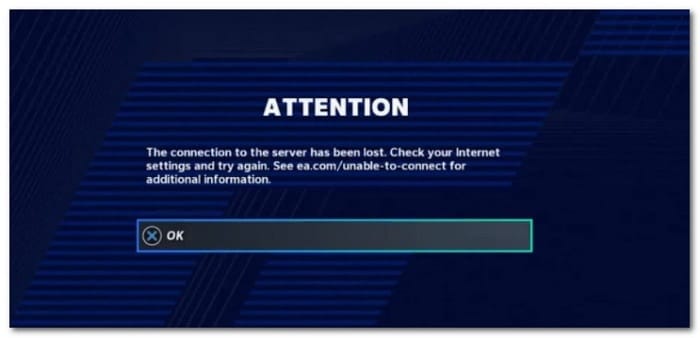
The strange problem is that, in most cases, affected users can still play MUT without issues, but they get the error " Connection to the server has been lost" when accessing the Madden Share component.
After thoroughly investigating this issue, we identified several different scenarios that could ultimately cause this problem on both PC and consoles. Here is a list of possible culprits:
- Ongoing server issue: If you are experiencing this issue on the initial launch screen of Madden NFL 22, you should start investigating whether there is currently a server issue affecting the game on your platform of choice. In case you do confirm a server issue, there is nothing you can do other than wait for the developers to fix the problem on their end.
- Community Files Menu CrashIt's surprising that EA managed to port a glitch that was present in Madden NFL 21. Fortunately, since the glitch is identical, the fix is the same. All you need to do is back out of the Community Files menu, then access it again and repeat the process once more.
- Account related issue: If you end up burning through everything available in this article and confirm that the problem is not related to a server issue, then the problem is likely related to your EA account. In this case, the only way forward is to contact an EA support agent and follow the troubleshooting steps outlined.
- Interface error of userIf you're selectively experiencing this issue only when attempting to download draft classes, you're likely experiencing the same cross-platform bug that's been around since Madden NFL 22 launched in August 2021. To fix this, you'll need to restart the game a couple of times. This is confirmed to work on both consoles and PC.
- Temp file error on consoles: It turns out that the console versions are also affected by a problem originating from the accumulation of Temporary files by the operating system. If this scenario is applicable, you can fix the problem by power cycling the console of your choice.
- Cache of storage persistent corrupted (consoles) Xbox): If you're experiencing this issue on an Xbox console (Series X or Xbox One) and you're launching the game from a physical copy, another viable culprit that could be causing this issue is the persistent storage cache. In this case, you can fix the issue by clearing the persistent storage cache from the Settings menu on your Xbox console.
- The update broke the PS4 Madden save system: Shortly after the release of the game, the developers released 2 updates that were partially incompatible with the previous version of the game cache. In this case, you can fix the problem by accessing the save file system of Playstation and deleting everything except the rooster's profile and data.
- Corrupted game data: Another scenario that could cause this issue is when some kind of system file corruption is affecting the installation of the game. In this case, you can fix the problem by reinstalling the game on the platform you are encountering this issue on.
- Account related issue: If you have violated community standards or have a history of soft bans on your account, you should also take action. There to open a support ticket with the EA Help team and inquire about the current status of your account.
Now that we have reviewed all the possible reasons for the error the connection to the server has been lost in Maden Share, it is time for you to try the solutions that other users have successfully used.
1. Check if there is an ongoing problem with the server
Before we move on to the actual fixes, you should start this troubleshooting guide by checking for an underlying server issue that EA Sports is currently working to mitigate.
An ideal way to start searching is in directories like DownDetector or Services Down.
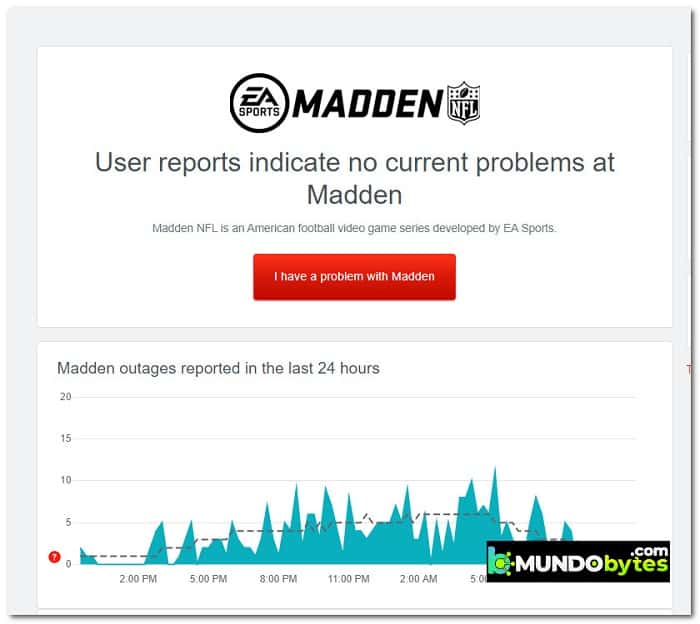
Note: You should also take the time to read the comments section in these directories and see if other people are currently experiencing the same type of problem as you.
If you only discover evidence of an ongoing server issue or scheduled maintenance, you should also take the time to look for official announcements on the official Madden NFL 22 support page.
In case you have just confirmed an issue originating from a server issue, there is nothing you can do but wait for the developers to fix the problem on their end.
On the other hand, if you found no evidence of a server issue, move down to the next potential solution below.
If you're a veteran Madden NFL player, you've probably encountered this problem before. It turns out that one of the main causes of the " connection to the server lost" error was present in earlier versions of the game.
And thankfully, the main fix that helped games overcome this issue in previous iterations of the game is effective with Madden NFL 22.
If you experience the error when trying to retrieve class drafts from the Community Files menu, the first thing you should try is to back out from that menu to the game's home screen.
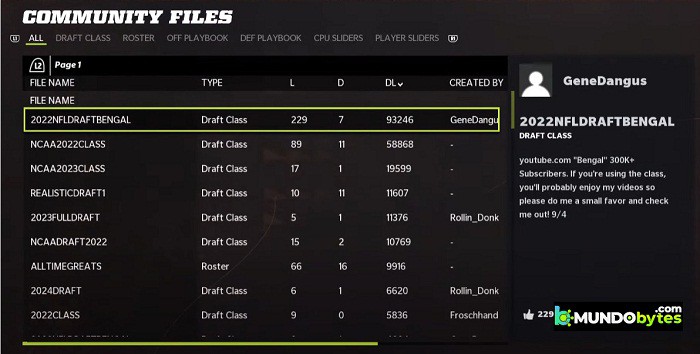
To do this, simply press the B button on Xbox consoles or the Circle button on PlayStation consoles repeatedly until you return to the game's home screen. On PC, simply click the Back button at the bottom of the screen.
After successfully doing this, wait a few seconds before returning to the Community Files menu and attempting to retrieve your draft squads once more.
Note: Several affected users who managed to solve the problem with this method reported that it only worked after trying it a couple of times.
In case this method was not effective in your case, move down to the next potential solution below.
3. Restart the game
It turns out that this issue can also occur due to a UI glitch affecting early versions of the game. If you haven't yet updated your game to the latest version, start by making sure you're running the latest version available.
Once you have made sure that you are now running the latest version of the game, proceed to restart the game on your platform of choice.
Several affected users who encountered the "Connection to server lost" error have confirmed that they were finally able to download their draft teams by restarting the game and then going directly to the Community Files menu.
Note: This fix has been confirmed to work on Playstation 4, Playstation 5 , Xbox One, Xbox Series S/Xbox Series X and PC.
Remember that it's crucial to access the Community Files menu immediately after launching the game. Even if it doesn't work at first, repeat this process a few times and see if the problem is resolved.
If this method did not allow you to use the Madden Share functionality, please move down to the next potential solution below.
4. Turn your console off and on (if applicable)
If none of the above methods have proven effective in your case and you are experiencing this issue on a console (Xbox or PlayStation), the next step should be to investigate whether the temporary file cache is causing this issue.
Please note that the instructions for resetting your console will differ from platform to platform, so we've created a series of sub-guides to walk you through the exact steps.
Select the correct subguide below to reset your Playstation 4, Playstation 5, Xbox One, or Xbox Series S/X console:
Power cycle on Xbox One and Xbox Series X/S
Power cycling your Xbox One or Xbox Series X/S console is quite different than on PlayStation because you'll need to hold down a physical button for 10 seconds or more to trigger a power cycling procedure.
Here's how to do this:
- Make sure your console is fully powered on.
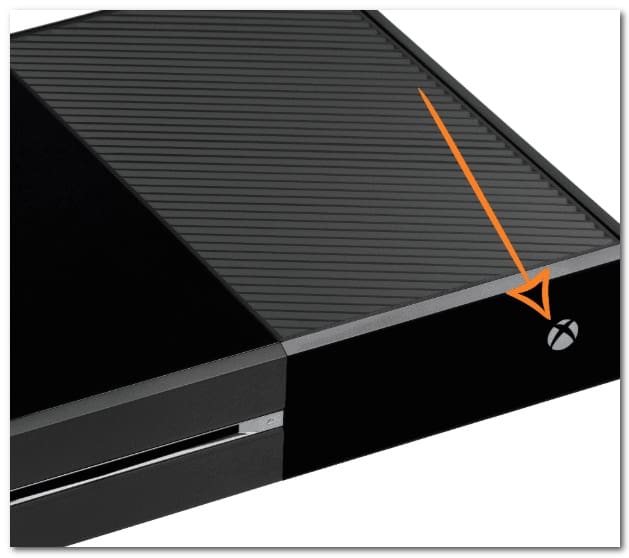
- Then, hold down the power button (on your console, not your controller) for about 10 seconds or until you notice the front LED starts flashing intermittently.
- Wait a full minute to give the power capacitors enough time to deplete before attempting to reboot the console conventionally.
- While you are waiting for the power capacitors to drain, be sure to physically disconnect the power cord from the power cable.
- Once this operation is complete, restart your console again and see if you detect the longer boot animation sequence.

Note: If you see the longer animation format, it's proof that the power-on and power-off procedure was successful.
Once your console restarts, open Madden NFL 22 once again and see if the issue is now resolved.
Power cycle on Playstation 5
Performing a power cycle procedure on your Playstation 5 console is simple thanks to the overhauled user interface. All you need to do is hold down the power button until the console completely shuts down. As an added precaution, unplug the power cable to allow the power capacitors to drain themselves.
This is what to do:
- Make sure your console is on and in sleep mode.
- Press and hold the power button on your Playstation 5 (on your console) until you hear the main fan turn off.
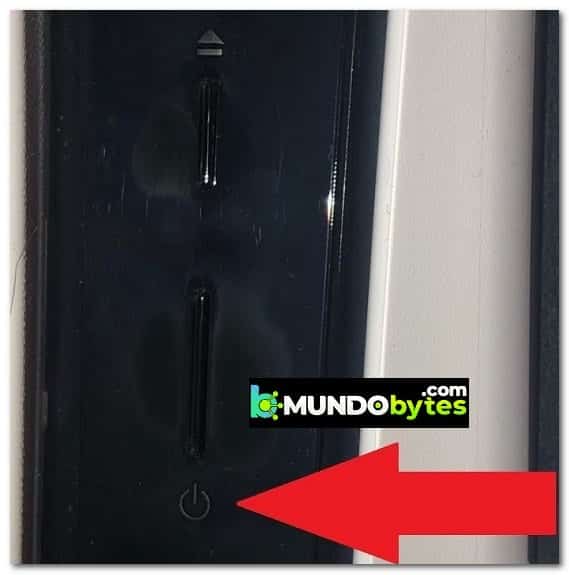
Note: Do not briefly press this button because it will end up activating a sleep cycle instead.
- When the power light stops blinking, remove the power cord and leave the system unplugged for 2 minutes to ensure the power capacitors are completely drained.
- After 2 minutes have passed, connect the power cable once again, start your console normally.
- Launch Madden NFL 22 again and see if the issue is now resolved.
Power cycle on Playstation 4
A key part of a PlayStation 4 system's power cycle is giving the power capacitors enough time to clear cached data.
Here's what you need to do to get it right:
- Make sure your Playstation 4 system is turned on and not running any games.
- hold the button power button on your console. Release it when you hear the console fans turn off.
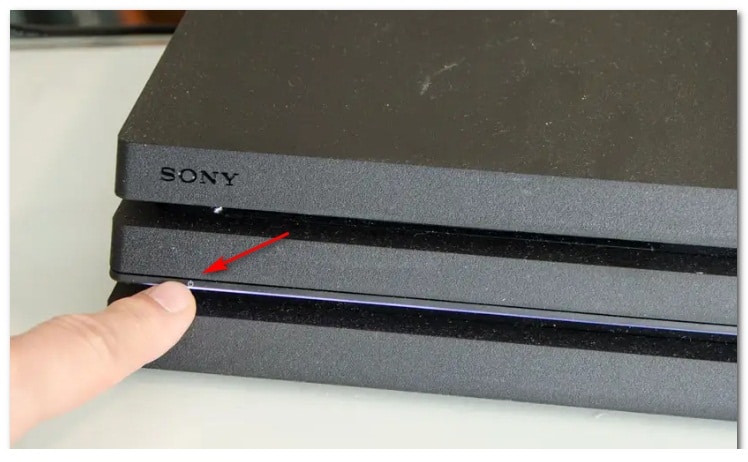
- After you can't hear any sound coming from your console, go ahead and physically unplug the power cord from the outlet. Wait about a minute before allowing the power capacitors to completely drain.
- Once this period is over, reconnect your console to the power supply and turn it on in the conventional manner.
- After your console restarts, launch Madden NFL 22 and see if the Madden Share feature is now working.
5. Clear the persistent storage cache (Xbox consoles)
If you're receiving this error when trying to access the Madden Share feature on Xbox One or Xbox Series X/S, the next thing you'll need to troubleshoot is your persistent storage cache.
Note: Xbox is the only console that maintains a game cache that can be deleted while leaving the game files intact.
If you're dealing with this issue and you're playing on an Xbox console, try accessing your Xbox controller 's Settings menu and deleting the cached data associated with the game (under Saved Data).
Here's how to do this:
Note: The steps below will work on both Xbox Series X/S and Xbox One consoles.
- Begin by pressing the Xbox button on your controller, then use the menu on the left side to select My games and apps.
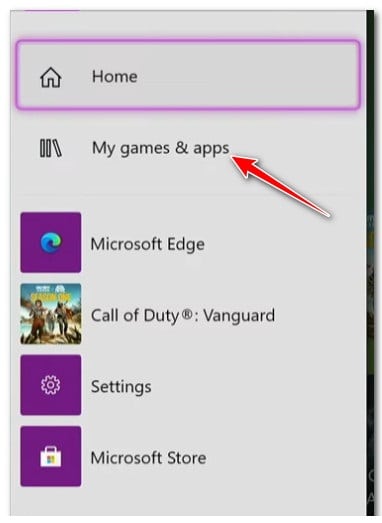
- Within the next menu, select the tab Games for the available options.
- Next, scroll down your library and locate the Madden NFL 22 installation.
- From the next menu, highlight the game and click the menu button on your controller to open the context menu.
- Now, from the context menu that just appeared, access the menu Manage game and add-ons.
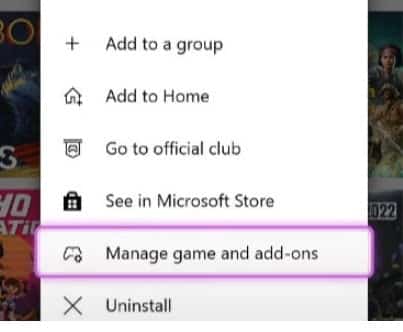
- Next, go to the category Saved data at the bottom of the screen.
- Finally, clear the category cache menu Save data, then restart your console.
- Launch Madden NFL 22 and see if the issue is now resolved.
If the same problem persists, move on to the next method below.
6. Delete unnecessary save files (PS4 only)
It turns out that the “Connection to server has been lost” error with Madden NFL 22 may have a unique cause on PS4 due to some console-specific updates that made the previous game’s cache incompatible.
Looking at the various user reports, this issue only seems to affect the Playstation 4 platform and not the next-gen version of Sony's console.
According to other users who faced this problem, they were able to rectify it by accessing the Madden system storage's saved files folder and deleting everything except the profile and Rooster.
For step-by-step instructions on how to do this, follow the instructions below:
- From the home screen of your Playstation 4 console, highlight the menu Configuration with the left joystick, then press the button X to access it.
- Once you are inside the menu Configuration, access the menu App Saved Data Management.
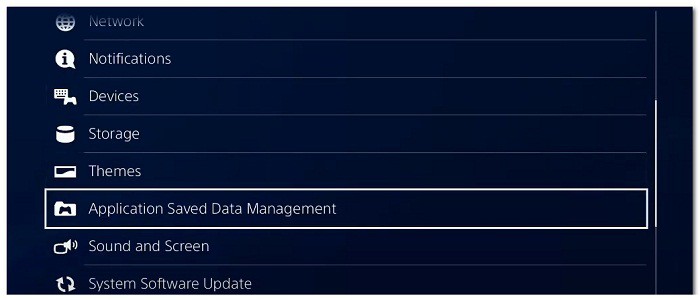
- When you are inside the App Saved Data Management, start by ensuring that your current Madden secure data is backed up as a safety precaution.
- After doing this, go to System Storage, access the Madden NFL 22 folder and delete everything except the profile and roster save files.
- Launch the game once again and you should see a UI message asking if you want to use the secure cloud files. Press Yes and wait until the safe files are downloaded locally again.
- Launch Madden NFL 22 again and see if the issue is now resolved.
If the same problem still occurs, try the next possible solution below.
7. Reinstall the game
If none of the above methods have proven effective in allowing you to access the Madden Share functionality once again, the next thing you need to troubleshoot is a corruption issue affecting your game files.
Since there is no way to perform an integrity check on consoles, the ideal way to ensure that the “Connection to server has been lost” error is not caused by a game file corruption issue is to simply reinstall the game.
Of course, the instructions for doing this will be different depending on the platform you're playing on. To make things easier for you, we've created a series of sub-guides that will walk you through the Madden NFL 22 reinstallation process, regardless of whether you're playing on PC or consoles.
Please follow the sub-guide below that applies to your preferred gaming platform.
Reinstall Madden NFL 22 on PC
If you're playing on a PC, the easiest way to reinstall is through the Programs and Features menu. Avoid uninstalling from the game launcher, as this procedure tends to leave behind leftover files that will perpetuate the problem.
Follow the instructions below to reinstall Madden NFL 22 on PC:
- Opens a dialog box Execute by pressing the key Windows + R.
- Then write 'appwiz.cpl' inside the text box and press Log in to open the menu Programs and Features (in Windows 10 or earlier) o Installed applications (available in Windows 11).
- Within Programs and characteristics o Installed applications, find the Madden NFL 22 roster.
- Then right click on it (or click on the action icon) and then click uninstall to uninstall the game.
- Once you are inside the uninstallation screen, follow the prompts to complete the installation, then restart your PC and wait for the next startup to complete.
- After uninstalling the game, restart your PC, then download it again from the launcher where you have the game.
- Launch Maddle NFL 22 and see if the issue is now resolved.
Reinstall Madden NFL 22 on Playstation 4
If you're playing on a PlayStation 4 system, the only way to do this is to uninstall the game from the Library menu. After doing this, reinstall it from the same location (but from a different tab).
Here's how to reinstall Madden NFL 22 on Playstation 4:
- Make sure you are on the home screen of your PlayStation 4 system.
- Swipe through the games you have installed and highlight Madden NFL 22.
- Once the game is selected, press the Options button on your controller to bring up the context menu.
- In the context menu that just appeared, select Delete in the context menu that just appeared.
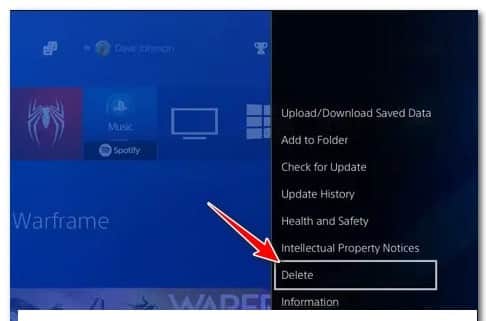
- Now, in the confirmation message, highlight Yes, then press the X to confirm the operation.
- After uninstalling Madden NFL 22, return to your system's start panel PlayStation 4 and use the left stick on your controller to access the menu Library.
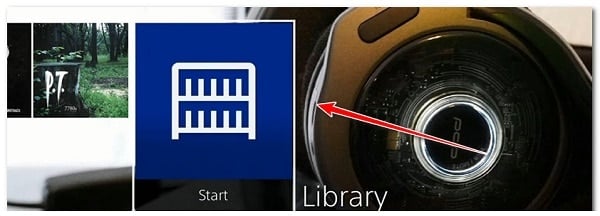
- Inside the menu Library, use the vertical menu on the left to access Bought menu
- Finally, move to the right menu and locate the game you want to reinstall.
Reinstall Madden NFL 22 on Playstation 5
If you're playing Madden NFL 22 on PlayStation 5, the reinstall instructions are different (because Sony revamped the operating system).
Here's how to reinstall Madden NFL 22 on Playstation 5:
- Start by making sure you are on the home screen of your PlayStation 5 system.
- Use the left stick (or arrow buttons) to highlight Madden NFL 22 in the tab. Games.
- With the game selected, press Options in your controller.
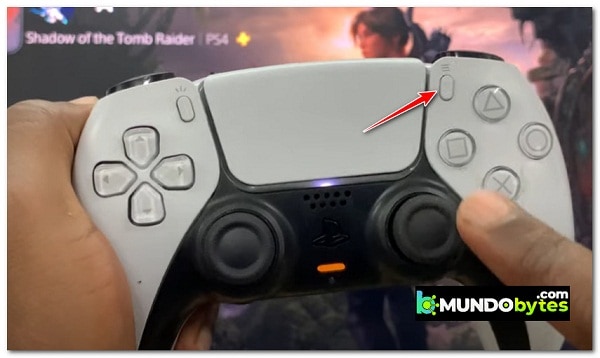
- In the game control menu, choose Remove, then confirm the choice and wait until the game is uninstalled.
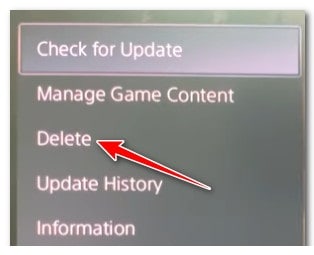
- Once the game has been successfully uninstalled, access the game library, from your system's home screen PS5.
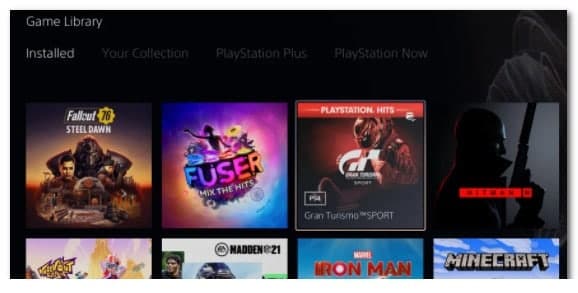
- Then select Your collection from the options at the top, then highlight Madden NFL 22 and press Options to open the game's context menu.
- Finally, from the context menu, select Download and wait until the download is complete.
- Starts Madden NFL 22 once again and see if the problem is now solved.
Reinstall Madden NFL 22 on Xbox One and Xbox Series S and X
If you're playing Madden NFL 22 on both Xbox One and Xbox Series X, you'll be pleased to know that the operating systems on these consoles are nearly identical, so the instructions for reinstalling are the same.
Here's what you need to do to reinstall Madden NFL 22 on Xbox consoles:
- Start by making sure the game is closed and not running in the background.
- Press the Xbox button on your controller, then use the menu on the left side to select My games and apps.
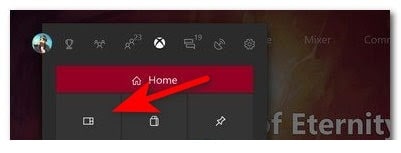
- Then select the tab Games in the menu on the left side.
- Now, scroll down in your library until you find the installation from Madden NFL 22.
- After making sure the correct game is selected, press the menu button on your controller to expand the game's context menu.
- Once you get to the next menu, access the menu Manage games and add-ons.
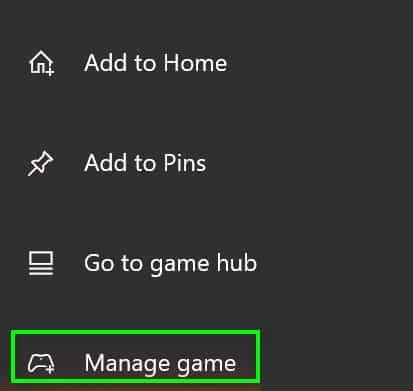
- Next, highlight the option Uninstall everything from the menu on the left.
- From the next menu, you will need to confirm the operation, then wait until the process is complete.
- As soon as Madden NFL 22 is uninstalled, log in to your Library from the home screen and then access the section All the games own.
- Once you get back to that menu, go ahead and download again Madden NFL 22.
- Please start the game again and see if the issue is now resolved.
If you have already attempted to reinstall the game and are still experiencing the same type of issue when trying to access the Madden Share feature, please move on to the final method below.
8. Contact EA Help
If none of the above methods have helped, one last thing you should investigate is an account-related issue that is preventing you from accessing community features.
If you have a history of violating the community rulebook, you will likely be explicitly blocked from accessing the Madden Share feature due to a soft ban.
EA Sports has not created an infrastructure that allows you to verify whether your account is blocked or not, so the only way to get a resolution is to open a support ticket with the help of EA.
- From the home screen of the website EA Help, Click on Manage your account.
- In the next menu, click My blocking history and then sign in with the same EA account you use when playing Madden NFL 22.
- Shortly after doing this, you will receive an email with your block history and you will be able to see if your account is blocked or not.
- If you find that your account is indeed blocked, you can raise a case with EA Support on the same EA Help website and see if there is a resolution to your case.
I hope that with these methods you can put an end to this annoying problem. If you know of any other potential solutions, you can tell us about them in our comments section. If you liked our guide, don't hesitate to share it with the rest of your friends. Thank you for your visit, we'll see you in a future post where we'll share more interesting information with you.
Table of Contents
- 1 What causes the error connection to the server has been lost in Maden Share?
- 2 What methods can I use to fix the server connection has been lost error in Maden Share?
- 2.1 1. Check if there is an ongoing problem with the server
- 2.2 2. Go back from the Community Files menu
- 2.3 3. Restart the game
- 2.4 4. Turn your console off and on (if applicable)
- 2.5 5. Clear the persistent storage cache (Xbox consoles)
- 2.6 6. Delete unnecessary save files (PS4 only)
- 2.7 7. Reinstall the game
- 2.8 Reinstall Madden NFL 22 on Playstation 4
- 2.9 Reinstall Madden NFL 22 on Xbox One and Xbox Series S and X
- 2.10 8. Contact EA Help
