- Safe Exam Browser locks down the system to create a secure exam environment and relies on deep configurations of Windows and .seb files.
- Errors such as “SEB could not start a new session” are usually due to insufficient permissions, registry lock, or conflicts with antivirus and system policies.
- An updated installation, with administrator privileges and prior testing with .seb files drastically reduces failures on exam day.
- SEB is effective as part of a broader secure assessment strategy that combines face-to-face supervision, good test design, and technical support.
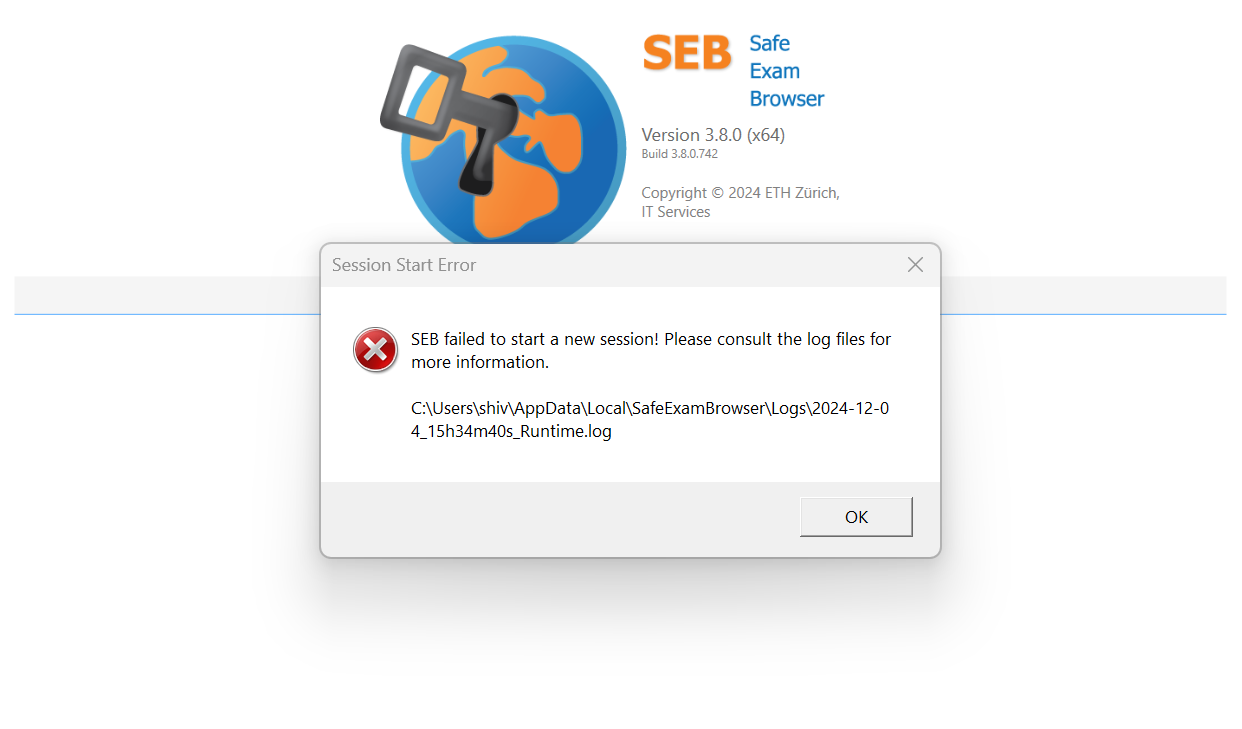
If you're reading this, you probably have an online exam coming up, and that pesky Safe Exam Browser (SEB) is giving you trouble at the worst possible time. Crashes on startup, strange errors, pop-ups, and messages saying you can't open a new session are quite common, especially on laptops running Windows 10 or 11. Don't worry: there's almost always a solution if you know where to look and what to do.
Throughout this article, we'll take a detailed look at exactly what Safe Exam Browser is, why it displays errors like "SEB could not start a new session" or messages related to the Windows registry (for example, the infamous "Error setting registry item 'HKEY_LOCAL_MACHINE\…\Utilman.exe\Debugger' => 'SebDummy.exe'" and the "EaseOfAccessConfiguration" failure ), and how you can try different practical solutions. We'll also see how SEB is used with platforms like Moodle, the role of .seb configuration files, and some tips to help you avoid a nervous breakdown on exam day.
What exactly is Safe Exam Browser and what is it used for?
Safe Exam Browser is a specialized browser that temporarily transforms your computer into a secure exam environment . It's available for Windows, macOS, and iOS , and its main function is to block anything that could facilitate cheating during an online exam : access to other websites, external programs, screenshots, keyboard shortcuts , etc.
When you run an exam configured for SEB, the browser closes or blocks all other applications , restricts navigation to the exam page only, and prevents you from switching windows. Essentially, for the duration of the test, your computer behaves as if only the exam exists and little else.
In many schools and universities, Safe Exam Browser is combined with learning platforms such as Moodle or other LMSs . Teachers create the quiz on the platform and then configure a series of security parameters that require students to use SEB to open the exam.
For all of this to work, the browser typically uses deep operating system settings , especially on Windows: specific registry entries , accessibility settings (Ease of Access), and sometimes interaction with the .NET Framework and other components. It is precisely these system changes that, if something goes wrong, can cause initialization errors, crashes, or prevent SEB from starting correctly.
How to set up an exam with Safe Exam Browser (teacher's side)
To understand some errors, it's helpful to have a clear understanding of how a secure exam is prepared from the teacher's perspective. When a teacher decides to use Safe Exam Browser, they typically activate a series of specific security options for the exam within the platform's quiz (for example, Moodle).
These options allow you to adjust various parameters: whether the exam is only accessible from SEB , which URLs are allowed, whether certain tools can be used (calculator, spreadsheets, etc.), navigation restrictions, passwords, and other technical details. Each platform displays these options differently, but the idea is always the same: to define strict rules for starting the quiz.
Once the teacher finishes adjusting the options, that configuration is exported to a file with the .seb extension . This is the file that the students will use later: when they open it, Safe Exam Browser launches with all the restrictions and parameters already predefined.
The .seb file is typically uploaded to the course (for example, the virtual classroom) as a downloadable resource. In the resource settings, it's important that the instructor forces the file to be downloaded instead of opening it in a regular browser , so that students can save and run it directly with Safe Exam Browser on their computers.
How the student experiences the exam: using SEB on the student's computer
From the student's perspective, the process usually goes something like this: first, Safe Exam Browser must be installed on the computer where the exam will be taken . Many universities require students to use their own laptops, while others have classrooms with pre-configured computers where the browser is installed and managed by the IT department.
Once the program is installed, as the exam date approaches, the professor usually provides a link to a practice test or mock exam . This type of pre-test is key to verifying that everything is working correctly: that SEB opens without errors, that there are no conflicts with your system, that you can enter your username and password on the platform, etc.
In this practice test, the student typically downloads the .seb file posted by the instructor and runs it. Safe Exam Browser then opens, the computer locks for other uses, and the browser attempts to connect to the specific link for the practice quiz . If everything goes well, the student sees the platform's login screen or the mock exam directly.
The problem arises when, at this point, an error message such as "SEB could not start a new session" appears , or the login bar gets stuck halfway through and the exam link never finishes loading. This is what happens to many users who, even after reinstalling several times, find that the browser doesn't even open the quiz.
Common errors in Safe Exam Browser and why they occur
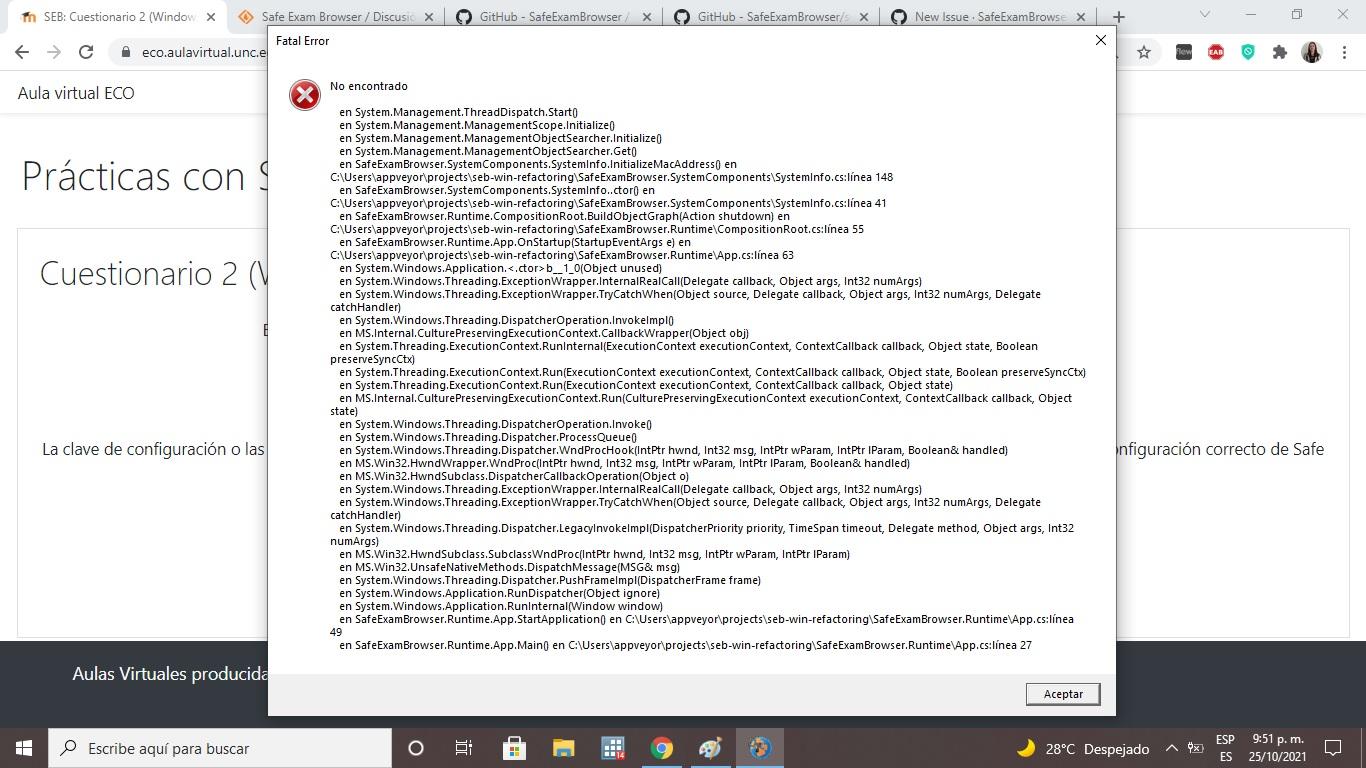
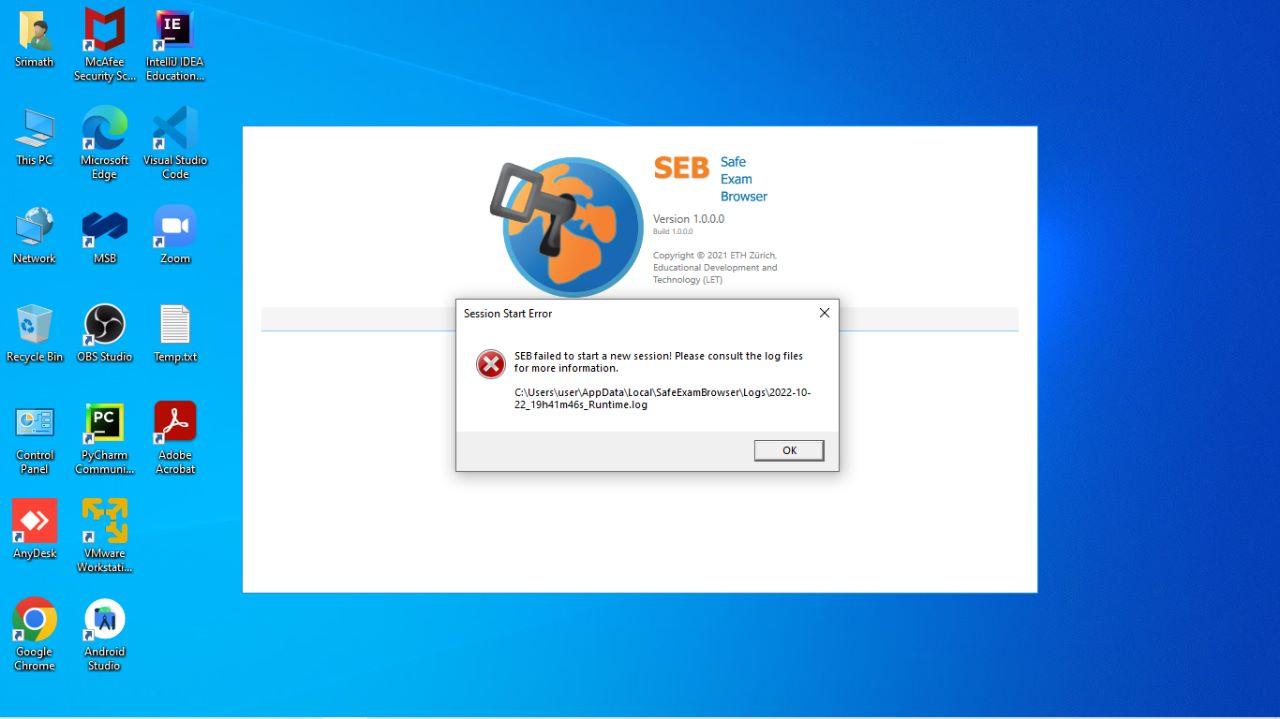
One of the most annoying messages you might see is "SEB could not start a new session!" . This error usually appears right after opening the exam link or launching the .seb file, and it's typically accompanied by internal problems applying the security settings to your system.
In many cases, when reviewing the Safe Exam Browser log, messages similar to these are found: “Error setting registry item 'HKEY_LOCAL_MACHINE\Software\Microsoft\Windows NT\CurrentVersion\Image File Execution Options\Utilman.exe\Debugger' => 'SebDummy.exe'!” and also “Error configuring EaseOfAccessConfiguration” . These two lines are not random: they point directly to a sensitive area of Windows.
Utilman.exe is the executable associated with the Windows Ease of Access menu , which can be opened even from the login screen. To prevent certain accessibility features from being used as a "backdoor" to bypass restrictions, Safe Exam Browser attempts to place a dummy program in that location, modifying the registry so that when the system calls Utilman, SebDummy.exe is actually launched.
If for any reason Windows, antivirus software, group policy, or lack of permissions prevents SEB from modifying that registry key, the browser detects that it cannot fully apply the security restrictions and therefore displays initialization errors and messages indicating that it cannot open a new session . Something similar occurs with the EaseOfAccessConfiguration setting: if it is not allowed to change these parameters, the Secure Boot process breaks.
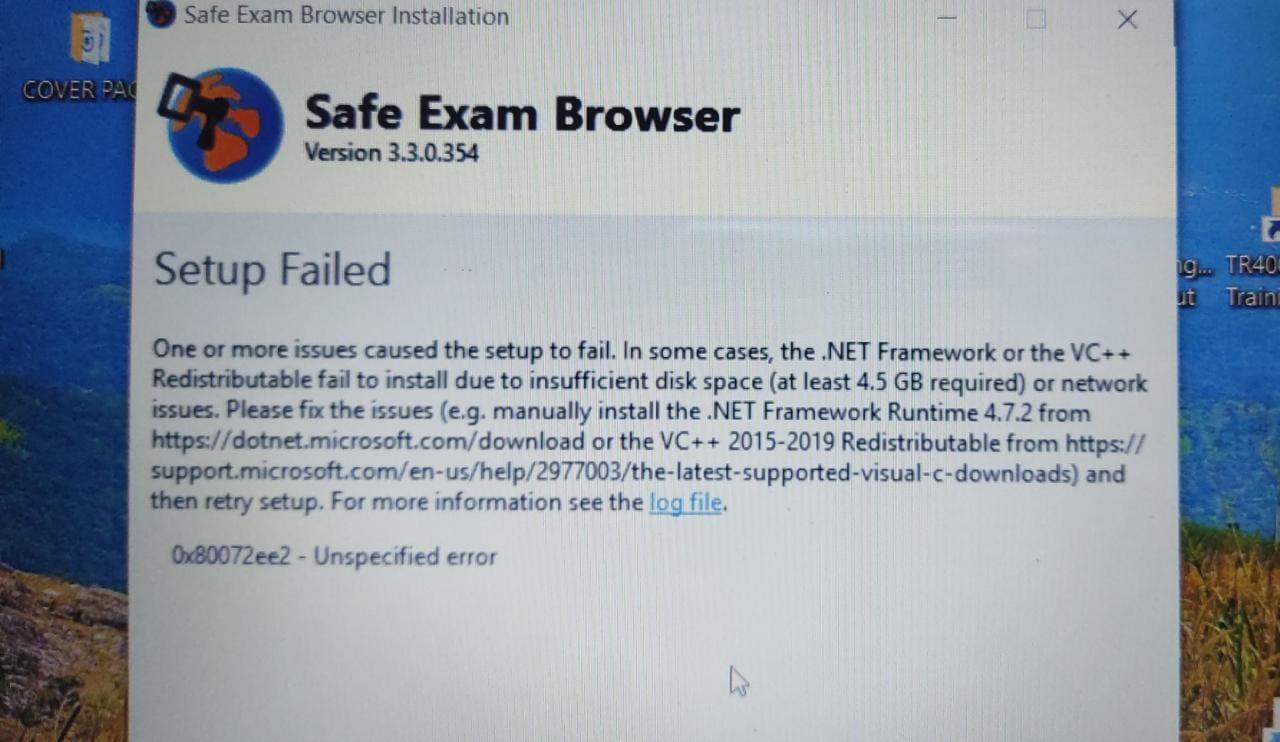
Added to this are other recurring problems, such as incomplete installations of .NET Framework on Windows 10 or 11 , pending operating system updates, blocks by antivirus software or very strict user account controls (UAC), and even blue screens of death (BSOD) on computers with deeper problems.
Utilman.exe is the executable associated with the Windows Ease of Access menu , which can be opened even from the login screen. To prevent certain accessibility features from being used as a "backdoor" to bypass restrictions, Safe Exam Browser attempts to place a dummy program in that location, modifying the registry so that when the system calls Utilman, SebDummy.exe is actually launched.
In addition to these issues, there are other recurring problems, such as incomplete .NET Framework installations on Windows 10 or 11 , pending operating system updates, and blocks from antivirus software or overly strict User Account Control (UAC). On some computers, users attempt to install a .NET package because someone recommended it, but the installer responds that it's already installed, leaving users wondering whether the installation is corrupted or if SEB is using a different version.
Solution to the "SEB could not start a new session" error and registration failures
When the message appears that Safe Exam Browser cannot start a new session and the log points to registry errors, the key is to ensure that the program has sufficient permissions to modify those sensitive areas of Windows and that nothing external is blocking it.
A good first step is to check that you're using the latest version of Safe Exam Browser, downloaded from its official website or the link provided by your university or exam platform. Older versions sometimes have compatibility issues with the latest Windows 10 and 11 updates.
Afterward, it's advisable to completely uninstall the browser , restart your computer, and reinstall it, but this time running the installer as administrator (right-click > Run as administrator). This helps the program write correctly to the registry and configure the accessibility components.
If the error persists, it's likely that some additional protection is interfering. Temporarily disabling third-party antivirus software or security suites before installing and running SEB for the first time can be helpful (always using common sense and only during testing). Some antivirus programs detect attempts to modify the key associated with Utilman.exe as suspicious and block the operation without clearly notifying the user.
On computers managed by an organization (for example, corporate or school laptops), group policies may prevent modification of these registry entries . In these cases, it's best to contact the institution's support service to officially enable SEB, as forcing changes on your own could violate network rules or even destabilize the computer.
Recommended checks in Windows 10 and Windows 11
On laptops running Windows 10 or 11 where Safe Exam Browser isn't working properly, it's important to perform several basic system checks. While these may seem like simple steps, the problem is often solved simply by updating or fixing minor Windows bugs —you can consult guides on common errors and their solutions for this.
First, check that your system is fully updated via Windows Update . Some intermediate versions of Windows have had changes to security libraries or .NET management that affect programs like SEB. Installing the latest cumulative updates usually improves compatibility.
Regarding the .NET Framework, even if the installer indicates that it's already present, there may be corrupted files. In these cases, it's a good idea to use Microsoft's specific .NET repair tools or, at least, run a system file checker (sfc /scannow) from an administrator console to rule out general corruption.
Another recommendation is to ensure that the user account you're running Safe Exam Browser under has administrative privileges or, at least, sufficient authority to allow changes when Windows prompts you . If you consistently click "No" or "Cancel" in User Account Control (UAC) dialogs, SEB will be unable to secure your security settings.
Finally, it's worth taking a look at other installed programs that also attempt to control the environment, such as parental control software, university security tools, or additional anti-cheating solutions . The coexistence of multiple systems trying to lock down the computer simultaneously could be the real reason why Safe Exam Browser isn't starting properly.
How to properly use a .seb file to enter the exam
Beyond internal system errors, problems can also occur because the .seb file is not being used properly or is not correctly associated with Safe Exam Browser on your computer.
Generally, the recommended procedure is to download the .seb file provided by the instructor or the platform and save it to a local folder (for example, the Desktop or Downloads ). Then, double-click on that file so that Windows opens it directly with SEB and starts the secure exam session.
If double-clicking a file doesn't open Safe Exam Browser, the file association might be incorrectly configured. In that case, you can right-click the .seb file, choose "Open with," and select Safe Exam Browser , checking the box to remember this choice. From then on, all .seb files will open correctly with the safe browser.
It's also important to check that the .seb file comes from a reliable source and is not corrupted. If the instructor has updated the security settings or created a new file for the final exam, an older practice file may no longer be valid . In that case, it's best to download the .seb file again from the official course link.
In the days leading up to the exam, it is recommended that the instructor publish a practice questionnaire with a specific .seb file. This allows students to confirm that the browser opens, that the login works, and that the restrictions are as expected, minimizing surprises during the actual exam.
Installation of Safe Exam Browser in classrooms and laptops of the institution
In many universities and training centers, in addition to its use on personal laptops, Safe Exam Browser is also installed on computers in computer labs dedicated to exam administration . In these cases, management is usually handled by the center's IT department.
When SEB needs to be deployed on multiple computers in a classroom, the usual procedure is for the teachers or course instructors to submit an official installation and support request through the institution's internal channels (for example, a technical support portal or a ticketing system). This way, the technical staff is responsible for installing, configuring, and testing Safe Exam Browser on all the computers involved.
This strategy has several advantages: it ensures that the browser is installed with the appropriate administrative permissions , that group policies are correctly configured, and that there are no conflicts with other security systems present on the institution's network. Furthermore, in case of any problems, students can contact the support service instead of having to troubleshoot advanced errors on their own.
In these scenarios, it is also common for the center to combine Safe Exam Browser with other surveillance measures: in-person classroom supervision, cameras, physical access control, and specific regulations for the use of equipment . SEB is one more piece of a set of tools to try to maintain academic integrity.
It is essential that instructors clearly communicate to students whether the exam will be held in classrooms with pre-set equipment or if they will need to use their own laptops. This will determine whether students need to install and test Safe Exam Browser beforehand or can simply sit in the designated classroom and begin the exam with everything ready.
Limitations and best practices when using Safe Exam Browser
While Safe Exam Browser significantly enhances the security of online exams, it's important to understand that it's not a magic bullet or a foolproof solution . It does significantly reduce certain types of cheating (such as opening other tabs, using search engines, accessing external programs, etc.), but it cannot completely replace human supervision or a well-designed exam.
That's why many schools recommend that SEB be used primarily in face-to-face classrooms and under direct supervision . In this context, the secure browser acts as a technical layer of protection, while the presence of teachers or supervisors discourages other forms of copying that the software cannot detect.
Another good practice is for teachers to adapt the type of questions to this environment: avoid tests that only assess rote memorization and opt for more applied questions, reasoning exercises, or problem-solving challenges . That way, even if someone manages to circumvent some of the technical restrictions, the actual benefit they gain will be much smaller.
From the student's perspective, it is highly recommended not to leave the Safe Exam Browser setup until the last minute. Installing it in advance, testing it with the practice .seb files, and consulting with technical support or the instructor greatly reduces the risk of getting stuck right at the start of the exam.
Furthermore, it's advisable to have a backup plan agreed upon with the institution: what happens if, despite everything, the browser fails on the day of the test , if a laptop suddenly breaks down, or if the internet connection drops in the middle of the exam? These issues should be addressed in the course regulations or the online assessment system itself.
Safe Exam Browser is a powerful but demanding tool: it requires a properly functioning operating system, adherence to its permission and configuration requirements , and a thorough understanding by both instructors and students of how it integrates with the exam platform. When properly managed before the exam day, it typically performs reliably and consistently, avoiding most of the last-minute errors that cause so much stress.


Passionate writer about the world of bytes and technology in general. I love sharing my knowledge through writing, and that's what I'll do on this blog, show you all the most interesting things about gadgets, software, hardware, tech trends, and more. My goal is to help you navigate the digital world in a simple and entertaining way.