
You've probably experienced the frustration of trying to recover a file from a faulty PC, Mac , or external drive. Fortunately, there are many programs on the market designed to recover deleted or damaged data and files, and Recuva is one of them.
Most likely, you'd be willing to pay to recover your files. You know it's not an easy task, and not just anyone can do it. However, Recuva has become so famous for being so efficient at recovering data, so easy to use, and above all, because it's completely free.
For all these reasons, we wanted to bring you this detailed review so that you can get to know this software, and download it if you dare. You have nothing to lose by trying it and you will have a very useful tool at your disposal.
What is Recuva
Recuva is a program for recovering deleted files; it is a free program used to recover files such as photos, documents, videos, music, and other types of files stored on memory cards, floppy disks, hard drives, USB drives, or even MP3 players.
Normally, when a file is deleted, remnants of it remain. With Recuva , all the pieces come together so you can easily recover the file you need.
After deleting a file, it is recommended to stop using the computer immediately, download Recuva on another machine and place it on a storage device (USB drive, external hard drive, etc.), and then simply run the program.
If you are experienced with computer maintenance, turn off the computer, remove the disk containing the data to be recovered, insert that disk into another computer, and run the program.
Continuing to use the computer increases the chances of the deleted file being overwritten on the disk, resulting in unsuccessful recovery.
As with all programs, Recuva can do many things, but it also has limitations.
What Recuva can be used for
With Recuva you can perform the following actions:
- Scan memory cards, hard drives, and USB drives to locate folders and files you've deleted.
- It can calculate the probability that a deleted file can be recovered.
- Recover files and folders that Windows can not.
- Completely and securely delete a file that has been previously deleted.
- Recover emails that have been permanently deleted.
- Recover files from your Apple devices, such as iPod Nano, iPod or iPod Shuffle.
- Recover image files in .CRW format.
- Recover files from FAT, exFAT and other formatted drives NTFS.
Recuve Features
Recuva data recovery software is a tried and true tool that users have trusted for over a decade for recovery jobs.
Its last stable version came out in 2016 and although many believe it is outdated and forgotten, we prefer to believe that it is still too good even after 5 years. So much so that it does not need an update.
Its low price and supportive community could make the tool a valuable option, even at the free level. Users should weigh factors such as time , budget, and the priority of the file to be recovered, as the tool can perform ultra-fast recovery, but depending on the severity of the problem, it can take an extremely long time.
If you opt for the paid tier, you get other benefits including Premium support and virtual hard drive options starting with Recuva Professional and additional data tools with the Professional level bundle package.
How To Use Recuva
After opening the program, a wizard will open automatically. You have the option to skip the wizard when the program opens; to do this, simply check the " Do not show this wizard at startup " box.
If you wish to exit the wizard, simply click on “ Cancel ”, this will open the advanced interface.
By clicking on “ Next ”, we can choose the type of files to restore; if in doubt, click on “ Other ”.
Now select the location where the program will search for deleted files.
If you removed the disk to recover it on a separate computer, select the " In a specific location " option, and then select the drive/folder where the files were located.
Clicking " Start " and selecting " Enable deep scan " increases the chances of Recuva finding files (this does not mean recovering them). If the file is not listed initially, you will have the opportunity to perform a new search with deep scanning. Keep in mind that this feature also increases search time.
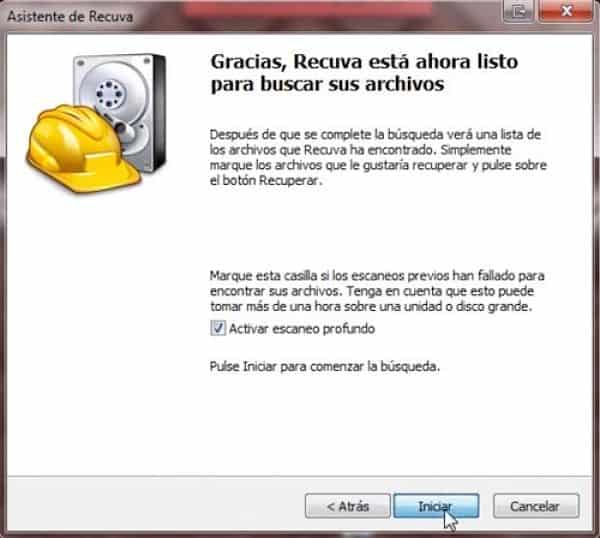
Now just wait.
If the application does not find any files in the specified location, a window will appear indicating that there are no files to recover in the location.
Click yes for deep scan. You will see the following, the colored ball indicates the status of the file, being:
- Green: It is a file with a high probability of being recovered.
- Yellow: It is a file with some clusters overwritten, it can be recovered but with problems.
- Red: Several or all of the overwritten clusters cannot be recovered, and attempting to do so may result in corruption.
If you see the file you lost, and it's highlighted in green, simply select it and click " Recover ".
The program will ask for the location to save the file.
Clicking the “ Switch to advanced mode ” button displays another screen with a bit more detail, such as the left panel showing information about possible overwritten clusters, file size, etc.
Right-clicking on the file gives you several options. Among them is " Enhanced Secure Deletion/Checkmarked ," which allows you to permanently delete a file, overwriting the file on the disk, if necessary, multiple times.
After searching, select the desired files, then click on " Recover ".
At that point, you are prompted for a location to save the recovered file, select a different drive from the drive where the file was deleted, if possible another hard drive, a USB flash drive, etc.
If you try to save the file to the same drive, you may cause the files being recovered to overwrite the original deleted files, rendering the recovery unusable.
If you try to recover the file on the same drive, Recuva will show you a warning.
Click No and choose another drive, if you want to recover from the same drive, or if you don't have another drive available, your recovery chances will be greatly reduced.
After recovering the deleted files, open them and check if the recovery has recovered the data successfully.
Advantages
- It is easy to install.
- It has a portable version.
- Compatible with various Windows versions, including Windows 10.
- Simple user interface.
- You can safely delete sensitive files.
- It has the ability to preview files before recovery.
- You can recover unlimited amount of data for free
Disadvantages
- The installer tries to add other programs during installation. You should be careful not to accept this.
- Limited raw photo recovery capabilities.
Plans and prices
Recuva has two plans available on the market, on its official website.
- Recuva Free, which is completely free, and you can download it directly from the download button on the page.
- Recuva Professional, which costs $24,95, although it is currently on sale for $19,95.
While both plans will provide you with advanced file recovery, the Professional plan has automatic updates and Premium support.
How and where to download Recuva
To download and install Recuva, you must go to its official website.
From there, you have two options: the free version, with a green button, which you can download directly, and the paid version, with a blue button. Downloading is very simple; just click " Download " and follow the installer's instructions.
To get started with this utility, visit its official website and download the version compatible with your device. The site also offers a portable version, which you can easily download to a USB drive.
If you download the portable version of the program, extract the program from the ZIP file. After that, run the recuva.exe file.
When you launch the program, a wizard will guide you through the file recovery process. You don't actually have to know where the file is located, but it speeds up the process of finding the deleted files.
Once Recuva completes the scanning process, a list of recoverable files will be displayed. If you wish to recover one of them, simply select it and click the " Recover " button.
For more recovery options, you can use Recuva's advanced mode. This allows you to preview a file or get more information about it.
Opinions from users who have used Recuva
The same official page gives us several reviews and opinions from users who have used Recuva, let's see some:
- PCWorld:
“If you just want a good removal program with a small disk footprint (and no financial cost), then Recuva is what you're looking for… the interface is the very model of restrained style and efficiency.”
- DownloadSquad:
«I really like Recuva. It's super-fast to install and run. Just select a drive and Recuva will scan for deleted files that have been deleted, including those you've emptied from the recycle bin. If the file is recoverable, Recuva will tell you.»
- LifeHacker:
«Finding out missing files is never a good time. Last week we asked you to share your favorite data recovery tools, then rounded up the top five for your perusal. The result? Easy-to-use, Windows-based Recuva took home the crown for best data recovery tool.»
- Makeuseof:
“After using Recuva for a couple of days, I was very impressed with it. It is very fast at finding recoverable files and when you click on what you want to recover, it restores the file and sends it back to your hard drive in seconds.”
All the reviews are favorable. Recuva is considered one of the best data recovery software programs on the market, even though it hasn't been updated since 2016.
It's a great tool that has proven that it doesn't need to update what it already does very well.
Recuva Alternatives. Top 5 of this year
Data loss can cause financial problems and emotional distress. You probably have hundreds of photos and audio files that you can't bear to lose. Or business data that is key and represents a lot of money.
A reliable backup system is the best option, but data recovery software is the second best, and sometimes the only option available. Check out our Recuva alternatives so you're prepared in case disaster strikes.
1. Mac Data Recovery
It may be an application specializing in Mac recovery, but Mac Data Recovery doesn't limit its talent to the Apple file system; it's happy to search for lost files on USB drives, SD cards, and even Android phones.
Its deep scan works very hard, not limiting itself to individual sectors or traditional file system layouts, but iterating through every byte on your compromised drives and looking for patterns related to the files.
It's quite slow, but it can be worth the wait. When the scan is complete, you'll be presented with folders full of files of specific types, which you can then browse and sort through.
This is possibly a better method than selecting the files you want to keep at the moment, since absolutely everything that can be rescued will be rescued.
2. UnDeleteMyFiles Pro
Despite the inclusion of the word “Pro” in the name, this program is still free, in fact, there is no professional version.
The appearance of UnDeleteMyFiles Pro may not be particularly attractive, but don't let that discourage you too much, as there are multiple tools included here, not just data recovery.
Recovery can be a bit inaccurate, as there is no indication of the quality or recoverability of the files. You just have to hope that the files found are in a reasonable state.
When it comes to data recovery, there aren't many options other than the ability to search for specific file types to reduce the size of the list you need to review.
As for extras, you also get a disk snapshot tool that basically backs up your drive so you can recover data whenever you want, a secure file erase tool, and email recovery.
It's worth checking out, even if it's not necessarily the best of the bunch. Of course, we're not ones to be picky, knowing that it's free.
3. TestDisk and PhotoRec
Presented as a pair of tools rather than a single integrated solution, TestDisk and PhotoRec together can recover data from both partitions and lost files.
The two star tools from CGSecurity can be downloaded separately, depending on the type of file you want to recover.
TestDisk handles partitioning. The fact that it's a command -line tool without a graphical interface might be off-putting at first. It specializes in recovering file systems of all types.
However, if you can put this aside, there is help at hand to guide you through the process of working with your disks. TestDisk offers support for many file systems, so it should cover most eventualities.
PhotoRec is the component for recovering lost files and images. It's available with a command-line interface and also includes a guide for less experienced users. It might not be as intuitive as some other recovery programs, but it's quite effective and free.
PhotoRec is cross-platform and can be run as a portable application from a USB drive, meaning you don't have to install it on your PC and risk accidentally overwriting the data you want to recover. Another great advantage.
4. Recover My Files
These days, few people have just one PC, so it's very useful that a single Recover My Files license covers two installations. It works with OS X FAT, NTFS, or HFS formatted drives and offers a preview of the files found before you choose what to recover.
Not everything that is deleted should be recovered, and Recover My Files knows this. That is why it gives you the option to choose what you want to recover and what you don't.
One of its main selling points is that it is the program used by the United States Department of Homeland Security to recover deleted files.
5. Stellar Data Recovery Professional
It is a very impressive tool to recover deleted or inaccessible files from Windows partitions due to virus attacks, disk failures or system errors.
Stellar Data Recovery Professional is an easy-to-use Windows recovery software that can do its job in just 3 simple steps: download, scan, and recover.
Recovers lost partitions, data, documents, photos and over 300 other file types, as well as files from damaged or corrupted optical media and even deleted emails in MS Outlook and Outlook Express.
This comprehensive file recovery tool recovers data from various storage devices like Smartphones, Hard Drives, USB Drives, Memory Cards and much more.
Stellar is the best data recovery tool available in the market for undeletion of files and file recovery in general.
With so many features available, you might think that it is a difficult software to get to grips with. But that is not the case. Stellar has done a great job of making such an advanced product enjoyable and easy to use.
FAQ
Let's look at some of the frequently asked questions related to Recuva.
Is Recuva safe?
Recuva is completely safe. It is a reliable and long-standing software from a reputable company with many reviews from reputable sources. The company behind Recuva is a well-known name in the world for over a decade.
How good is Recuva?
Recuva is a good choice for those on a budget or with limited processing power. It is a general-purpose type of software and does not come with some of the advanced features or depth of data recovery found in higher-priced offerings.
What type of files can't Recuva safely delete?
Recuva cannot delete files that reside in the Master File Table (MFT) or files of zero size. Resident files are very small files (usually a few hundred bytes) that are so small that Windows stores them directly in the MFT.
Zero-byte files have no size and therefore nothing to delete.
Can I recover a file that has been securely deleted?
No. Once it has been securely deleted, it will be gone forever. You will not be able to recover it with Recuva or any other program.
Conclusion
You might also be interested in: What is JDownloader? Uses, Features, and Reviews
Next time a file is lost or deleted by mistake, use Recuva. There is no guarantee that the program will be able to successfully recover the file, but it is really worth a try. It is your best bet!
To prevent malware strains and virus infections from causing unexpected file deletions, make sure to install an anti-malware tool.
And to make sure you don't delete an important system file, entrust the junk file removal process to a PC repair tool. These are some good tips we can give you, based on our experience.

My name is Javier Chirinos and I am passionate about technology. Ever since I can remember, I have been interested in computers and video games, and that passion has turned into a job.
I have been publishing about technology and gadgets on the Internet for over 15 years, especially in mundobytes.com
I am also an expert in online marketing and communication and have knowledge in WordPress development.