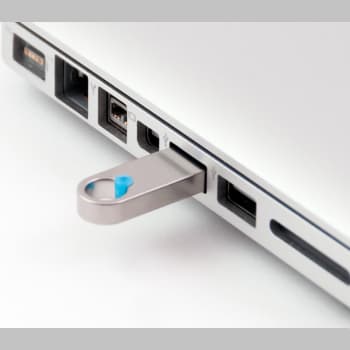
The use of supports storage External data storage has been a standard for several years. Whether it is a hard drive or a USB stick, They are a very convenient way to store and transport data.
They connect to the computer through a port USBSometimes Windows 10 can't recognize the device for various reasons. So today we will try to solve this problem.
There may be different reasons why Windows 10 does not recognize the device connected to the USB port. Therefore, We propose different types of solutions. The problem may be hardware and the USB port or flash drive is broken, or software prevents its use.
You can also read: SD Card Reader Not Working on Windows 10
Solution: Problem Windows 10 Does Not Recognize A USB Port
Next, we will tell you How can you try to solve this annoying problem?There are several ways to do this, so we will have to keep trying until we find the cause of the problem.
1. Restart your computer
The first step is the simplest and most obvious, but no less useful: restart your computer. Most USB recognition problems can be solved this way. Also You can try turning off and unplugging the computer. for about 15 minutes and plug it back in to see if everything works properly.
2. Check if the USB port is working
If everything remains the same after restarting the computer, you need to check if the USB port is working and if the device you want to connect is working. So Connect the device and check that it is plugged inIn many cases they have an LED indicator that shows their status.
If it does not connect, it may mean that the connection is bad or the shuttle controller is not working, so it is a hardware problem. You can also try using another USB port from your computer to check. If the device works on another port, the problem is with that particular USB port.
2. Check if the drive is visible in Disk Management.
If it works, it is a hardware problem. Therefore, Make sure Windows recognizes the drive and it is visible in Disk Management.
To do this, right-click on the Start menu, select Disk Management, and check if the device appears at the top. If it does not, It's probably a problem of drivers, and if so, you may need to add a new volume or format it.
3. Update the USB driver
If Windows does not recognize the USB device and it does not appear in Disk Management, try updating its drivers to see if this is the cause of the problem. To do this:
- Click the right mouse button in the Start menu;
- Select “Device Manager” and go to “Units”, where the connected device should appear with a yellow exclamation mark indicating a driver problem.
- Click with the right mouse button and Select “Update Drivers.”
- A new window will appear where you can select Automatically check drivers for Windows 10 to Download and install the latest drivers.
- You can also select the “Uninstall device” option. (Eject device) and Disconnect the device from the USB port.
- After a few seconds, reconnect the device so that Windows can reinstall the drivers.
4. Create a new volume
If Disk Management displays the device, the cause of the problem could be that the volume has not been created or that the file system is incorrect. To fix this problem:
- Click with the right mouse button and Select “Delete Volume.”
- This will result in the loss of any information it contains that you need to keep.
- When you do this, the device will appear in black letters on the background. Right click and Select “New Single Volume” to create a new volume on the drive and resolve the issue.
5. Format a USB device
If the device is displayed, but the drive is not recognized, you can format it. Right-click the drive and select Format…. Then, Check if Windows recognizes our USB device.
6. Energy saving problem
The Windows 10 not recognizing USB port issue can be caused by power-related reasons. To try to fix the problem, returns to Device administrator by right-clicking on the Start menu and selecting it.
When it appears, access “Universal Serial Bus Controllers” and check it. All USB ports are listed here, so we need to select the port that is causing the problem. If we don't know, we can try one by one. Right-click on the port and select "Properties".
In the new window, Click on “Power Management” and uncheck “Allow the computer to turn off this device to save power.” Click OK and check if the problem is resolved.
7. Use Windows to fix the problem
The problem may be caused by a driver conflict or it may be temporary. Therefore, try to resolve the problem using the Windows Troubleshooter. To do this:
- Go to the Control Panel by typing its name in the search box next to the Start menu. When it opens, on the “View” tab, set it to “small icons.”
- Now Click on Devices and Printers.
- Inside, look for the device that is causing the problem. You can recognize it by its yellow warning icon. Right click and select “Troubleshoot.”
8. Change the sleep settings
If the problem is occurring on your laptop's USB, it may be related to power profiles, as having the laptop in power saving mode can cause some features to be disabled, such as USB hanging. Therefore, this may be the cause of the problem. To fix this problem:
- We open the Control Panel and click on “Power Settings”.
- Here we click on “Change plan settings” which is next to the selected power plan and then click on "Change advanced power settings" again.
- In the new window that appears, click on “USB Settings” and open it. Two options are presented: “on battery” and “on AC”.
- In both cases the we mark as “disabled”. Finally, we click on Apply and OK to confirm the changes.
Why Windows does not recognize the USB connection
When we connect a USB device to a computer, we may receive an error message such as “One of the devices connected to the system is not working” or “The last USB device connected to this computer did not work properly and was not recognized by Windows.” There are also times when we turn it on and nothing appears, It just doesn't work.
These problems can have various causes. If the message does not appear, it may be a hardware problem, i.e. the USB port or the connected device is not working. If they are recognized by Windows, but do not work, It may be due to a driver issue, or the device has not created a volume or needs to be formatted.
It could also be a problem with energy saving plans or, in the case of portable, a problem with the suspension settings. In any case, we will try to find a solution.
You can also read: Transfer to devices on Windows 10 not working. Causes and Solutions

My name is Javier Chirinos and I am passionate about technology. Ever since I can remember, I have been interested in computers and video games, and that passion has turned into a job.
I have been publishing about technology and gadgets on the Internet for over 15 years, especially in mundobytes.com
I am also an expert in online marketing and communication and have knowledge in WordPress development.