- Playnite centralizes libraries with plugins, IGDB metadata, and extensive customization, although it relies on the original launchers.
- LaunchBox stands out for its advanced organization, emulation, and full-screen Big Box; it requires more time to cure.
- Tools like GOG Galaxy, Razer Cortex, Steam, Radeon and GeForce complement with community, performance and utilities.
- If you don't want another client, a pinned folder with shortcuts provides a single point to launch your games.
Between Steam, Epic, GOG, Battle.net, Ubisoft Connect, Xbox , and Amazon, it's easy to lose track of what we have and where it is. New free titles are released every week, and the collection grows uncontrollably, so organizing your game library goes from being a whim to a lifeline.
The good news is that there are universal launchers that centralize everything in one place. In this guide, I'll explain how to do it with Playnite and Launchbox, two leading solutions, and what role alternatives like GOG Galaxy, Razer Cortex, Steam, Radeon Software, and GeForce Experience play. I'll cover the pros, cons, and tips so you can choose what best suits your gaming style.
Why unify your PC library
Since each major publisher launched its own client, we've gone from the convenience of a single site to having our game library spread across multiple launchers . This makes it difficult to know what's installed, what you bought from each store, and on which platform you tracked your progress or achievements.
While it's possible to add external shortcuts to platforms like Steam, that doesn't solve the underlying problem: without the original client, you can't update or take advantage of features like cloud saves, patch notes, or the social layer of each service.
Solutions like GOG Galaxy and Playnite let you see everything in one place and launch games from a single site, but you need to have the original client installed. In other words, using an aggregator is perfect for organizing, searching for, and launching titles, but it doesn't eliminate your dependence on the launchers where you purchased or claimed the games.
Playnite: Open and Ultra-Customizable Hub
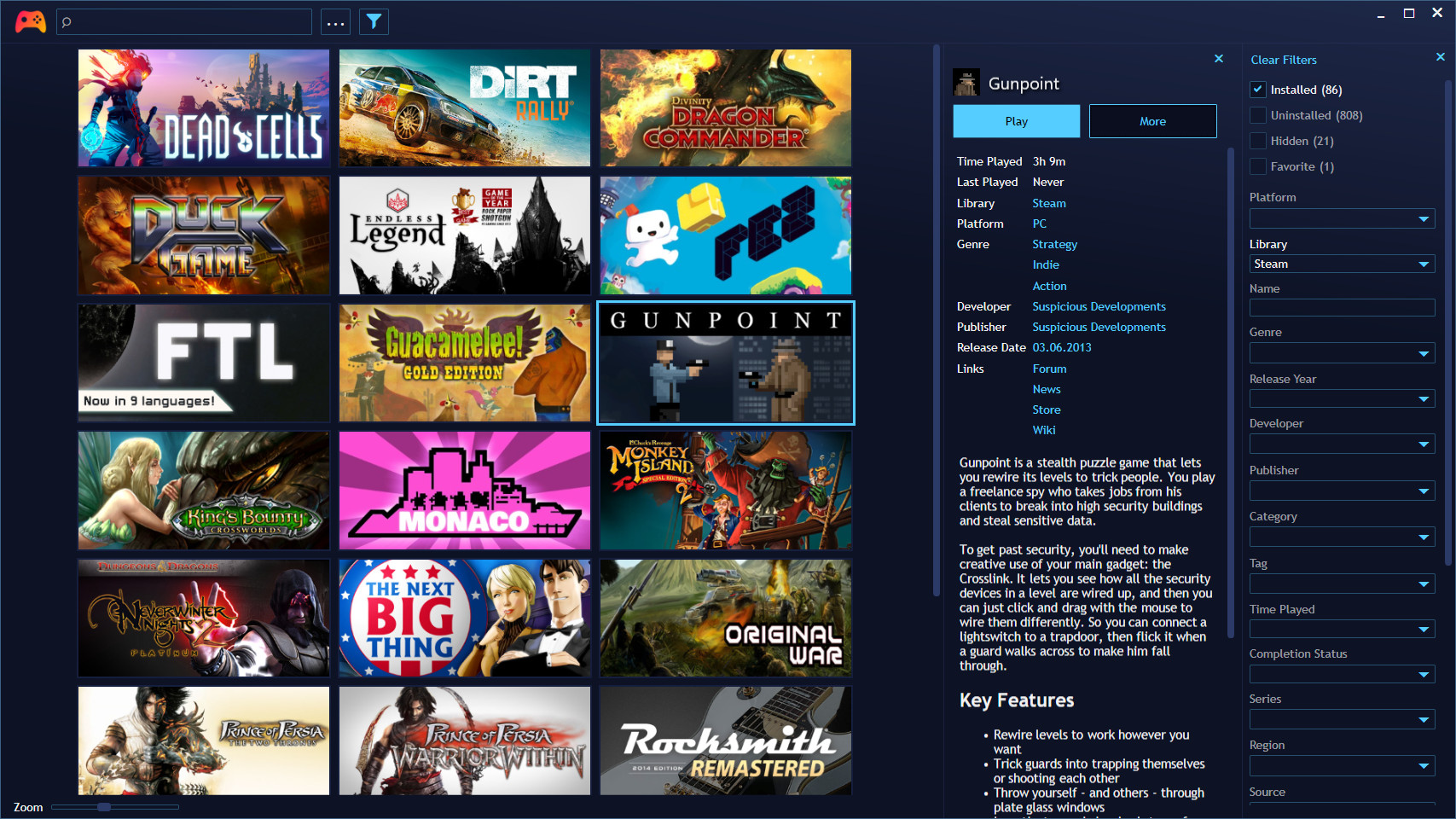
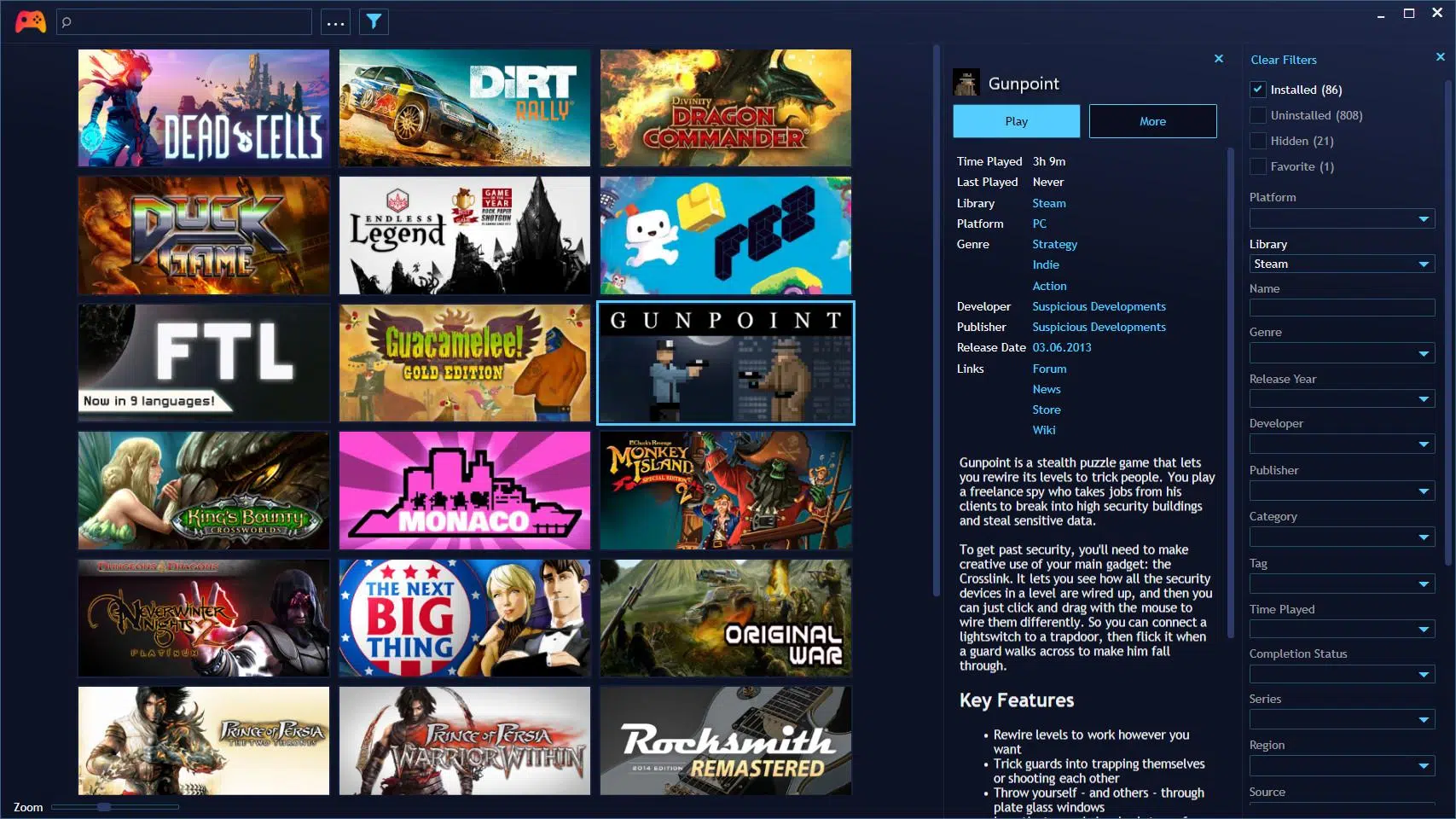
Playnite is a free and open-source client designed to centralize your games, regardless of their source. Its main strength lies in its plugin integration , with support for services like Steam, GOG, Epic, Origin, Battle.net, Ubisoft Connect, Twitch, Bethesda, and itch.io, as well as other platforms such as NVIDIA GeForce NOW, Viveport, and Amazon Games.
Thanks to the community, you can also add libraries that aren't strictly PC-based, such as those for Switch, Xbox, or PlayStation , by installing the appropriate plugins. Installing these plugins is very straightforward from within the program itself, and in just a few steps you can sync your accounts to import entire collections, not just the installed games.
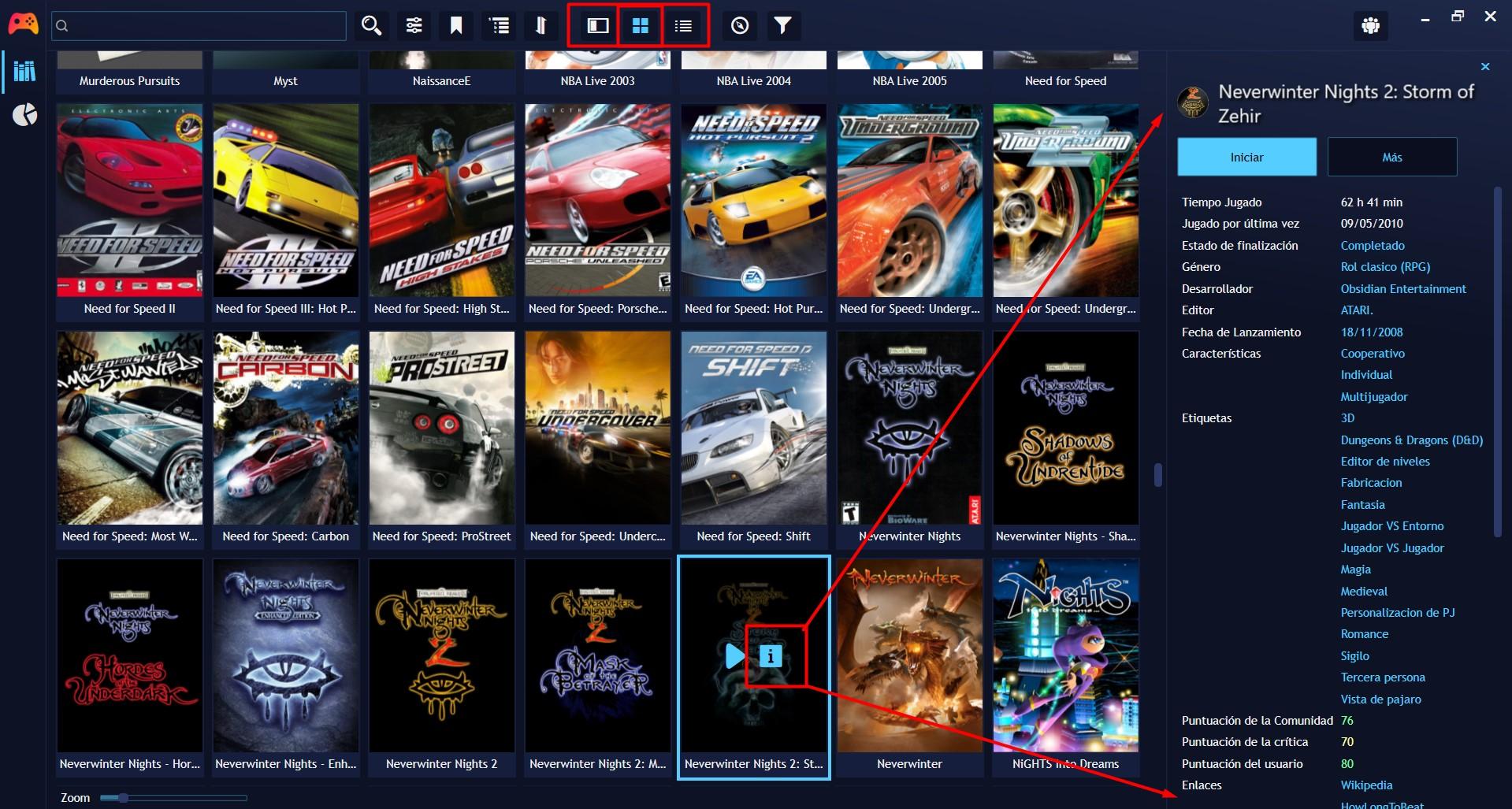
The interface is clean and flexible: you can choose list or grid view, apply filters by category, and use an instant search to find any title on the fly. Games are populated with metadata and cover art obtained from IGDB, and if something doesn't match, simply right-click on the game, select Edit, and force the option to download metadata from IGDB to correct the entry in seconds.
Playnite tracks playtime, stats, and achievements when the store allows it, and also includes a news feed to keep you up-to-date on news and updates for the games you follow. It's ideal for those who use multiple platforms and need a horizontal view of their progress.
The level of customization is enormous: you can change themes, skins, fonts, panel layouts, and which details are displayed, with a community that shares ready-to-use styles. To play, you open the game from Playnite, and the client calls the corresponding launcher. It can even close that launcher when you're finished, which speeds up sessions without leaving any processes hanging.
Limitations to consider: you can't expand your library (purchases or trades) without going to the original store, there's no centralized social layer for friends like on Steam, and game updates still reside within each launcher. You can leave those launchers running in the background for automatic updates, but that adds a point of noise you might not want. Even so, due to its unbiased approach, open nature, and powerful configuration options , Playnite is one of the best options currently available. It's available on Windows and also on Linux via compatible solutions.
LaunchBox: Custom Organization and a Love of Retro
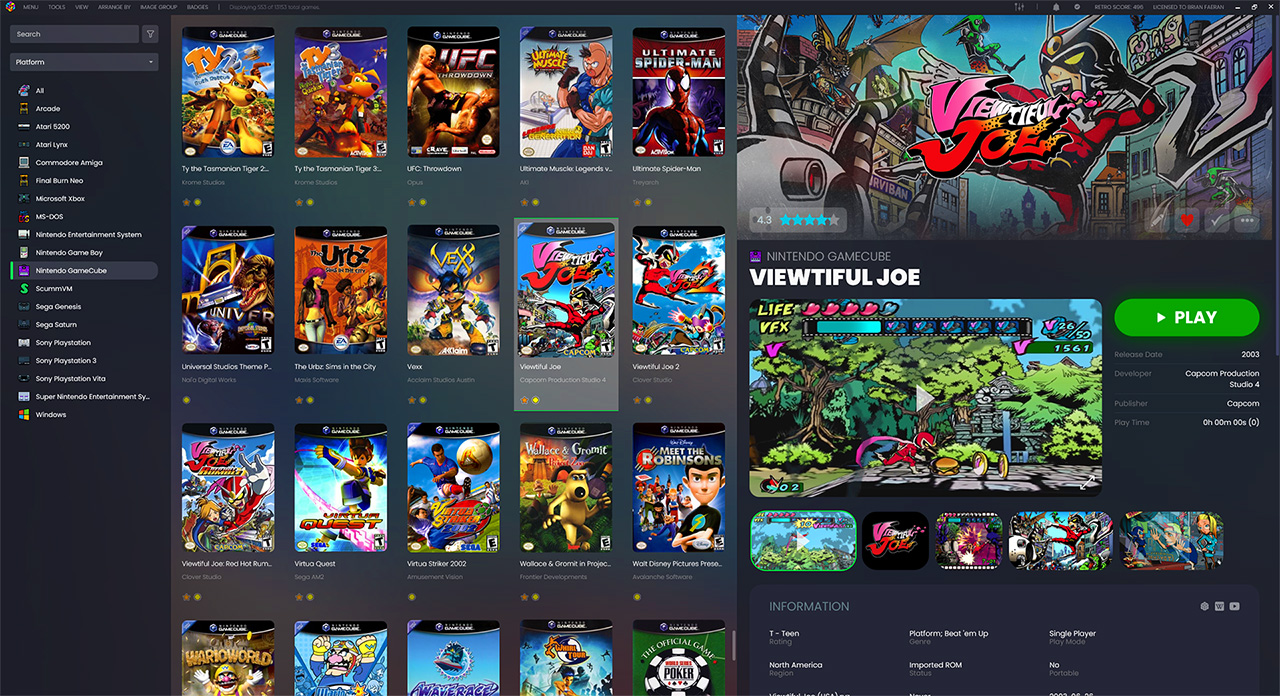
LaunchBox was created for Windows with a similar idea: to bring everything together in one hub and let you organize your library however you like. It does this very well with categorization systems based on genre, publisher, developer, release date, or custom fields that you define, as well as supporting metadata and cover art to recognize each title at a glance.
A key differentiator is its integration with DOSBox emulation : it detects and imports games from emulators, allowing you to keep your retro collection alongside your modern one. If you like to keep everything organized and tagged, LaunchBox makes it easy to create a catalog as detailed as you want.
It includes a media player for watching trailers and videos without leaving the client, perfect for deciding what to play. And if you upgrade to the paid version, you get Big Box: a full-screen mode designed for living rooms, TVs, and arcade machines, with controller navigation, customizable themes, and advanced filters that transform couch mode into a premium experience.
On the other hand, such freedom requires time: building and maintaining a library with its own fields and multimedia elements can be laborious, and fully exploring the ecosystem may require some familiarity with software and emulators . If you're into meticulous customization and the retro scene, it's hard to beat; if you prefer something immediate, perhaps an approach like Playnite would suit you better.
More tools that add to your organization
In addition to the two main ones, there are other launchers and utilities that can complement your gameplay and organization workflow. They don't replace Playnite or Launchbox, but they add value in specific areas such as optimizations, community, and discovery.
- GOG Galaxy It centralizes libraries by connecting to stores like Steam, Origin, and Epic Games, allowing you to view everything in one place and launch games from within its own client. Its search engine filters by title, genre, developer, or platform and offers recommendations based on your history, as well as cross-platform chat, a friends list, and achievement tracking. It offers cloud saving and automatic updates for certain titles, though it has limitations: not all platforms or games are supported, and its user base is smaller, so social features may be less active.
- Steam remains the giant in terms of catalog, community, and features. It's a source of news, reviews, and recommendations, with categories by genre and the Workshop ecosystem for mods. Steam Cloud syncs saves and settings, and remote play lets you continue from browser-based devices. Its discovery engine draws on your history; the Curator system highlights gems; and badges, cards and achievements add meta-gaming to the experience.
- Razer cortex It focuses on performance and savings. Game Booster closes background processes to squeeze FPS, and Game Defrag defragments game files to shorten loading times. It includes a system performance monitor to detect bottlenecks and a deal finder that tracks discounts across multiple stores, in addition to options for streaming to mobiles to play away from the desk.
- RadeonSoftware (AMD) is the companion for Radeon graphics cards: it optimizes graphics settings for each game, monitors GPU and CPU statistics, and offers integrated capture and streaming tools for popular platforms. Highlights include AMD Link, which lets you stream and play on your mobile phone or tablet over the same Wi-Fi and use the device as a PC remote control.
- GeForce Experience (NVIDIA) automatically optimizes each game's settings based on your hardware, manages driver updates, and offers screen and video capture, basic editing, and direct streaming to Twitch or YouTube. ShadowPlay records in the background with minimal impact thanks to the GPU encoder, and includes general utilities system optimization.
If you collect physical media in addition to digital, services like Completionator or GG help keep track of your records and cartridges, closing the loop for those who want to keep their entire catalog, old and new, under control.
Playnite in depth: how to connect and maintain your catalog
When you install Playnite, the initial setup wizard asks which libraries you want to add to connect accounts and see everything in one place. From the icon in the upper left corner, you can access Add-ons, then the Browse tab, and within Libraries, choose the plugins for each service you want to add. After logging into each one, the games will automatically sync and appear in your preferred view.
If you notice a discrepancy in the game's data or cover art, right-click on the game, select Edit, and choose Download metadata from IGDB to find the correct matches. You can repeat this process with your preferred metadata sources , as the community provides alternatives that complement IGDB.
The built-in search engine and filters by tags, platforms, and status (installed or not) are key to avoiding duplicate purchases. A particularly useful feature is checking in seconds if you already own a title before jumping into a flash sale.
Remember that Playnite launches the corresponding client for each store in the background and can close it when finished. To redeem codes, make purchases, manage friends, or force updates, you still need to open the original launcher. If you prefer not to change anything, you can keep those clients running in the background to update automatically and use Playnite as your daily gateway to play.
LaunchBox In-depth: Advanced Curation and the Big Box
LaunchBox shines when you want to go beyond the basics: create custom collections, apply your own criteria, and unleash your curatorial side. It's easy to assign tags, genres, publishers, or create custom fields to segment sagas, ports, special editions, or ROM hacks.
The emulator integration lets you import ROM sets with a user-friendly wizard, configure paths and parameters, and launch everything from the same place. If you like to watch trailers before making a decision, the built-in media player saves you clicks and keeps you within the client flow.
For living room use, Big Box transforms the experience into a stylish, full-screen interface with remote control navigation, vibrant themes, and advanced filters that make choosing games from the couch a pleasure. It's a small investment if you value a cinematic experience on the big screen.
However, preparing and maintaining such a detailed collection requires time and a certain level of emulation expertise if you choose that route. The reward is a perfectly organized catalog that's a pleasure to browse and that brings together your retro and modern collections in one place.
Shortcut without installing another client: shortcuts folder
If you'd rather not add another aggregator, there's a simple trick in Windows: a folder with all your game shortcuts pinned to the taskbar. It doesn't eliminate the dependency on each launcher, but it gives you a single point of entry and declutters your desktop.
- Clean the desktop deleting shortcuts from launchers if you want to keep it clear.
- Create a folder in a stable location and put the files inside. Shortcuts of all your current and future games.
- Right click on that folder, Send To and choose desktop for create a shortcut to the folder.
- In the shortcut, open Properties and edit the Target field by prepending explorer and a space to the folder path to open it with Explorer.
- Rename the shortcut to something recognizable like Games to have it instantly locatable.
- Optional: Change the icon from Change Icon using system resources (e.g. imageres.dll) or your own. identify it better.
- Right-click on that shortcut and select Pin to Taskbar to have it always at hand.
- Open that pinned folder whenever you want to play and launch the desired title; the corresponding launcher will open. when necessary.
With this method, you'll have all your games just a click away and grouped in one place. It doesn't replace the original clients, but it reduces friction and helps you focus on playing instead of searching for where everything is.
Playnite gives you an open, highly customizable hub with enough automation for everyday use; Launchbox offers a level of curation and emulation support that's truly impressive, especially with Big Box; and the rest of the tools round out the experience with optimizations, community, and tracking. With a little initial setup, you'll have your catalog unified, accessible, and organized without losing the advantages of each platform.


Passionate writer about the world of bytes and technology in general. I love sharing my knowledge through writing, and that's what I'll do on this blog, show you all the most interesting things about gadgets, software, hardware, tech trends, and more. My goal is to help you navigate the digital world in a simple and entertaining way.