- Get an in-depth understanding of what a PKG file is and its structure on macOS.
- Discover simple and advanced methods to open, install, or extract content from PKG files.
- Learn solutions to common errors and best security practices when handling packages from unknown sources.
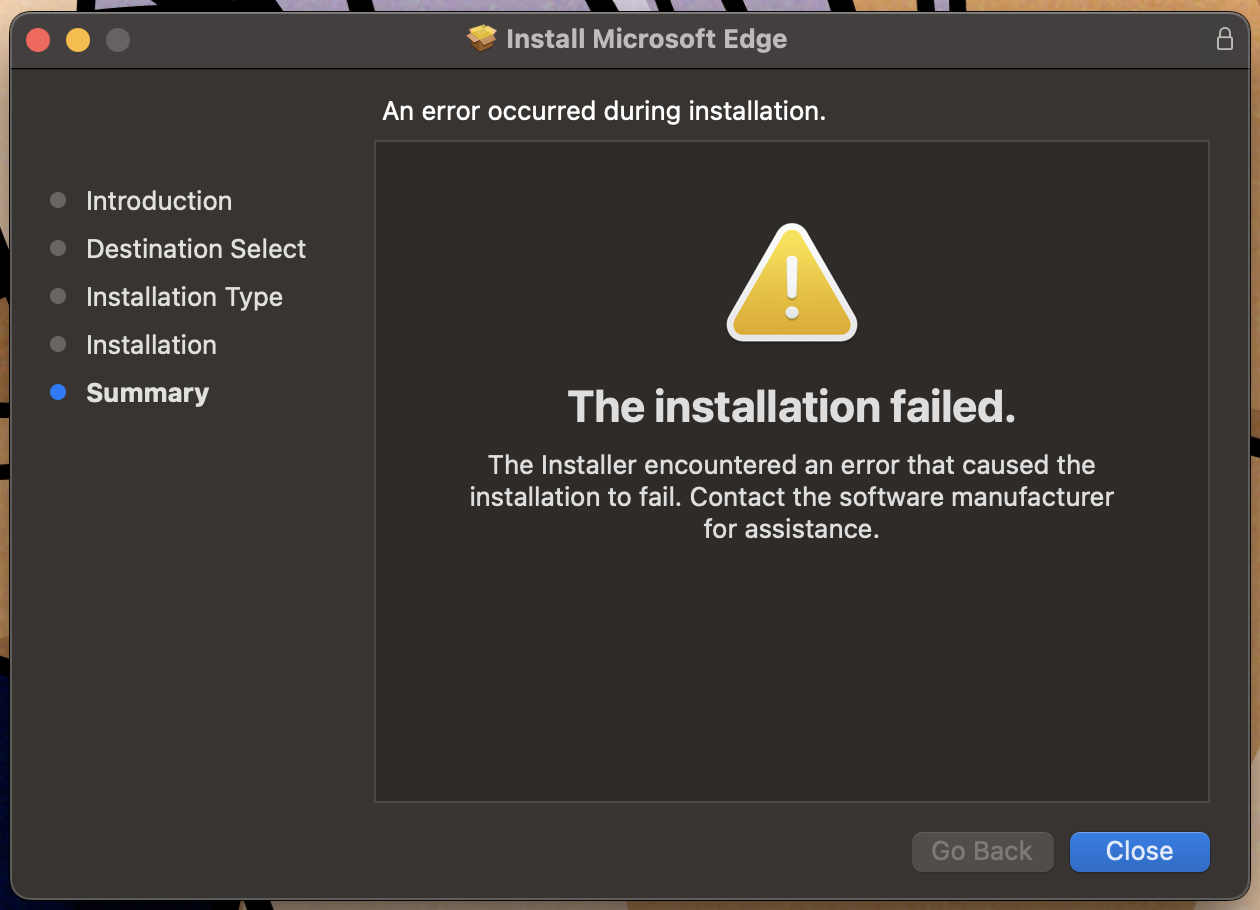
If you've ever tried to install a program on your Mac and come across a .pkg file, you've probably wondered exactly what it is, how to open it, and the best ways to handle it safely. These extensions often raise questions, especially for those coming from other operating systems or who aren't used to installing software from outside the App Store. In this article, we'll tell you everything: what PKG files are, how to open them and install their contents, the most common problems and how to solve them, as well as security tips to avoid unpleasant surprises.
We offer a complete guide, with the clearest and most detailed explanations, so you'll never again be stuck on a PKG package on your Mac. Whether you're an advanced user or just starting out with macOS, you'll find answers to all your questions, practical tips, and alternative methods for reliably and safely opening, extracting, installing, or even deleting .pkg packages.
What is a PKG file on Mac and what is it used for?
A PKG file is a type of package used by Apple to efficiently distribute software on macOS (and, in some cases, iOS ). It's the standard way to install programs or system components from outside the App Store. These files, compressed using the XAR standard, contain both the application or utility to be installed and any necessary scripts and other resources.
The structure of a PKG file typically includes:
- Executable files, folders and libraries necessary for the operation of the program.
- Installation or uninstallation scripts, which automate the process and manage special permits or locations.
- Receipts and manifest files, known as BOM (Bill of Materials), to keep track of which files have been copied and where.
- Sometimes additional compressed files (such as Archive.pax.gz) where the application itself resides.
The PKG format is valid exclusively for Apple systems and cannot be installed as is on other environments such as Windows or Linux . However, some tools allow its contents to be extracted and viewed on other platforms.
Methods to open a PKG file on Mac
There are several ways to open or explore a PKG file on your Mac, depending on whether you simply want to view its contents or install the included software. Here are the main options, from the simplest to the most advanced.
1. Double click to install (the simplest way):
Most PKG files open directly with the macOS Installer utility . Simply double-click the PKG file and follow the wizard's instructions. If everything goes smoothly, you'll see the installation progress, and the program will be installed on your system.
2. Right click to explore content:
In some cases, if you want to see what the package contains before installing it, you can right-click on the PKG file and select " Show Package Contents ." Not all packages allow this, as Apple's Flat Packages do not display this option and are presented as a single file.
3. Use the Terminal to extract the content:
For cases where the above option doesn't appear, you can manually extract the contents of the PKG file using Terminal. This is very useful for advanced or curious users who want to inspect the files before installing them.
- Open the application Bus Terminal on your Mac.
- Go to the folder where your PKG file is (for example, the Desktop typing:
cd ~/Escritorio). - Run the following command, replacing file.pkg for your file:
xar -xvf archivo.pkg
This will unzip the contents into the same folder, allowing you to access all the files and scripts included in the package.
Programs and utilities to open PKG files
The official utility for opening and installing PKG files on a Mac is the "Installer" (Installer.app). This program handles not only the installation but also verifying the integrity and permissions of the packages.
If at any point your system fails to recognize PKG files or has changed the default application for opening them, you can restore the association by applying the " Open with " option and manually navigating to the following path:
/Sistema/Librería/CoreServices/Instalador
There are also third-party applications that allow you to explore or extract the contents of PKG files, such as The Unarchiver or Pacifist by CharlesSoft . These tools are very useful if you need to see the internal structure and files in detail without performing a full installation.
Manual installation via Terminal
In recent versions of macOS, especially since Ventura, security has been enhanced, and the installation of unverified PKG files is sometimes restricted. If you receive error messages indicating that the installation failed or that the file is corrupted, you can perform the installation via Terminal with administrator privileges.
These are the basic steps:
- Make sure you have the PKG file handy.
- Open the Terminal app.
- Enter the following command:
sudo installer -verbose -pkg /ruta/del/archivo.pkg -target / - Press Enter and enter your user password to authorize the operation.
- The installation progress will be displayed, and once complete, you can run the installed program.
Tip: If the PKG file is in your Downloads folder and is causing problems, move it to your Desktop and try again. Sometimes, folder permissions can interfere with the installation.
Common problems opening or installing PKG files on Mac
Despite their usefulness, PKG files can cause problems when trying to open or install them. Let's look at the most common ones:
- Corrupted file error: This usually happens with packages downloaded from unverified sources or those incompatible with your version of macOS. Sometimes, it's simply a permissions or location issue.
- The 'Show package contents' option is not displayed: This is the case with flat packages, but you can use Terminal or specialized programs to extract the contents.
- The system attempts to open the PKG with an incorrect application: If the file association has been changed, restore the default (Installer.app).
- Security warnings or Gatekeeper blocks: If the software is from an unidentified developer, Gatekeeper may prevent installation. In that case, go to System Preferences > Security & Privacy to allow it to open.
- The PKG file is for another system: Some PKG files (for example, PlayStation or Windows) are not compatible with Mac and will not open or install.
PKG files from unidentified developers and security on macOS
Apple prioritizes security in its systems and, by default, blocks the installation of apps or packages from unknown developers. When you try to open such a PKG file, you'll see a warning alerting you to potential risks. If you believe the file is safe, you can force it to open.
- Right-click on the PKG file and select “Open.”
- Confirm in the warning window that you wish to continue.
- Alternatively, go to System Preferences > Security & Privacy and manually accept the exception for that file.
It's important to note that bypassing these protections can expose your computer to malware. Only install PKG files from trusted sources and avoid unnecessary tampering with system security.
Useful tools and commands for manipulating PKG files
In addition to the installer and third-party utilities, macOS includes several powerful commands for handling PKG files via Terminal:
- Xar: Allows you to unzip flat packages and view all their components.
- pkgutil –expand : Expand the PKG file into the desired folder, showing its complete structure.
- lsbom : Read the manifest to find out exactly what and where each package element will be installed.
These commands are essential for advanced users and developers, allowing them to audit the contents before proceeding with the installation. If you have doubts about what a package includes or if you want to extract certain files without performing a full installation, these options are ideal.
What to do with PKG files after installation?
A common question is whether you should keep the PKG files after installing the program. The answer is usually no: you can delete them to save space, as the installed software will remain intact. Simply drag the PKG file to the Recycle Bin and empty it when you want to reclaim the space.
Some packages generate installation receipts or logs , which are useful if you ever need to perform a complete uninstallation of the program (by checking which files it modified or installed). In these cases, the receipts are usually stored automatically in internal system folders (/var/db/receipts), so you don't need to keep the original PKG file unless you want to reinstall the software in the future.
With all this, you now have everything you need to know how to handle a PKG file, from traditional installation to extraction, error resolution, and content auditing. If you follow these tips, installing, exploring, or deleting PKG files on Mac will no longer be a mystery, and you'll be able to navigate with ease using both visual tools and Terminal.


Passionate writer about the world of bytes and technology in general. I love sharing my knowledge through writing, and that's what I'll do on this blog, show you all the most interesting things about gadgets, software, hardware, tech trends, and more. My goal is to help you navigate the digital world in a simple and entertaining way.