- Medicine USB It is an all-in-one portable system with numerous tools for diagnosing, repairing, backing up, and recovering PCs that won't boot.
- It runs from a bootable USB drive based on Ventoy and Linux, without installing anything on the computer and even working with a damaged operating system.
- It includes sections organized by menus: antivirus, backup and recovery, repair of Bootdiagnosis of hardwarepartition management, recovery of Windows and password reset.
- Creating the USB drive requires a flash drive of at least 32 GB, preparing the device with Ventoy, and formatting it in NTFSCopy the Medicat files and configure it as a boot drive in the BIOS/UEFI.
If your computer has ever decided to stop working on the day you needed it most, you've probably regretted not having a good emergency tool handy. With Medicat USB, you can carry a complete PC repair workshop in your pocket , ready to fix things when Windows gets corrupted, your hard drive starts failing, or malware sneaks in where it shouldn't.
In this guide, you'll see in detail exactly what Medicat USB is, what it's used for, and how to create your own bootable USB drive step by step . The goal is for you to finish this article with a USB drive ready to boot any compatible PC, analyze it, repair boot errors, recover data, clean viruses, manage partitions, and much more, without affecting the operating system installed on the hard drive.
What is Medicat USB and what is it used for?
Medicat USB is an all-in-one portable operating system designed for computer diagnosis, maintenance, and repair. It runs directly from a USB drive without installing anything on the computer. It's a kind of computer toolbox that boots independently of the operating system on your hard drive.
Instead of installing individual programs on your PC, Medicat bundles a huge repertoire of ready-to-use utilities onto a single USB drive : boot tools, backup utilities, data recovery software, antivirus, partition managers, hardware testing, Windows restore, password removal, and much more.
This project is inspired by classic solutions such as Hiren's BootCD, Ultimate Boot CD, SystemRescueCD, Rescatux or Trinity Rescue Kit , but offers a more modern environment, with a user-friendly graphical interface and a set of highly updated programs that cover virtually any typical PC problem.
One of its great advantages is that it works even when the computer's operating system won't boot . If Windows is corrupted, there are errors in the boot sector, or the system is stuck on the startup screen, simply select USB boot in the BIOS/UEFI and Medicat takes over, running entirely from RAM.
Furthermore, Medicat USB is based on Linux and Ventoy , a very convenient system for managing multiple bootable images on the same USB drive. All of this is done while maintaining a free and open-source philosophy, something highly valued if you like to know what you're using and have the freedom to adapt it to your needs.
Think of Medicat as a portable computer repair shop you turn to when something goes wrong : you plug it in, boot your computer from USB, and choose the right tool for the problem at hand. It's especially useful for technicians, advanced users, or anyone who wants to be prepared before disaster strikes.
Main tasks you can do with Medicat USB
The great strength of Medicat USB lies in the enormous variety of utilities it includes and how it organizes them into clear menus so you don't get lost. It's not just "a boot disk," it's a complete environment for troubleshooting all kinds of problems.
Among the most common functions you can perform with this USB drive are boot repairs . If your computer is stuck on the manufacturer's screen, gets stuck in a boot loop, or displays boot errors, you have specialized tools at your disposal to rebuild the boot manager , correct corrupted entries, and bring the operating system back to life.
It also includes a comprehensive selection of hardware and software diagnostic utilities . You can analyze the health of hard drives, check RAM, detect bad sectors, run stress tests, or review overall system performance to identify bottlenecks and emerging failures.
Another very important area is backup and recovery tools . From Medicat you can clone disks, create full system images, restore previous backups, or attempt to recover deleted files or lost partitions after an error, always working from an isolated environment to avoid worsening the situation.
The security aspect is equally comprehensive: Medicat USB includes solutions for removing malware , performing in-depth system scans, and cleaning infections that your regular antivirus might not be able to eradicate when Windows is in use. Since it runs from outside the system, viruses have a much harder time hiding.
Furthermore, you can also manage advanced disk partitions : create, delete, resize, format , repair damaged partition tables, change file formats, and organize storage space more logically before installing systems or after a serious problem.
In situations where someone has forgotten their password, Medicat offers tools to reset user access on Windows systems, allowing you to regain access to an account without losing all your data. This is especially useful on older computers or when official recovery methods are unavailable.
Finally, Ventoy, integrated into the USB drive, allows you to install or reinstall operating systems directly from the drive , or boot different images as needed. This way, you can have, for example, multiple Windows ISOs or Linux distributions on the same device along with Medicat.
Advantages of using Medicat as a bootable USB
The fact that Medicat runs from a bootable USB drive offers several key advantages over installing individual programs on your PC. The first is that you don't touch the hard drive at all: everything is loaded into memory and disappears when you turn off the computer.
This makes working with severely damaged systems much safer , because you operate from outside the affected system. If there is file corruption, active malware, or drivers causing errors, Medicat works from a clean environment, without depending on the state of that broken Windows installation.
Because it runs in RAM, the Medicat environment is typically quite fast , even on older machines. You don't need a state-of-the-art PC to run disk tests, clone partitions, or create backups: virtually any x86 computer with a USB port will work.
Another strong point is portability. You can carry your Medicat USB in your pocket and use it on any compatible computer you need to check: your home computer, a family member's computer, a work laptop… All you need is for the BIOS/UEFI to allow booting from USB and for you to have physical access to the computer.
If you're concerned about security, you'll be interested to know that Medicat creates an isolated environment separate from your regular system . It doesn't modify partitions or install anything permanently unless you explicitly instruct it to do so using one of the included utilities.
In short, you have a "Swiss Army knife" full of maintenance and repair applications without needing to download a different program every time a different problem arises. For field technicians or advanced users, it's practically indispensable.
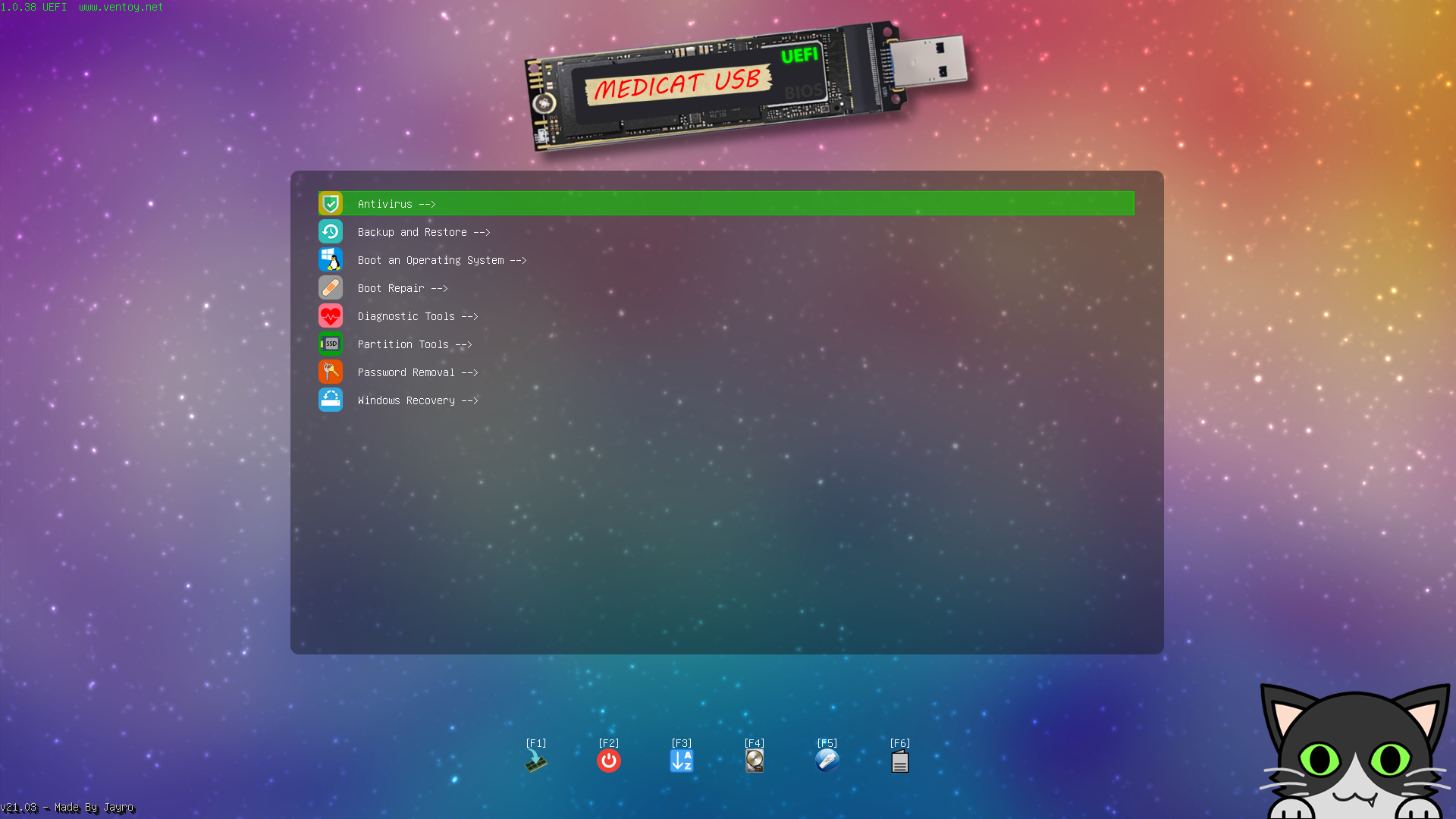
When you boot a PC from your Medicat USB drive , a clear graphical menu appears where the tools are organized by category. This allows you to quickly find what you're looking for without having to memorize the name of each specific program.
One of the first sections you'll find is the Antivirus tools section. This section usually includes, for example, Malwarebytes in a ransomware-ready version, which allows you to perform an in-depth system scan for Trojans, ransomware, adware, and other threats, and then clean them up without the malware running.
Another essential section is "Backup and Recovery ." This menu includes a number of programs specializing in disk cloning, creating full images, and restoring data after disasters, covering a variety of needs and preferences.
Among the utilities available in this section, you'll find well-known solutions like AOMEI Backupper, Acronis Cyber Backup, and Acronis True Image , widely used for full backups of Windows systems. EaseUS Data Recovery Wizard and EaseUS Todo Backup are also commonly included for file recovery and scheduled backups.
The suite is rounded out with tools like Elcomsoft System Recovery, Macrium Reflect, MiniTool Power Data Recovery, MiniTool ShadowMaker, RescueZilla, and Symantec Ghost . With all of these, you can cover both standard backup and restore scenarios and emergency data recovery when a disk starts to fail.
Another very important category is "Boot Repair ," designed to fix problems when the operating system fails to start correctly. Here you'll find utilities like Boot Repair Disk, BootIt Bare Metal, EasyUEFI, Rescatux, and Super GRUB2 Disk, all aimed at rebuilding boot managers and correcting errors during this critical phase.
The "Boot an OS" menu doesn't display applications as such, but rather options to boot or install different operating systems stored on your USB drive using Ventoy. From there, you can select the Windows or Linux ISO you want to launch at any given time.
The "Diagnostic Tools" section contains utilities designed to detect hardware problems. These include suites such as HDAT2 and Spinrite for in-depth disk analysis, as well as Ultimate BootCD and the well-known MemTest86 and MemTest86+ for testing RAM modules.
The "Partition Tools" section contains partition managers, which allow you to create, delete, resize, move, and format partitions, as well as repair damaged partition tables. This is where you organize your disk structure before installing an operating system or when you need to restructure your storage.
The "Password Removal" section is reserved for utilities that allow you to reset forgotten passwords for user accounts, especially on Windows systems. Used responsibly, they can be a lifesaver when the legitimate owner of a computer has lost their password and has no way to recover it through normal methods.
One interesting section is "PortableApps ," designed to allow users to add their favorite portable applications to a USB drive. This way, in addition to repair tools, you can carry your own set of everyday programs ready to run without installation.
Finally, in “Windows Recovery” are grouped the specific options for the recovery and repair of Windows installations, both through Microsoft's own tools and with third-party utilities that make it easier to fix damaged system files or restore configurations.
Medicat VHDA: a virtual disk-based alternative
Alongside the classic USB version, the developers of Medicat also offer a variant called Medicat VHDA . This edition functions as a virtual hard drive (VHD) with a Windows 11 environment designed for diagnostic and repair tasks.
The idea behind this version is to provide you with a bootable Windows 11 loaded with tools , running as if it were an installed system, but encapsulated in a virtual disk file that you can boot from bootable media.
This approach is useful when you prefer to work in a full Windows environment for certain tasks , but without relying on the local installation on your computer. Although the philosophy is similar to that of Medicat USB, the loading method and base environment differ, which can offer greater flexibility depending on your needs.
In any case, both Medicat VHDA and Medicat USB share the same goal: to facilitate the repair and maintenance of PCs with a wide collection of ready-to-use utilities in critical situations.
Requirements and preparation of the USB drive for Medicat
Before you start creating your rescue USB drive, it's important to be clear about the minimum requirements your USB drive must meet and some preliminary details so that the process doesn't give you unnecessary problems.
To begin, you'll need a USB drive with at least 32 GB of capacity . The set of tools and files included with Medicat takes up quite a bit of space, so a smaller drive will quickly run out and limit your ability to add other ISOs if needed.
Please be aware that all contents of the USB drive will be erased during the Ventoy setup process . If you have important files on that drive, make a copy to another location before proceeding, as formatting and installing Ventoy will delete everything on it.
Another important detail is that, during the creation process, it's advisable to temporarily disable your antivirus or real-time protections . Some security programs tend to block scripts, bulk decompressions, or changes to the device's MBR , which could interrupt or corrupt the installation.
Of course, your computer must be able to boot from USB and have a working USB port . Virtually all modern x86 PCs meet this requirement, but it's advisable to check in the BIOS/UEFI that the "Boot from USB" option is enabled or at least accessible via a quick boot menu.
Finally, carefully review the minimum requirements that the Medicat developer indicates on its official page, both in terms of RAM, architecture compatibility and necessary space , as well as any other specific notes about the particular version you are going to download.
Download Medicat USB from the official website
To obtain a reliable copy of Medicat, you should always go to its official website and the links provided by the project itself . From there you can download both the images needed to create the bootable USB drive and the installation scripts.
At the top of the page you will usually find separate buttons for Windows and Linux users , since the scripts that automate part of the process are different depending on the operating system you use to prepare the USB drive.
If you prefer a more manual approach, you can usually download the compressed images directly from Medicat , either via HTTP links, Torrent, or other alternative methods. In this case, you will have to handle the decompression and copying of the files to the USB drive prepared with Ventoy.
When you download the Medicat USB packages, you will see that they are distributed in compressed .7z files and, sometimes, in numbered .001 files that you must extract correctly to obtain the complete folder structure that the USB drive needs.
It's advisable to use a compatible decompression program, such as 7-Zip , that handles these types of files well. Make sure you have enough free space on the disk where you'll extract the contents, because the total size once decompressed is considerable.
Step-by-step installation of Medicat USB with Ventoy
Once you have downloaded all the necessary files, the next step is to prepare the USB drive with Ventoy and copy the contents of Medicat . Below you will find a detailed process for doing this in a typical environment.
The first step is to disable your antivirus or any active real-time protection , as we mentioned earlier. This prevents it from blocking scripts, writing to the MBR, or formatting operations on the USB drive.
Next, you'll need to download and install Ventoy2Disk from its official website . Ventoy is the utility that will make your USB drive bootable and also allow it to handle multiple images or operating systems without having to reformat it each time.
With Ventoy already installed, connect your USB drive and open the Ventoy2Disk application . In the interface, you'll see a drop-down menu where you can select the device you want to make bootable, so choose the correct drive carefully to avoid accidentally deleting another disk.
Before installing, go into Ventoy's options menu and set the "Partition Style" to MBR (Option > Partition Style > MBR). This choice usually ensures greater compatibility with a wide variety of computers, especially if you're going to use the USB drive on older machines.
Once you've selected the USB drive in the "Device" field, click "Install" to have Ventoy prepare the USB . The program will display several warnings stating that the device's contents will be completely erased; accept these messages only if you're sure you have backups of everything you need.
When the process is complete, Ventoy2Disk will confirm that the USB installation was successful . From that moment on, your USB drive is bootable and ready for you to copy the contents of Medicat and other ISO images to it, if desired.
The next step is to format the Ventoy partition using the NTFS file system . You can do this using the Windows formatting tool, GParted in Linux, or similar utilities. It's important to use this format to ensure that the large files included with Medicat fit correctly.
With the USB drive formatted in NTFS, go to the folder where you saved the Medicat USB download and extract the Medicat.7z file directly to the root directory of the USB drive . Use a program like 7-Zip to ensure all files and directories are extracted while maintaining their correct structure.
If the download includes additional numbered files, such as a .001 file, you'll also need to extract its contents to the root of the USB drive , just as you did with the main file. This way, the entire toolkit will be located at the top of the USB drive.
Finally, reopen Ventoy2Disk and click the "Update" button to update Ventoy on your device . This ensures that the boot manager correctly recognizes the current USB drive structure and is using the latest software version.
After completing these steps, your Medicat USB drive should be fully ready to boot on any compatible PC . From now on, whenever you plug in that USB drive and configure your computer to boot from it, you will enter the Medicat tools environment.
How to boot and start using Medicat USB
With the USB drive prepared, the procedure for using it is relatively simple, although it may vary slightly depending on the BIOS/UEFI of each computer . The key is to tell the computer to boot from the USB drive instead of the hard drive.
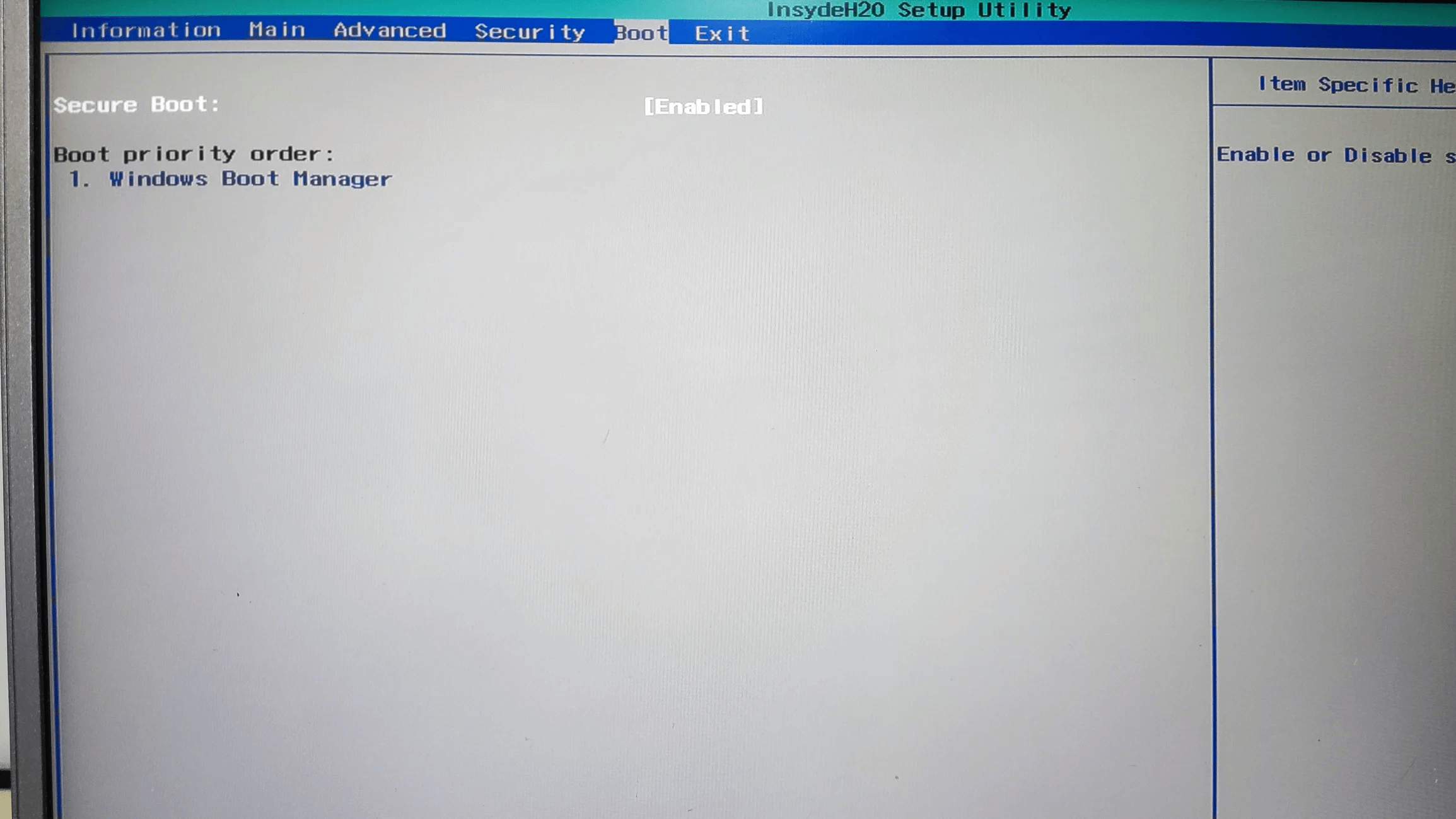
To do this, turn off the computer on which you want to use Medicat, insert the USB drive into an available port , and turn on the computer. As soon as it starts up, you will need to press the corresponding key to enter the BIOS/UEFI or the fast boot menu ; this is usually Esc, F2, F8, F9, F10, F11, F12, or Delete, depending on the manufacturer.
Once inside the BIOS/UEFI, look for the "Boot" or "Boot Order" section and set the USB drive as the first boot device . Some computers allow you to access a temporary "Boot Menu" instead of permanently changing the order, where you select the USB drive only for that instance.
When the system boots from the USB drive, you will see the Medicat USB initial menu appear on the screen . From there you can select the different available options, such as entering the main environment, launching a specific tool, or booting another integrated image using Ventoy.
From this point on, you simply navigate through the Medicat menus to choose the appropriate utility for your problem . If you need to repair the boot process, go to the Boot Repair section; if you suspect a RAM failure, go to Diagnostic Tools and run MemTest86; if you want to recover deleted files, go to Backup and Recovery, and so on.
In general, the graphical interface is quite intuitive, and you shouldn't have too much trouble locating each category . As you use the USB in different real-world scenarios, you'll become familiar with the tools that work best for you and the workflows that best suit your approach to repairing equipment.
Having a USB drive like this makes all the difference between being stuck when your PC won't boot and always having a powerful and versatile "plan B" on hand . With a properly prepared and updated Medicat USB, any software failure, system corruption, or boot problem becomes much more manageable.


Passionate writer about the world of bytes and technology in general. I love sharing my knowledge through writing, and that's what I'll do on this blog, show you all the most interesting things about gadgets, software, hardware, tech trends, and more. My goal is to help you navigate the digital world in a simple and entertaining way.
Table of Contents
- 1 What is Medicat USB and what is it used for?
- 2 Main tasks you can do with Medicat USB
- 3 Advantages of using Medicat as a bootable USB
- 4 Medicat USB main applications and menus
- 5 Medicat VHDA: a virtual disk-based alternative
- 6 Requirements and preparation of the USB drive for Medicat
- 7 Download Medicat USB from the official website
- 8 Step-by-step installation of Medicat USB with Ventoy
- 9 How to boot and start using Medicat USB