- Prioritizing wired connections and using the 5 GHz band to minimize jitter and latency.
- Software settings such as disabling V-Sync and NVIDIA Low Latency mode.
- Network optimization by configuring QoS to prioritize game traffic.
- Importance of choosing nearby servers and managing resources in the operating system.
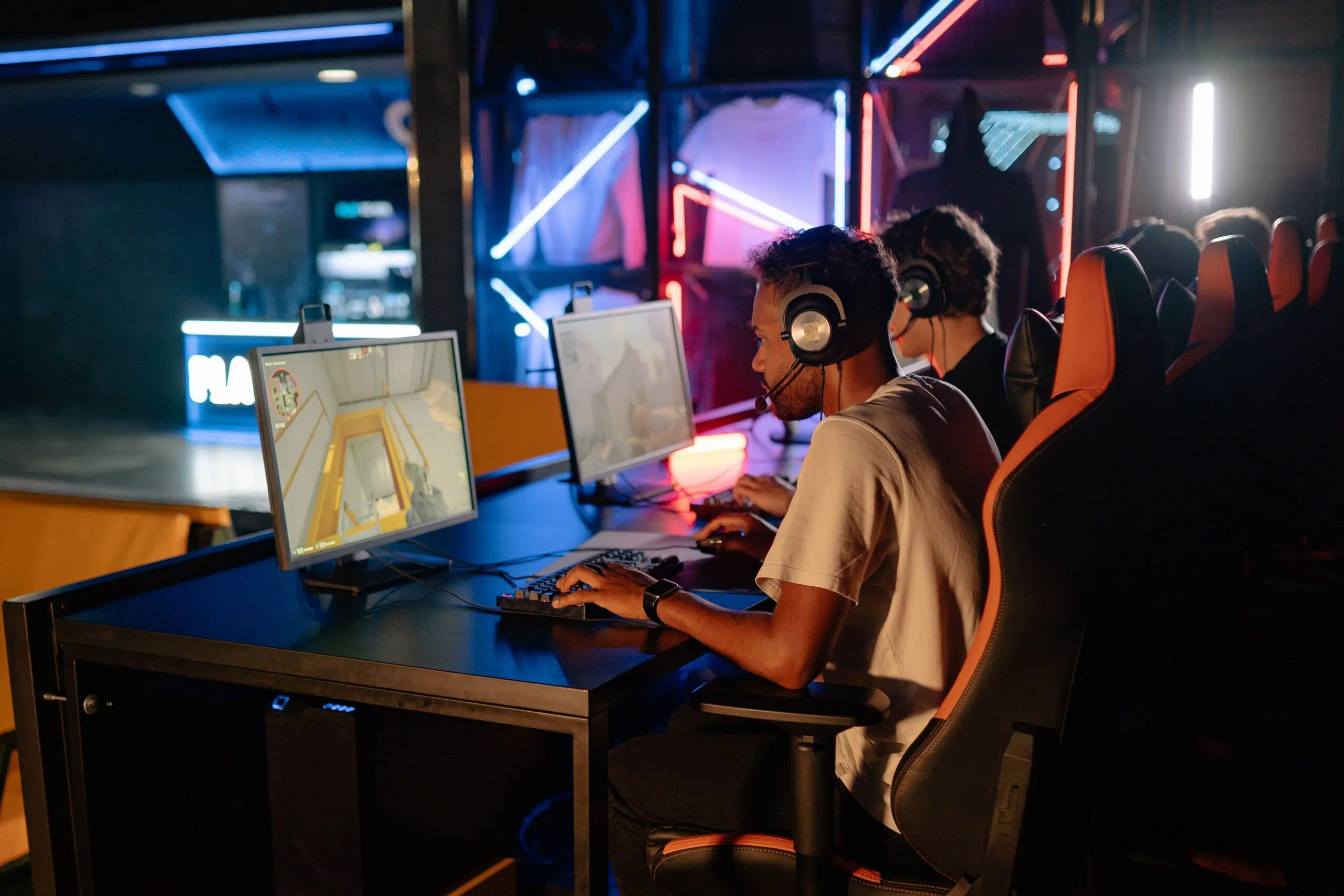
If you've ever felt like your character takes forever to jump or shoot right after you press the button, you know what we're talking about. That annoying delay, technically known as input lag , is the bane of any gamer striving for perfection, especially when playing in the cloud or streaming, where every millisecond counts.
It's not just about comfort, it's about pure performance. In competitive games, instant responsiveness can be the difference between winning and losing . That's why we're going to break down all the tricks to reduce input lag in cloud gaming , from the most basic to the most advanced, so your experience is silky smooth and you never have to suffer those frustrating stutters again.
What exactly is input delay and why does it bother us?
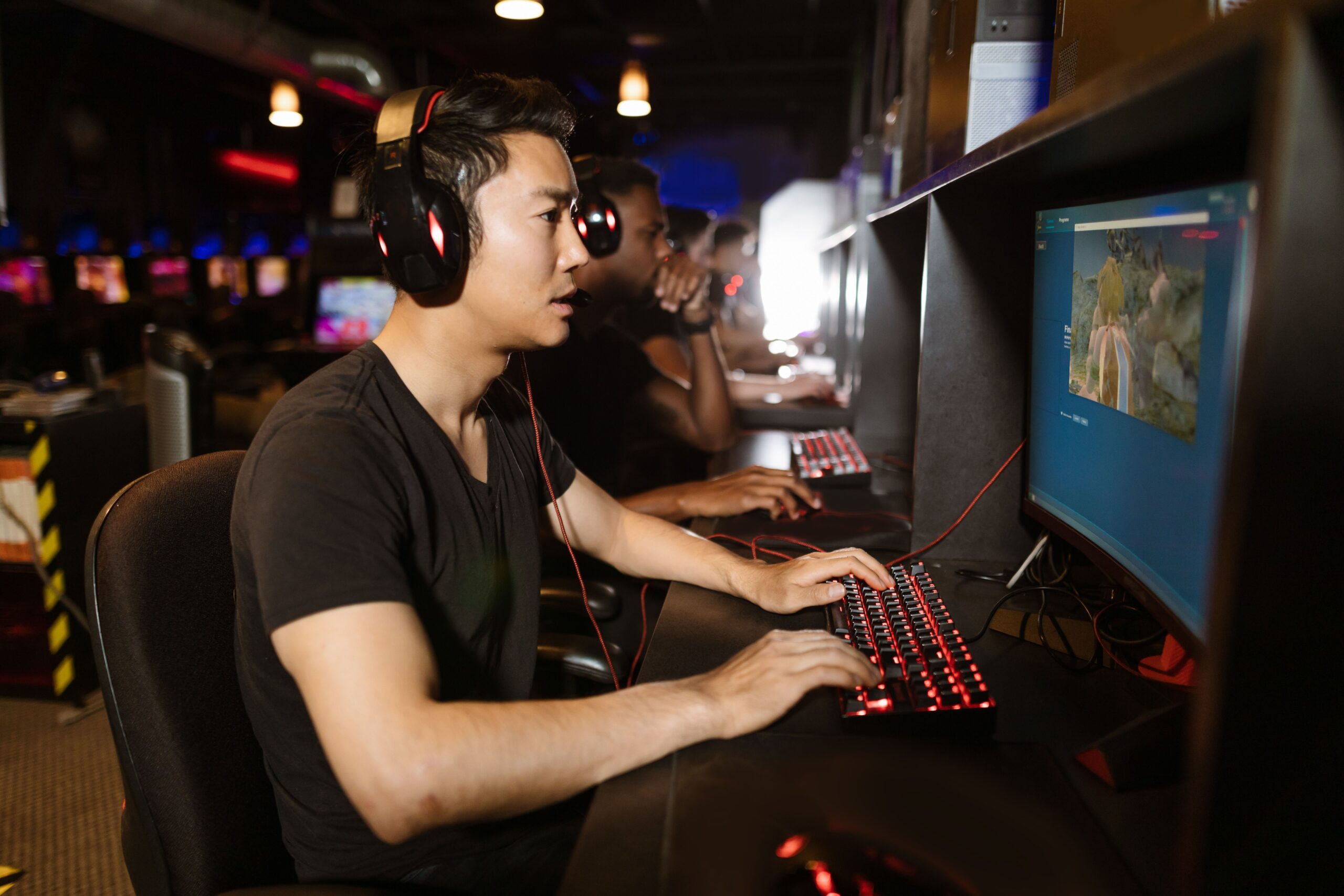
To begin, let's clarify that input lag is the time it takes from when you perform a physical action with your peripheral until you see the result on your monitor . In other words, it's the round trip of the signal. If this time is high, you'll feel that the game is "sluggish" or that you don't have complete control of the situation.
When we talk about cloud gaming, things get more complicated because the game isn't processed in your living room, but on a remote server . This is where three fundamental concepts come into play: latency (the data transfer time), ping (the measurement of that latency in milliseconds), and jitter. The latter is responsible for those micro-stutters or jumps that make the game feel unstable even if you have a good download speed.

Hardware optimization and PC tuning
If you're gaming on a computer, there are several ways to shave milliseconds off your lag. The most basic is to prioritize wired connections . Forget Bluetooth or wireless adapters if you want maximum responsiveness; a USB keyboard and mouse drastically reduce interference and signal latency.
Regarding software, vertical synchronization, or V-Sync, is a double-edged sword. While it prevents screen tearing, it often introduces a noticeable delay in response time . My advice is to disable it in the game settings if you're looking to eliminate input lag in competitive PC games . It's also advisable to lower the graphics quality slightly; the less work the hardware has to do, the faster the system response will be.
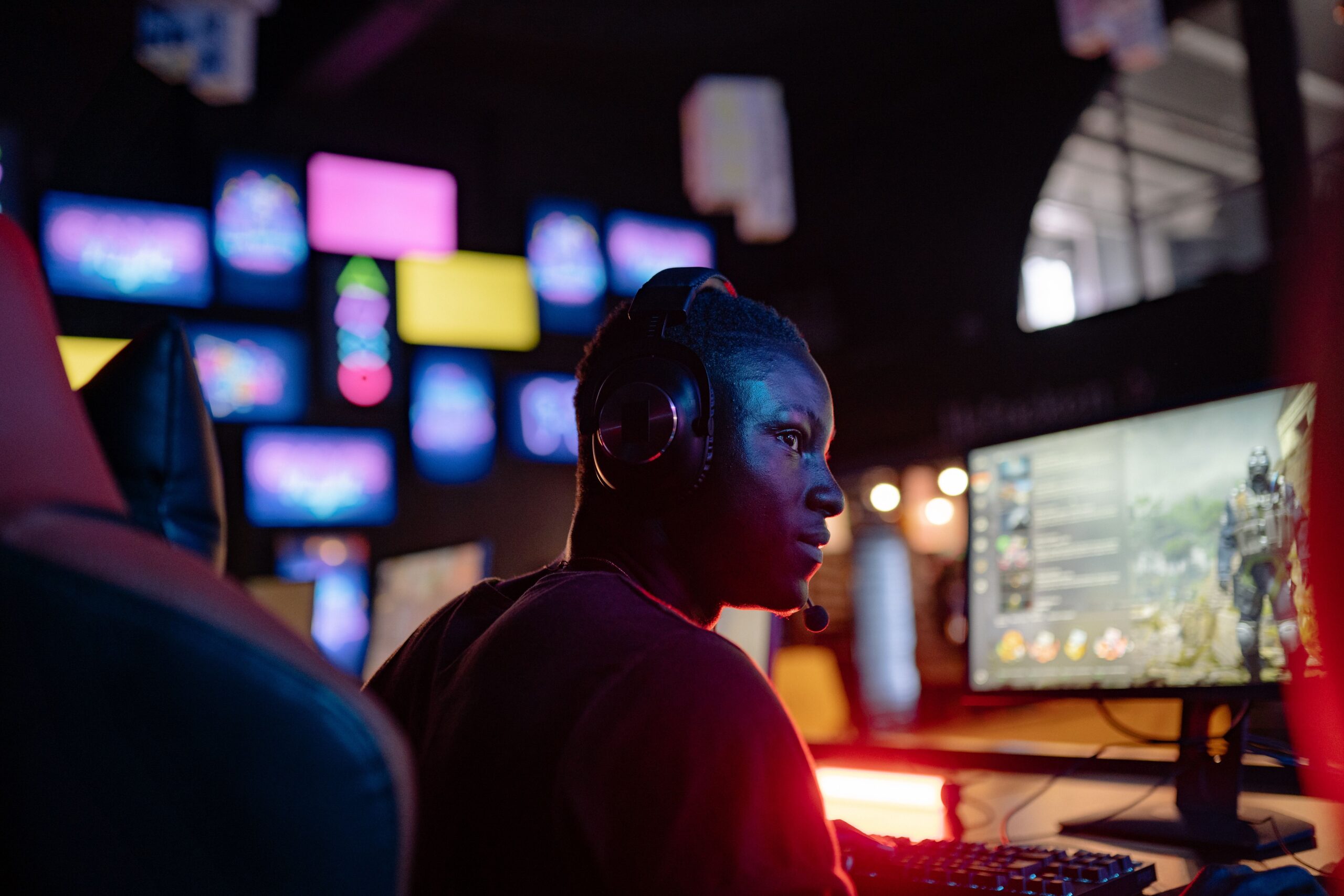
If you're lucky enough to have an NVIDIA graphics card, you have a trick up your sleeve. Go to the NVIDIA Control Panel, navigate to 3D settings, and look for Low Latency Mode . Setting it to "Ultra" will minimize the wait time before rendering the next frame, resulting in a much faster response.

Master your network connection for cloud gaming
When gaming is cloud-based, your router can be your best friend or your worst enemy. The golden rule is: use Ethernet whenever possible . Wired connections are infinitely more stable than Wi-Fi. But if you have no other option, don't give up. The trick here is managing frequency bands. Most modern routers have both 2.4 GHz and 5 GHz bands.
Ideally, you should leave the 2.4 GHz band for mobile phones, tablets, and your home Chromecast, and reserve the 5 GHz band exclusively for gaming . This band is much faster and suffers from less interference, which reduces jitter and keeps ping stable. If you want to go even further, you can optimize your network and hardware to eliminate lag and find an empty 80 MHz channel to create your own dedicated data lane.
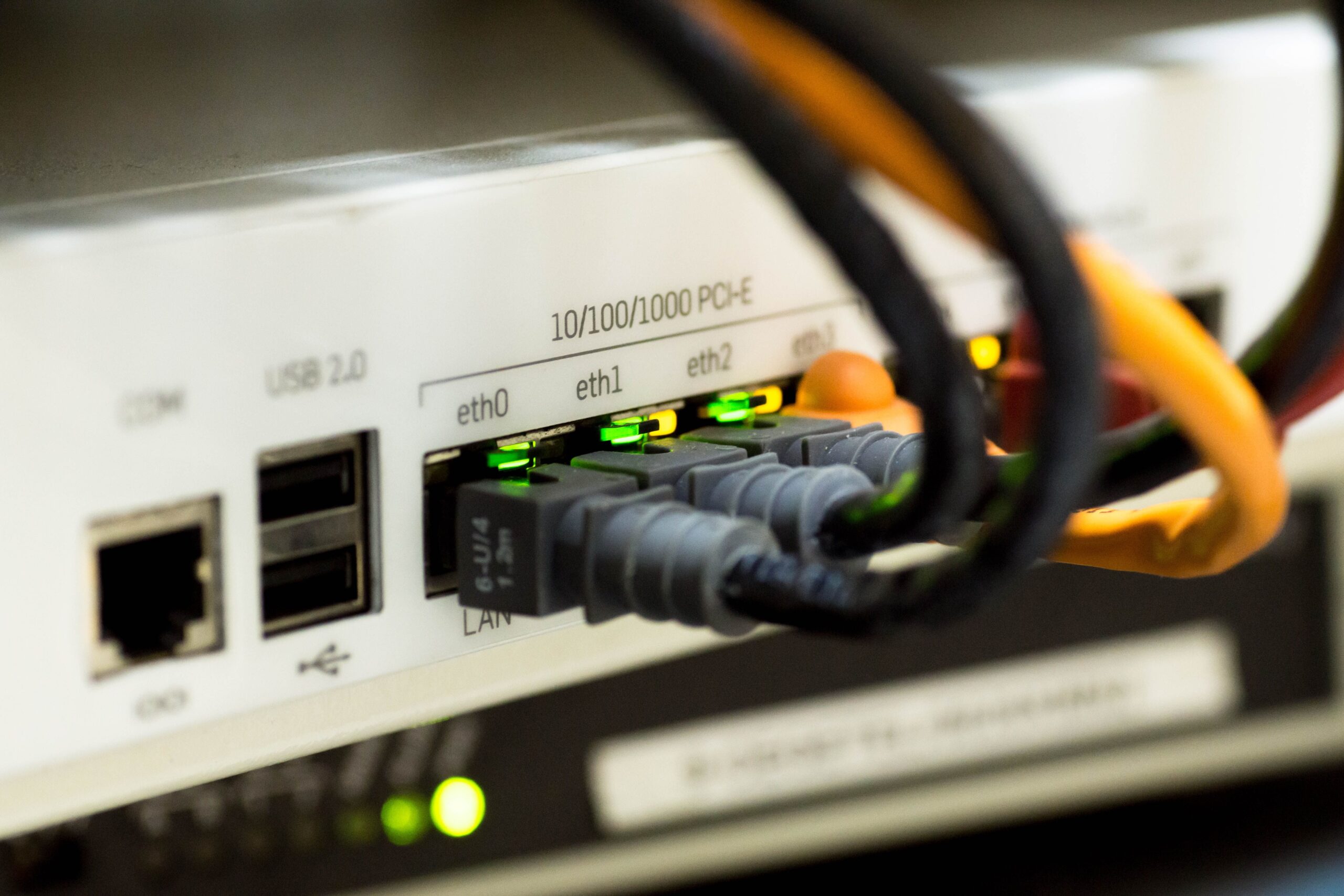
Another very useful feature is QoS, or Quality of Service. If your router allows it, you can assign top priority to cloud gaming traffic . This prevents your game from becoming a slideshow if someone else at home starts watching a 4K series. Also, make sure your internet plan is adequate: for 1080p, you need at least a stable 25 Mbps.
Advanced considerations: Streaming and Operating Systems
For those streaming with OBS, lag can be significantly increased. In environments like Linux (specifically Gnome/x11), the compositor has been found to introduce latency. Some users opt for lighter environments like LXDE to minimize system load and improve input responsiveness. On Windows, OBS typically handles zero-copying better, preventing the streaming process from significantly impacting game latency.
If you experience cyclical stuttering, as sometimes happens on iPads using web apps, it could be due to memory management or thermal throttling of the device . Even if the ping is low, if the processor gets hot, performance drops and the game stutters. To combat this, it's helpful to know how to eliminate stuttering and micro-stuttering by keeping the device cool and closing background apps.

Finally, don't forget the server location. Playing on a server on the other side of the world is tactical suicide. Always choose the geographically closest server . Although services like GeForce NOW do this automatically, it's a good idea to monitor your ping with tools like Speedtest or Speedsmart to determine if the problem is with your ISP or the physical distance from the data center.
To keep lag under control, the most effective approach is to combine the use of Ethernet cables, optimize Wi-Fi bands by separating devices, and adjust the graphics card and game software settings. Controlling jitter through QoS and choosing nearby servers ensures that the on-screen action accurately reflects your movements, eliminating those annoying stutters and delays that ruin the game.


Passionate writer about the world of bytes and technology in general. I love sharing my knowledge through writing, and that's what I'll do on this blog, show you all the most interesting things about gadgets, software, hardware, tech trends, and more. My goal is to help you navigate the digital world in a simple and entertaining way.