Typically, uninstalling and reinstalling a recent WhatsApp installation is essential to resolve these issues. Below are the steps to uninstall and reinstall WhatsApp on an Android phone without losing any messages.
Reinstall WhatsApp on an Android phone
As with any other app, WhatsApp settings on your Android phone can get corrupted and cause problems.
The answer in such circumstances is to back up your WhatsApp messages to Google Drive, delete WhatsApp from your system, and get the latest version of WhatsApp on your Android phone.
After you download and set up WhatsApp, you may find it easier to get all your WhatsApp messages from Google Drive.
So, let’s try out the steps to remove and reinstall WhatsApp on an Android phone.
1. Backup WhatsApp messages to Google Drive
The first step is to back up all your WhatsApp messages to Google Drive.
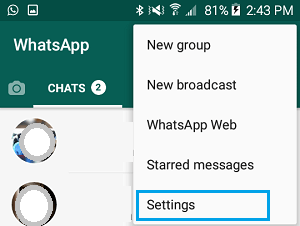
1. Open WhatsApp > tap the 3-dot menu icon and choose Settings from the drop-down menu.
2. From the Settings screen, navigate to Cats > Save cat > tap BACK to start the method of saving all your WhatsApp messages to Google Drive.
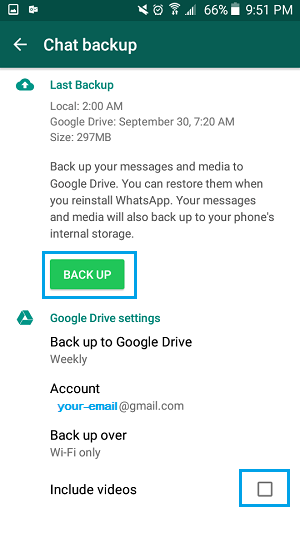
Be careful: If you also want to save WhatsApp videos, scroll down and choose the Embed movies option.
However, you should remember that adding movies will slow down the backup process and take up a lot of space in your Google Drive account.
3. Wait patiently for the backup process to complete.
The time it takes to complete the backup will depend on the variety of photos and videos in your WhatsApp account.
2. Delete WhatsApp from an Android phone
After backing up your WhatsApp messages to Google Drive, you can safely delete WhatsApp from your Android phone.
1. Open Settings > navigate to Features > Software Program Supervisor.
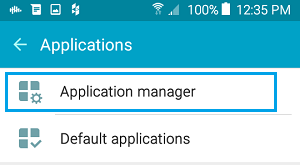
2. On the next screen, scroll down and click on WhatsApp.
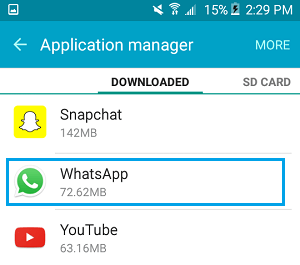
3. On the software program data screen, click Uninstall to remove WhatsApp from your Android phone.
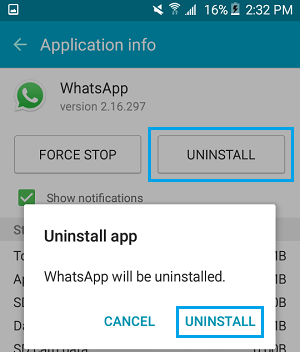
4. In the pop-up window with the confirmation, click Uninstall to verify it.
3. Reinstall WhatsApp on an Android phone
The last step is to get and reinstall the WhatsApp template from Google Play Store on your Android phone.
1. Open Google Play Roulette > search for WhatsApp > tap Get ready to have WhatsApp on your phone.
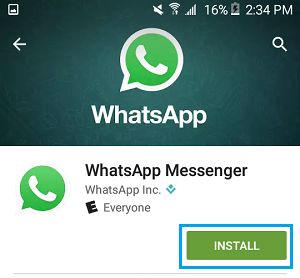
2. Once the WhatsApp download is complete, open WhatsApp > tap on Proceed to navigate to the next screen and complete the WhatsApp service phrases.
3. On the next screen, select Nation , enter the mobile phone number associated with your WhatsApp account and click Next.
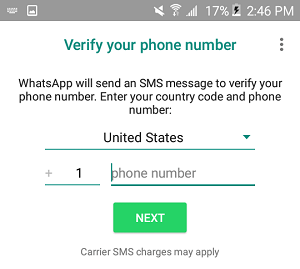
4. In the next pop-up window, click OK to allow WhatsApp to confirm your phone number.
5. Once your phone number is verified, WhatsApp will search for accessible backups and immediately ask you to recover your messages and media from the Google Drive backup you just made in step 1.
Tap Restore to restore all your WhatsApp messages.
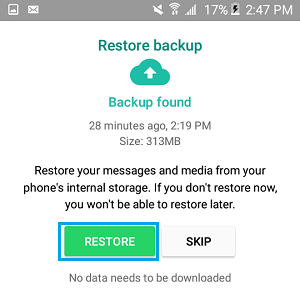
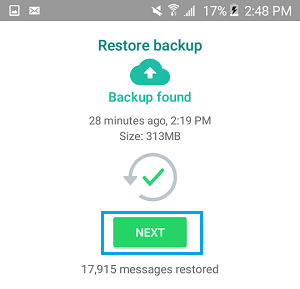
6. Anticipate the restoration course that will be performed; press Next each time you see the exam marker.
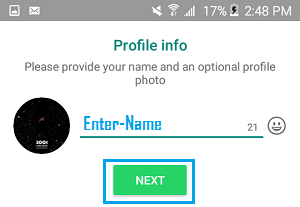
7. On the next screen, fill in your profile details and click Next.
This could be it! – You have successfully deleted and reinstalled WhatsApp on your Android phone without losing any of your messages and photos.
Just so you know: Some customers have reported message drops and described WhatsApp's backup and restore process as not 100% reliable.
Throughout our testing, we had no issues backing up WhatsApp messages to Google Drive and returning them to our Android phone.
- Learn how to delete and reinstall WhatsApp on the iPhone
- Learn how to use two WhatsApp accounts on iPhone and Android
