- Correctly identifying the laptop model and using the manufacturer's official drivers improves touchpad stability. Windows 11.
- Adjusting sensitivity, gestures, and touchpad lock prevents unpredictable cursor movements and unintentional clicks.
- Diagnostic tools and the safe mode help differentiate between problems of hardware, drivers and software conflicts.
- If all else fails, restoring the system or reinstalling Windows, along with updated drivers, usually resolves most persistent issues.
If your laptop's touchpad is running Windows 11 does not respond, moves strangely or has lost its gesturesThe problem is almost always with the drivers or the settings. Although it may sometimes seem like the hardware is broken, in many cases simply checking drivers, system options, and manufacturer tools is enough to get the touchpad working again.
In this guide you will learn, step by step, How to install, reinstall, and adjust touchpad drivers en portable With Windows 11, both using the system's own options and by going to the official websites of manufacturers like Dell, HP, or others. We will also see multi-touch gesturessensitivity, panel lock, hardware testing, and what to do if it still fails.
Check your hardware and system information before touching the drivers.
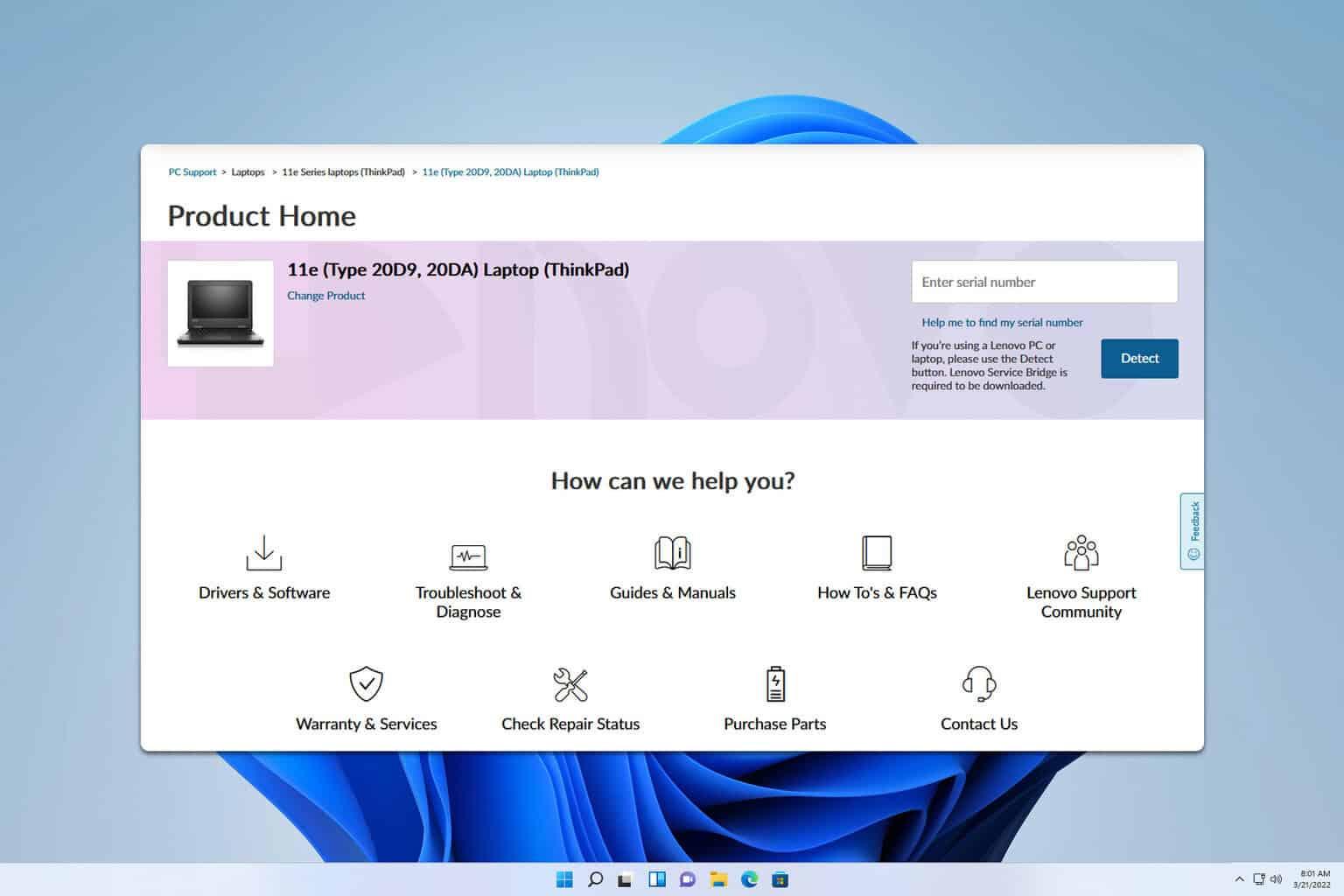
Before you start installing drivers willy-nilly, it's a good idea to check What equipment do you have exactly and what components does it use?This will prevent you from downloading the wrong or generic drivers that then don't work well with your model.
Windows 11 includes a built-in tool called System information which allows you to see at a glance the basic hardware configuration: system model, manufacturer, type of BIOSWindows version, etc. This information is key when you go to the manufacturer's official website looking for specific drivers for your laptop.
To open this panel, in Windows 11 you can Use the Win + Q shortcut (The key combination that opens the search bar), type msinfo32 and press Enter. The System Information window will open, where you'll see all the relevant information about your PC on the right. In a technical support environment, a screenshot of this window is often requested to verify that the hardware matches the installed drivers.
It's a good idea to write it down or have it handy. the exact laptop model and manufacturer (for example, Dell Inspiron, HP 15-dw1085la, XPS, Latitude, etc.), because you'll need it to locate the correct touchpad driver on the official website. If you use professional or gaming equipment (Alienware, G Series, Latitude, Mobile Workstations…), this information is even more important.
Uninstall the touchpad from Device Manager and let Windows do its work.
A very effective trick when the touchpad is acting strangely is remove device from the Device administrator so that, after restarting, Windows 11 will detect it again and automatically download the most suitable driver from Windows Update.
For quick access, you can use the combination Win + X and select Device Manager from the menu that appears. Within this tool, the touchpad usually appears in the "Mice and other pointing devices" category, although on some computers it may be under "Human Interface Devices (HID)" or something similar.
When you locate the touch panel (for example, it may be listed as Synaptics, ELAN, Precision Touchpad or with a manufacturer's name), Right-click and select the Uninstall device option.Accept the warning and let the system remove the current driver. It is recommended to check the box, if it appears, to remove the driver software so that Windows does not reuse the same corrupted driver.
After uninstalling, restart your computer: in most cases, Windows 11 detects new hardware and searches for the appropriate driver through Windows Update. This process sometimes takes a few minutes after the BootWhile services and drivers are starting up in the background, it's a good idea to check the touchpad both at login and a few minutes later to see if stability is maintained.
If after this procedure the touch panel continues to malfunction or no new driver appears, it's time to go directly to the most appropriate resource. reliability offers: the manufacturer's official support page.
Download and install the touchpad driver from the manufacturer's website.
Laptop manufacturers (Dell, HP, Lenovoetc.) usually offer on their support portals controllers optimized for each specific modelThese drivers are usually more stable and complete than the generic Windows drivers, especially when there are advanced gestures, special sensitivity settings or BIOS integrations.
The general procedure is similar for almost all brands: you go to the support page, search for your exact model, and downloads el latest touchpad or mouse driver Compatible with Windows 11. For example, on HP computers you can go to the official HP Support website, enter the model (such as HP 15-dw1085la) and in the drivers section locate the one corresponding to the touch panel.
Once you have downloaded the installer, you just have to Run it and follow the on-screen instructions.They will usually ask you to accept a license agreement, choose an installation folder, and little else. When the wizard finishes, it is highly recommended to restart your computer so that the system loads the new driver at startup.
Keep in mind that, as Microsoft often reminds us, Third-party links and downloads are the user's responsibility.In other words, although the community itself and official Microsoft support recommend visiting the manufacturer's websites, they are not responsible for the content of those sites nor do they offer any guarantee on the third-party software you install.
If your manufacturer offers different driver versions (for example, several revisions for Synaptics or ELAN), the most sensible thing to do is choose the latest certified version for Windows 11And, if you're unsure between Windows 10 and Windows 11 drivers, in many cases the Windows 10 drivers work fine in the new version, but ideally you should use the one specifically designed for the current version of the system.
Adjusting touchpad settings in Windows 11
Once the controllers are in place, the next step is to ensure that The touchpad is not disabled in Windows settings And that the gesture and sensitivity options are to your liking. Sometimes the panel works, but a disabled setting gives the impression that it's broken.
To review these options, open the application of Windows 11 settings (You can press Win + I), go to the Devices or Bluetooth & devices section (depending on the version) and locate the "Touchpad" section. Inside you will see a general option to activate or deactivate it, and different controls for clicks, scrolling and gestures.
Make sure the box that Enable the touch panel is markedFrom here you can also adjust settings such as tap-to-click, two-finger scrolling, pinch-to-zoom, and three- and four-finger gestures. If these gestures are behaving erratically (jumping, unintentional zooming, etc.), you may simply need to adjust the settings before assuming it's a serious bug.
Modern laptops with Windows 11 usually come with a precision touchpadThis feature integrates deeply with the system and allows for advanced configuration from this menu. However, on some older computers or those with specific drivers, some configuration is still done through a manufacturer's own panel, accessed from Mouse Properties in the classic Control Panel.
In any case, taking a few minutes to review these options is usually worthwhile. Make a Difference between an awkward touch panel and one that works smoothly, especially if you usually use gestures to switch desktops, zoom, or scroll through long pages.
Multi-touch gestures and unexpected cursor movements
Many modern laptops incorporate advanced gesture functions in the touchpad hardware and drivers. We're talking about two- or three-finger scrolling, pinch-to-zoom, zooming in and out with circular movements, rotation, and quick left or right swipes to switch between applications or desktops.
These capabilities are great for productivity, but they can also be the cause of seemingly unpredictable cursor movementsFor example, a light touch with the palm of your hand can be interpreted as a scroll gesture, or an unintentional pinch can activate a page zoom when you least expect it. The most troubling aspect is that, by default, almost all of these functions are enabled.
In the specific touchpad configuration panels (for example, Dell, Synaptics, or Cypress software), there is usually a section called Gestures. From there you can completely disable a specific gesture that gives you problems, or modify the behavior to be less sensitive or change its function.
Fine-tuning gestures often involves trying various combinations until you find the one that best suits your workflow. If you use the keyboard a lot, you might want to reduce the number of three- or four-finger gestures. prevent accidental activationsIf you work with design or video editing, you might find it key to keep pinch-to-zoom but disable unnecessary rotations.
If, after installing the official driver and experimenting with the gestures, you continue to notice strange behavior, it's also worth checking the diagnostic tools offered by some manufacturers, as they can show if the touch panel is sending erratic signals due to a physical problem.
Adjust sensitivity, pointer speed, and panel lock
Another key aspect for a comfortable touchpad experience is the management of the sensitivity and pointer speedAn overly sensitive panel can register phantom touches, while an undersensitive one forces you to press or slide more than you intend.
Many Dell laptops and models with specific drivers include a dedicated touchpad utility, accessible from the Mouse Properties (Control Panel > Hardware and Sound > Mouse). Inside, there is usually a tab dedicated to the touchpad, where you will see a figure or icon of the panel: touching or clicking on that icon opens the advanced utility.
In that utility, one of the most important sections is Sensitivity. There you can find options such as Touch Guard or touchpad lockThese features are designed to prevent the palm of your hand from activating the touchpad while you're typing. They are usually presented as a slider: if you move it all the way to the right, the system becomes very restrictive and greatly reduces the response to light touches or light touches.
It is recommended to activate the box that enables the touchpad lock, and then Adjust the Touch Guard slider calmly.Try different levels. If you set it too high, you might notice the cursor barely responds when you type; if you leave it too low, you'll still experience accidental clicks. There's no single perfect value; it depends a lot on the size of your hands and how you position your wrists.
In that same section there is usually a control of Pointer speedThis allows you to define how fast the cursor moves on the screen based on the path you take in the panel. If you find the pointer moves too slowly or too quickly, move the slider until you find a balanced point. After applying the changes, click Save and close the utility using the X in the upper right corner; then, in the main Mouse Properties window, click OK so that the configuration is fixed.
When you've finished reviewing these settings, close the touchpad utility with the usual X and accept the changes with OK in the Mouse Properties window. A couple of rapid tests (Left click, right click, drag and drop) will confirm if the buttons are now responding correctly.
If, even after correctly activating the buttons and having the touchpad driver up to date, the physical click does not respond, it could be a hardware problem in the button mechanismTherefore, it would be advisable to proceed with the diagnostic tests offered by the manufacturer or, directly, consider a repair.
Test the touchpad using the manufacturer's diagnostic tools (Dell SupportAssist and similar)
Some manufacturers, like Dell, integrate it into their laptops. diagnostic and maintenance applications which makes it much easier to check whether a problem originates from the hardware or the software. In the case of Dell, this tool is called SupportAssist and usually comes pre-installed on most recent Windows computers.
To open SupportAssist on a Dell laptop running Windows 11, go to the Start button, navigate to the Dell folder, and locate the SupportAssist application within it. When you launch it, you'll see several sections; one of the most useful for this purpose is Hardware Checkup.
Within Hardware Checkup, you have the option to Scan a Specific Device. If you select it and scroll down, you will find the category of mouse or pointing devicesThere you can choose the device you want to test, which includes both the integrated touchpad and external mice connected via USB or Bluetooth.
The tool will guide you with on-screen instructions to perform click, movement, and response testsIf the tests indicate that the touchpad is functioning correctly at the hardware level, the problem is almost certainly limited to drivers or configuration. If, on the other hand, the diagnostics detect physical faults, you know you'll have to go to a technical service center.
Keep in mind that when you see more than one mouse device listed, there's probably been an additional mouse connected to the computerYou can test them individually to rule out that the conflict is coming from an external device that is interfering with cursor management.
Disconnect peripherals and check for interference
Sometimes, touchpad problems are not related to corrupted drivers, but to conflicts caused by external devicesespecially USB mice, wireless receivers, or even keyboards with integrated trackpads. Windows, upon detecting multiple pointing devices, can prioritize one over another or apply different settings.
A simple testing method consists of completely shut down the equipmentDisconnect all external peripherals (speakers, printers, scanners, USB keyboards, mice, USB drives, and other devices). storage) and turn the laptop back on with only the essentials.
With the machine free of accessories, check the cursor movement using only the touchpad. If you see that it now works well, it's quite likely that The conflict was caused by an external device.In that case, connect them one by one until you identify the cause.
However, if the touchpad continues to malfunction with all peripherals disconnected, you can rule out this type of interference and focus again on drivers, settings, or physical problems with the panel itself.
Updating the BIOS and its relationship with the touchpad
In some specific models, especially professional or gaming laptops, the BIOS version This can affect touchpad behavior. Manufacturers like Dell often release BIOS updates that fix compatibility, power consumption, and integrated device management issues.
To check if your BIOS is up to date, you'll usually go to the manufacturer's support website, enter your computer model, and check the BIOS or firmware downloads section. If there's a newer version than the one you have installed (you can see this in System Information in Windows), the manufacturer's website will indicate it. Instructions for updating safely.
Updating the BIOS is a delicate process: it is essential Do not interrupt him and follow the instructions to the letter.Although it doesn't always solve touchpad problems, when the manufacturer mentions input device-related improvements in the release notes, it's worth considering.
If, after a recommended BIOS update and with the correct drivers, the touchpad continues to malfunction, the hypothesis that the failure is due to a physical fault or some third-party software interfering with the boot process becomes more likely.
Testing the touchpad in Windows 11 safe mode
Windows 11 Safe Mode starts the system with a minimum set of services and controllersThis makes it an excellent tool for isolating problems. If the touchpad works for a while in normal mode and then starts malfunctioning, but behaves stably in safe mode, this indicates that a third-party program or service is causing the conflict.
To start Windows 11 in Safe Mode, you can follow Microsoft's official guide ("Start your PC in Safe Mode"), which explains several methods, such as using Recovery Settings or restarting the system by holding down the Shift key while clicking Restart. From the Advanced Startup Options, you can select to boot into Safe Mode or Safe Mode with Networking.
Once inside this restricted environment, test the touchpad: move the cursor, click, and try basic gestures if they are enabled. If everything works smoothly, it's reasonable to assume that some additional driver, resident software, or utility that loads at startup is affecting the touchpad in normal mode.
In that case, the strategy involves Review which applications and services start with Windows (from the Task Manager > Home tab) and temporarily disable those that may interfere with input devices, such as customization software, third-party mouse manufacturer tools, third-party gesture utilities, etc.
Once you find the program responsible, simply uninstalling or keeping it disabled will restore stable, day-to-day behavior to the touchpad.
Reinstall the touchpad driver using Device Manager
In addition to visiting the manufacturer's website, the Device Manager itself can be used to force the reinstallation of the drivers Update the touchpad driver via Windows Update. This can be useful when the driver is corrupted or there is no manufacturer-specific version available for Windows 11.
The procedure is similar to the uninstallation we saw earlier: locate the touchpad under "Mice and other pointing devices" or "Human Interface Devices (HID)," right-click, and choose Uninstall device. On the next restart, Windows will attempt to download the most suitable driver again. from their servers.
In some cases, you can also right-click on the device and choose "Update driver," allowing Windows to automatically search the internet for updated drivers. If a newer version is available through Windows Update, the system will install it and prompt you to restart.
This reinstallation technique is especially useful when You can't find recent drivers on the manufacturer's website. But you know that other users have managed to get the touchpad working properly in Windows 11 with drivers provided by the system itself.
When the touchpad works fine at first and then fails
A curious, but quite common, case in Windows 11 is that in which The touch panel works perfectly. right after turning on the PC And when you enter the PIN or password, but after a few minutes of logging in, the problems start: the buttons stop working, the gestures don't respond, the tap to click disappears, etc.
This pattern suggests that, while Windows finishes loading background services and tasks, Some process is conflicting with the touchpad driverSome users have found that even manually stopping the manufacturer's service (e.g., the Synaptics service) makes the situation worse, indicating that it's not as simple as disabling a single component.
In this context, safe mode and checking startup programs are even more important. It's also advisable to observe the behavior immediately after reinstalling the drivers: if the same problem recurs (fine at first, then worse after a few minutes), the clue clearly points to... a software conflict that appears during full boot of Windows 11.
Another possibility is that the driver that worked well in Windows 10 isn't fully optimized for the newer versions of Windows 11. While they can sometimes be reused without problems, it's not uncommon for system updates to introduce changes that affect older drivers, especially when it comes to advanced touchpad gestures and power management.
If the problem arose after a major Windows 11 update, it's worth reviewing the update history and, if necessary, considering a rollback or waiting for the manufacturer to release a fix. a new version of the driver adapted to the current build.
Use system restore or reinstall Windows as a last resort
When you've tried everything: manufacturer drivers, reinstalling from Device Manager, adjusting gestures and sensitivity, hardware diagnostics, safe mode, and checking startup programs, and it still doesn't work The touchpad is still not working properly.It is time to consider more drastic measures at the operating system level.
A less aggressive first option is to resort to a system restore pointIf you had system protection enabled and there are restore points created on dates when you remember the touchpad working properly, you can revert to that state. In Windows 11, this mechanism preserves your personal files but reverts changes to the system, drivers, and programs installed after the restore point date.
If the restore option is unavailable or does not resolve the issue, the next step would be reset or reinstall WindowsManufacturers like Dell offer specific guides for restoring the operating system to factory settings, restoring without losing files, or performing a clean installation. Each method has its advantages and disadvantages in terms of time and application loss.
Before opting for a complete reinstallation, make sure you have backup your important dataOnce the process is complete, reinstall the manufacturer's drivers, starting with the chipset, then the BIOS if necessary, the graphics card, and of course, the touchpad driver. In most cases, after a clean installation with up-to-date drivers, the touchpad will function normally again if the hardware is not damaged.
This entire process, from verifying the exact model and using System Information, through uninstalling devices, downloading official drivers, adjusting gestures and sensitivity, diagnosing with tools like SupportAssist, testing by disconnecting peripherals, updating the BIOS, using safe mode, and ultimately, restoring the system or reinstalling Windows, gives you a Complete path to recover the touchpad on laptops with Windows 11By following these steps carefully, it's very rare to get stuck: either the touch panel will come back to life with a few adjustments, or you'll be certain that the problem is physical and it's time to resort to specialized technical support.

Passionate writer about the world of bytes and technology in general. I love sharing my knowledge through writing, and that's what I'll do on this blog, show you all the most interesting things about gadgets, software, hardware, tech trends, and more. My goal is to help you navigate the digital world in a simple and entertaining way.