- Sidecar allows you to connect your iPad to a Mac wirelessly using the same Apple ID.
- The spacedesk app is the ideal free alternative to turn an iPad into a Windows PC monitor.
- Both methods allow you to choose between duplicating the image or extending the desktop to gain space.
- It is possible to optimize the experience by using the Apple Pencil on Mac or full touch control on Windows.

Owning an iPad is like holding a technological gem in your hands, as its power and image quality make it the perfect ally for optimizing your workspace . Many people don't know that this device can go beyond being a simple tablet and transform into an extra monitor, allowing you to manage more windows and applications simultaneously without having to buy an additional physical monitor.
Depending on whether you're an Apple user or work within the Microsoft ecosystem, the path to achieving this varies. While Mac users have the official, fast track, Windows users must resort to external software solutions that work wonderfully. In the following lines, we'll tell you how to master both options so your productivity skyrockets.

How to use Sidecar on Mac to connect your iPad

If you have an Apple ecosystem, the Sidecar feature is your best option. For everything to run smoothly, it's essential that both devices are linked to the same Apple ID . Once that's done, you don't need to worry about cables, as wireless connectivity is the norm.
To set it up, go to the Apple menu on your Mac and open System Preferences. Look for the Displays section and, in the Add Display dropdown, select your iPad . For a quicker method, you can open Control Center in the menu bar, click Mirror Display, and choose your tablet from the list.
Once connected, you have two ways to work: you can have the iPad mirror exactly what you see on your Mac or set it up as a separate display to extend your desktop. To move windows, simply hover your mouse over the full-screen button of any app and choose the option to send it to the iPad, or simply drag it to the edge of the screen.

Advanced Sidecar Tools and Tricks
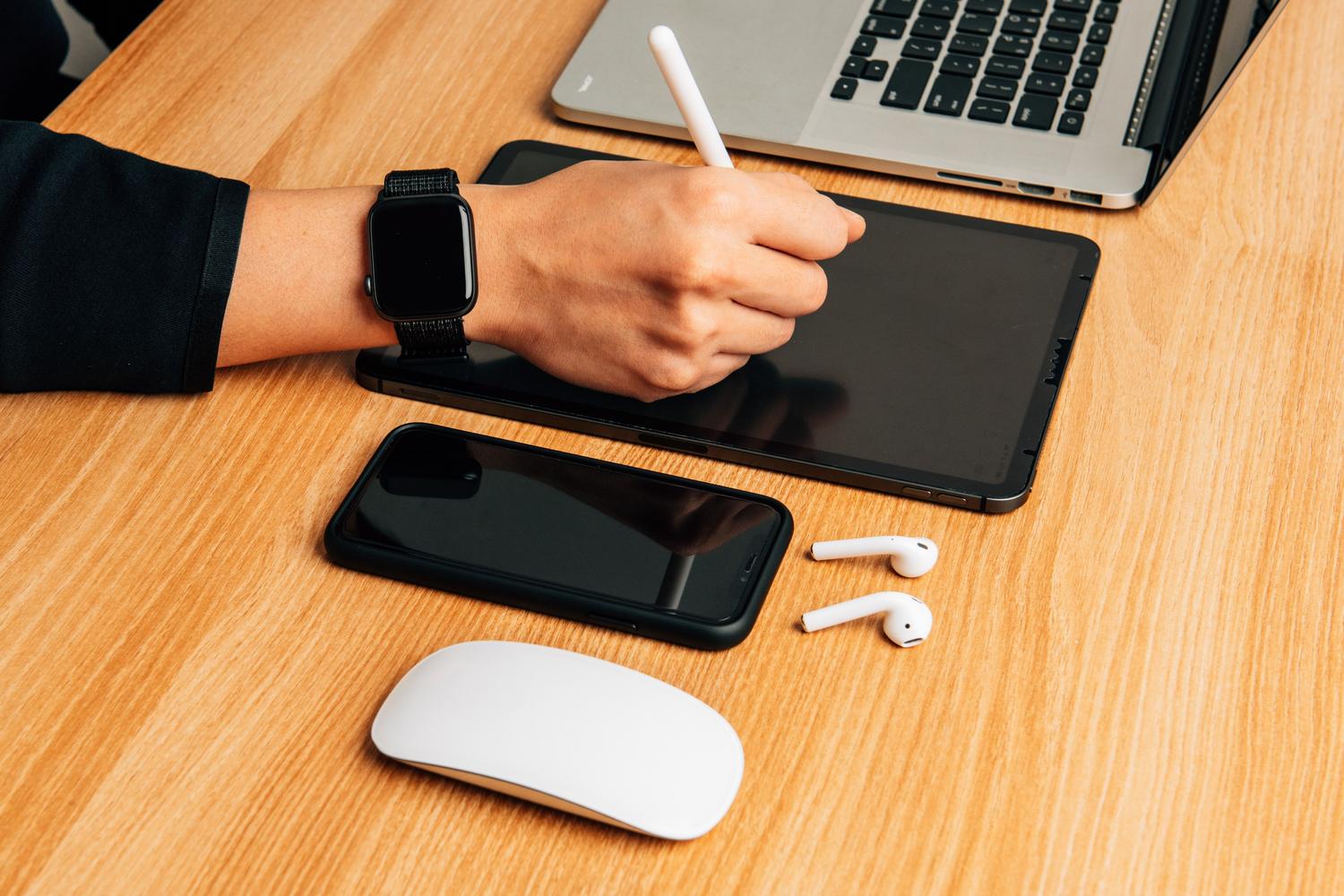
The iPad not only acts as a monitor, but also provides additional tools. On the tablet's screen, you'll see a sidebar that lets you quickly access the Mac's Dock or use command and option keys. Furthermore, if your Mac doesn't have a Touch Bar, Sidecar lets you project a virtual one onto the iPad for quick shortcuts.
For creatives, the Apple Pencil is the real star. You can use it as a precision cursor or to draw in macOS apps. You can even configure double-tap functionality in your Mac's display settings to perform custom actions. For smooth navigation, remember that there are gestures for quick access on touchscreens , such as pinching with three fingers to copy or cut content.
When you decide you've worked enough, disconnecting is a breeze. On your Mac, go to the Mirror Screen icon in the menu and uncheck your iPad . If you're using your tablet, simply tap the bottom of the sidebar to end the session.

Solution for Windows users with Spacedesk

If your computer is a Windows PC, Sidecar won't work for you, but there's a free and very reliable alternative called Spacedesk . To get started, you need Windows 10 or later and an iPad with iOS 13 or later. It's essential that both are connected to the same Wi-Fi network or that you have a USB cable handy.
The first step is to download the driver from the official Spacedesk website to your PC (avoid the Microsoft Store version to prevent errors). Then, download Spacedesk Viewer from the App Store on your iPad. Open the Driver Console on your computer and make sure it's set to "ON". Finally, open the app on your iPad, tap your PC's name, and grant local network permissions.
By default, your PC will duplicate the image, but if you want more space, press Windows + P and choose the Extend option. To quickly move apps to your iPad, you can use the shortcut Windows + Shift + Arrow keys. A huge advantage of this method is that it fully supports touch , allowing you to use Windows directly with your fingers.
Wired connection and troubleshooting on PC
If you experience lag or want minimal latency with your Wi-Fi connection, you can use a wired connection. Connect your iPad via USB-C or Lightning, and in the Spacedesk control panel on your PC, enable the USB Cable iOS option . On your tablet, select the USB connection, and the monitor will automatically turn on.
If the connection fails, check that the Windows firewall isn't blocking the app and that you've granted local network permissions on your iPad. Sometimes, simply restarting your router or reinstalling the driver resolves the issue. To adjust the screen positions, go to Settings > System > Display and drag the blocks so the mouse moves naturally between the monitor and the tablet.
If you're looking for paid alternatives with a more premium feel, you can try Duet Display, which is very stable. There's also LetsView, although recent tests have shown it to be less reliable than Spacedesk.
Turning your iPad into a secondary monitor, whether through Apple's native integration or third-party software for Windows, is a masterstroke for gaining versatility and space . Whether you're programming, designing, or simply having a document open while you work, these tools eliminate the need for cumbersome cables and leverage the power of your tablet to create a much smoother and more professional multitasking environment.


Passionate writer about the world of bytes and technology in general. I love sharing my knowledge through writing, and that's what I'll do on this blog, show you all the most interesting things about gadgets, software, hardware, tech trends, and more. My goal is to help you navigate the digital world in a simple and entertaining way.