- Steganography allows information to be hidden in images, audio, video, or text without raising suspicion, and is complemented by cryptography to increase security.
- Tools such as Steghide, OpenStego, OpenPuff, and Digimarc make it easy to embed and extract messages in images, each with different levels of complexity and robustness.
- Steganalysis relies on metadata, statistical analysis, and utilities such as StegDetect, StegExpose, Forensically, or hexadecimal editors to uncover hidden data.
- Steganography has legitimate uses (watermarks, digital signatures, forensics) and is also used in advanced cyberattacks, so understanding it is key to defending systems.
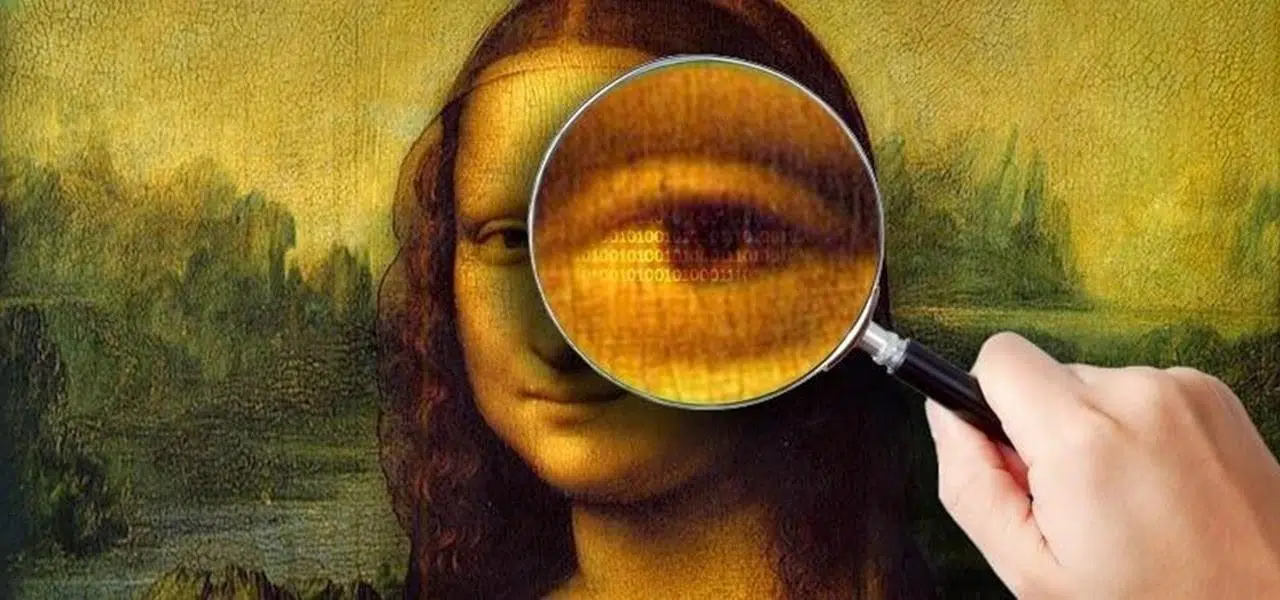
Steganography sounds like magic to hackers , but it's actually a fairly logical discipline: it's based on hiding information within other data in such a way that no one suspects anything is concealed. If you're interested in cybersecurity , forensics, or simply have a knack for technology, learning to use image steganography tools is practically a must.
Throughout this article, you'll see, step by step, how image steganography works , how it differs from cryptography, what free and paid tools you can use (such as Steghide, OpenStego, OpenPuff, or Digimarc), how to hide and extract messages, and also how to detect if a seemingly innocent photo is hiding something. You'll see practical examples inspired by CTF-type challenges and real-world use cases, both legitimate and malicious.
What exactly is steganography and how does it differ from cryptography?
Steganography is the art of hiding messages or objects within others in such a way that a casual observer wouldn't notice anything unusual. The trick lies not only in protecting the content but also in concealing the very fact that a secret communication is taking place. In the digital world, this "cover" is usually an image, audio, video, or even text.
Cryptography and steganography are often confused, but they do different things : cryptography converts a readable message into something unreadable (encrypted), revealing that protected information is present, while steganography aims to make the message invisible. The most sensible approach for security is to combine them: first, the content is encrypted, and then it's hidden within an image.
From a historical perspective, the idea is far from new . In ancient Greece, messages were inscribed on wooden tablets and covered with wax, or invisible inks were used, and in Roman times, substances that were only revealed by heat or light were already being experimented with. Today, the concept is the same, only the "paper" is a digital file.
In modern cybersecurity, steganography has become a double-edged sword : it is used both to protect legitimate information (watermarks, digital signatures, private communications) and for malicious activities, for example to hide malware , extract stolen data, or send hidden instructions to a command and control server.
Types of digital steganography and most common use cases
Digital steganography can be classified according to the type of medium used as a "cover ." Although we will focus mainly on images here, it is helpful to have a general overview to understand the true scope of this technique.
Text steganography: hiding information within text files. This can be done by changing the formatting, altering spacing, using invisible characters, or inserting words at specific intervals within seemingly normal text. It's easy to implement, but if overused, it can look strange when reading.
Image steganography: probably the most popular. The image acts as a container , and the information is inserted into its internal structure (pixels, transform coefficients, metadata, etc.). It is very effective because a digital image has a large number of elements on which bits can be manipulated without the human eye noticing anything.
Audio steganography: This involves embedding data within the audio signal by slightly altering the binary sequence. It's more delicate because the ear is quite sensitive to certain types of noise, but advanced techniques exist to make the changes virtually undetectable by ear.
Video steganography: combines image and audio, allowing enormous amounts of information to be hidden within the frames and the sound track. It can be inserted before video compression or directly into the compressed stream, which significantly complicates analysis.
Network (or protocol) steganography: This involves embedding data in the header fields of protocols such as TCP, UDP, ICMP, etc. It does not alter files, but rather the traffic in transit, and is used for covert communications at the network layer.
How image steganography works: most commonly used techniques
When it comes to hiding messages in photos, the most common technique is LSB (Least Significant Bit). The idea is to modify the least significant bit in the values that represent each pixel of the image.
In a typical digital image, each pixel is encoded with several bytes , usually three: red, green, and blue (RGB). Some formats add a fourth channel for transparency (alpha). The LSB method changes only the last bit of each of these bytes; since the numerical variation is minimal, the human eye cannot perceive the difference.
To give you an idea, if you wanted to hide 1 MB of data using pure LSB , you would need around 8 MB of cover image. The actual capacity depends on the format and algorithm, but the general concept is this: the message bits are spread across a large number of pixels.
Besides LSB, there are other, more robust approaches . One of the most common is working in the frequency domain, for example, on the DCT coefficients of a JPEG. This involves introducing subtle modifications to the coefficients instead of the direct pixels, making the embedding more resistant to compression and certain statistical analyses.
Another option is to exploit the image's own metadata , such as EXIF fields or embedded comments. It's not as "fine" a form of steganography because metadata is easier to inspect, but for simple messages or clues in CTF challenges, it can be more than sufficient.
Main tools for hiding messages in images
There are quite a few applications that allow you to perform steganography relatively easily , from web utilities to command -line tools and plugins for professional programs. Let's review the most prominent ones geared towards images.
Steghide is a classic command-line tool, available for Linux and Windows , that allows you to hide information in both images (BMP, JPG) and audio (WAV, AU). It uses its own embedding algorithms and also compresses and encrypts the embedded data, typically with AES-128.
OpenStego: a free, cross-platform (Java) solution designed for PNG images
It's also suitable for digital watermarks . It has a very simple graphical interface, perfect for beginners, although it does have limitations: it primarily generates PNGs, and your watermark or message can be lost if you then aggressively edit the image in an editor.
OpenPuff: an advanced tool that works with a wide variety of formats: images (BMP, JPG, PCX, PNG, TGA), audio (AIFF, MP3 , WAV, etc.), video (3GP, MP4, MPG, VOB), and even documents such as PDF , FLV, or SWF. It focuses on being difficult to detect with steganalysis and offers complex configuration options.
HStego, F5, JSteg, JPHS, and OutGuess are utilities more geared towards working with JPEGs. Some are written in Java, others for Linux, and they use different insertion algorithms (LSB in the DCT domain, custom methods, STC + UNIWARD, etc.). They are commonly used for both academic experiments and testing with detection tools.
Web tools like StegoApp or CryptoStego allow you to experiment directly from your browser, primarily working with PNG and JPG files. CryptoStego, for example, uses LSB Replacement and is licensed under the MIT license.
How to use Steghide step by step to hide and extract information
Steghide has gained fame for combining steganography and encryption in a single utility , and it works equally well for images as for certain audio formats. Let's look at a typical workflow in a Kali Linux environment.
1. Steghide Installation
In distributions like Kali it doesn't always come pre-installed, so the first thing to do is install it from the repositories:
apt-get install steghide -y
2. Prepare the message or file to be hidden
You can start with something simple, for example a text file with a secret:
touch secret.txt && echo “This is a secret” > secret.txt && cat secret.txt
If the file is going to be large or consist of several files, it's advisable to compress it beforehand , for example in ZIP format, to save space and have everything packaged together:
zip secret.zip secret.txt
3. Choose and download the cover image
You now need a "cover" image. You can download one from the internet, for example:
wget https://upload.wikimedia.org/wikipedia/commons/2/2f/Pied-winged_swallow_%28Hirundo_leucosoma%29.jpg
mv Pied-winged_swallow_\(Hirundo_leucosoma\).jpg pied.jpg
4. Embedding the file within the image
The key command to hide the ZIP file within the cover image and generate a new "stego" image would be something like this:
steghide embed -ef secret.zip -cf pied.jpg -sf HbStego.jpg
In this command:
-ef / –embedfile indicates the file to be hidden (secret.zip).
-cf / –coverfile This is the original image that will serve as a cover (pied.jpg).
-sf / –stegofile Define the name of the new image that already contains the embedded data (HbStego.jpg).
During the process, Steghide will ask you for a passphrase . This string is used not only to encrypt the content but also to generate the pixel positions where the data will be inserted. If you don't enter one, it will place the bits in a pseudo-random way.
5. Adjust the level of detail and behavior
If you want to control the amount of information Steghide displays when you run the command, you have options such as:
steghide embed -ef secret.zip -cf pied.jpg -sf HbStego.jpg -v
steghide embed -ef secret.zip -cf pied.jpg -sf HbStego.jpg -q -f
Several interesting parameters come into play here.:
-v / –verbose It shows detailed information about the process.
-q / –quiet minimizes screen output.
-f / –force It allows overwriting existing files without asking.
You can also pass the passphrase directly on the command line , without being prompted, using -p . For example:
steghide embed -ef secret.zip -cf pied.jpg -sf HbStego.jpg -p Hbs -q -f
In this case, -p specifies the passphrase , forces overwriting, and suppresses almost all output. Useful for scripts or automation.
6. View the information embedded in a stego file
If you want to inspect the contents of a steganographic image without extracting it yet, you can use:
steghide info HbStego.jpg
This command reveals whether there is embedded data , which encryption algorithm was used (for example, Rijndael-128 in CBC mode), the size of the content, etc. Obviously, to see specific details, it will ask for the correct passphrase.
7. Advanced compression and integrity options
Steghide allows you to fine-tune the behavior with a series of extra arguments:
- -z / –compress level: Set the compression level (1 to 9).
- -Z / –dontcompress: disables pre-compression of the content.
- -K / –nochecksum: Avoid embedding the CRC32 checksum.
- -N / –dontembedname: It does not save the original name of the secret file.
8. Extraction of hidden content
To retrieve what you've hidden, use the extract subcommand. For example:
steghide extract -sf HbStego.jpg -p Hbs -f
Here, -sf points to the stego file containing the data, while the passphrase must match the one you used for embedding. If you also want to define a specific output name, you can use:
steghide extract -sf HbStego.jpg -xf extracted.zip -p Hbs
The `-xf` / `--extractfile` parameter creates an output file with the name you specify and saves the extracted data to it. Using a hex editor, such as xxd, it's easy to verify that the extracted content matches the original byte for byte.
OpenStego and Digimarc: from simple tool to professional solution
If you'd rather not wrestle with the console, OpenStego is a very user-friendly option for getting started with image steganography. It's free, open-source, cross-platform software that focuses primarily on PNG, although with some important limitations.
OpenStego's interface is quite straightforward : you choose a cover image, select the message file you want to hide, set a password, and run the process. The program encrypts and embeds the message within the image, generating a new file with the hidden information.
The same window includes an extraction tab , where you simply specify the generated stego image, enter the password, and select the output file. If everything goes well, you will recover the hidden content without the image having visually changed.
OpenStego is perfect for understanding the process, but it has clear limitations : it only works comfortably with PNG, and if you then mess with the image in Photoshop, GIMP or another editor (hard re-framing, compression, format changes) you can lose the signature or embedded message, because those transformations destroy the structure that the program used.
In the professional field, especially for photographers and agencies, the go-to paid option is Digimarc . This system integrates as a plugin with Photoshop and other image viewers, and inserts invisible watermarks into images.
Digimarc's key advantage is that its watermarks withstand common transformations: resizing, moderate cropping, certain color adjustments, and even printing and subsequent scanning, according to the manufacturer. This makes it a useful tool for protecting copyrights and tracking image usage online.
Several popular programs (Photoshop, ACDSee, Picasa, etc.) include the ability to read these watermarks , allowing an expert or editor to quickly check if a photograph has a Digimarc identifier associated with a specific author. The downside, as always, is the cost: it's not a free solution.
Lists of steganography tools for images, audio, video, and text
If you want to set up your own steganography and steganalysis testing lab , it's helpful to understand the ecosystem of available tools. Some projects focus on a single format, while others are multipurpose.
For images, some of the most outstanding are:
- StegoApp: web tool for PNG and JPG, with its own robust method.
- CryptoStego: Also in browser, it uses LSB Replacement and custom support for JPG.
- F5: Java utility geared towards JPEG images with a specific algorithm.
- HStego: It supports PNG and JPG, with STC + S-UNIWARD and J-UNIWARD methods to make detection more difficult.
- JPHS (JP Hide & Seek): focused on JPEG, uses DCT LSB replacement.
- JSteg: Similar to JPHS, LSB in DCT ignoring values 0 and 1.
- OutGuess: another classic tool for JPEG with its own algorithm.
- OpenPuff, SilentEye, SSuite Picsel, QuickStego and OpenStego: with different levels of support for BMP, GIF, PNG and JPG.
- Steghide: As already mentioned, it works with BMP and JPG images.
In audio, there are also several interesting alternatives :
- DeepSound: For Windows, it supports FLAC, MP3, WAV and APE.
- HiddenWave: written in Python, focused on WAV with LSB replacement.
- MP3Stego: information is hidden during WAV to MP3 conversion.
- SilentEye: It supports BMP and WAV, combining image and audio.
- Steghide: It also supports WAV and AU as containers.
For video, OpenPuff again stands out for its support of formats such as MP4, MPG, VOB, and 3GP, as well as other diverse formats like FLV and SWF. Its focus is heavily geared towards advanced concealment scenarios.
In plain text, tools like Steg allow you to manipulate encoded whitespace to represent bits. While its capabilities are limited, it's a good example of how even something as simple as spacing can hide information.
Advanced practical example: CTF-type challenge with metadata, Steghide and OpenSSL
Beyond lab examples, many CTF challenges combine various steganography and cryptography techniques to force you to think like an analyst. A typical example mixes metadata, Steghide, and encryption with OpenSSL.
The first step is usually to download a suspicious image from a challenge platform. Upon opening it, you might find a visible message like “If you are a friend, you speak the password and the doors will open,” which already gives you a clear clue that there is an important passphrase (in this case, “Mellon” in reference to The Lord of the Rings).
Before you start trying out commands willy-nilly, it's a good idea to inspect the metadata with tools like exiftool:
apt-get install exiftool -y
exiftool doors_of_durin-f686f3e1aa18d5e3f4261bea89a24c17.jpg
In this analysis you may find suspicious fields , for example an “Artist: 68913499125FAA”, which does not look like a real name and is probably a key string that you will use later.
If you suspect steganography within the image itself, Steghide is again an obvious candidate . You can check for embedded data by doing the following:
steghide info doors_of_durin-f686f3e1aa18d5e3f4261bea89a24c17.jpg
If it detects information, the next logical step is to extract it using the correct passphrase (e.g., "Mellon"):
steghide extract -sf doors_of_durin-f686f3e1aa18d5e3f4261bea89a24c17.jpg
After extraction, you might find a file like url.txt . If you use `cat` and pass it to a browser, you'll get a link, for example to a Pastebin with a Base64-encoded string:
cat url.txt | xargs firefox
You copy the base64 content, paste it into a file (SgaSizcn.txt, for example) and decode it into another file:
base64 -d SgaSizcn.txt > decoded
The `file` command can help you identify the file type . It might be a file encrypted with OpenSSL in symmetric mode. Trying "Mellon" as the password might not work, but if you remember the unusual string in the Artist field, 68913499125FAA, try that instead.
openssl enc -aes-256-cbc -d -md MD5 -in decoded -out decoded2 -k 68913499125FAA
You use `file` again on `decoded2` and discover it's an MP4 . Now all that's left is to play the video and get the final password or the challenge flag. It's a perfect example of how to combine steganography, metadata, and encryption.
How to detect steganography in images: stegoanalysis and tools
Hiding messages in images is half the story; the other half is learning how to detect them . That's known as steganalysis. In cybersecurity and forensic analysis environments, it's a highly valuable skill.
Direct visual analysis is rarely sufficient unless the steganography is very poorly done. But even then, comparing a suspicious image with an original one (if you have it) can reveal slight differences in noise or anomalous patterns.
Statistical techniques are far more powerful : they examine pixel value distributions, noise structure, and component correlations to detect subtle alterations left by steganography algorithms. Tools like StegExpose automate this type of analysis for large numbers of images.
Metadata analysis is a classic that never goes out of style . With exiftool you can review EXIF fields, comments, and other data embedded in the image that often reveal clumsy tricks or provide clues, such as internal file names, hash strings, strange identifiers, etc.
For JPEGs in particular, utilities like StegDetect can identify traces of tools such as Steghide, OutGuess, JSteg, or F5. They operate from the command line and can provide a level of confidence regarding the presence of hidden data.
Additionally, a hexadecimal editor (HxD, xxd, or similar) provides a raw view of the file , allowing you to locate unusual areas, fragments of readable text, headers from other embedded formats, or suspicious repeating patterns. It's more laborious, but very useful for in-depth investigations.
Web platforms like Forensically complete the arsenal , offering noise analysis, cloned area detection, error maps, and other useful filters for finding hidden modifications in a photo.
Steganography in real cyberattacks and associated risks
In the real world, attackers have adopted steganography to make their campaigns more stealthy . Instead of sending suspicious executables, they embed malicious payloads in seemingly harmless image, audio, or document files.
A typical use is hiding payloads within banner ads (malvertising). The malicious code is embedded in the ad image and, when it loads in the browser, it is extracted and executed, redirecting the victim to exploit kits or other malicious websites.
Steganography has also been observed in e-commerce fraud campaigns . For example, it can be used to hide skimming malware within SVG images used as logos on checkout pages. Because SVG is a structured format, malicious code can be disguised as part of the valid syntax, escaping some basic scanners.
In high-level attacks like the SolarWinds case , techniques similar to steganography have been used to hide stolen data within seemingly normal HTTP responses, using XML files with encoded text strings. The idea is the same: to mix malicious information with legitimate traffic to camouflage it.
In industrial settings, campaigns have also been documented in which malware (such as Mimikatz) is downloaded from steganographic images hosted on trusted image hosting services, such as Imgur. The initial document (for example, a malicious Excel file) contains the code to download and extract the payload hidden within the image.
In the context of ransomware, steganography is used both to introduce tools into the network and to extract sensitive data once encrypted, hiding the exfiltrated information in multimedia files that go under the radar of traditional controls.
Best practices and recommendations when working with steganography
If you're going to use steganography for legitimate purposes (training, internal testing, research) , keep in mind some guidelines to avoid going crazy and, incidentally, to avoid leaving any security loose ends.
First, practice with different image formats : JPEG, PNG, and BMP behave differently. Some algorithms work better with one format than another, and the impact of compression can destroy hidden data if you choose poorly.
Second, combine steganography with cryptography . Never assume that “just because it’s hidden, it’s safe.” Encrypt the content before embedding it, even if the tool already offers built-in encryption, and use strong passphrases.
Third, stay up to date on new steganalysis techniques and tools . Specialized blogs, forums, academic papers, and technical communities (such as Reddit) frequently publish advances in both insertion methods and detection algorithms.
Fourth, if you work in a corporate environment, strengthen detection measures : network traffic monitoring (including encryption), web filtering, advanced behavior-based endpoint protection, and a clear policy on handling multimedia files from untrusted sources.
Finally, always document your tests : what tool you used, options, file size, and what anomalies you observed with StegDetect, Forensically, or a hex editor. A brief report of three or four sentences per lab will help you consolidate your knowledge and repeat the experiment if necessary.
Image steganography is a fascinating blend of creativity, mathematics, and security . It allows you to do everything from signing photos to protect copyright with solutions like OpenStego or Digimarc, to creating complex training scenarios with Steghide, OpenPuff, or CTF challenges. Understanding both how data is hidden and how it's detected gives you a distinct advantage, whether for defending systems, analyzing incidents, or simply enjoying experimenting with one of the most intriguing fields of cybersecurity.

Passionate writer about the world of bytes and technology in general. I love sharing my knowledge through writing, and that's what I'll do on this blog, show you all the most interesting things about gadgets, software, hardware, tech trends, and more. My goal is to help you navigate the digital world in a simple and entertaining way.