- Windhawk centralizes mod searching, installation, and tweaking with per-mod ratings and control.
- Simple installation: official download, standard wizard, and risk warning sheet before applying.
- Not compatible with Windows on ARM; managing conflicts and restarting explorer.exe helps stabilize.
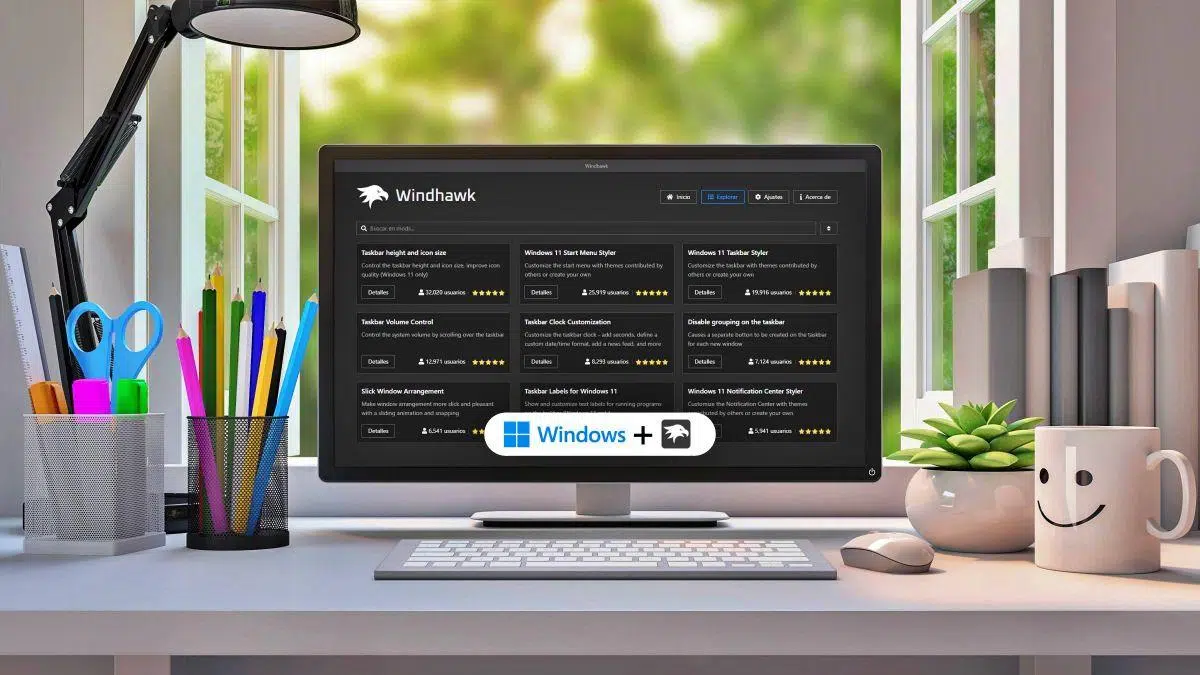
If you enjoy customizing Windows to your liking, you've probably already changed backgrounds, colors, or icons, but perhaps not so much the internal functions. That's where mods come in, allowing you to alter behavior and appearance at a much finer level , from the taskbar to menus and specific apps .
To make this process less of a hassle, there's Windhawk, a utility designed to let you find, download, install, and manage Windows mods in just a few clicks . This manager simplifies installation, reduces errors, and keeps everything organized, with the ability to activate or deactivate each mod whenever you want.
What is Windhawk?
Windhawk is an open-source project created by an independent developer (Ramen Software) that acts as a control center for Windows 11 (and also Windows 10) modifications, very much in line with what PowerToys does but with a more advanced approach and without official Microsoft support.
The idea is simple: instead of manually editing system files, Windhawk lets you apply ready-made changes developed by the community . Each mod comes with its description, accessible source code, version, author, and the system component it modifies (in many cases, explorer.exe).
As with any collaborative platform, mods have star ratings and comments , useful for identifying the most stable and recommended ones before installing them.
It's worth noting that, by their very nature, these modifications can cause minor instabilities or unexpected behavior . Usually, simply disabling them will restore normal operation, but it's a good idea to proceed cautiously.
How Windhawk Works
The application serves as both a repository and manager: from its interface, you can explore mods, view details, install, configure, and uninstall everything you need. Technically, Windhawk handles injecting changes into the appropriate processes (often explorer.exe) so they take effect instantly.
Each mod's page contains the essentials: an explanation of its purpose, possible usage examples, access to the source code and changelog , the author, and the affected process. This way, you know in advance what needs to be done and how.
After installation, many mods display a Settings section with parameters and themes to customize their effect. Changes are usually applied upon saving, without needing to restart the entire system.
From the main view, you can also see the status of your modifications, activate or deactivate them temporarily , and keep them grouped for complete control in just a couple of clicks.
Compatibility and important requirements
One key point: Windhawk currently does not work on Windows on ARM . If you're using a Copilot+ PC with processors like the Snapdragon X Elite or X Plus, you won't be able to run it. On x86-64 systems, there's no problem, and the application functions normally.
The installer may take a little while to finish because it downloads some additional components . Don't worry if the process takes longer than usual; this is part of the procedure.
Install Windhawk on your PC
The process is straightforward. First, go to the project's official website and download the installer. Then, open the .exe file and follow the wizard step by step, just like with any Windows program.
During installation, choose your interface language and click Next when prompted: Language > Next > Next > Install > Finish . Once finished, launch Windhawk to start working with your mods.
As we mentioned in the compatibility section, keep in mind that the installer may take a while. This is normal, as it downloads files necessary for the tool to function correctly.
Once installed, you'll see an interface with sections to explore modifications and an area where all the mods you have on the system will be listed , with switches to activate or deactivate them as you wish.
Installing and configuring mods with Windhawk
Installing a mod with Windhawk is quick. Go to the Explore section and use the search bar to find what you need, or browse the categories and featured items. Once you've found it, open its details page using the Details button.
On that page you'll see the description, examples (if the author has added them), the repository or source code, the version, and the system process involved. To continue, click Install.
Before applying the modification, you'll see a clear warning that each mod is a third-party development and that, although the community evaluates and rates it, there is some potential risk . If you agree, confirm with "Accept the risk and install."
After installation, many mods add a Settings tab . Here you can choose themes, colors, behaviors, and other parameters. Generally, clicking "Save settings" applies the changes immediately, although in some cases it's advisable to restart the explorer.exe process.
Practical examples of mods and recommendations
To give you an idea of what you can achieve, there are several popular mods focused on the taskbar and Start menu. One of the most comprehensive is Windows 11 Taskbar Styler , which lets you change the look of the taskbar with pre-configured themes.
In its details, you'll see a summary of its features, and in the settings area, you can choose from pre-made styles or adjust values manually . The application offers a list of themes and an area called "Control Styles" with fine-tuning parameters for more advanced users.
Among the available themes are options that evoke the aesthetics of other eras or systems. For example, a style reminiscent of the Windows XP taskbar or a theme that simulates the macOS dock (DockLike). Some might strike you as more amusing than beautiful, but beauty is in the eye of the beholder.
Another interesting mod is Vertical Taskbar for Windows 11 , which places the taskbar on one side of the screen—very useful if you work with tall monitors or prefer a GNOME-style layout. If you also use Taskbar Styler, conflicts may arise, so disable one before enabling the other.
In some cases, for the changes to take effect correctly, it's advisable to restart the explorer.exe process from Task Manager . If you notice that a setting isn't being applied, restarting it usually fixes the problem instantly.
For the Start menu, the Windows 11 Start Menu Styler mod lets you redesign its layout. You can, for example, remove the recommendations section and always show the full list of applications , gaining shortcuts and clarity.
More useful mods worth trying
In addition to the above, Windhawk's catalog is full of little gems that add comfort and shortcuts to your daily work at your desk. Below is a selection of the most noteworthy for their practical utility.
- Click on empty taskbar space: Assign an action when clicking an empty spot on the taskbar. For example, show the desktop, mute the computer, or launch an app instantly.
- Taskbar Clock Customization: offers advanced customization of the taskbar clock with variables and formats, so you can see the time and date exactly as you want.
- Windows 11 Notification Center Styler: Change the appearance of the notification center, with ready-made themes and advanced options to adjust every detail.
- Taskbar Volume Control: allows you to control the volume with the mouse wheel directly on the taskbar, without opening additional menus or windows.
- Taskbar Thumbnail Reorder: lets you reorder the window thumbnails on the taskbar to have your apps in the order that suits you best.
- Chrome/Edge scroll tabs with mouse wheel: makes it possible to switch between tabs in major browsers with the mouse wheel; it also works in Opera and Brave.
Usage, safety and performance tips
Since mods are third-party developments, it's recommended to install only those with good ratings and recognized authors . The star rating is your first guide to making an informed choice.
Although the platform is reliable, there's no such thing as zero risk: install a good antivirus and keep your system up to date . This will minimize problems if a mod fails or something unwanted gets in.
If you notice errors or instability, disable the problematic mod from within Windhawk. In most cases, that's all it takes. If the problem persists, restart explorer.exe from Task Manager and check again.
Certain visually appealing customizations (themes, effects, real-time widgets) can increase resource consumption . It's understandable that those seeking extreme smoothness prefer lighter system configurations, but in Windhawk you can fine-tune each mod to balance aesthetics and performance.
Avoid mixing mods that affect the same area (for example, two major taskbar changes at once) because they can conflict. It's best to activate one, test it, and only then add another to see if they work well together.
Tricks to find and master your mods
Start with the featured sections and explore by category if you're looking for inspiration, but if you have something specific in mind, use the search bar by name to get straight to the point.
Always read the documentation included by the mod's author. Sometimes it's short, sometimes very comprehensive, but it usually indicates key settings, limitations, and compatibility notes that will save you time.
When making changes to a mod with advanced settings, apply the basic parameters first and check the result. That way, if something goes wrong, it's easier to revert without getting lost among the options.
If a change isn't reflected immediately, try saving and logging off, or, even faster, restarting explorer.exe . You don't need to restart your entire computer except in very specific cases.
Finally, keep your mods up to date. Updates fix bugs and improve compatibility with newer versions of Windows, so it's a good idea to check for recent versions before reporting a problem.
Windhawk has earned a place among customization enthusiasts by simplifying something historically tedious: installing Windows mods without breaking anything. Thanks to its repository, ratings, per-mod settings, and clear warnings, it's possible to change the taskbar, tweak the Start menu, and add useful features without manually touching system files. Add to that security recommendations, compatibility (pay attention to ARM), and neat little tricks like restarting explorer.exe when needed, and you have a well-rounded experience for customizing your desktop exactly the way you like it.

Passionate writer about the world of bytes and technology in general. I love sharing my knowledge through writing, and that's what I'll do on this blog, show you all the most interesting things about gadgets, software, hardware, tech trends, and more. My goal is to help you navigate the digital world in a simple and entertaining way.