- SimpleWall simplifies outbound connection control by leveraging the Windows filtering platform without replacing the built-in firewall.
- It allows working in whitelist mode, blocking everything by default and authorizing only the applications that the user chooses.
- It is especially useful on slow or limited connections and in online games, where every megabyte of bandwidth counts.
- Combined with the advanced Windows firewall, it offers a very high level of network control with a simple and lightweight interface.

Controlling which programs can access the internet has become almost mandatory. Between automatic updates, telemetry, games, background applications, and Windows services, your connection can become overloaded without you even realizing it, and that's precisely where SimpleWall comes in.
Windows 10 and Windows 11 already have a fairly powerful firewall, but its interface isn't exactly user-friendly. SimpleWall leverages the Windows Filtering Platform (WFP) to give you much simpler and more direct control over incoming and outgoing connections, without replacing or breaking the system firewall, and allowing you to decide, almost with a click, what connects and what doesn't.
What is a firewall and how does the Windows firewall work?
Before delving into the details of SimpleWall, it's worth remembering exactly what a firewall is. A firewall is a system that filters network traffic entering and leaving your computer or network, allowing or blocking connections based on a set of rules. To decide whether something is allowed through, the firewall inspects the packet headers (source and destination IP addresses, port, protocol, etc.).
In practice, this means you can create lists of applications, IPs, ports, or protocols that you want to block or allow. For example, you could prevent a specific program from connecting to the internet, block all traffic to a suspicious IP, or close a port you don't need.
When the firewall is in a trusted local network environment, it typically allows all internal traffic between computers on the same LAN, but blocks traffic coming from outside. On networks marked as "public," Windows applies a stricter configuration and prevents other computers on the network from initiating connections to yours, although responses to connections you initiate are allowed. This is commonly called a stateful packet inspection (SPI) firewall.
Regarding configuration philosophy, firewalls are generally organized into two main models: the permissive firewall , where by default everything is allowed except what is explicitly blocked, and the restrictive firewall , where by default everything is blocked except what is explicitly permitted. A permissive approach is typically used in home and private networks; the restrictive model is almost always used in public networks or on the WAN (Internet).
The built-in firewall in Windows 10 and Windows 11 is far more comprehensive than many realize. It features inbound and outbound rules , packet filtering by IP address, port, and protocol, activity monitoring (with event logs), automatic protection on public networks, and integration with other tools like Windows Defender. For the average user, and even for many small businesses, it may be sufficient if properly configured. If you prefer a more visual interface for monitoring traffic with GlassWire , a complete guide is available.
Advanced Windows Firewall settings
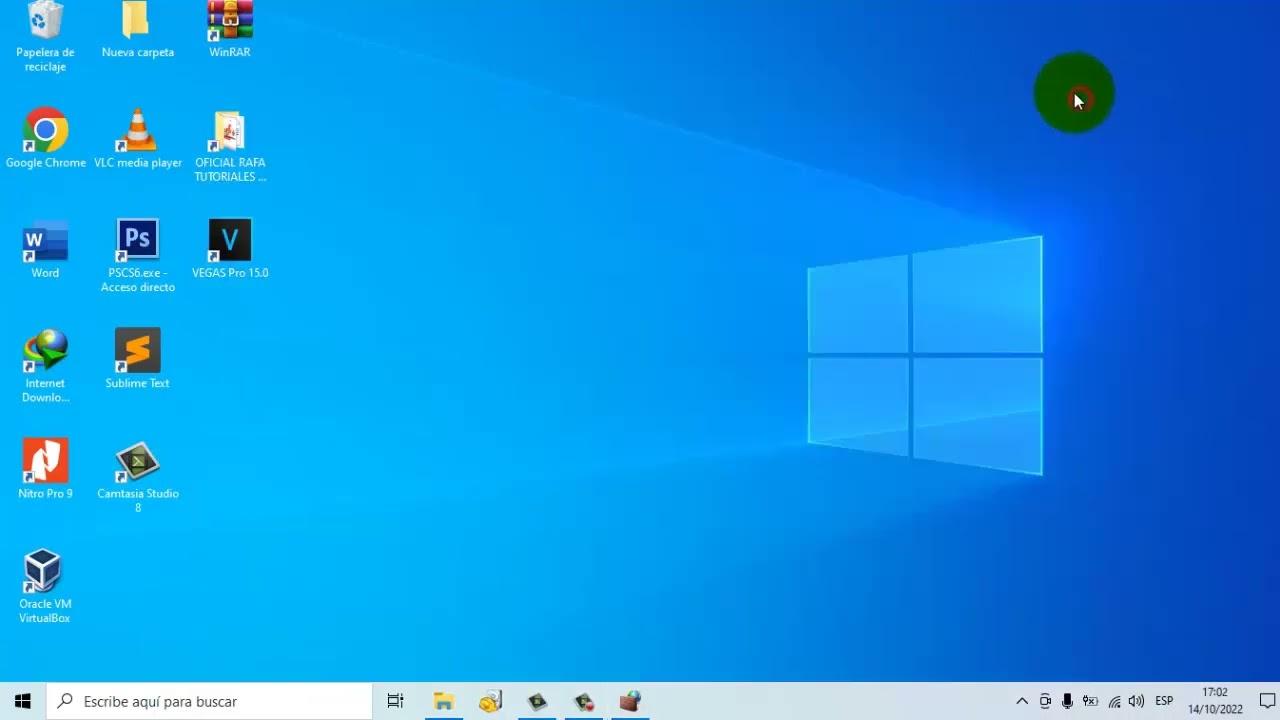
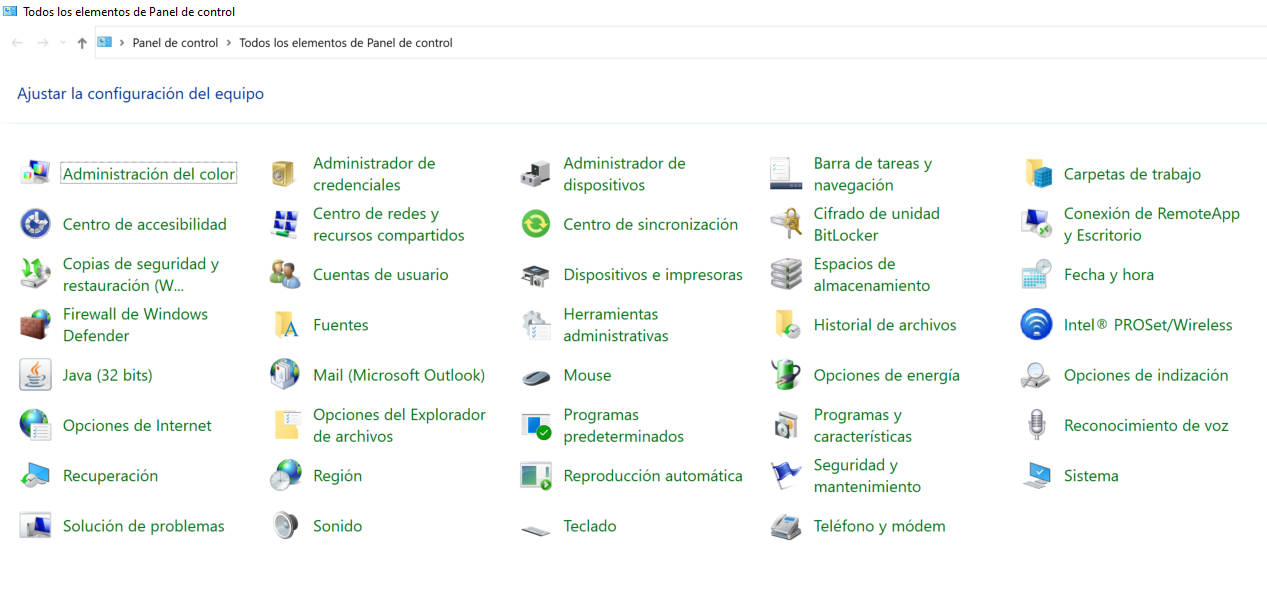
If you want to get the most out of the Windows Firewall without using external tools, you can use the advanced settings console . You can access it from the Control Panel, in the Windows Defender Firewall section, or by typing "firewall" in the system search bar and selecting the advanced settings option.
From this console, you can see whether you are connected to a domain, private, or public network , and which policy applies to each profile. You can also open the firewall's global properties to enable or disable the firewall per profile, change whether incoming or outgoing connections are allowed or blocked by default, configure notifications, and define the security log path.
A key detail is that, by default, Windows applies a fairly restrictive policy to incoming connections : anything that doesn't match an allow rule is blocked. In contrast, the policy for outgoing connections is permissive: if there's no explicit blocking rule, the connection is allowed. This is convenient, but it means that virtually any installed program can access the internet without you noticing.
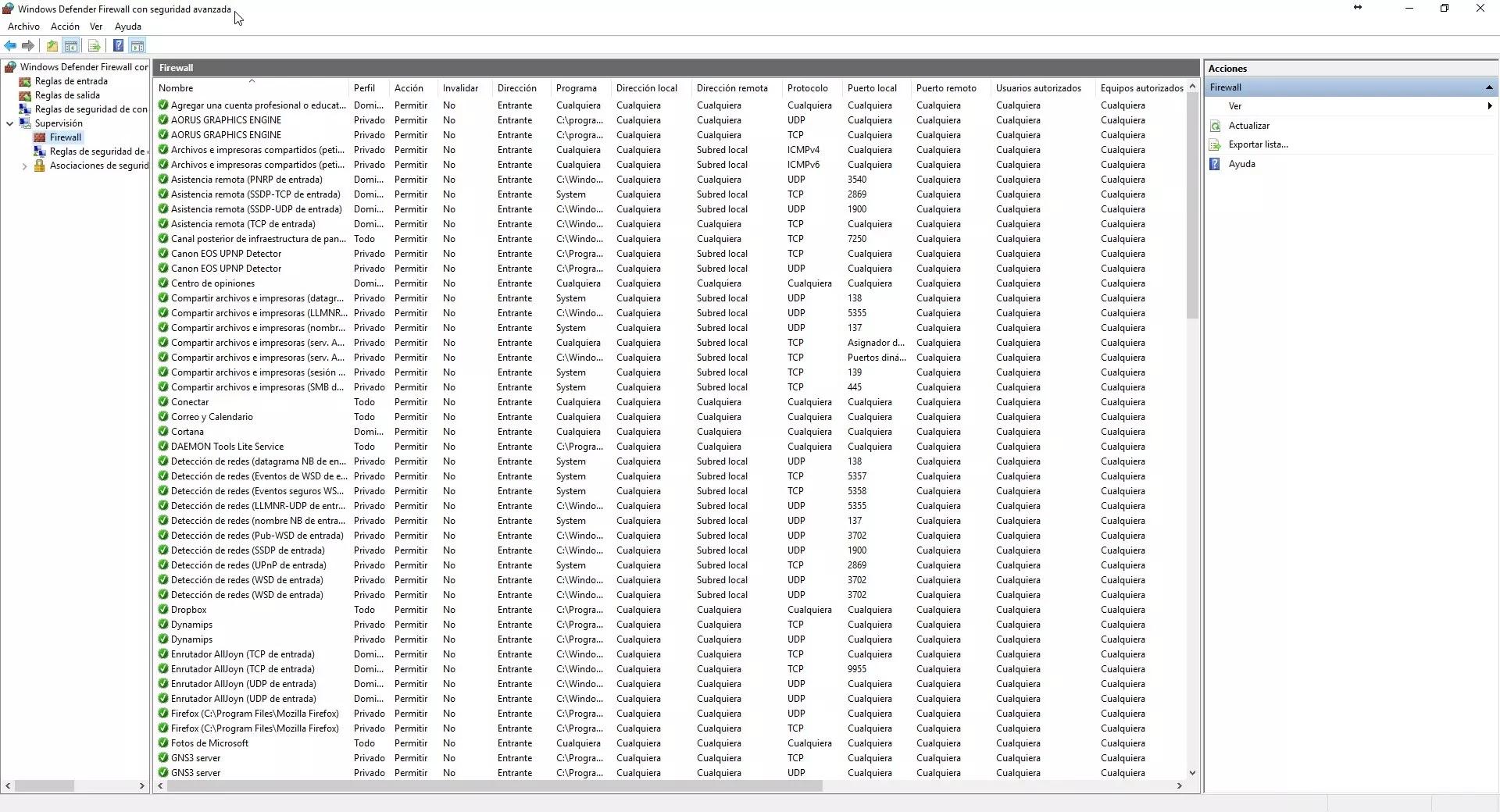
In the rules panel, you can view and edit all inbound and outbound rules . Only those marked with the "enabled" icon are applied; disabled rules remain in the system but do not affect traffic. It's crucial to understand the "direction" of traffic: if you want to prevent something from entering from outside, you modify an inbound rule; if you want to prevent your equipment from leaving, you use an outbound rule.
The wizard allows you to create several types of rules: rules per program, rules per port, predefined rules associated with Windows services, and custom rules where you choose the program, protocol, local and remote ports, source and destination IP addresses, and even IPsec parameters. It's very powerful, but also quite cumbersome for a home user who only wants to block a specific app without breaking anything else.
Why use tools like SimpleWall to control outgoing connections
The biggest problem with the Windows firewall isn't its power, but the complexity of its interface . To block a specific application from exiting the system, you have to open the advanced console, create a new outbound rule, choose the executable, select an action, choose profiles… and cross your fingers that you don't break another service.
In addition, Windows 10 and 11 have background services like Windows Update and the well-known Delivery Optimization (DES), which can consume a significant portion of your bandwidth, especially if you have a slow connection or live in a rural area. This service even uses your PC to distribute updates to other computers, which can severely slow your connection. If you prefer centralized control, you can configure WSUS on your local network.
That's where tools like SimpleWall become especially appealing. SimpleWall acts as a control layer over the Windows Filtering Platform (WFP) , allowing you to easily define which processes can access the internet and which cannot, without having to grapple with all the terminology of a traditional firewall.
Another key aspect for many users is privacy. SimpleWall includes an internal blocklist designed to cut off much of the telemetry and "spying" by Windows, so the system isn't constantly sending usage data to Microsoft servers.
Finally, SimpleWall is very useful if you want a whitelisting approach: blocking everything by default and only allowing what you approve. This is especially useful if you want to save data, reduce network traffic , or play online without anything else consuming bandwidth at the same time.
What is SimpleWall and what are its main features?
SimpleWall is a lightweight, open-source tool designed to manage the Windows Filtering Platform (WFP). It's not simply a "skin" for the Windows Firewall, nor does it replace it or modify its internal configuration. Instead, it leverages WFP to allow or block network connections in a clear and straightforward manner.
It works at the process level: it maintains a list of programs and services and, based on your configuration, authorizes or denies their internet access. Its philosophy is very simple: anything not explicitly permitted is blocked. This makes it a kind of whitelist firewall, ideal for having absolute control over who accesses the network.
Among its most outstanding features, it is worth mentioning:
- Free and open source software, which allows anyone to review your code.
- Very simple graphical interface, without intrusive pop-ups or complicated menus.
- Rules editor to create your own network policies per application or service.
- Built-in blocklist for telemetry and Windows tracking services.
- Blocked packet logso you can see what's trying to connect.
- Support for Windows services and Microsoft Store, including system processes.
- IPv6 support and a localization system for multiple languages.
- Version portable, which does not require installation and you can carry it on a USB drive.
Another interesting feature is the handling of permanent and temporary rules. You can define rules that remain in effect until you manually disable them, and others that only exist until the next restart. This is very convenient if you want to grant a specific permission to an app without leaving it open indefinitely.
However, there's an important point: if you've configured SimpleWall to block everything you're not allowing, you must have the tool running . When SimpleWall is active with its filters, connections follow its logic; if you deactivate it, the behavior reverts to normal Windows operation.
At the menu level, SimpleWall is very minimalist. From "File" you access the options and work with configuration files; in "Edit" you can remove applications you no longer use, search for items, and update lists; the "View" menu controls how apps are displayed and the font type; "Rules" and "Blocklist" are used to adjust policy behavior; and in "Help" you have access to the author's website, updates, and version information.
Advantages of using SimpleWall versus the Windows firewall and other alternatives
For a home user who doesn't want to delve into advanced settings, SimpleWall offers several clear advantages over using the Windows firewall directly. The first is the simplicity of blocking outgoing connections . Instead of following a lengthy wizard, simply locate the application in the list, right-click, and select "Block."
In addition, SimpleWall can display a pop-up window when a program attempts to connect for the first time. You decide whether to allow or block this connection. This is not only convenient, but it also gives you a very real-world view of how much your computer communicates with the outside world: at first, you're often surprised by the amount of software that tries to "connect" without any intervention from you.
If you compare SimpleWall with solutions like Malwarebytes Windows Firewall Control or TinyWall, the approach is similar: they all aim to make the Windows firewall more manageable. The key difference is that SimpleWall is completely open source, very lightweight (its executable is around 1 MB), and can run in portable mode without installation. Another alternative focused on ports is Portmaster.
TinyWall, for example, also aims to simplify the use of the built-in firewall, but it's closed-source and not portable. For some users, it's even simpler than SimpleWall, but the lack of portability and open-source code can be a drawback for those who value transparency.
Many users who have tried SimpleWall say that once they get used to its whitelisting system and initial pop-ups, they never go back to the classic Windows firewall interface because they find it too cumbersome. Blocking a specific app with SimpleWall literally takes a matter of seconds.
How to use SimpleWall to control outgoing connections step by step
Let's now see, step by step, how you can use SimpleWall to take control of your computer's outgoing connections. The idea is that you don't need to be a networking expert to get your system properly secured.
1. Download and install SimpleWall
The first step is to download the program from the project's official website. Although some texts may mention different URLs, the important thing is to always go to the developer's official site and avoid third-party websites that repackage the executable.
SimpleWall is available in both installable and portable versions. The portable version is especially useful if you want to carry the configuration on a USB drive and use it on different computers without leaving any trace on the system. In any case, on modern Windows systems, it's advisable to run it with administrator privileges so that it can properly integrate with the filtering platform.
2. First execution and deactivation of SimpleWall's own access (optional)
When you open SimpleWall for the first time, the program will add itself to its own list of processes with network access. By default, it usually allows itself access, but if you want an extremely closed environment, you can revoke SimpleWall's internet access from its rules list. This will, of course, limit features such as checking for online updates.
In this first run, it's not filtering anything yet. SimpleWall starts in "standby": it doesn't block or allow anything special until you activate the filters and define what can and can't connect. This is important because it prevents you from risking breaking your connection while you're still configuring.
3. Add programs to the SimpleWall list
One of the fastest ways to work with SimpleWall is by dragging and dropping executables directly onto the interface. Simply open the main window and drop the programs you want to control onto it. These executables will be added to the list of managed applications.
At that point, they will initially appear without effective access permission. In other words, SimpleWall knows about them, but hasn't yet marked them as allowed or blocked. It's up to you to decide whether you want to grant them internet access or keep them isolated.
4. Manually allow or block access for each application
To manage each app, simply select it from the list and mark it as allowed or blocked . This is usually as easy as clicking the corresponding icon or choosing the appropriate option with the right mouse button. Allowed apps appear at the top and form the whitelist of programs with network access.
This way of working is perfect if, for example, you want your browser, email client, or online games to be able to access the internet, but you prefer that other programs (automatic updaters, telemetry services, older software, etc.) remain offline. Ultimately, you decide who connects and who doesn't.
5. Activate SimpleWall filters
Once you've decided which applications you want to allow, the key step is to activate the filters . Clicking the corresponding button will display a window with several options. It's common practice to leave the first option selected, which activates standard filtering based on your rules.
After you confirm, SimpleWall will begin implementing your settings. From that point on, only the applications you have explicitly authorized will be able to access the network. All other outgoing connections will be blocked, and any new attempts will generate a notification, prompting you to choose whether to allow or deny them.
When you want to return to normal Windows behavior without SimpleWall, simply click on " Disable filters ." At that point, traffic will once again be governed by the Windows firewall rules, and any application will be able to exit, unless the system firewall itself blocks it with its internal rules.
Common use cases and real-world benefits in everyday life
In practice, SimpleWall has become very popular in specific contexts where controlling outgoing connections makes a big difference. A clear example is users with slow internet or metered connections . If you have a limited ADSL connection or share mobile data, you can't afford for the system to download massive updates whenever it feels like it.
With SimpleWall, you can block Windows Update, Delivery Optimization, and any other resource-intensive services, allowing only the applications you actually need at any given time. This way, your bandwidth is focused on what you're using, reducing latency and preventing unexpected data consumption. You can also optimize TCP/IP to reduce latency in games if needed.
Another group of users who greatly benefit from SimpleWall is the gaming community . In countries like Cuba, for example, it's used extensively to play on national or international online servers without other Windows processes ruining the experience. By blocking everything except games and essential services, it reduces ping and improves connection stability.
It's also very useful if you're concerned about privacy or work with teams in sensitive environments. Being able to ensure that only a handful of specific programs are allowed to communicate with the outside world helps reduce the attack surface and prevent data leaks, both intentional and accidental. Furthermore, you can audit the network connection with tools like TCPView to see which processes are generating traffic.
As an added benefit, such strict control over connections reduces overall network traffic . This can not only save you data, but on congested local networks (for example, in small offices or shared homes) it can make the difference between smooth browsing and a frustrating experience.
Taken together, SimpleWall becomes a kind of remote control for your internet connection: lightweight, straightforward, and without unnecessary complications. Combined with the advanced Windows firewall and other security tools like antivirus software, it gives you a level of control over outgoing connections that you'd normally only see in professional environments, but with an interface designed so that any home user can manage it without getting overwhelmed.


Passionate writer about the world of bytes and technology in general. I love sharing my knowledge through writing, and that's what I'll do on this blog, show you all the most interesting things about gadgets, software, hardware, tech trends, and more. My goal is to help you navigate the digital world in a simple and entertaining way.