- Software updates are essential to ensure that streaming apps function smoothly and the system is secure.
- There are several installation methods, from automatic download via WiFi to the use of USB drives for offline cases.
- It is vital to avoid any electrical interruptions during the process to prevent serious failures in the television's operating system.
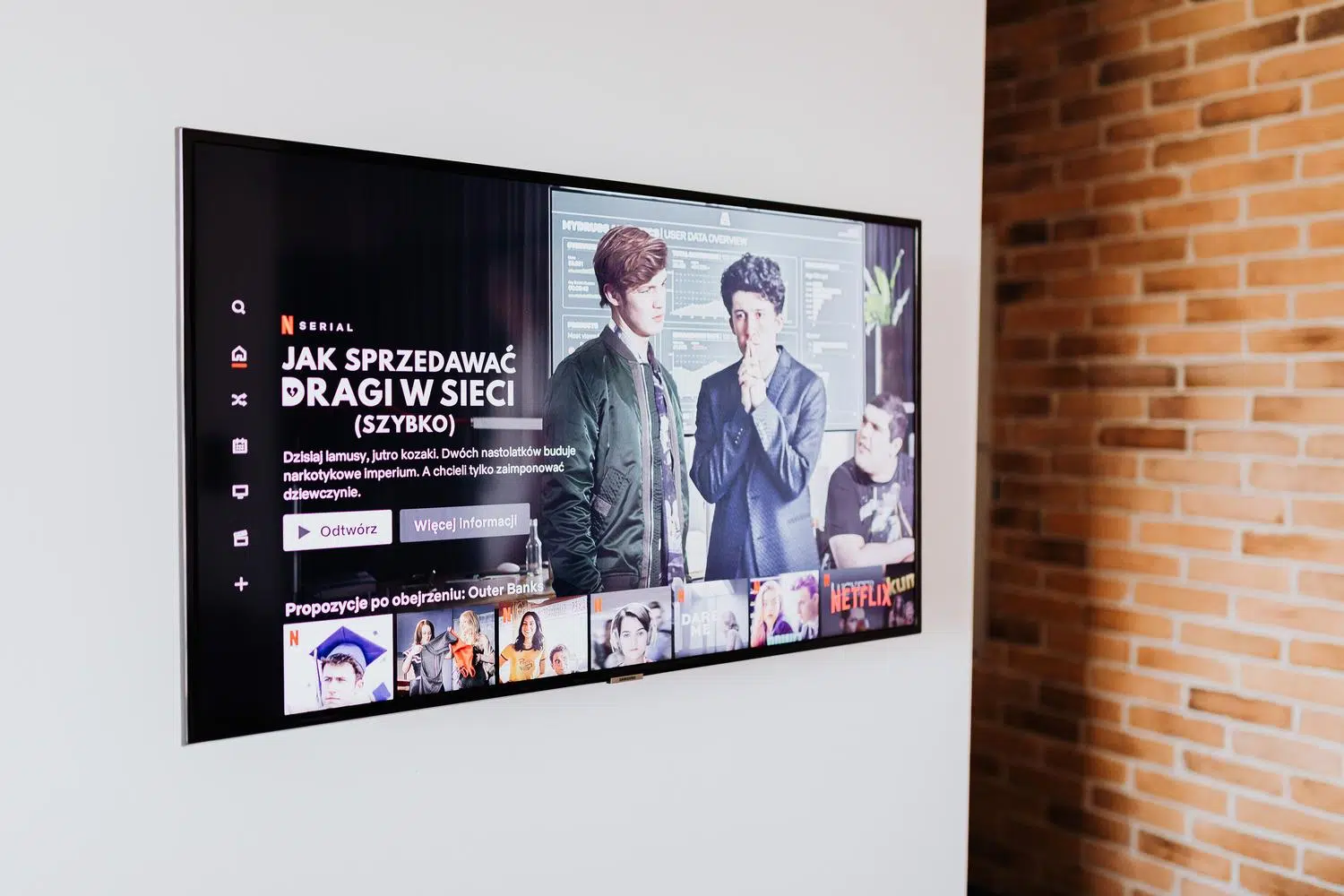
Having a smart TV is wonderful, but there comes a point when we notice that apps start to slow down or, even worse, stop opening altogether. We often think the device is dying, but the reality is that the internal software has become outdated and needs a boost to perform like new again.
Keeping your firmware up to date isn't just a technical whim; it's absolutely essential for the operating system—whether it's Tizen OS on Samsung or Android TV on other brands—to properly manage current security and compatibility standards . If you notice your TV behaving erratically, you most likely need an update.

Why is it so important not to ignore updates?
The firmware acts as the brain of your TV. When streaming giants like Netflix, Disney+, or YouTube update their servers, they require that the device playing their content meets certain requirements. If your TV hasn't been updated in a couple of years, it's very likely that the apps will malfunction or simply close unexpectedly.
In addition to app compatibility, these improvements bring support for new image and sound formats , such as HDR10+ and the AV1 codec, which make movies look much better. Patches are also included that close security vulnerabilities and optimize the Smart Hub for smoother menu navigation and prevent crashes.
Detailed guide for updating via internet connection
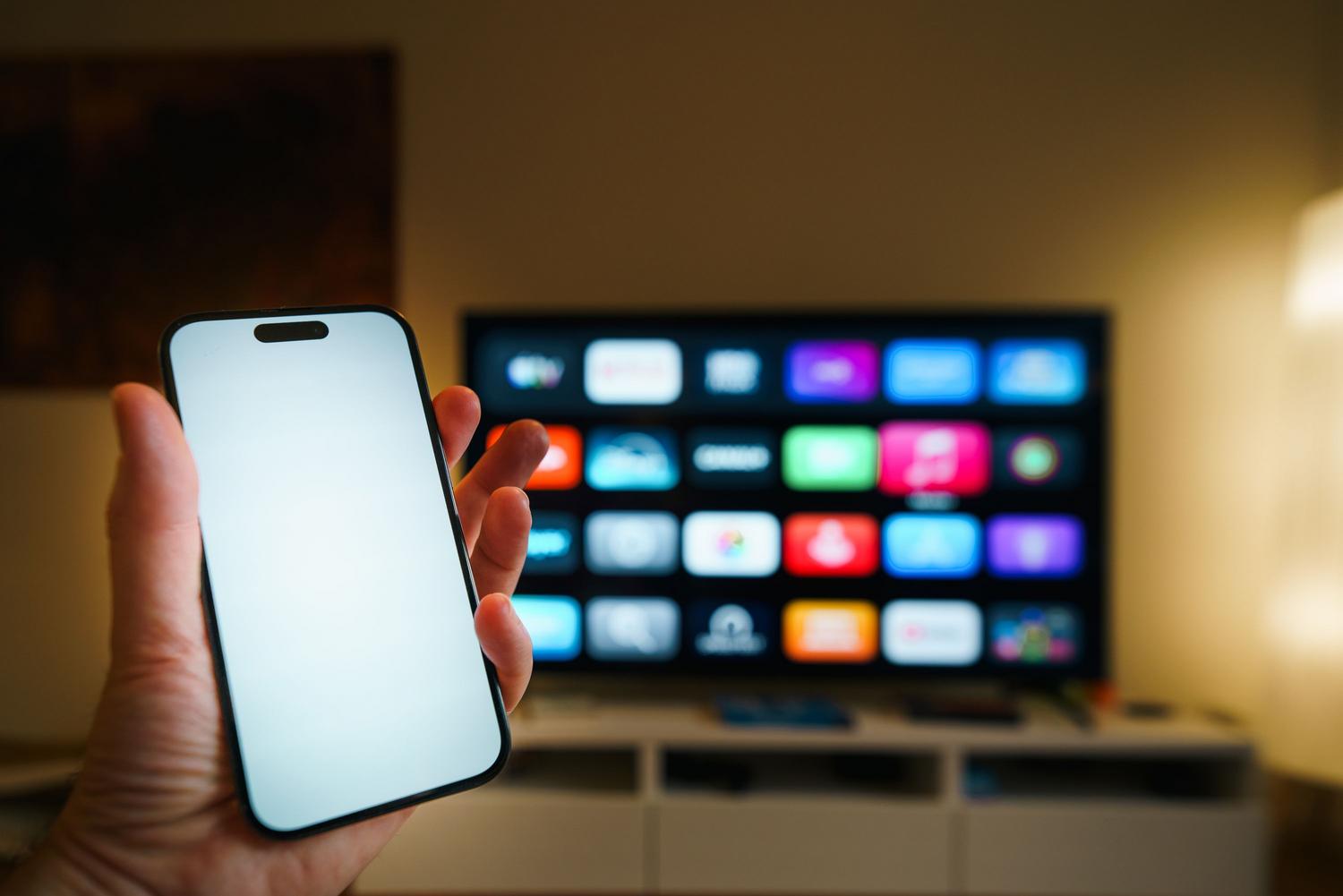
The simplest and most common way to update your device is by using a Wi-Fi or Ethernet connection. Although each brand has its own menu design, the process is usually very similar on most modern models:

- Press the Home button on your remote and go to the section of Settings or Settings.
- Look for the section called Technical support or System Information.
- Within this menu, select the option to Software update and choose the option to update now.
- If the system detects a new version, it will show you the file size; confirm the download and wait for it to finish.
It is crucial that, while the progress bar is moving, you do not turn off the television or unplug it. A power outage at this point could corrupt the system and render the television unusable, forcing you to call a specialized technical service.
The convenience of automatic updates
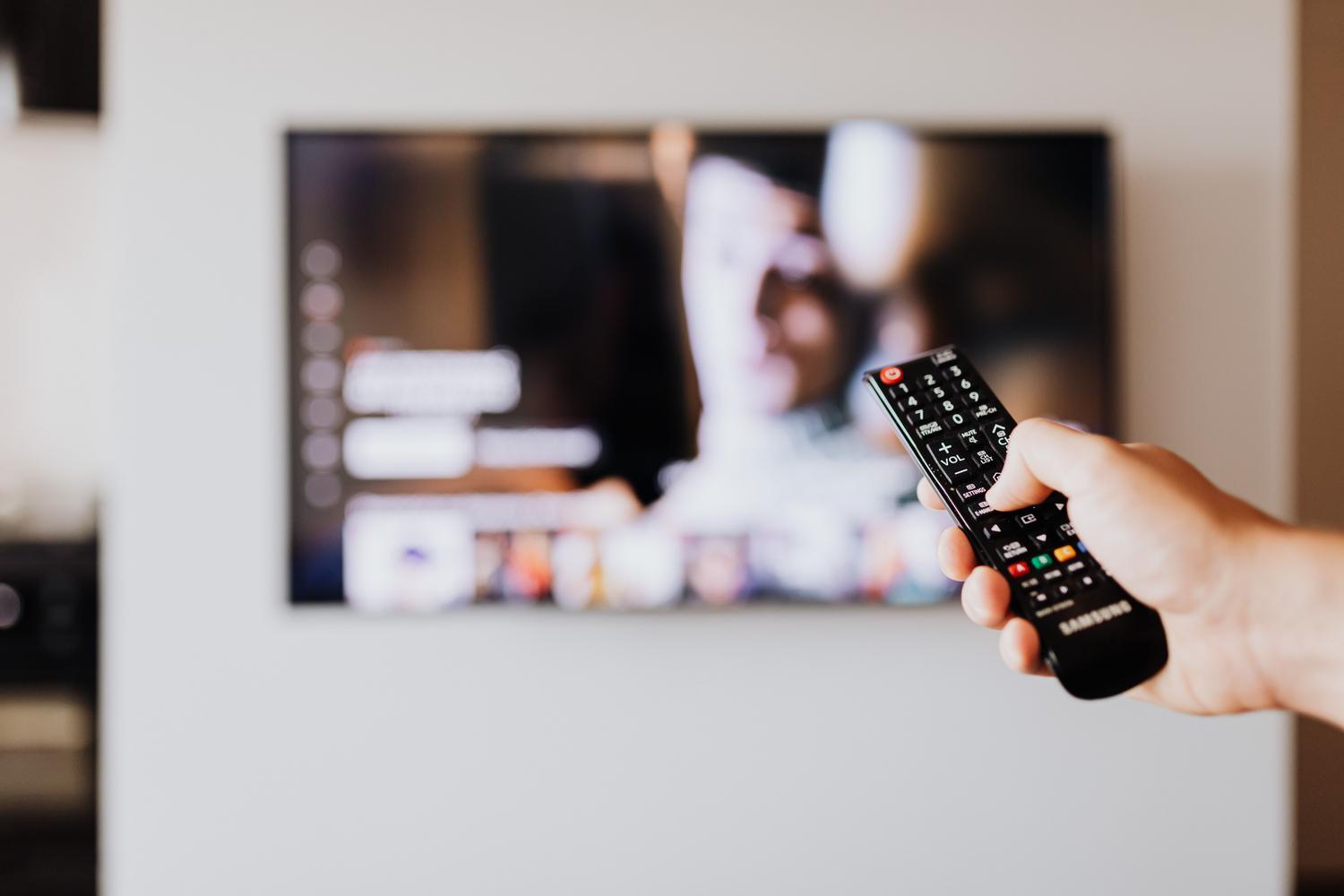
For those who don't want the hassle of checking menus every month, the best option is to activate Automatic Updates . By leaving this function on, the TV will search for and download updates overnight while in standby mode, preventing unpleasant surprises when you want to watch your favorite show.

We only recommend disabling this option if you have a very limited or slow internet connection , as downloads could interfere with other devices in your home. Even then, it's advisable to manually check your downloads every three months to avoid falling behind.
Solutions when there is no internet: USB update
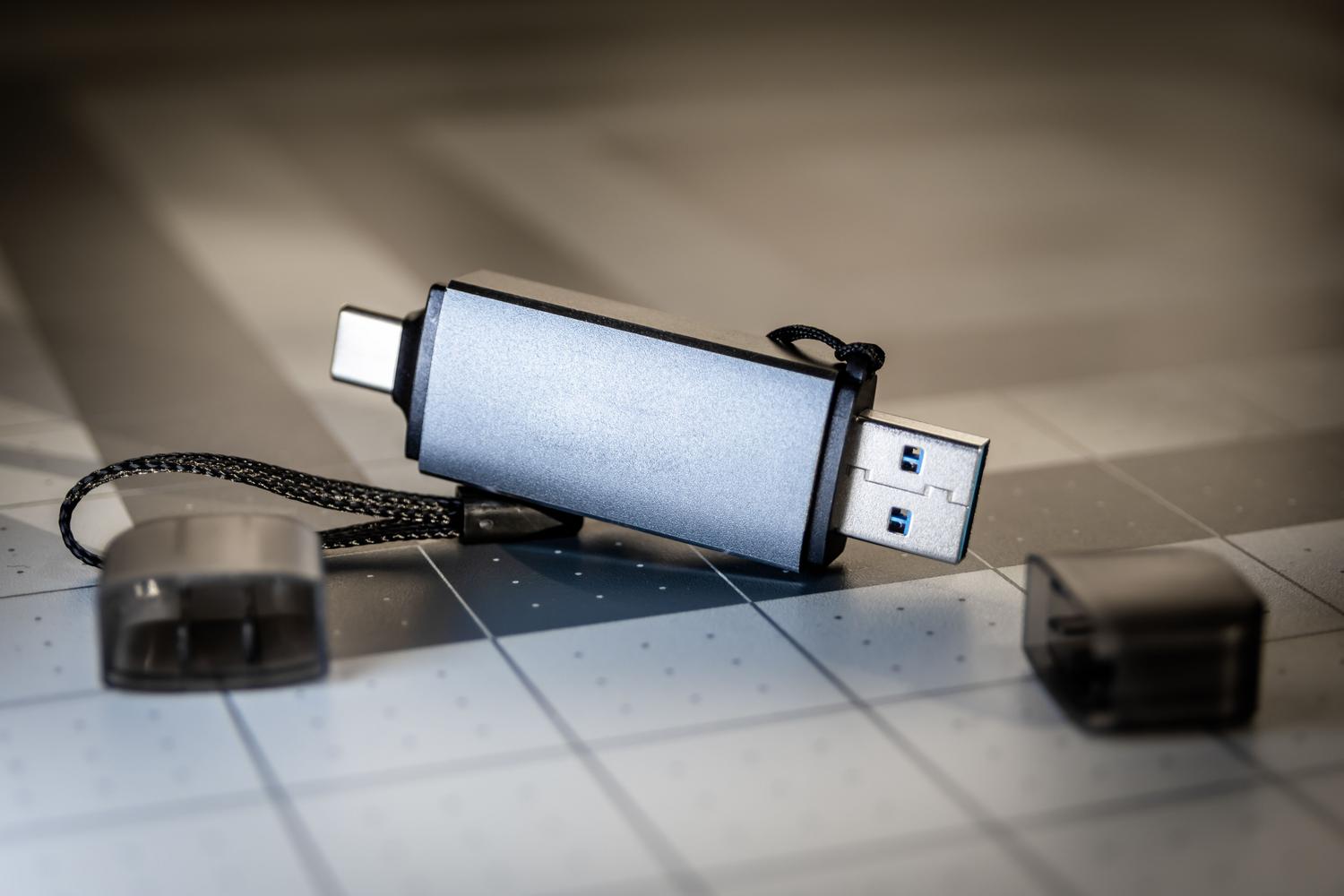
If your connection fails or the TV can't connect to the server, you can use the manual method. First, note down the exact model of your TV (it's on the back label or in the About This TV menu) and go to the manufacturer's official website.
Once you've downloaded the firmware file, extract it and copy the resulting folder (containing the .bin file) to the root of a USB drive formatted in FAT32. If your smart TV doesn't recognize the USB drive or doesn't play it, make sure it's formatted correctly. Connect the drive to the TV while it's off, turn it on, and select the USB update option from the support menu.
What to do if the TV freezes or gets stuck in a bootloop?
In the worst-case scenario, if there was a power outage during installation, the TV may enter an infinite reboot loop where only the brand logo is displayed. If this happens, try forcing the update via USB by connecting the USB drive before turning on the TV to attempt to recover the system.

If the device doesn't respond to either the remote or the USB drive, the problem is more complex and requires flashing with specialized equipment . In this scenario, it's essential to contact a certified technician, as tampering with the internal hardware without experience could void the warranty or damage the screen.
When hardware is very old and no longer supported by the manufacturer, updates may no longer be effective. In these cases, the best alternative is to upgrade to a modern model with more powerful processors and OLED or QLED technology, or to add an external streaming device to breathe new life into the screen.
Keeping the operating system up to date is key to a smooth and secure entertainment experience, preventing apps from becoming obsolete and ensuring that the TV takes advantage of all the technological improvements available for its specific model.


Passionate writer about the world of bytes and technology in general. I love sharing my knowledge through writing, and that's what I'll do on this blog, show you all the most interesting things about gadgets, software, hardware, tech trends, and more. My goal is to help you navigate the digital world in a simple and entertaining way.