- Quick restart methods using the power button and power disconnection.
- Specific procedures for devices with Google TV and Chromecast systems.
- Steps to perform a full factory reset when the system is unresponsive.
- Preventive actions through the updating of applications and system firmware.

There's nothing more frustrating than enjoying your favorite show and then, suddenly, the picture freezes completely. When this happens, it's normal to panic when you see that the remote isn't responding and it seems like the TV has decided to take a permanent vacation right at the most exciting moment.
Fortunately, most of the time it's not a serious technical failure, but a simple software glitch. There are several ways to force the system to restart so everything returns to normal without having to call technical support or spend money on unnecessary repairs.

Quick reset techniques and physical buttons
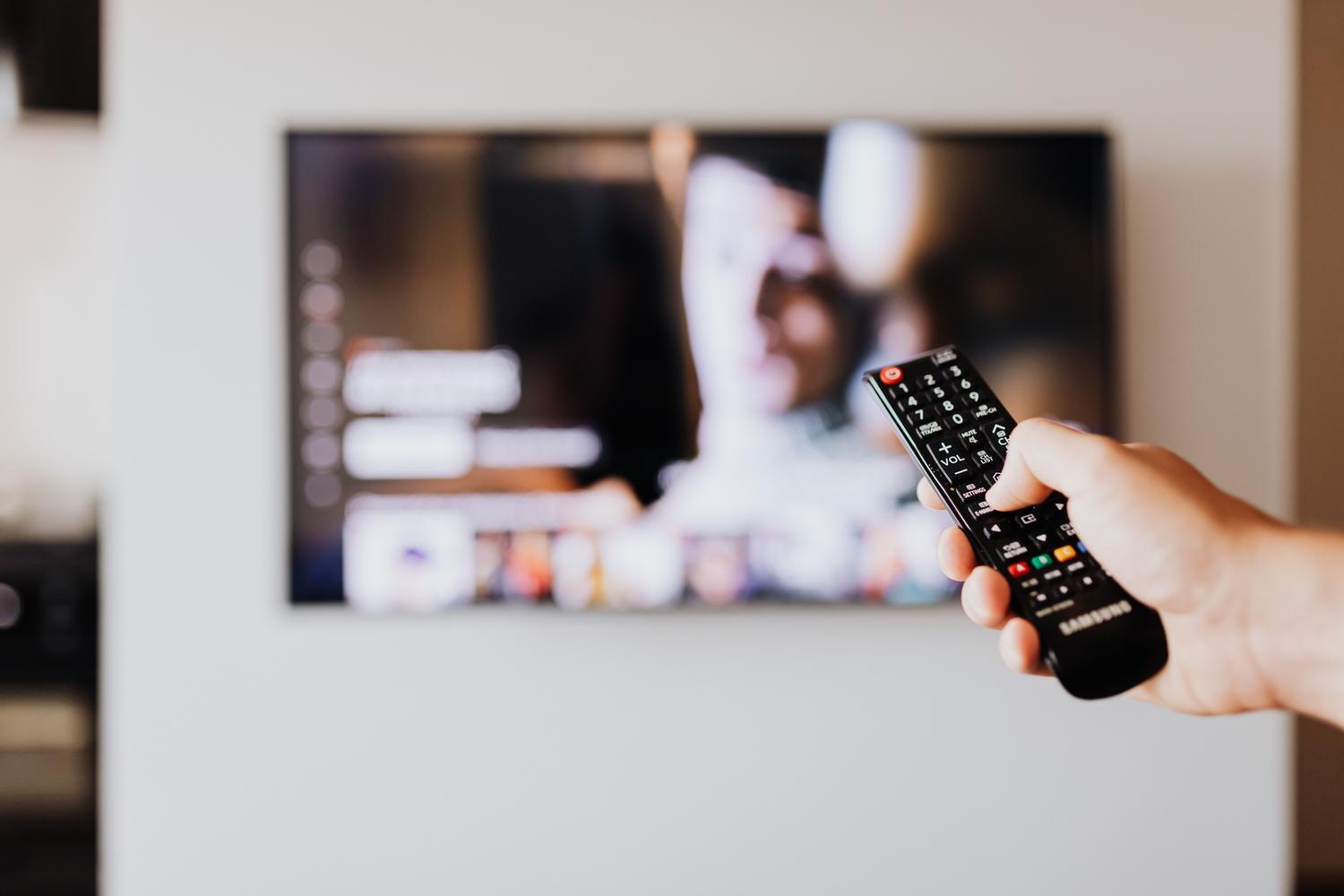
Before resorting to more drastic measures, it's worth trying a "soft restart." Many modern TVs have a hidden function in the power button that allows you to close internal processes that have become stuck. If you're lucky, simply pressing and holding the power button on the remote or the TV itself for a few seconds will cause the operating system to reload from scratch.
In some models, this process may vary: you might need to hold the button down for about 5 seconds until you see a power-off message on the screen, or the TV might display a menu where you need to select the restart option. It's crucial to remember that this method doesn't erase your data or settings; it simply clears the temporary memory to eliminate occasional errors from streaming apps or image glitches.
Solutions for Google TV and Chromecast devices
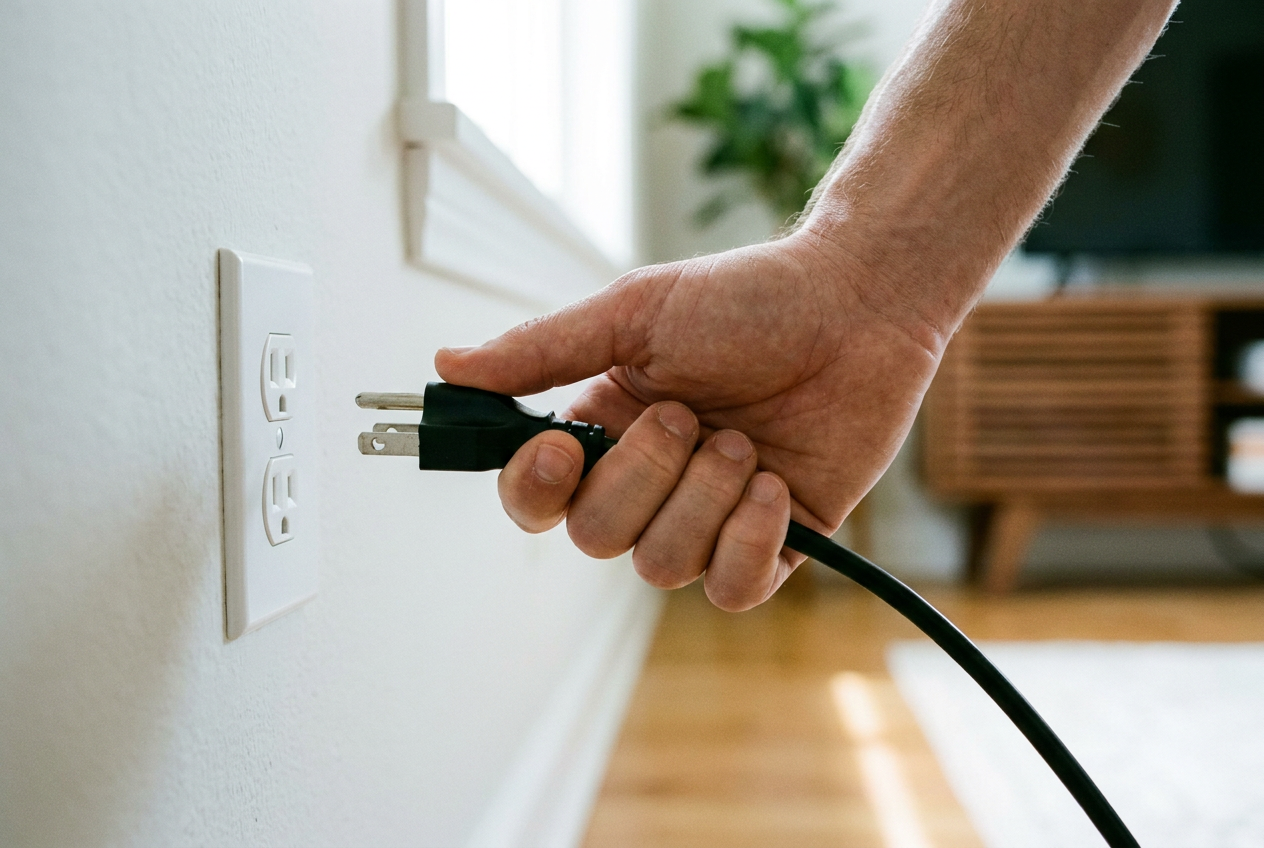
If your device uses the Google ecosystem, the procedure has its own rules. When the screen is unresponsive, the most effective solution is to unplug the power cord directly from the wall outlet. Don't do it quickly; let the device rest unplugged for at least a full minute before plugging it back in and pressing the home button on your remote.
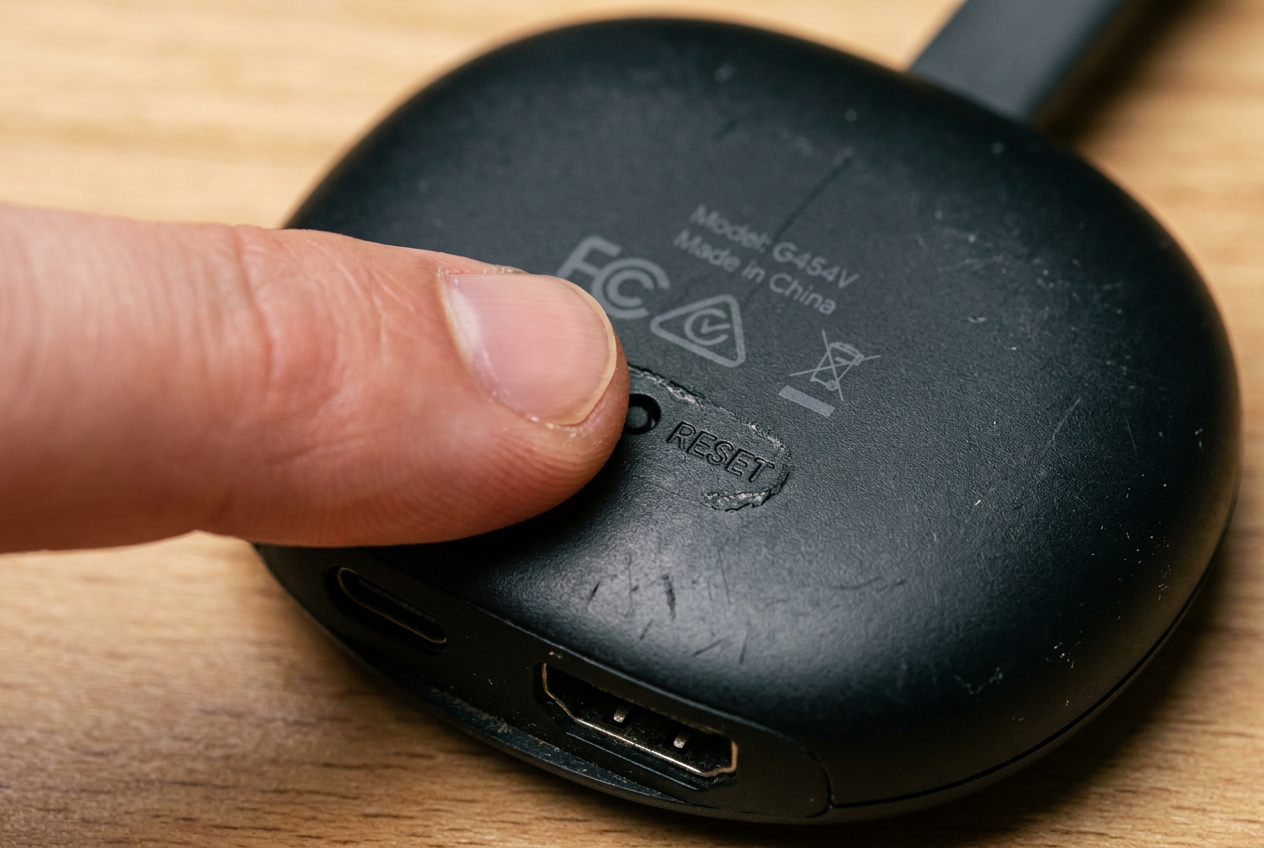
In the specific case of Chromecast with Google TV, there's a physical method for when the software has completely failed. Locate the button on the back of the device and press and hold it while the device is powered on. You'll see a light start flashing yellow; as soon as the white light turns solid, release the button and the device will be reset.

What to do when a basic reset doesn't work
If you've already tried unplugging the TV and the problem persists, there might be a deeper issue. A trick that often works is to disconnect any USB peripherals you have connected before trying to turn it on. If the remote still doesn't respond, try turning the TV off and waiting two full minutes before turning it back on, making sure to press the physical power button on the TV during the process.
When all other options are exhausted, the next step is a factory reset. This process is more drastic as it erases all content , accounts, and installed applications. To perform a factory reset from the menu, navigate to Settings, then System, find the "About" section, and select the reset option. If the system asks for a PIN code and you don't remember it, consult the manufacturer's manual, as brands like LG, Samsung , Sony, and TCL have different protocols.
Prevent the screen from freezing again
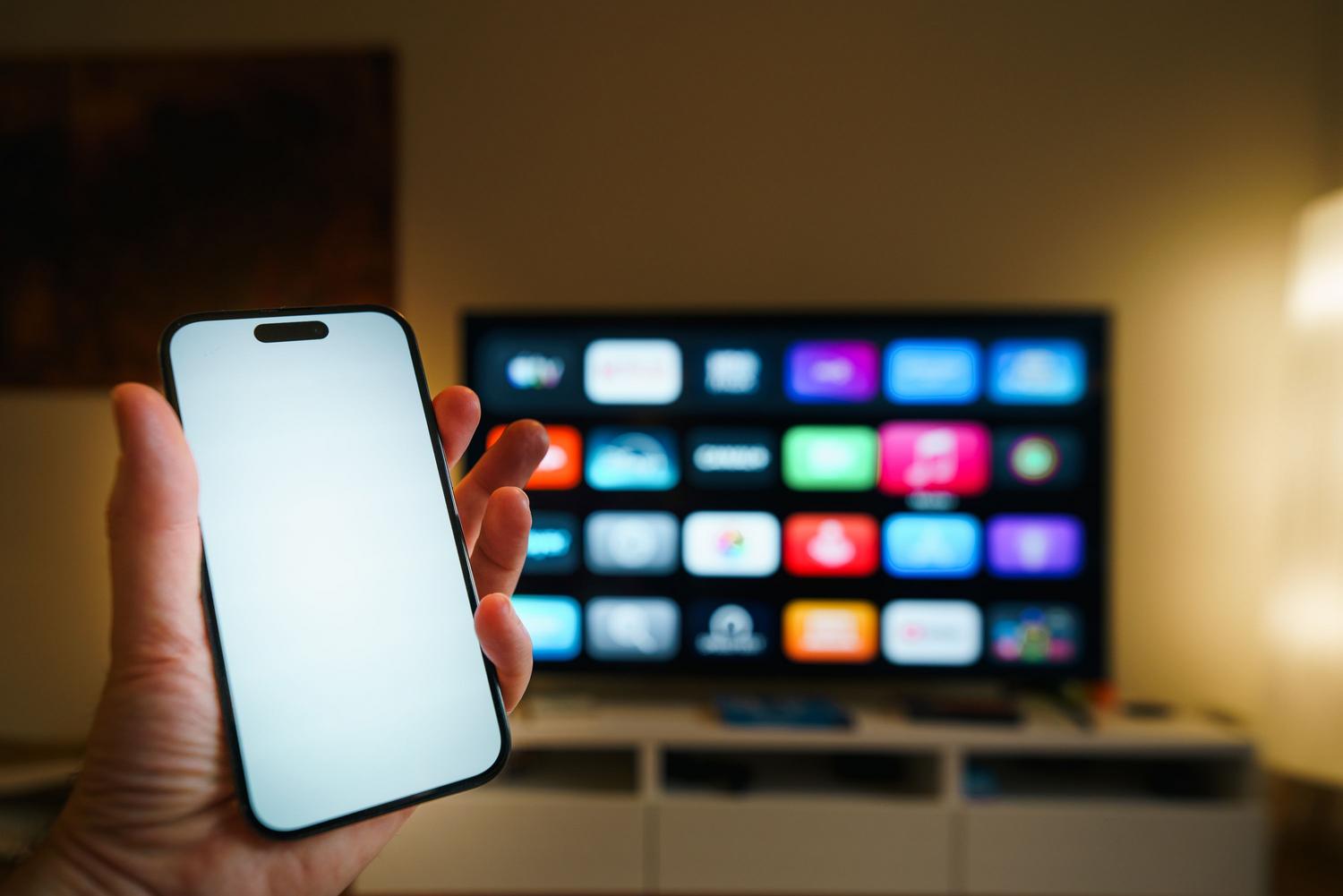
Once you've regained control of your TV, it's best to take steps to prevent this from happening again. Often, these freezes occur because an app is outdated and conflicts with the system. We recommend going to the Google Play Store, accessing your profile, and updating all pending apps . In fact, enabling automatic updates is the best way to avoid these headaches.
Also, don't neglect your TV's firmware. Go to system settings and look for the operating system update option . If a newer version is available, install it immediately, as these updates often include stability patches that fix screen freezing issues. In extreme cases, logging out of your user account and logging back in can refresh the connection to the servers and improve performance.
To fix a frozen screen, the most effective solution is usually to start with a physical restart using the power button or by unplugging the TV for an extended period. If this fails, you can perform a factory reset, which will erase all previous settings. Keeping your software and apps up to date is key to ensuring your Smart TV runs smoothly and doesn't freeze in the middle of an application.


Passionate writer about the world of bytes and technology in general. I love sharing my knowledge through writing, and that's what I'll do on this blog, show you all the most interesting things about gadgets, software, hardware, tech trends, and more. My goal is to help you navigate the digital world in a simple and entertaining way.