- Use the official binary installer to always have the latest version.
- Checks requirements (GLIBC, libstdc++, xdg-utils) and resolves typical errors (Wayland, xcb, OpenGL).
- Advanced options: install_dir, standalone installation, downgrade by version.
- Avoid distro packages if you're looking for the latest stable release of Calibre.

If you work with ebooks daily, keeping Calibre up to date is key to avoiding errors and enjoying the latest features. The official website itself strongly advises against using distribution packages when searching for the latest version, as these often become outdated or include problematic patches.
Currently, the latest stable version of Calibre is 8.12.0 . Below you will find all the reliable methods for updating Calibre on Linux , with ready-to-copy commands , compatibility notes, security tests, and solutions to common bugs (Wayland, xcb, OpenGL, certificates, etc.).
Why should you update Calibre on Linux?
Calibre is the most popular ebook manager due to its versatility: library, metadata, conversion, device delivery, integrated reader, editor, and content server. Updates bring improvements, new features, and bug fixes , and the application usually notifies you upon startup if it detects a newer version.
Although many distributions offer Calibre in repositories or in formats like Flatpak, these versions are usually behind the official one . The project's recommendation is clear: to install or update, use the official binary installer.
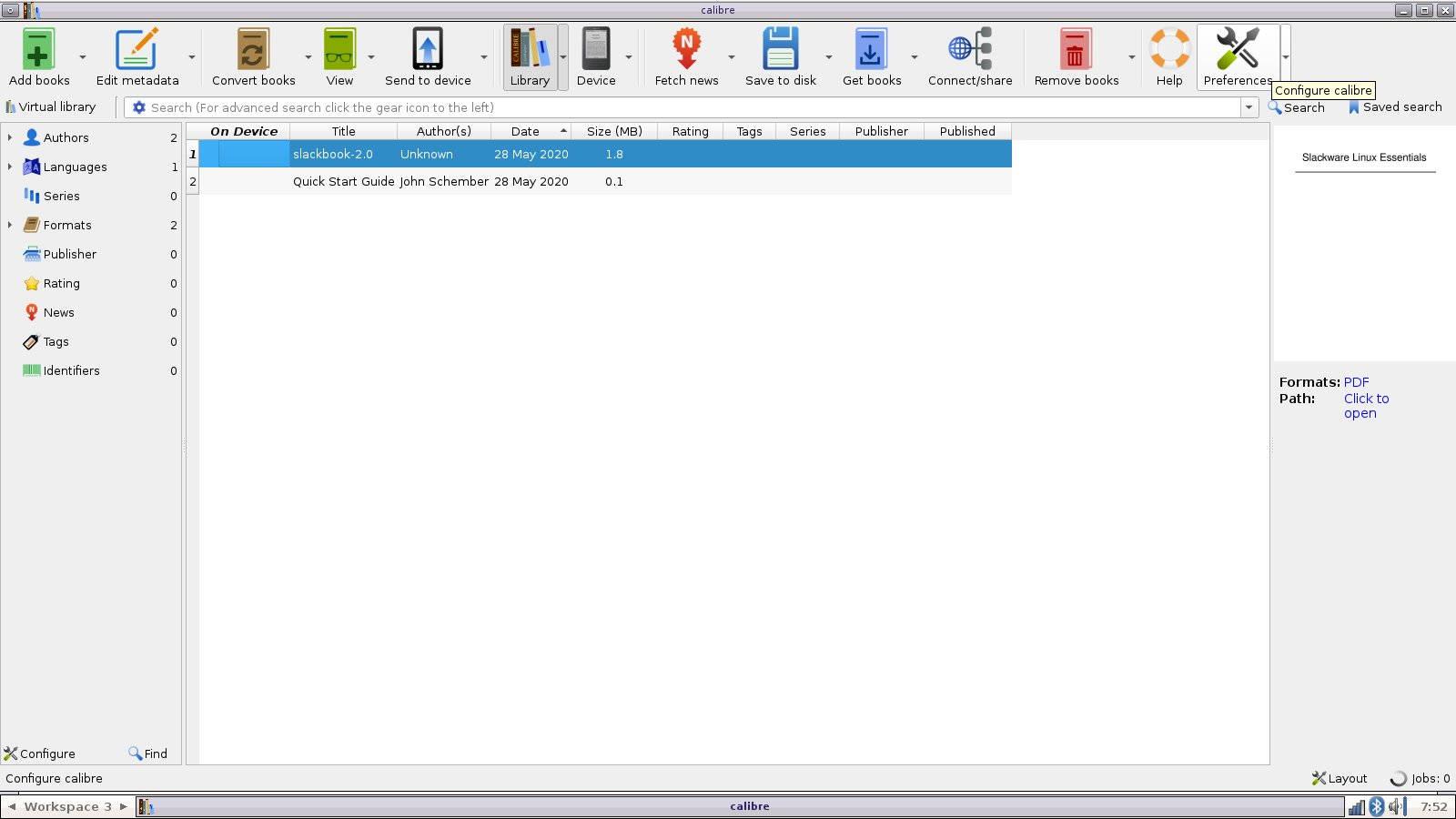
Recommended method: Official binary installer
The binary installer includes its own dependencies and works on 64-bit Intel/AMD and ARM systems. It's the easiest way to install and update Calibre on virtually any modern Linux distribution.
To install or update to the latest available version, run this single command in a terminal (copy and paste): it will download the installer and run it with permissions.
sudo -v && wget -nv -O- https://download.calibre-ebook.com/linux-installer.sh | sudo sh /dev/stdinThis method is idempotent: if you already have Calibre, it will upgrade in place; otherwise, it will install from scratch. By default, /opt/calibre is used as the installation folder , and the necessary launchers are registered on the system.
Requirements, compatibility and pre-packages
Although the binary includes most of its dependencies, it's advisable to check a few minimum requirements. Before running the installer, ensure your system has xdg-utils, wget, xz-utils, and Python installed. Most common Linux distributions already include these or have them in their repositories.
Runtime requirements: GLIBC 2.34 or higher and libstdc++.so.6.0.30 (gcc 11.4.0) or higher . If your distro is very old, you may need to update system components or use an older compatible version of Calibre.
Supported architectures: The installer offers builds for x86_64 and even ARM on Linux, allowing it to work on desktops, laptops , and some modern servers or SBCs.
To see the list of dependencies included in the official binaries, the project publishes an updated list (sources.json). Although Calibre might work with other library versions, compatibility is not guaranteed except with those tested by the official binaries.

Installation, update, and uninstallation commands
Standard installation/upgrade: Run the remote installer with sudo to configure the system correctly.
sudo -v && wget -nv -O- https://download.calibre-ebook.com/linux-installer.sh | sudo sh /dev/stdinComplete uninstallation: the project includes an uninstaller that removes the installation made with the official binary.
sudo calibre-uninstallAlternatively, you can delete the installation folder, which will remove most files. The default directory is /opt/calibre , unless you changed it using a specific installer option.
Advanced installer options (directory and standalone installation)
Choose installation folder: add the install_dir variable to the end of the command. Useful if you don't want to use /opt or if you mount Calibre on a different partition.
sudo -v && wget -nv -O- https://download.calibre-ebook.com/linux-installer.sh | sudo sh /dev/stdin install_dir=/optIsolated installation without root : This mode only modifies files within the chosen folder in your $HOME directory. Ideal for multi-user environments, testing, or systems without sudo privileges.
wget -nv -O- https://download.calibre-ebook.com/linux-installer.sh | sh /dev/stdin install_dir=~/calibre-bin isolated=yThis variant does not register the application at the system level. To launch it, it invokes the binaries within the chosen path or you create your own launchers in your desktop environment.
Downgrade to a previous version
If you encounter a compatibility issue after updating, or if you prefer a specific version, the installer allows you to specify the version. First, uninstall, and then reinstall, specifying version=XYZ.
sudo -v && sudo calibre-uninstall && wget -nv -O- https://download.calibre-ebook.com/linux-installer.sh | sudo sh /dev/stdin version=4.23.0Replace 4.23.0 with the version you're interested in. This "time travel" capability is very useful on critical servers or workflows where you need absolute stability.
Manual binary installation from tarball
If you want to control the process manually (or cannot use the remote script ), download the tarball of the desired version and deploy it. The example assumes installation in /opt/calibre.
sudo mkdir -p /opt/calibre && sudo rm -rf /opt/calibre/* && \
sudo tar xvf /path/to/downloaded/calibre-tarball.txz -C /opt/calibre && \
sudo /opt/calibre/calibre_postinstall
With this method, you are responsible for downloading the correct file (32/64-bit as appropriate, currently x86_64). The calibre_postinstall step registers the necessary icons, shortcuts, and associations on the desktop.
What if I already have Calibre from the repositories or Flatpak?
Linux distributions include Calibre in their repositories, but they generally lag behind: they are old versions or have specific patches . In Ubuntu 20.04, for example, you could find a .deb package equivalent to 4.99.4+dfsg+really4.12.0-1ubuntu1 and Flatpak 5.32.0, far from the current official version.
Installing from repositories, Synaptic, or software centers works, but if your goal is to have the latest version, the best way is the official binary installer . This also avoids problems arising from conflicts between system and Calibre dependencies.
If you already have it from repositories and are migrating to the official binary, it's best to uninstall the version packaged by the distro first. This avoids duplicates in the menu and potential path conflicts.
Practical note: Some users report differences between apt and apt-get when installing packages. If you notice unusual behavior with apt, try apt-get , although for Calibre we recommend the official installer.
In-app update: what to expect
Calibre usually notifies you when there's an update available, displaying a notification or the text "Update found" in the bottom right corner. From that notification, you can start the process to get the latest version . On Linux, the actual update is completed using the official installer shown above.
If you close the message, it usually won't reappear until the next day , unless you restart your computer and a new version hasn't been applied yet. This notification is useful so you don't miss out on the latest improvements.
Troubleshooting common problems
Untrusted certificate error while downloading the installer: This means your system lacks root certificates or the certificate chain is invalid. If you choose to continue at your own risk, add `--no-check-certificate` to `wget`.
sudo -v && wget --no-check-certificate -nv -O- https://download.calibre-ebook.com/linux-installer.sh | sudo sh /dev/stdinKeep in mind that disabling verification reduces download security; ideally, you should correct the system certificate store and then install with verification enabled.
Calibre fails to start on Wayland or displays an error when launched from the terminal: in some environments, forcing X11 resolves the issue. Try running it with the Qt platform variable set to xcb.
QT_QPA_PLATFORM=xcb calibreError “Could not load the Qt platform plugin xcb”: required X11/XCB libraries (such as libxcb-cursor0 or libxcb-xinerama0) are missing. Install these packages from your distribution's repositories to fulfill the dependency.
On servers or minimalist systems, an error may sometimes occur due to missing libEGL. Installing OpenGL components such as libegl1 and libopengl0 will fulfill this requirement.
System requirements: If you encounter unusual errors after updating, please verify your GLIBC and libstdc++ versions: you need GLIBC 2.34+ and libstdc++.so.6.0.30+ (gcc 11.4.0) . With very old distributions, consider upgrading your system or using an older version of Calibre.
Installing from source: only if you know what you're doing
The project itself warns: Calibre is complex and has many subtle dependencies. If you compile from source, it is at your own risk ; bug reports resulting from local builds are not accepted.
General steps (summary): Ensure you have Python 3, install the development dependencies (pkg-config, C/C++ compiler, etc.), and then run the build commands. This is a path for advanced users and very specific purposes.
curl -L https://calibre-ebook.com/dist/src | tar xvJcd calibre* && sudo python3 setup.py installCompiling allows you to fine-tune details, but in production, it's generally best to use the official binary. You'll gain stability, save time, and benefit from implicit support within the release pipeline.
Security and verification: digital signatures
The project publishes digital signatures from the official installers. You can check them on the website to verify the integrity and authenticity of the binary you download , a recommended practice in sensitive environments.
If you manage third-party equipment or a fleet of machines, integrating signature verification into your deployment flow adds a layer of security against interceptions or manipulated downloads.
How to run Calibre after installation
After installation, you should see Calibre in your desktop's Applications menu. You can also launch it from the terminal using the `calibre` command . If you chose an isolated installation, use the path to the binary within your chosen directory (for example, `~/calibre-bin`).
If you migrate from a previous installation, Calibre will detect your library and preferences. The upgrade process does not alter your content or settings , as these are saved separately from the binary.

Table of Contents
- 1 Why should you update Calibre on Linux?
- 2 Recommended method: Official binary installer
- 3 Requirements, compatibility and pre-packages
- 4 Installation, update, and uninstallation commands
- 5 Advanced installer options (directory and standalone installation)
- 6 Downgrade to a previous version
- 7 Manual binary installation from tarball
- 8 What if I already have Calibre from the repositories or Flatpak?
- 9 In-app update: what to expect
- 10 Troubleshooting common problems
- 11 Installing from source: only if you know what you're doing
- 12 Security and verification: digital signatures
- 13 How to run Calibre after installation