- Subtitles on X.com combine closed creator subtitles and automatic subtitles generated by the platform.
- In X's mobile apps for iOS and Android, closed captions are controlled with a CC button in the top corner of the video.
- The system relies on JavaScript and compatible browsers, and offers fewer global options than platforms like YouTube.
- Knowing these limits allows for a better adjustment of the experience, especially for those who rely on accessibility or prefer to watch videos without subtitles.
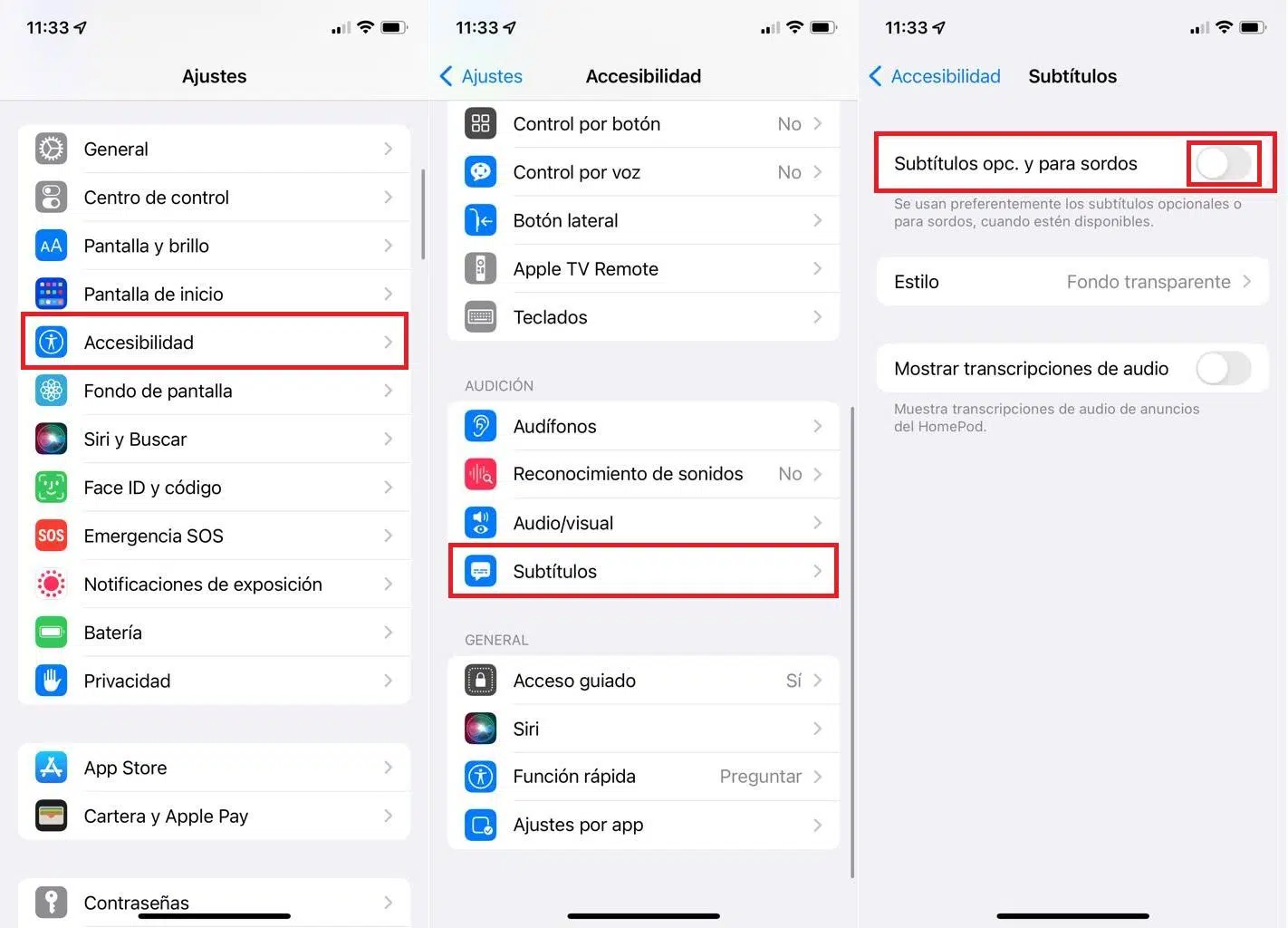
If you spend a lot of time watching videos on X.com (formerly Twitter), you've probably encountered the subtitles that automatically appear on some content. For many people, they're a fantastic help, but for others, they're a real nuisance, especially when they appear in a language you don't need or when you have to turn them off video after video . Understanding how they work and what control you have over them is key to avoiding a frustrating experience.
In recent versions of the platform, X has been introducing a closed and automatic subtitle system focused primarily on accessibility. The problem is that it's not always clear how to activate or deactivate them, or what the difference is between the subtitles provided by the video creator and those generated by the platform itself. In this article, I'll explain in detail what you can do, what limitations X.com currently has, and what alternative options exist if you want complete control over subtitles when watching videos on the website.
What are subtitles on X.com videos and why do they appear?
Before we delve into buttons and menus, it's helpful to understand what type of subtitles X.com uses. Not all subtitles are the same, and that affects whether you can disable them and where you can do so.
On one hand, there are closed captions (CC). This type of subtitle not only transcribes what the people in the video are saying, but also usually includes information about other sounds: for example, background noise, music, sound effects, or who is speaking. They are especially useful for people with hearing difficulties or for those who prefer to watch content without sound, but without missing any information.
These closed captions are usually added by the video creator . In other words, they aren't automatic; they're uploaded along with the video or created using editing tools and then added. On X.com, when a video has these types of captions, the application displays a specific CC button in the upper right corner of the player, visible in the iOS and Android mobile apps.
On the other hand, there are subtitles automatically generated by speech recognition algorithms. X.com, like other video platforms, can create subtitles on the fly when closed captions are not provided by the author. The goal is to make virtually any content more accessible, although the accuracy of the transcription and language can vary considerably.
This distinction is important because the degree of control you have as an end user depends on whether the subtitle comes from the creator (closed) or is generated by the platform. While closed subtitles usually have a clear toggle, automatic subtitles can behave much more rigidly or be subject to the platform's overall decisions.
X.com's new option to enable or disable closed captions
For a long time, one of the biggest frustrations for users was the inability to easily manage subtitles on X.com videos. Many complained about having to manually remove the subtitles for each video , which can become incredibly frustrating when watching several videos in a row. Comments like "I speak several languages, I'm not deaf, I want to hear the video without anything overlaid" have been common in the community.
To address these complaints and improve accessibility, X introduced a new feature that gives users some direct control over closed captions embedded in videos. This feature is available in X's official mobile apps for iOS and Android.
When you're watching a video in the app and that video includes closed captions provided by the creator, a button with the "CC" icon appears in the upper right corner of the player . This toggle works like an instant switch: if you press the button, you activate the captions; if you press it again, you turn them off.
This solution is simple yet effective because you don't have to delve into any hidden menus or change system settings. X explained through its support account that its intention is to give users quick access to this feature without complicating things with advanced configurations, which is especially useful if you watch short videos at high speed on the timeline.
Furthermore, the introduction of this CC switch comes after a testing period that began first on the iOS app and later extended to Android. In other words, X has been testing the behavior and user acceptance before making it available to everyone. From there, the feature has been incorporated as part of the standard player on mobile devices.
Current limitations and user frustrations with subtitles on X.com
Although the CC button solves part of the problem, the experience for many users remains somewhat inconsistent. One of the main points of contention is that, in some cases, subtitles seem to activate automatically , and there's no clear global option to disable them permanently.
Some people have openly expressed their frustration because they feel that X forces a viewing experience designed for a very specific user profile. Those who are multilingual and don't need visual aids to follow the content find it annoying to have to turn off subtitles for each new video , especially if the automatic subtitles aren't properly synchronized or don't match the original audio language.
There are also situations where subtitles can be visually intrusive: they block part of the image, appear over text on the screen, or generate a kind of "noise" that prevents the viewer from enjoying the video's visual composition. In these cases, the user wants a clear option to turn them off completely without having to repeat the same action over and over.
Another factor complicating the experience is that subtitle behavior can vary depending on the access platform . The way they are displayed or hidden may not be identical if you access X.com from a desktop browser, the official mobile app, or browsers with restricted features, such as when JavaScript is disabled.
In fact, if your browser is found to have JavaScript disabled , X.com displays a warning indicating that you must enable it or use a compatible browser to continue using the website. Among other things, this affects how videos play and, by extension, how subtitles are handled. Without JavaScript and modern interface features, the player may not load the CC switch or other related options.
Technical requirements: JavaScript and compatible browsers
For the entire X subtitling system to function correctly, the platform relies heavily on JavaScript and modern browser capabilities . If your browser blocks scripts for security reasons, if you use very resource-intensive extensions, or if you're using an outdated browser, the video experience may be severely limited.
When X.com detects that JavaScript is disabled, it displays a message prompting the user to enable this technology or switch to a supported browser. This message mentions that a list of compatible browsers can be found in the Help Center , along with other standard links such as the Terms of Service, Privacy Policy, Cookie Policy, Legal Notice, and Advertising Information.
If you want to control subtitles in videos, it's important to make sure that:
- JavaScript is enabled in your browser.
- You wear a recent version of a compatible browser (Chrome, Firefox, Edge, Safari or others based on modern technologies).
- You are not completely blocking scripts or multimedia elements with extensions that may interfere with the player.
If you don't meet these conditions, the X player may revert to simpler versions or even stop working altogether, including the loss of the subtitle switcher and other advanced options. Therefore, if your experience with subtitles doesn't match what's explained here, the first thing to check is this technical aspect.
Differences compared to other video platforms like YouTube
Understanding how the subtitle system works on X.com is easier when compared to more established video platforms like YouTube. On YouTube, subtitle management is much more developed and documented , with advanced customization options at both the account and player levels.
On the desktop version of YouTube, when you open a video with subtitles, you'll see a specific icon at the bottom of the player . Clicking this icon lets you turn subtitles on or off for that particular video. Additionally, your account settings offer several global options to specify whether you want subtitles to always be displayed, whether you want to include automatically generated subtitles when none are available, and how you want their visual style to appear.
For example, YouTube allows users to go to the settings section (accessible through their profile picture) and, within the playback and performance section, select or deselect options such as "always show subtitles" or "include automatically generated subtitles." This way, if you decide you don't want automatic subtitles on any video, the platform respects that preference across the board.
Furthermore, YouTube allows you to customize the font, color, opacity, and size of the text , as well as the color and opacity of the background and subtitle window. It even lets you choose the style of the character borders to make them more legible over complex images. All of this goes far beyond a simple on/off switch.
At X.com, for now, the approach is much simpler: the platform focuses on offering a quick button to enable or disable closed captions per video, with fewer global customization options and without such a detailed panel for changing default appearance or behavior. The main objective is accessibility and speed, at the expense of fine-tuning settings.
How to handle subtitles on X.com if you're used to YouTube
If you're coming from YouTube, where you're used to changing subtitles, language, and style to your liking, it's understandable that you might miss certain features when watching videos on X.com. Even so, there are some guidelines you can follow to have an experience more in line with your preferences.
The first thing to understand is that, in X, subtitle control is more tied to each individual video and the creator's settings, rather than a highly detailed user configuration like YouTube's. In many cases, if the video includes closed captions, you'll see the CC button in the mobile app and can instantly turn them on or off , but this action doesn't necessarily apply to other content.
If automatic subtitles particularly bother you, you can limit their impact by playing videos in environments where you have more control over the audio and language (for example, by ensuring the volume is at your liking and that you don't need visual cues). Currently, X doesn't offer a menu as straightforward as "always turn off automatic subtitles" like YouTube does, so managing them involves addressing each case individually rather than a global setting.
Another strategy is to combine X with other tools to embed subtitles when the video is also hosted on external platforms. Sometimes, the same content is available on YouTube or other services where you can fine-tune the subtitle settings (preferred language, visual style, etc.). It's not ideal, but it can be a workaround when you need much more precise control than X offers.
In situations where accessibility is crucial (for example, if you have significant hearing loss), you'll find it more reliable to consume content on platforms that offer an advanced panel similar to YouTube's , where you can adjust font size, text contrast, and other key aspects. X is progressing, but it hasn't yet reached that level of granularity.
Accessibility, subtitles, and the philosophy of X.com
This entire subtitle system on X.com didn't come about by chance. It's part of a larger effort to make the platform more accessible to a wider range of users: from those who are hard of hearing to those who watch videos with the sound off because they're in public places or simply because they prefer to read the content.
The idea of including closed captions that not only transcribe the speech but also describe sound effects, music, or ambient noise stems precisely from this philosophy. X aims to make content understandable even when you can't rely on the audio . In this context, the closed caption switch isn't so much a luxury as a core accessibility tool.
However, this approach sometimes clashes with the experience of users who don't need that extra layer and who value a clean visual experience or distraction-free audio. Hence the complaints when they notice that subtitles seem to be present "by default" and are difficult to permanently disable.
The key is finding a balance: offering powerful accessibility resources to those who need them, without turning other users into passive recipients of decisions they can't change. The CC button in the upper corner of the video is a step in that direction, because it provides a minimum of choice without burying the option in complex menus.
At the same time, the platform maintains its focus on other complementary functionalities, such as the development of article-like formats (for example, the feature known as Twitter Notes, designed for publishing long texts with rich formatting and multimedia content). All of this indicates that X wants to remain a hybrid space for text, images, and video , where subtitles fit in as an integral part of the experience.
Best practices and tips for using subtitles on X.com
Whether you're a content creator or just a video consumer, there are a number of best practices that can help you get more out of subtitles on X.com and reduce the annoyance when you don't want to see them.
If you publish videos, it's worth taking the time to create high-quality closed captions . While it might require some extra work, you'll improve the accessibility of your content, reach a wider audience (including people who watch videos without sound), and offer a more professional experience. And, most importantly for the end user, these closed captions can be easily toggled on or off using the CC button.
When creating these subtitles, it's recommended that you avoid excessively long texts on screen and allow enough time for reading them, because videos on X are usually short and consumed quickly. Try to keep sound descriptions clear but concise, so they don't overwhelm the image or overwhelm the viewer.
If, on the other hand, you're primarily a viewer and find subtitles inconvenient, try developing the habit of locating and using the CC switch at the beginning of video playback. It might seem like a minor inconvenience, but in many cases, a couple of taps will be enough to set them the way you want, provided the video has closed captions and isn't using static automatic subtitles.
It can also be helpful to ensure your X app is updated to the latest version , as features like the CC button or accessibility improvements often arrive first in newer versions. If you're using a browser, also check that you don't have excessive script blocking preventing the player from displaying the appropriate options.
Finally, if you're part of the audience that truly benefits from subtitles (for example, if you have hearing loss or often watch content without sound), you should keep a close eye on the evolution of X's accessibility options . The platform has been incorporating new tools, and it's possible that, over time, it will add more user controls for managing subtitles globally, bringing it a bit closer to what services like YouTube offer.
Overall, X.com's current system combines closed captions manageable via the CC button, less configurable automatic captions, and a heavy reliance on JavaScript and modern browsers. Those who highly value accessibility will find these features a useful tool, while those who prefer clean videos may find the interface a bit more challenging. Understanding how each component works and where the limitations lie helps in making more informed decisions about how, where, and with what settings to watch videos on the platform.


Passionate writer about the world of bytes and technology in general. I love sharing my knowledge through writing, and that's what I'll do on this blog, show you all the most interesting things about gadgets, software, hardware, tech trends, and more. My goal is to help you navigate the digital world in a simple and entertaining way.