- It is essential to update The Witcher 3 to version 4.00 and have the same expansions installed for old saves to be compatible.
- Cross-platform progress uses a GOG.com / CD PROJEKT RED account to upload and download saves via cloud icons in the menu.
- PS4 games, Xbox One and PC can move to PS5 and Xbox Series X|S, but trophies and achievements are not unlocked retroactively.
- Most errors are solved by repeating the link with GOG, creating a new save file, and verifying that version 4.00 appears in the game information.
The Witcher 3: Wild Hunt has finally received its major next-gen patch on PS5, Xbox Series X|S, and PC, a free update that revamps the graphics, improves performance, and adds gameplay extras. The problem is that many players had already invested dozens or hundreds of hours on PS4 or Xbox One and aren't exactly keen on starting all over again.
If you left Geralt's adventure unfinished or have a very advanced character on your old console, the good news is that you can transfer your saves to PS5 and Xbox Series X|S, and even take advantage of cross-save between PC and consoles thanks to cloud saves. However, the system isn't very intuitive; CD Projekt RED's explanations are only so-so, and there are several nuances you should be aware of to avoid getting lost in the process.
Prerequisites for transferring games between generations
Before you begin transferring your saves , it's important to check a few basic requirements. If any of them are not met, the game will likely not recognize your saves or the cloud icon won't appear at all.
The first thing to do is make sure The Witcher 3 is updated to version 4.00 or higher (the major next-gen patch). You can easily check this in the game's main menu, below the logo, where the version number is displayed. This is crucial on PS4, Xbox One, PS5, Xbox Series X|S, and PC.
You also need to have installed the same expansions and DLC that you had when you created the save file on the previous generation. For example, if your PS4 save file was from the GOTY edition or you had Hearts of Stone and Blood and Wine , you'll need to have that content installed on PS5. Otherwise, some save files may appear as incompatible or simply won't load.
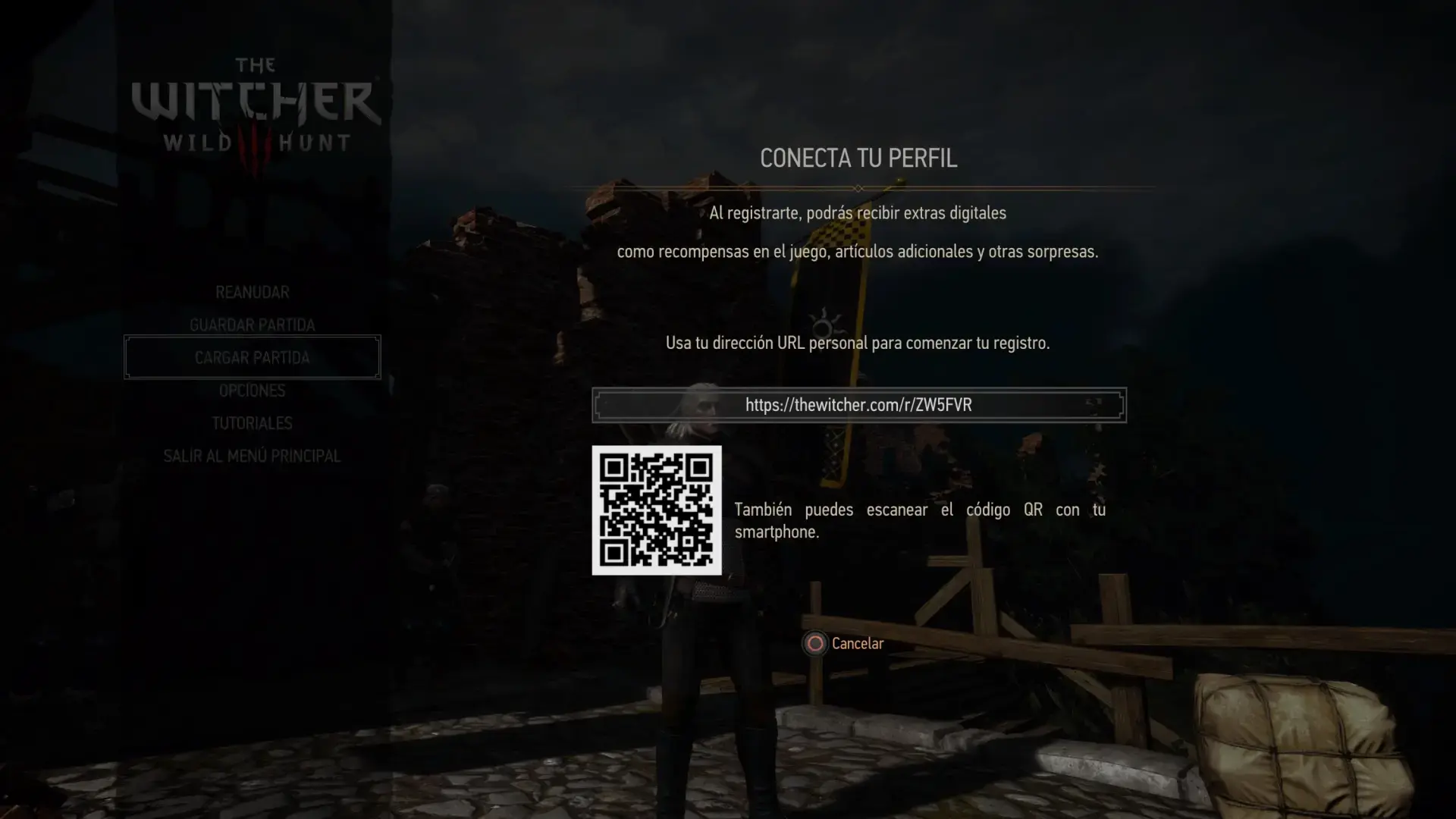
Another essential requirement is having a GOG.com / CD PROJEKT RED account , which will be used to sync your saves via the cross-platform progress system. The game will take you to a "My Rewards" page where you can create an account or log in with an existing one.
Finally, keep in mind that trophies and achievements are not automatically unlocked when you load an old save file on PS5 or Xbox Series X|S. You can continue playing from where you left off, but don't expect the trophy system to reward you with all your achievements at once just for importing the save.
How cross-platform progression works in The Witcher 3
The heart of this whole system is the so-called cross-platform progress or cross-save , a feature that uses the CD PROJEKT RED cloud to upload your latest games and make them available on other platforms that use the same GOG.com account.
When you enable cross-platform progress, the game automatically uploads certain save files to the cloud : specifically, the last save of each type (manual, quick, automatic, etc.). If you prefer local solutions, you can configure P2P synchronization between PCs to keep copies on your computers.
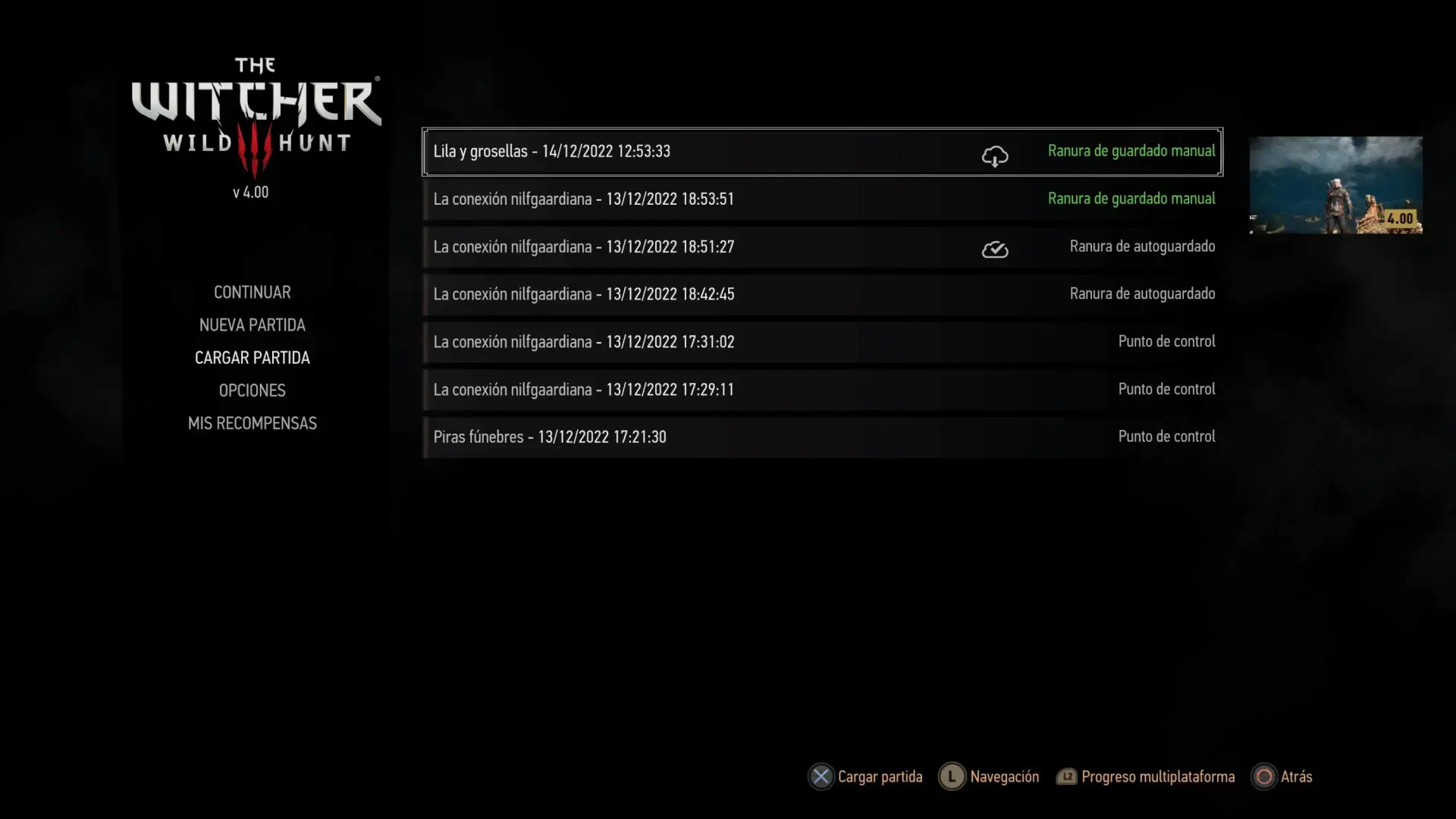
To view and activate this feature, you must enter the "Load Game" menu . In the bottom right corner of the screen, a notification will appear with the button corresponding to cross-platform progress: L2 on PlayStation , LT on Xbox, or the corresponding key on PC. Pressing it will initiate the process of linking your GOG.com / CD PROJEKT RED account.
The game itself will display a URL and a QR code : you can type that address into your browser or scan the QR code with your mobile device. This will take you to the "My Rewards" website, where you'll need to log in or create an account. Once you complete this step, your copy of The Witcher 3 will be linked to your GOG.com account and cross-platform progress will be enabled.
Once your account is linked, cross-save is enabled by default , though you can always review and disable or re-enable it from the Options → Game → Cross-Platform Progress menu. Each new game you save while it's active will be uploaded to the cloud and marked with a distinctive icon. If you're looking for local alternatives, you can sync local and network folders.
Cloud icons and save versions: what each one means
One of the details that confuses people the most is the cloud icons that appear next to the games . Understanding what each symbol means helps you know if everything is working as it should or if something hasn't finished.
When you create a new save file with cross-platform progress enabled , you'll see a cloud icon with an upward arrow next to the save slot name. This indicates that the save file will be uploaded (or is being uploaded) to the cloud storage associated with your account.
If everything went well, when you return to the load game menu, a cloud icon with a checkmark should appear next to that file. This means the save file is now correctly synchronized with CD PROJEKT RED's servers and can be downloaded from another platform.
When you check your save files from the console or PC where you want to continue , you'll see those remote files with a cloud and a downward arrow; that icon indicates that the save is available to download from the cloud to that version of the game.
Additionally, the game thumbnail displays important information such as the version number . For the system to function, your games must be converted to version 4.00 (the next-gen patch version). If you don't see the current version in the game image, you'll first need to open the game on the original platform and save it again to update it.
Transferring save data from PS4 to PS5 step by step
If you need to transfer your progress from PS4 to PS5, the process involves several mandatory steps , but once you know them, it's more a matter of patience than difficulty. CD Projekt hasn't explained it very well in the game, so it's best to proceed in order.
The first step is to have both versions of the game installed on your PS5 : the PS4 (old-gen) version and the PS5-specific (next-gen) version. For the PS4 version, make sure it's updated to version 4.00, and download all the DLCs and expansions that were in your old save file.
Next, launch the PS4 version and go to the "Load Game" menu . Unlike on PS5, you might not immediately see the cross-platform sync icon (the L2 prompt). If that happens, return to the game's main menu and go to the "My Rewards" section.
In "My Rewards," you'll see the link and QR code again to connect to GOG.com . Access it from your mobile device or computer, log in or create your account, and complete the linking process. It's important to use an email address and account that you know well, as you'll need to use the same one on PS5 and, if you wish, also on PC.
With your account already linked, load the save file you want to transfer to PS5 on the PS4 version . Once you're in the game, create a new manual save in an available slot. This action "converts" your save file to version 4.00 of the game, a requirement for cross-progression to work.
Now return to the save/load menu of the PS4 version . If everything is working correctly, the cloud icon with a checkmark should appear next to the new save file, indicating that it's synced. If you don't see it, press L2 to force a cross-platform progress connection and repeat the login process on GOG.
Once you've done that, close the PS4 app and open the PS5 version . On the main screen, go back to "My Rewards" and link it with the same GOG.com account you just used. While you're at it, you can claim the bonus items unlocked by linking your account (including armor and two swords inspired by the series, among other rewards).
When you're finished, go to "Load Game" on the PS5 version . You might not see your PS4 save file the first time; if so, press L2 to sync the game to the cloud. After a few seconds, your shared saves should appear, marked with the cloud icon and a downward arrow.
If you still can't see your PS4 save files , one solution that several players have mentioned is to start a new game on PS5, create a manual save, and enable cross-progression there. This action seems to "wake up" the server, which then begins to return the previous saves you uploaded from PS4.
Transferring save data from Xbox One to Xbox Series X|S
On Xbox the system is very similar to that of PlayStation, only the buttons change , so if you understood the process from PS4 to PS5, moving your saves from Xbox One to Xbox Series X|S will be quite familiar.
First, install both the Xbox One and Xbox Series X|S versions on your next-gen console. Make sure the old-gen version has been updated to patch 4.00 and that you have downloaded the same additional content you used when creating the old save files.
Launch the Xbox One version and go to the "Load Game" menu . Just like on PlayStation, you should be able to press the LT button to open the cross-platform progress menu. If it doesn't appear, return to the main menu and go to "My Rewards" to force access to the linking process with GOG.com.
From "My Rewards," scan the QR code or enter the URL provided by the game and sign in with your GOG.com / CD PROJEKT RED account. Once signed in, the Xbox One version will be linked to that account and cross-save functionality will be enabled.
Now load the Xbox One save file you want to transfer . Once the game is running, create a new manual save in a different slot to update it to version 4.00. This new save file is the one that will be synced to the cloud, not the original, unconverted save.
When you return to the save menu, check if the cloud icon with a checkmark appears . If you still don't see it, press LT in the save/load menu to reopen cross-platform progress, re-log in, or restart syncing with the servers.
Once you've done that, exit the Xbox One version and launch The Witcher 3 for Xbox Series X|S . From the main screen, go to "My Rewards" and reconnect to the same GOG.com account. Then go to "Load Game" and press LT to enable syncing if it isn't already active.
If the linking has been done correctly, you should see your Xbox One saves with the cloud icon and downward arrow, ready to load and continue your Geralt adventure on the next-gen console without losing any progress.
Using cross-save between PC and consoles (PS5 and Xbox Series)
The next-gen patch not only allows you to jump from PS4 to PS5 or from Xbox One to Xbox Series , but you can also share your game between PC and next-gen consoles, or even carry over your console progress to your computer if you fancy playing with better graphics or mods, or, if you prefer to move files directly between computers, see how to transfer files between two PCs via network cable.
The process is exactly the same: it all revolves around cross-platform progress and linking the game to your GOG.com / CD PROJEKT RED account. As long as the versions involved are updated and connected to the same account, your latest saves will be uploaded to the cloud and made available on all other platforms.
If you're playing on PC, make sure The Witcher 3 is also updated to version 4.00 and that the "My Rewards" option appears in the main menu. From there, you can complete the linking process with your GOG.com account and enable cross-platform progress in the "Load Game" menu, just like on consoles.
Once activated, create a new save file to force it to be uploaded to the cloud . That save file will appear on PS5 or Xbox Series X|S when you link the same account there. Similarly, if you create new save files on console with cross-progression enabled, you can resume them later on PC.
This system also works in reverse : if you started on PS5 or Xbox Series X|S and now want to continue on PC, you just need to repeat the linking process with the same account on both platforms. The key, as always, is to look for the cloud icons with a checkmark to confirm that the file has been uploaded successfully.
Common problems and typical solutions
Although the system works well when everything is in order, many players have encountered problems when trying to transfer their save files. Fortunately, most of these errors are quite common and can usually be fixed with a couple of tricks.
One of the most common problems is that the cloud icon doesn't appear on PS4 or Xbox One even though the game indicates version 4.00. This is usually fixed by repeating the registration process on GOG.com from "My Rewards," or simply closing the game and restarting it so it reconnects to the servers.
Another frequently mentioned issue is that save files don't appear on the PS5 or Xbox Series X/S versions even after enabling cross-platform progress. In that case, starting a new quick game on the next-gen version, creating a save file, and then reopening the cross-progression menu usually updates the list.
There have also been cases of problems updating PS4 games to the latest patch , especially with disc copies or when the disc and PSN account are from different regions. In these situations, there may not be a simple solution other than updating manually or, in the worst case, purchasing a version compatible with your account.
As for the PC version, it's usually the least trouble-free , since updates are applied more directly and the connection with GOG.com is generally more transparent. If something goes wrong, verifying the game files, restarting the client, and logging back into "My Rewards" is usually enough.
You also shouldn't forget the limitations with trophies and achievements : even if you manage to import your save file to PS5 or Xbox Series X|S without problems, the trophy system won't carry over what you've already done. You'll only start unlocking new achievements once you continue playing on the new version, something to keep in mind if you were hoping to get the platinum trophy effortlessly.
Ultimately, CD Projekt RED's odyssey to bring progress to the new generation has its tricks, but once you understand the role of your GOG.com account, the cloud icons, and the need to update your saves to version 4.00, moving your games between PS4, PS5, Xbox One, Xbox Series X|S, and PC ceases to be a mystery and becomes a somewhat tedious but entirely manageable process to continue enjoying Geralt wherever you want.


Passionate writer about the world of bytes and technology in general. I love sharing my knowledge through writing, and that's what I'll do on this blog, show you all the most interesting things about gadgets, software, hardware, tech trends, and more. My goal is to help you navigate the digital world in a simple and entertaining way.