- Windows Backup allows you to save preferences, app lists, and key settings without creating a full system image.
- Microsoft's new transfer experience uses the local network to move files and settings between Windows 10/11 PCs.
- Applications are not copied in full: many must be reinstalled, so it is advisable to combine this method with traditional backups.
- LAN, Wi-Fi and legacy tools like the Backup Center remain allies for complex migrations and large volumes of data.
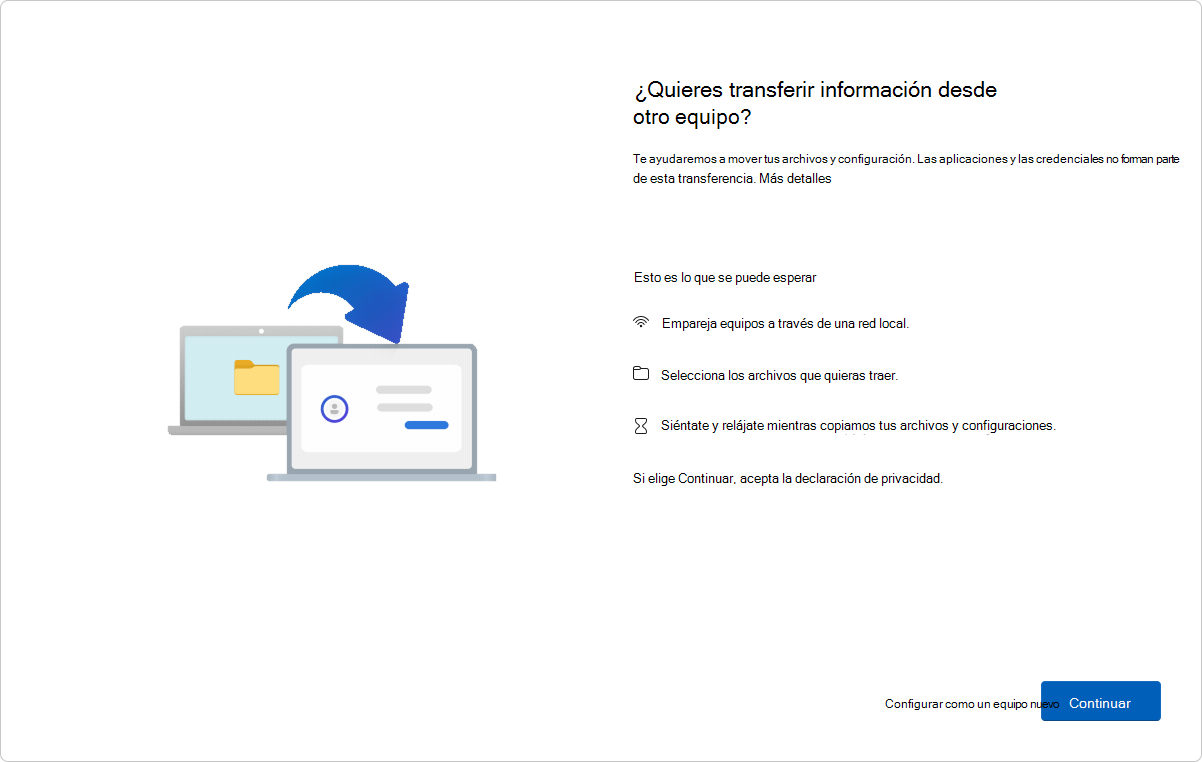
Getting a new Windows PC is always exciting, but transferring all your files, programs, and settings can be a real hassle if you don't know where to start. Work documents, photos, projects, Wi-Fi passwords, customizations—all of that is part of your daily routine, and you don't want to lose it or have to set everything up from scratch. That's why tools like Snapdrop File Transfer can make the process much easier.
Windows Backup and classic backup and restore tools allow you to transfer much of your data to another computer in a fairly controlled manner. In addition, Microsoft is introducing a new experience for transferring data between PCs connected to the same network, and there are alternatives such as LAN/Wi-Fi transfer with LocalSend or third-party software. Let's take a detailed look at all the options, what they copy exactly, and when it's best to use each one.
What is Windows Backup and what can it save?

Windows Backup is the modern Windows 10 and Windows 11 application that centralizes the backup of your preferences, settings, and certain profile elements. It's not a complete system image, but rather a backup of your configuration and part of your user environment.
This tool lets you choose which aspects of Windows you want to back up . The interface allows you to expand each category to see what it includes and enable or disable it as needed before clicking "Back up."
The main categories that Windows Backup can back up are the following:
- Installed applications (list of apps)This saves a list of your apps, especially those from the Microsoft Store, so you can easily reinstall them on your new PC. It doesn't copy the entire program, just the "inventory."
- Accessibility: preferences such as narrator, magnifying glass, high contrast, text size, or other options intended to improve accessibility.
- Accounts, Wi-Fi networks, and passwordsMicrosoft account information, known wireless networks, Wi-Fi keys, and other logins that Windows can synchronize.
- Personalization.Desktop background, colors, themes, Start menu design, taskbar, and other visual elements that give Windows "your touch".
- Language and dictionary preferences: system language, keyboard layouts, and words added to the dictionary for the spell checker.
- Another Windows configuration: various system settings that do not fit into the previous sections but define your daily experience.
To check the status of each of these options , simply expand them within Windows Backup. If you want to include a category in the backup, enable it; if not, leave it unchecked. Once you know what you want to back up, click "Back up" and the system will take care of the rest.
Transfer files and settings to a new PC with the new Windows experience
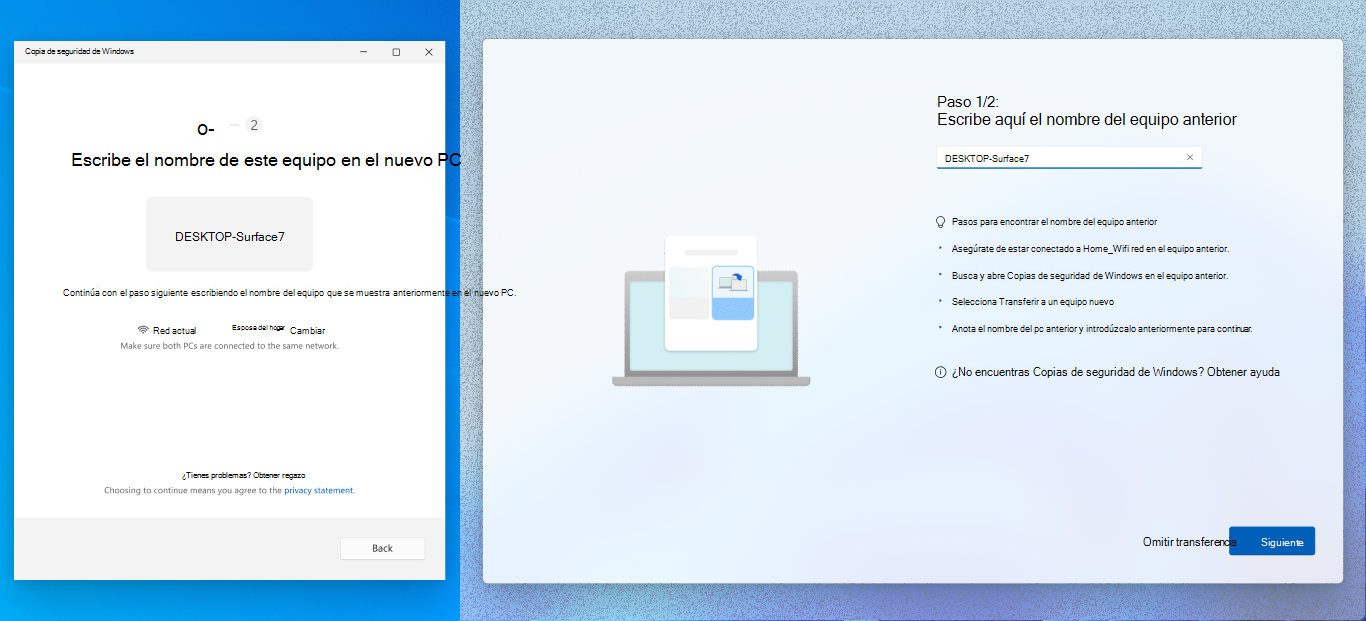
With Windows 10 reaching its end of support and the massive shift to new computers running Windows 11 , Microsoft is rolling out a revamped experience for transferring data between computers using Windows Backup, but without requiring you to create backups on external drives beforehand.
The idea is that you can connect your old and new PCs to the same local network (wired or Wi-Fi) and have Windows manage the transfer between the two PCs almost like a migration assistant. You don't need external hard drives or USB flash drives if you don't want them; everything travels over your home network.
The general workflow on the old PC is very simple :
- You open the Windows Backup application.
- You select the option "Transfer information to a new PC".
- Follow the on-screen instructions to pair both devices using a special code.
During the process, the system will display a drop-down list of folders and file types available to transfer to the new computer. You can select or deselect the items you want to transfer, which is useful if there's data you'd rather not move.
This function primarily copies :
- personal files: documents, photos, videos and other types of files stored in local folders or on different drives.
- User settings and preferences: wallpapers, themes and a good part of the customizations integrated into the system.
However, there are elements that this transfer does not include , and it is key to be clear about this to avoid surprises:
- Installed applications from the old PC (especially the classic desktop ones), which you will have to reinstall manually, except for some from the Microsoft Store that reinstall themselves when you open them.
- Saved passwords and login credentials that are not associated with the Microsoft account or Edge synchronization.
- System files and operating system filesTherefore, it is not a complete "clone" of Windows.
- Files stored only on OneDrive (because they are already in the cloud and are synchronized separately).
- BitLocker encrypted drives if you don't unlock and manage them in a specific way.
To use this direct migration experience, your new PC must meet certain requirements : it must be running Windows 11 version 2024 or later, and you must be signed in with a Microsoft account (Microsoft ID). Your old computer can be running Windows 10 or any compatible edition of Windows 11.
Using OneDrive and common errors in Windows backups
Although this copy and transfer function is closely linked to the Microsoft ecosystem , you don't have to center everything on OneDrive if you don't want to, but it is worth understanding its role because many error messages come from there.
If you encounter an error related to OneDrive when running a backup , it's usually due to one of these reasons:
- You are not signed in to OneDrive with your Microsoft account.
- You don't have enough space in your OneDrive plan for what you're trying to save.
- There is a synchronization or connectivity problem that is blocking the process.
In these cases, it's recommended to go to the OneDrive help section and check the sync troubleshooting page. There you'll find steps to force syncing, free up space, check your storage quota, or fix file conflicts.
If you don't want to use OneDrive at all —for example, because you handle terabytes of data or you're not interested in a subscription model—you can still use classic methods: local backups with "Backup and Restore (Windows 7)," system images, or direct network transfers, or use tools like Air Explorer to manage the cloud.
Does “Backup and Restore (Windows 7)” work to transfer everything to Windows 11?
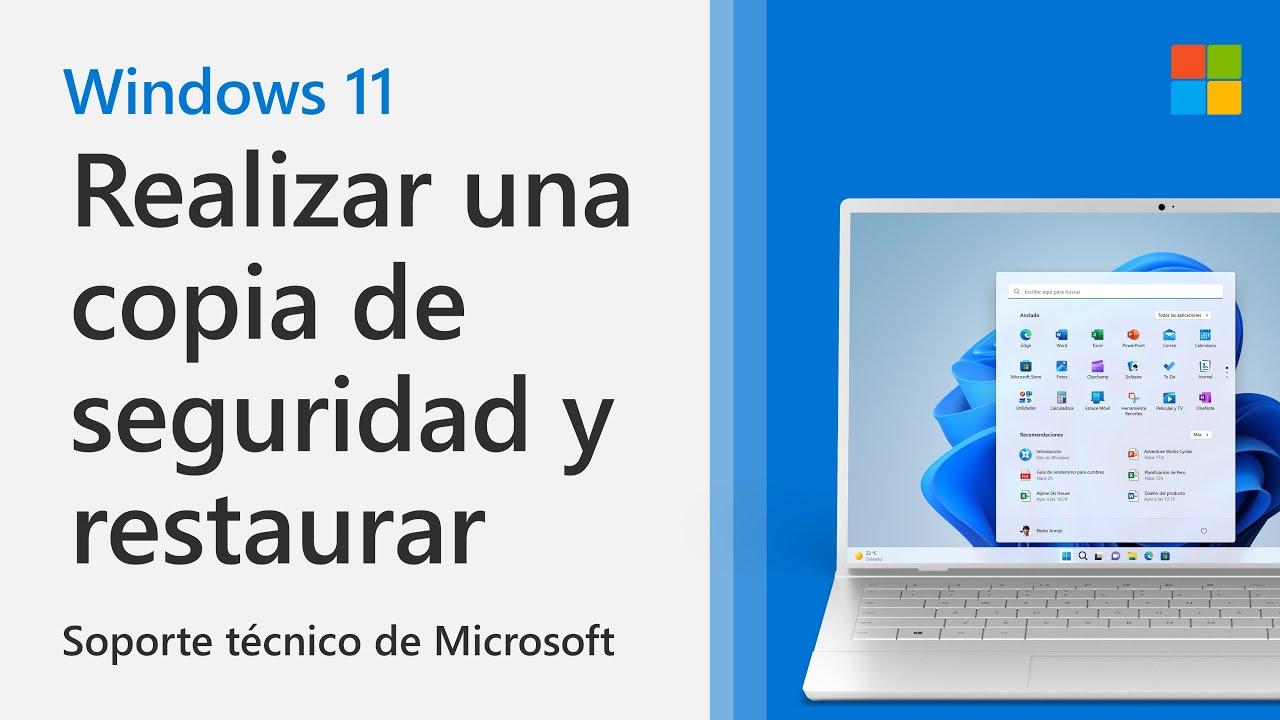
Many advanced users still use the classic "Backup and Restore (Windows 7)" panel in Windows 10 to perform weekly backups to an external drive or network location. The typical scenario: several terabytes of data, highly specialized scientific applications, and zero interest in the Microsoft Store.
The common question is what happens if you restore that backup on a new Windows 11 PC : do you get an exact replica of your file structure and logins, or are there significant limitations?
It is important to separate several points here :
- File structureIf you've backed up your files (not just a system image), you can restore documents, personal folders, and data stored in the selected locations. Generally, the directory structure is preserved quite accurately.
- Settings and accountsAlthough this tool may include some adjustments, it does not guarantee that absolutely all settings, sessions, and customizations will be applied exactly as shown in a modern Windows 11.
- Compatibility between versionsOfficially, backups made with the Windows 7 Backup and Restore Center were intended to be restored to Windows 7. Between Windows 10 and Windows 11, it usually works reasonably well at the file level, but it's not a perfect clone of the environment.
If you rely on very heavy and niche applications (for example, scientific software that takes up several terabytes and will never appear in the Microsoft Store), restoring files from this panel can return all your data and projects, but you will almost certainly have to reinstall the programs and redo some of the configuration.
In that demanding scenario, you have three main strategies :
- Continue using “Backup and Restore (Windows 7)” to keep your data safe, and manually reinstall applications in Windows 11.
- Connect both PCs to the same LAN and use the new Windows Backup experience to transfer files and preferences, assuming apps are not copied.
- Go to third-party disk cloning or system migration solutions, designed to make a 1:1 image of the old system (if the new hardware allows it).
In practical terms: restoring from "Backup and Restore (Windows 7)" in Windows 11 will return your data fairly accurately , but don't expect an exact copy of your entire environment, including user sessions. For a professional user with 3 TB of software and data, it's more of a partial solution than a complete one.
File transfer over local area network (LAN) or Wi-Fi between PCs
Another very convenient way to move large volumes of data is to use your own local network, either via Ethernet cable or Wi-Fi. As long as both computers are connected to the same router, they can "see" each other and share folders.
With a wired LAN network, the experience is especially seamless : from one PC you can explore the drives of the other, copy and paste entire folders and continue working while files are being transferred in the background.
In Windows 10 and Windows 11, in addition to the classic use of shared folders, there is the Share between devices feature , which simplifies sending files between nearby computers via the wireless network.
To use Device Sharing in Windows 10/11, the basic steps are :
- Make sure both computers are connected to the same Wi-Fi or LAN network.
- Activate the “Share between devices” option within the system settings.
- Right-click on the file you want to send and select “Share”.
- Select the destination PC from the list that appears as available.
This method is ideal for transferring specific files or moderate batches , while for massive migrations (several terabytes) it is usually more efficient to share huge folders over gigabit LAN or use an external disk, or accelerate and verify transfers with TeraCopy.
When using a network for these transfers , keep security in mind: avoid public or open networks in cafes, libraries, airports, etc., at all costs. Always work on a secure home or corporate network.
Advantages and disadvantages of transferring via LAN or Wi-Fi
Before you rush to copy half your hard drive over the network , it's worth weighing the pros and cons against other methods such as using an external drive or cloud backup.
The main advantages of local network transfer include :
- More security on private networksIf your router is properly configured and password protected, the risk of intruders is significantly reduced.
- You don't need any extra hardware.: You save yourself the trouble of using USB drives or external hard drives if you don't want to.
- Decent speedOn a gigabit wired LAN, copying large files can be very fast.
There are also some clear drawbacks :
- Speed depends on the quality of the connection: On Wi-Fi that is saturated or has a weak signal, transfers take forever.
- The teams must be physically close. or at least connected to the same router or network segment.
- On public or insecure networks, the risk skyrockets.Therefore, it is not a recommended method outside of your controlled environment.
In short, LAN/Wi-Fi is a very practical method for moving files between nearby PCs , but it does not replace a serious backup strategy: ideally, it should be combined with regular backups on external drives or dedicated systems.
What is and isn't transferred with Windows Backup on a new PC
When using Windows Backup to prepare for a move to another computer , it's important to understand that the application isn't a magic wand that recreates your entire old PC, but rather a tool to speed up the initial setup.
On a new Windows 11 PC, you can restore your existing app list, but that doesn't mean the apps will be copied or installed automatically. What Windows does is remember which programs you had and offer a way to recover them.
When you open certain apps for the first time on your new PC , some will reinstall automatically from the Microsoft Store if they're available there. Others, especially classic desktop applications or professional tools, will need to be manually reinstalled from their original installers.
What you can expect to be synchronized or transferred fairly accurately are elements such as:
- Start menu and taskbar design.
- Theme, wallpaper, and color scheme.
- Language, keyboard, and personal dictionary preferences.
- Part of the accessibility settings.
- Known Wi-Fi connections and some credentials associated with your Microsoft account.
Therefore, Windows Backup saves you time in getting "the house decorated" as before , but it does not replace the careful installation of your important applications or a complete backup of your critical data.
Other classic tools and methods for copying files and settings
Before the arrival of the modern Windows Backup app , Microsoft offered several tools for saving files and settings, many of which are still in use or at least serve as a reference to understand how things were done.
One of the most basic methods has always been manual copying : entering the user folder (for example, C:\Users\YourName) and copying libraries such as Documents, Pictures, Music, Videos and Desktop to an external disk or a network folder.
In Windows 7, Vista, XP and Server 2003 the classic recommendation was :
- Open the user folder that contains the files you want to back up.
- Copy the relevant folders to removable media (external hard drive, DVD, CD, USB memory) or to a network location.
- Repeat the operation for each user account on the team if you want to save everyone's data.
This approach has the advantage of being completely transparent : you decide what gets copied and where. The downside is that you might overlook folders that certain applications use outside of the user profile, so it's a good idea to check where each program stores its data.
In the era of Windows 7 and Vista, Windows Easy Transfer was also very present , a utility designed to move files and user account settings between PCs, even between different versions of Windows (for example, from Vista to 7 or from 7 to Vista using the appropriate version).
Windows Easy Transfer and Backup and Restore Center
Windows Easy Transfer allowed users to select files and user settings on a source computer, save them to an intermediate medium or transfer them directly via cable, network or external disk, and then restore them on the destination computer.
To start it in Windows 7, the typical sequence was :
- Click on Start and type “windows easy transfer”.
- Launch the tool from the program list.
- Follow the instructions to choose which accounts, files, and settings you wanted to transfer.
In addition, Windows 7 and Vista included the Backup and Restore Center , which allowed you to schedule automatic backups and restore files when needed. It was an integrated solution for regularly backing up your data.
The basic operation of the Backup and Restore Center in Windows 7 consisted of:
- Search for “backup” in the Start menu and open “Backup and Restore”.
- Configure where to save the copy (external disk, DVD, network).
- Choose whether to let Windows select what to copy or decide manually.
- Save the settings and run the backup.
One important detail: the backups created with this Windows 7 backup center were designed to be restored to another Windows 7 system , and the same was true for the Vista version. Although many people now restore these backups to newer systems, perfect compatibility isn't always guaranteed, especially regarding advanced configurations.
Legacy migration assistants and security recommendations
In even older versions, such as Windows XP or Windows Server 2003 , the File and Settings Transfer Wizard was offered, which allowed data to be moved from computers running Windows 2000, XP, or 2003.
The typical use of this assistant consisted of :
- Open the Wizard from Accessories > System Tools.
- Select “Old equipment” as the source.
- Choose the transfer method (network, removable disk, etc.).
- Select the data types and settings you wanted to include.
Beyond the specific tools, there are a number of backup best practices that remain valid today :
- Do not save copies on the same partition where Windows is installed or on manufacturer recovery partitions.
- Store backup media in a secure location, preferably physically separate from the computer (e.g., in another room or in a fireproof box).
- Consider encrypting your backups, especially if they contain sensitive data.
Taking these security recommendations seriously makes the difference between being able to recover your environment after a disaster or losing everything due to a disk failure or ransomware.
Taken together, the current Windows Backup options, the new network transfer experience, traditional backups, and third-party tools give you a wide range of choices for moving files and settings to a new PC with considerable control. The key is to combine several methods: use Windows Backup to maintain your preferences and app list, leverage your LAN or an external drive to move your large data, and, if needed, use specialized software to clone or migrate complex systems without relying on the cloud or OneDrive.

Table of Contents
- 1 What is Windows Backup and what can it save?
- 2 Transfer files and settings to a new PC with the new Windows experience
- 3 Using OneDrive and common errors in Windows backups
- 4 Does “Backup and Restore (Windows 7)” work to transfer everything to Windows 11?
- 5 File transfer over local area network (LAN) or Wi-Fi between PCs
- 6 Advantages and disadvantages of transferring via LAN or Wi-Fi
- 7 What is and isn't transferred with Windows Backup on a new PC
- 8 Other classic tools and methods for copying files and settings
- 9 Windows Easy Transfer and Backup and Restore Center
- 10 Legacy migration assistants and security recommendations
