- Pivot tables allow you to summarize large volumes of data without complex formulas, by reorganizing information by rows, columns, filters, and values.
- The “Summarize values by” and “Display values as” options control how the results are calculated and presented (sums, averages, percentages, differences, rankings, etc.).
- The key to working with many scenarios and tabs is to consolidate the data into clean tabular structures, avoiding mixing types and duplicating information.
- A good use of custom names, number formats, and filters turns the pivot table into a powerful dashboard for analyzing, comparing, and explaining complex data.
When you work in Excel with hundreds or thousands of rows spread across several sheets, There comes a point where doing filters and sums by hand is a real nightmareThat's precisely where they come into play. pivot tables: a tool designed to turn that chaos of data into clear, comparable summaries that are easy to explain to anyone, even if they have no idea about spreadsheets.
In this article we will look, in considerable detail, How to summarize large datasets using pivot tables in Office (primarily Excel)This guide covers how to configure value fields, the meaning of different summary functions, how to display results as percentages or rankings, and how to handle more complex scenarios such as having 30 or 40 tabs with scattered information. All of this is presented in a practical and realistic style, geared towards those who spend their days negotiating, analyzing reports, or updating budgets.
What is a pivot table and why is it so useful with large amounts of data?
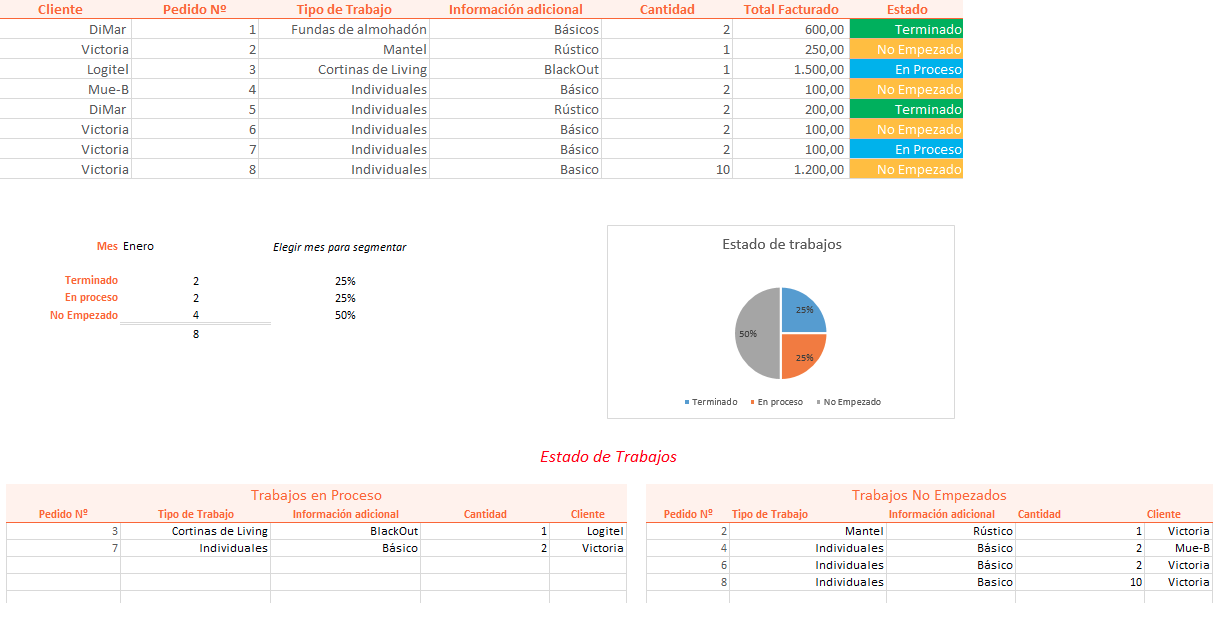
A pivot table is, essentially, an interactive summary that starts from a Excel "flat" data tableFrom there you can drag fields to different areas (rows, columns, filters and values) to see totals, averages, counts and many other calculations without writing complicated formulas.
The beauty of pivot tables is that You can reorganize the information in secondsYou can change a field from rows to columns, add a second field of values, or convert a total to a percentage of the grand total with just a couple of clicks. All this without touching the source data, which remains untouched.
Furthermore, pivot tables are ideal for tell a story with data: show what has changed between one budget and another, which items have grown the most, in what scenario you are gaining or losing margin… And all with a format that clients find much more digestible than an endless table with thousands of lines.
Finally, they are a perfect solution when you need to dispense with manual formulas y automate totals, subtotals, and cumulative totalsSimply update the pivot table to recalculate all summaries based on the source data range.
How to quickly create a pivot table in Excel
Creating a pivot table in Excel is easier than it seems. In modern versions of Office, the basic workflow is always the same: You select your data, choose the pivot table option, and then drag fields according to what you want to analyze..
The specific steps would be these:
- Prepare the source tableEnsure your data is organized in a tabular format, with a clear header row and no empty rows in between. Each column should have a unique name (e.g., Supplier, Scenario, Year, Item, Amount, etc.).
- Select the range: Place your cursor in any cell of the data table. Excel usually detects the entire range automatically if there are no gaps.
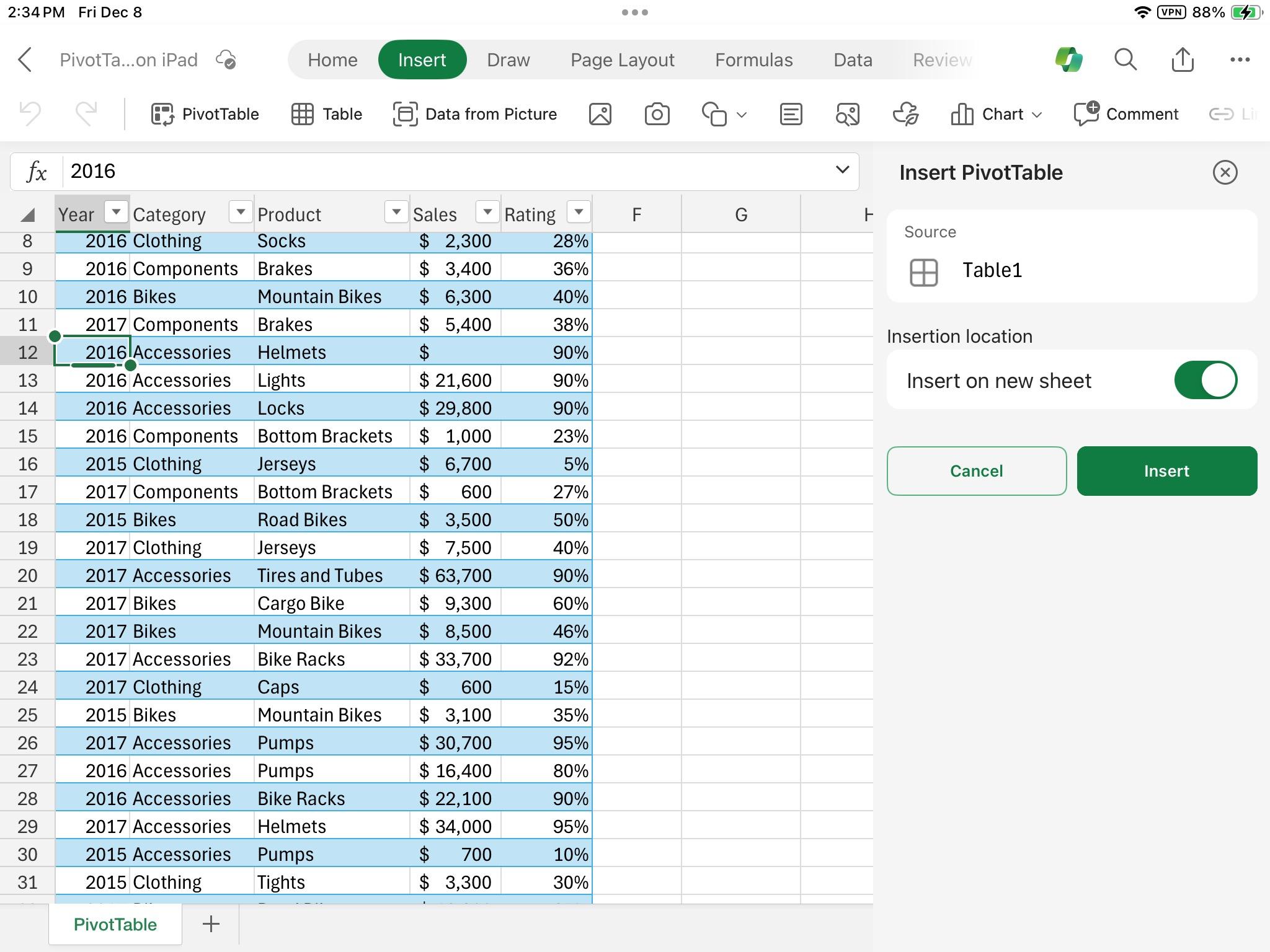
- Go to Insert → PivotTableOn the ribbon, click "Insert" and then "PivotTable." A dialog box will open where you can confirm the data range and choose whether you want the pivot table on a new sheet or an existing sheet.
- Choose the location.It's usually best to create it on a new sheet to have a clean workspace, but if you prefer to integrate it into an existing dashboard, you can place it on an existing sheet.
- Design the report by dragging and dropping fieldsIn the pivot table fields pane, drag the fields you want to analyze to the "Rows," "Columns," "Filters," and "Values" areas. Excel will then automatically generate the summary.
This basic process already allows you to assemble, in a matter of minutes, sales reports, expense analysis, scenario comparisons, or simple dashboards without writing a single formula. It's especially powerful when handling large volumes of frequently updated data.
Understanding the Values area: “Summarizing values by”
One of the key points in any pivot table is the area ValuesThis is where totals, averages, and other functions are calculated. By default, Excel tries to guess which calculation you need. If the field is numeric, use SUM; if it detects text, use COUNT..
That has an important implication: Mixing text and numbers in the same column often causes problemsIf a field that should be numeric contains a cell with text (for example, "N/A" or a hyphen), Excel may interpret it as text and apply COUNT instead of SUM. That's why it's so important clean the data thoroughly and not mix types in the fields that will go to the values area.
To change the calculation of a value field, you can do so from the pivot table design itself:
- Click the arrow that appears to the right of the field name in the Values area.
- Select option “Value field configuration”.
- In the “Summarize values by”Choose the function you want to apply (SUM, AVERAGE, MAX, etc.).
When you change the calculation method, Excel will automatically update the custom name From the field, add something like "Sum of Amounts" or "Average Amount." You can modify this text to your liking in the "Custom Name" box to display a clearer title, such as "Total Amount" or "Annual Average."
Additionally, from that same window, with the button “Number format”You can define the formatting style for the entire field (currency, decimal numbers, percentages, etc.), so you don't have to change the format cell by cell within the pivot table.
Summary functions available in the Values area
When you access the settings for a value field, on the “Summarize values by” tab you will see a list of summary functions. Each of them condenses the data in a different way And it's important to know exactly what each one does so as not to misinterpret the results.
These are the standard summary functions that Excel offers for the fields in a pivot table:
- SUM: calculates the sum of all numeric values in the field. It is the default option for numeric data and the most commonly used for amounts, quantities, and cumulative metrics.
- Count: returns the total number of (non-empty) records in the field, regardless of whether they are text or numbers. It works similarly to the COUNTA function in a spreadsheet.
- AVERAGE: calculates the arithmetic mean of the field values. Very useful when you want to see, for example, the average amount per year, per supplier, or per category.
- MAX: displays the maximum value within the dataset for that field. This is useful for detecting the highest amount, the latest date, etc.
- MIN: displays the minimum value. It complements MAX when you want to know the extremes of your data distribution.
- PRODUCTThis function calculates the product of all values (multiplying them together). It's a less common function for standard analysis, but it's available if you need that type of aggregation.
- Counting numbers: Counts how many numeric values are in the field, ignoring text. It's similar to the COUNT function in a regular spreadsheet.
- STDEV: estimates the standard deviation of a muestra of population. It is used when the data represents only a part of the total possible.
- DESVESTP: calculates the standard deviation of the entire población of data that is being summarized, assuming that it is not a partial sample but the complete set.
- VAR: calculates the variance of a sample, that is, how dispersed the data is with respect to the mean, considering that you are working with a sample.
- VARP: calculates the variance of the entire population, similar to VAR but applied to all data.
- Different countThis counts the number of unique values in a field. It's ideal for knowing how many different customers you have, how many unique items appear, etc. It is only available when you use the Data Model in Excelnot in all standard pivot tables.
Choosing one function or the other will make the difference in answering questions like “How much has been spent in total per stage?” (SUM), “how many items are there per supplier?” (Count), or “what is the typical variation of amounts between different years?” (STDEV/VAR).
Display the results differently: “Show values as”
In addition to changing the summary function, Excel offers another very powerful tab in the values field settings: “Display values such as”Here you're not changing the base calculation (it's still a sum, an average, etc.), but the way in which the result is presentedFor example, as a percentage, difference from a base value or accumulated total.
To access these options, return to the “Value Field Settings” box and go to the tab “Display values such as”You'll find a list of custom calculations that you can apply to the result of your summary function.
Some of the most useful options are the following:
- Without calculation: displays the value as is, without any additional transformation. This is the default behavior.
- % of the overall total: displays each value as a percentage of the overall pivot table total. Very useful for seeing what share each category, scenario, or year represents of the total.
- % of total columnsEach value is expressed as a percentage of the total in its column. This is ideal when you want to compare how the relative weight is distributed between rows within the same column.
- % of total rows: Same as the previous one, but using the total of each row as a reference. You will use this when the main dimension of analysis is in rows.
- % of: allows displaying values as a percentage of a Base element within Base campFor example, you could see how much each year represents compared to base year 1, or each scenario compared to a reference scenario.
- % of total main rows y % of total main columnsThese calculate the percentage of the parent element's value in hierarchical row or column structures. They are very useful when working with levels of detail (e.g., category → subcategory).
- % of the main total: displays each value as a percentage of the total of the selected base element, combining both axes of analysis.
- Difference of: transforms the values into the difference with respect to a base element (e.g., current scenario minus previous scenario) in the chosen base field.
- % of the difference of: same as the previous one, but expressed as a percentage. It allows you to see how much a value has increased or decreased relative to the base element.
- Total accumulatedThis function converts successive values into a cumulative total over the base field. It is very useful for time-series analysis (months, years) or for visualizing progressions.
- % of the total in: combines the concept of percentage and cumulative total according to the base field you select.
- Sort from least to greatest: assigns a numerical ranking starting from the smallest value (1 being the lowest). Each larger value has a higher ranking number.
- Sort from highest to lowest: creates the ranking in reverse: 1 is the largest value and the following represent increasingly smaller values.
- Table of ContentsCalculate a relative index using this formula:
((value in cell) × (Grand total of Grand Totals)) / ((Total sum of rows) × (Total sum of columns)).
It is a more advanced calculation to compare the relative importance of each intersection with respect to the total.
With these options you can, for example, moving from viewing absolute amounts to viewing percentage shares or variations between scenarios, without duplicating data or creating new columns in the source.
If the chosen calculation requires it, you will also need to specify a Base camp (for example, “Scenario” or “Year”) and a Base element (for example, “Initial scenario” or “2022”) so that Excel knows what the reference value is to compare against.
Display the same data as both a sum and a percentage at the same time
Often it is useful to see them simultaneously the absolute value and its percentage with respect to the total or with respect to a base element. In a pivot table, this is achieved with a very simple trick: drag the same field to the Values area twice.
The procedure would be:
- In the pivot table fields pane, drag the numeric field (for example, Amount) to the area of Values.
- Drag the same Amount field back to Values. You will now have two value fields based on the same data column.
- In the first one, go to “Value field settings” and in “Summarize values by” leave the function you want (usually SUM) and “Display values as” in “No calculation”.
- In the second one, also go into the settings and, keeping SUM or another base function, change “Display values as” to % of the overall totalor the option that best fits (e.g., % of the difference, % of the total rows, etc.).
In this way, in the same pivot table you will see, for example, the sum of the amounts and their percentage of the totalThis makes it much easier to explain to a client not only how much difference there is between scenarios, but also how much weight each item has in the whole.
Change the name and format of the value fields
When you change functions or ways of displaying values, Excel tends to generate automatic names like "Sum of Amount," "% of Grand Total Amount," etc. While these are useful, They are not always the clearest when presenting a report to someone who is not proficient in pivot tables.
In the “Value Field Settings” box you can:
- Watch the Original name, which is the actual name of the field in the original data range.
- Modify the Custom namewhich is what's shown in the pivot table. Simply click in the text box and type something more understandable, such as "Total current scenario", "% of total", "Annual average by provider", etc.
In addition, with the button “Number format”The standard "Format Cells" dialog box opens, where you can:
- Choosing Currency For amounts, use the symbol and number of decimal places that you are interested in.
- Use Number with thousands separator for large values.
- Apply Percentage with the appropriate decimal places.
- Select any other format (date, custom, etc.) depending on the data type.
This formatting will be applied consistently to all cells in that value field within the pivot table, saving time and preventing your report from having inconsistent and difficult-to-read formats.
Summarizing data spread across many tabs: the case of scenarios
A very common situation in contract negotiation environments, software budgets, or multi-year planning is having Dozens of identical tabs with different scenariosFor example, one sheet per date or budget version, all with the same field structure but with different data.
Imagine a template where you work with between 10 and 40 tabsEach sheet represents a scenario (usually a different proposal date). Each sheet includes several years, several sections, and also explanatory text and headers that certain clients want printed. The result is that each tab contains:
- Several separate data blocks (Section 1, Section 2, etc.).
- Rows that are relevant data for the pivot table.
- Rows that are just headings or descriptions, which you don't want to mix with the data.
Ultimately, to build a consolidated pivot table, many people do the following: Manually copy the relevant rows from each tab to a sheet called “consolidated”where they combine all the scenarios. Then they create the pivot table from that sheet. It's an approach that works, but it has several problems:
- Es Slow and prone to errorsespecially if it has to be repeated often.
- If you then change something in a scenario tab, you have to remember to also update the consolidated sheet, which creates duplicate data.
- When customers modify individual tabs, they often assume that the pivot table will update itself, when in reality the consolidated range has not been touched.
In complex scenarios, where each sheet can have from 10 to several thousand rows, and they are not always in the same range (e.g., tab 1 uses rows 8-33, 56-70, 101-300; tab 2 uses rows 12-16, 44, 90-99, 456-848, etc.), Creating named ranges per block becomes unfeasibleIf each tab needs 15-20 different ranges, handling that volume of references is very cumbersome.
Power Pivot or the Data Model might be a more elegant solution, but in many cases they represent more of an overload than necessary, especially on Macs or less powerful computers, and for many advanced business users it may be excessive for everyday use.
Practical strategies for consolidating large, scattered datasets
Without resorting to overly advanced tools, you can follow some approaches to to make the consolidation of data scattered across multiple tabs more manageable for your pivot tables:
- Define a flat data structure per scenarioWhile you keep your tabs "pretty" for printing, try to reserve a clearly defined tabular block (without intermediate headers) on each sheet where you put all the data you really want to analyze with a pivot table. Any decorative or descriptive text can go above or in another area, so you have a single, contiguous range that you can use.
- Use a "master" sheet with all the rowsInstead of copying manually each time, you can design the model so that the consolidated sheet is the only "serious" source of data, and even automate the data dump from the tabs using formulas, Power Query (on Windows), or a bit of VBA If you're comfortable using macros. The key is for the client to understand that Pivot tables are based solely on that consolidated sheet..
- Label the context fields very wellWhen consolidating data, add columns that clearly indicate which tab the data comes from: Scenario, Date, Version, etc. This will allow you to easily filter and compare scenarios later in the pivot table.
- Decide which rows should never be included in the pivot tableInstead of going "by eye" each time, define rules (for example, only rows where the "Item" column is not empty and the "Type" column is "Detail"), and apply those criteria consistently to reduce manual work.
The important thing is to accept that, when you work with 35 or 40 eyelashes with slightly different structures, The main problem is not the pivot table itself, but how the source data is organized.The more you can standardize them into a consolidateable tabular format, the less you will struggle when updating and explaining the results.
Extra tips for getting more out of pivot tables with large amounts of data
When your pivot tables are populated with very large ranges (both in rows and columns), it's advisable to follow a few best practices to not to lose control and to keep the report understandable for all involved.
Some useful tips are:
- Keep data types cleanAvoid mixing text, numbers, and empty cells in the same column if that column will go into the Values area. If you need to mark something as "invalid," use a numeric code (for example, -1) and explain it in a separate legend.
- Don't overload too many fields at once.A pivot table with 8 rows, 5 columns, and 4 values is practically impossible to read. It's better to create several simpler summaries than one incomprehensible one.
- Refine visible namesUse the "Custom Name" field to ensure the headings make business sense, not just technical sense. This makes the report "tell the story" much more naturally.
- Explain the transformationsIf you use "Show values as" calculations (percentages, differences, cumulative totals, rankings), make it clear in the report itself what they mean, so that no one interprets a percentage as an absolute value or vice versa.
- Take advantage of filters and segmentationsWith a lot of data, it's better to allow the user to filter by scenario, year, provider, or other key dimensions, rather than trying to show it all at once.
Applying these ideas, pivot tables become a kind of very flexible control panelwhere you can go from an overview to specific details without recalculating or modifying formulas.
Ultimately, mastering options like "Summarize values by" and "Show values as", choosing the right summary functions (SUM, AVERAGE, MAX, Distinct Count, etc.) and thoughtfully designing data consolidation from multiple tabs allows you to transform piles of chaotic Excel spreadsheets into clear, comparable, and highly persuasive reportsThat difference is noticeable when you have to justify decisions, negotiate with suppliers, or simply demonstrate that you have control of the numbers, even in the most complex scenarios.

Passionate writer about the world of bytes and technology in general. I love sharing my knowledge through writing, and that's what I'll do on this blog, show you all the most interesting things about gadgets, software, hardware, tech trends, and more. My goal is to help you navigate the digital world in a simple and entertaining way.