- Secure deletion requires overwriting data or wiping free space, not just emptying the Recycle Bin.
- On HDD the overwrite passes work well; on SSD Secure Erase/TRIM is recommended.
- Windows offers cipher /W, format /P, and DiskPart; SDelete instantly deletes what you've deleted.
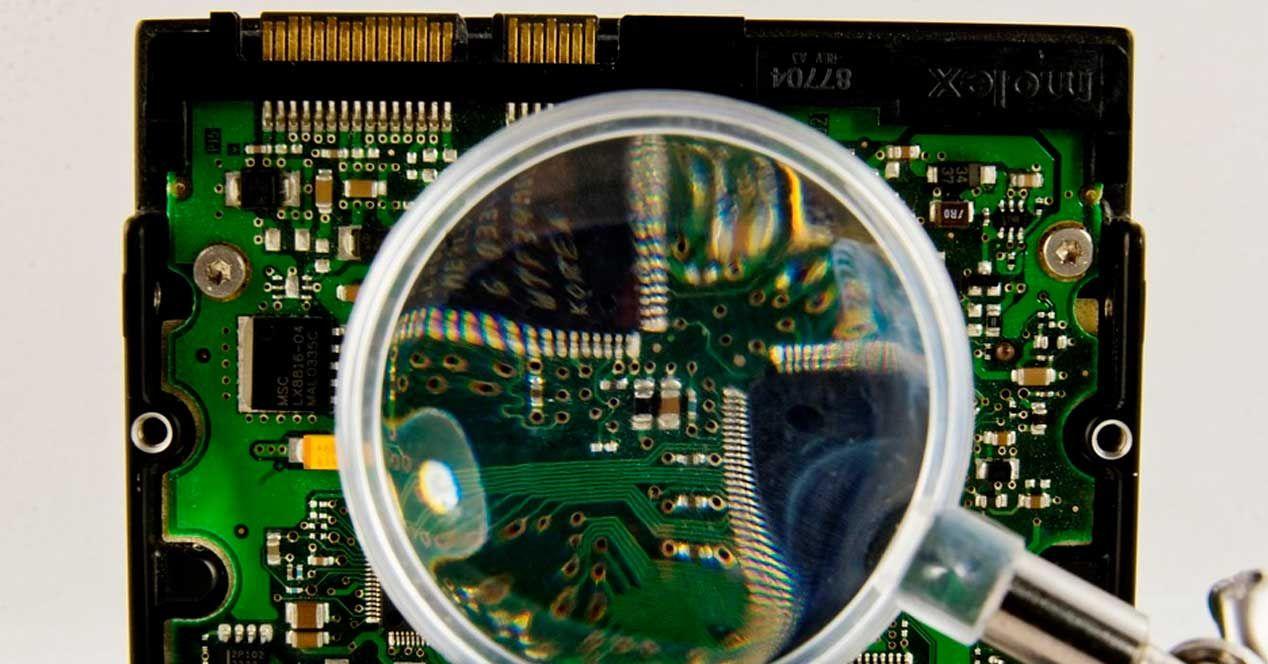
When you delete a file in Windows, it only marks its space as available; the data remains there until it's overwritten. If you want it to be unrecoverable, you need to securely erase it., either by overwriting the content, wiping free space, or using specific utilities that apply deletion patterns.
In this guide we bring together the best of several approaches: commands Windows to instantly delete native methods such as cipher /W y format /P, third-party utilities (including the classic SDelete from Sysinternals) and advanced options in Linux Live for those seeking the maximum guarantee. We also explain what happens when you delete on HDD and SSD., when each method is appropriate and how to deal with stubborn files or entire drives.
Why you need a secure and unrecoverable erase
It is not enough to empty the Recycle Bin or do a quick format; recover deleted files on PC if they haven't been overwritten. If you're selling, giving away, or recycling a PC, USBWhether you're using an SSD or HDD, a secure wipe prevents leaks of passwords, bank details, contracts, or confidential content.
In professional settings, insufficient erasure can lead to data leaks that result in fines and loss of trust. For businesses, secure deletion and data destruction policies are critical. both to comply with regulations and to stop the spread of malware that could be hidden in repurposed units.
On USB flash drives and external drives, delete normally or forma tear with default settings it does not guarantee anything. The golden rule is to overwrite previous content (or run the native sanitization command on the SSD) so that no recoverable trace remains.
Before you securely erase, remember to back up anything you still have. Once you apply secure erase, there is no going back., not even with recovery software.
Delete thousands of files at full speed with Command Prompt
When a folder accumulates tens of thousands of files, The Explorer can go on foreverThe command line speeds up the process and avoids one-by-one confirmations, but you must spell the path correctly to avoid deleting unwanted items.
- Opens Symbol of the system as administrator. Search cmd in the Start menu and choose Run as administrator to have full permissions.
- Navigate to the destination folder or copy its path from Explorer. With cd you can go to the exact directory, For example:
cd C:\Users\TuUsuario\Downloads\Limpieza - Delete all files in that folder and subfolders, silently in the console, with:
del /f /q /s *.* > nul. Force delete. Key parameters: /f force read-only deletion, /q removes confirmations, /s go down by subdirectories, and > null mute the output to gain time. - Go up a level with
cd..and remove the folder structure with:rmdir /q /s NOMBRE_CARPETA. Here /q avoid questions and /s delete recursively; you can use full or relative path.
With these two commands you clean the tree quickly. Attention: There is no trash or undo; Double-check the path before pressing Enter.
Native methods in Windows: delete directly and without going through the Recycle Bin
For single files or small folders, Windows has several ways to bypass the Recycle Bin. They are practical, but do not overwrite the content by themselves, so it's a good idea to combine them with free space wiping if you're looking for unrecoverability.
- Keyboard shortcut: Select the file and press Shift + Del. Windows deletes it without sending it to the Trash. You will confirm in a dialog box.
- Context menu: right click on the item and Delete; then empty the Trash with another right click and Empty Recycle Bin.
- Explorer Ribbon: On the Home tab, the arrow under Delete offers Permanently remove. It's the visual way to skip the Trash.
- Command Prompt: usa
del /F RUTA\AL\FICHEROto force deletion of a file, orrmdir /S RUTA\AL\DIRECTORIOfor complete folders. Fast and direct when the GUI doesn't cooperate.
PowerShell and CMD for force deletion (folders, recursive, forced)
PowerShell makes it easy to delete entire trees with a single command. It is ideal for automating and avoiding blockages.
– Open PowerShell (search for PowerShell in Start) and run: Remove-Item -Path C:\RUTA\AL\OBJETIVO -Recurse -Force. -Resource go down by subfolders and -Strength attempts to circumvent restrictive attributes.
In CMD the equivalent is combine del y rmdir as we saw, or use filters for extensions. With guardrails like /q and /s you will avoid confirmations and save time. when the volume of files is enormous.
If a process keeps a file open, the delete will fail. Close involved applications or restart Safe Mode to release the locks and retry the deletion.
SDelete (Sysinternals): Instant erase and overwrite
Deleting without overwriting leaves traces; that's where SDelete comes in. This Microsoft utility erases and fills the physical location with data, drastically reducing the chances of recovery.
Basic usage: download SDelete, extract the ZIP and, from cmd, run: "C:\ruta\a\sdelete.exe" -p 5 C:\RUTA\AL\FICHERO. Parameter -p marks overwrite passes (e.g. 5). The more passes, the longer and more difficult it is to recover..
You can also apply it to folders, with options to handle alternate flows. It's a pragmatic solution when you need to make sure that what's been deleted stays covered. immediately.
What Happens When You Erase: HDD vs. SSD (and Why It Matters)
On HDDs, data is stored in contiguous sectors, and erasing only marks the space as free. Until other data occupies it, it remains recoverable.That's why classic overwriting works so well on mechanical drives.
SSDs use wear leveling and logical addresses; When you delete, the OS forgets the file but the drive actually cleans it after a TRIM command or during garbage collection. Repeated overwriting of SSDs does not always hit the same physical block, so It is preferable to use Secure Erase or sanitize through the manufacturer's own function.
To identify the type of unit, open the Device administrator, expand Disk Drives and review the model. This way you can choose the optimal erasure method without unnecessarily shortening the lifespan..
Whatever the medium, remember that deleting is not the same as overwriting. Combine erasure with free space cleaning or use secure erase tools to close the door to recoveries.
Wipe free space and secure formatting with native tools
Windows comes with powerful commands to undo the gaps left by deleted files. The star is cipher with its /W option, which fills the free space with patterns.
- Wiping free space on a drive (e.g. F:):
cipher /W:F. The command ignores existing content and overwrites free space to thwart recovery techniques. - Formatting with passes:
format F: /P:2overwrites the volume twice with random numbers before formatting. It is slower than a normal format, but much safer.. - DiskPart to completely empty a disk: open cmd as admin, run
diskpartand later:list disk→select disk X→clean all. clean all writes zeros to the entire disk (Attention: destroys all partitions and data).
Complement with maintenance: execute cleanmgr (Space Cleanup), delete temporary files by opening Run and typing temp, % Temp%, prefetch and the folder %windir%\SoftwareDistribution\Download. You can also use Microsoft PC Manager for deep cleaning and disable startups.
Erase entire drives: options with and without interface
If you want to leave a unit ready for reuse or sale, the graphical route can help you. Some partition managers facilitate multi-pass deletions. and guided steps.
There are suites like AOMEI that include “Delete Large Files” (scans files larger than 16 MB, avoids critical system files, and marks sensitive files in red) and “Shred Files” to force destruction. They usually ask for double confirmation to minimize errors. and improve the visibility of what is being deleted.
In this type of tool, the typical operation involves selecting a partition, scanning, selecting files, and confirming the deletion. If you are looking to clean up your system disk, you will need a means of Boot to be able to act without being blocked by Windows.
For experienced users, CMD and DiskPart are more than enough; But if you prefer GUIs and pre-lists to decide, third-party utilities save time. and reduce shocks.
Third-party programs in Windows for secure erasure
- Eraser: integrated into the context menu, allows shred individual files or wipe free space with configurable algorithms (Gutmann, DoD, etc.).
- DiskWipe: portable app for USB, SD, HDD; you choose file system and wipe pattern from a simple interface with visible progress.
- HDD low level format: low level format, leaving sectors at zero; useful for mechanical drives that you don't plan to keep as is.
- CCleaner and AVG/Avast security suites: include secure drive erase and file shredders to prevent unwanted recoveries.
- Permadelet (open source): minimalist approach to delete files and folders without a trace, ideal if you are looking for something light.
Linux Live: on-demand overwrite (dd, shred, wipe, scrub)
Booting a Live distro (Ubuntu, SystemRescue) allows you to erase discs without interference of the system in use. Console classics are very effective.
- dd: To dump random over an entire disk:
dd if=/dev/urandom of=/dev/sdX bs=4096. You can repeat this several times for added security. on HDD (be careful, it is very slow). - shred: designed for secure erasure:
shred -n 5 -vz /dev/sdX. -n defines passes, -v shows progress and -z ends with zeros; optional--random-source=/dev/urandom. - Wipe: erase devices with multiple passes and cleaning metadata:
wipe -kqD /dev/sdXfor a thorough deletion. - scrub: applies predefined patterns (e.g. DoD):
scrub -p dod /dev/sdX. Great balance between robustness and time on magnetic disks.
USB drives and real-life cases: when and how to act
Securely erase a USB drive when you're giving it away or selling it, when you're decommissioning it, or if it contains sensitive data that you no longer need. Quick formats are not enough and a simple deletion does not protect you. if the device changes hands.
On Windows, two simple tactics: cipher /W:LETRA to clear free space without touching the current one, and format LETRA: /P:N to format by overwriting N passes. In just a few steps you leave the unit ready and without a trace.
If you prefer an interface, DiskWipe and Eraser simplify the process. For an added layer, you can fill the drive with harmless data and erase it again., so that the last recoverable content is harmless.
In macOS, Disk Utility offers security options when erasing; choose the multi-pass one if the hardware allows it to approximate the secure overwrite effect.
Files that resist, temporary and maintenance
If a file won't delete, it may be in use, damaged, or protected. Reboot, use Safe Mode or a shredding tool to force its removal.
To gain space and organize your system, clean up temporary files in Run with temp y % Temp%, delete prefetch and the cache of Windows Update en %windir%\SoftwareDistribution\Download. Then run the Cleanmgr, marking everything. and, if you wish, finish with cipher /W so that the newly freed space is overwritten.
Microsoft PC Manager adds a deep cleaning and startup control de apps, useful for reducing waste and speeding up startup.
Corporate Environments: Risk, Compliance, and Malware
In companies, USB drives are common vectors of leaks and infection. Implement secure erase procedures before recycling or repurposing drives and combines with encryption in case they get lost.
In addition to policies and awareness, use tools that avoid deleting critical system files and record the operations. This facilitates audits and provides traceability. in the face of incidents or regulatory requirements.
If a device may have harbored malware, a secure wipe reduces the risk of spreading it when reused. The less residue left, the less attack surface you offer to malicious actors.
Extreme options: demagnetization and physical destruction

When privacy is non-negotiable and the unit is not going to be reused, physical destruction is final. In HDD, it punctures the platters and deforms the casing.; on SSDs, break the NAND chips to render them unusable.
Degaussing erases HDD by altering its magnetic field. It does not work on SSDs and usually requires specific equipment., which is why it is used in contexts with high security requirements.
Methods such as industrial grinding, extreme heat or chemicals leave the media unrecoverable. Go to specialized services and recycle responsibly to minimize environmental impact.

Passionate writer about the world of bytes and technology in general. I love sharing my knowledge through writing, and that's what I'll do on this blog, show you all the most interesting things about gadgets, software, hardware, tech trends, and more. My goal is to help you navigate the digital world in a simple and entertaining way.