- First diagnose: connection, reader, drive letter and RAW/unallocated status.
- Repair with native tools: Error Checking, CHKDSK and DiskPart.
- Recover data before forma tear; use specialized software if it does not mount.
- They foresee future failures: safe expulsion, drivers up to date and quality cards.

SD and microSD cards are small, inexpensive, and incredibly useful, but they're also very easy to corrupt if removed without ejecting, if there's a power outage, or if the reader malfunctions. If Windows prompts you to format the card, if it appears as RAW, or if the contents aren't displayed, don't assume your data is lost: there are several ways to repair the file system and recover your information from Windows, step by step.
This guide covers everything from basic connection checks to advanced methods using CHKDSK (the graphical error-checking tool), Disk Management, and DiskPart, as well as guidelines for recovering files, fixing drive letters, dealing with incorrect capacities and problematic drivers, and even when to seek professional help. The goal is to help you repair your damaged SD card with minimal risk and, if necessary, recover your files first.
Signs of a damaged SD card and common causes
Before taking any action, it's important to identify the symptoms and understand what causes them. Detecting the problem early allows for a cautious approach and prevents it from worsening.
- Extreme slowness when typing: The camera or mobile phone spends a few seconds “thinking” after shooting or recording.
- Windows detects the card but requires formatting: : Formatting warning appears when trying to open it.
- It can be opened but it is “empty”: : Folders and files are not visible despite taking up space.
- It doesn't appear in Explorer but it does appear in Disk Management.: : usually with RAW file system or unallocated space.
- It does not appear in Explorer or Disk Management: : Possible reader, port, or controller failure.
- Incorrect capacity: : 64GB card shows 32GB or less.
- Unknown files with strange names or without extension, sometimes by malware or file system errors.
Among the most common causes are unsafe removal, power outages, bad sectors due to wear , viruses, outdated drivers , incompatible formats (e.g., using exFAT on older equipment), drive letter conflicts , humidity or shocks, and even slots with loose springs or faulty adapters.
Before you repair: Protect your data
The golden rule is to try to save the data first . If the card is still readable, copy as much as you can to another drive or the cloud. If Windows insists on formatting or the file system is RAW, consider creating a byte-by-byte backup with a cloning utility or recovery software that allows disk imaging; this way you'll be working on the image and not the original.
You can also use data recovery software if you can't open the card (popular options include EaseUS, Recoverit, Disk Drill, Recuva, PhotoRec, iCare, and Yodot). The typical workflow is to connect the card, perform a deep scan, preview the data , and then recover it to a different location on the card to avoid overwriting it. If the card shows physical signs of damage (cracks, bends), stop any DIY attempts as soon as possible and consider sending it to a lab.

Connection and reader checks
A poor connection can simulate a corrupted file system . Before resorting to repair tools, rule out the basics.
- Change port USB or use other equipment to rule out power or host driver problems.
- Use another reader or adapter: For microSD, the adapter is critical; try the manufacturer's adapter or a trusted brand.
- Try on another device (mobile, camera, Smart TV, console) to check if the problem is with the PC.
- Gently clean the contacts with a dry cloth; avoid liquids and products that could damage the chip.
If the card appears after these tests , take the opportunity to copy any important files. If it doesn't appear in Disk Management, continue with driver and diagnostic troubleshooting.

Make the drive visible in Windows
If the card is detected but does not appear in Explorer , it may not have a drive letter or it may be unassigned/RAW.
Change or assign drive letter
A conflicting or missing drive letter makes the card "invisible" . You can reassign it from Disk Management.
- Press Win + X and go to 'Disk Management'.
- Locate the card, right click and 'Change drive letter and paths'.
- Add or change the letter and confirm.
After this change, Windows reinitializes the volume and in many cases you will be able to log in and copy data.
Create a volume if the space is “unallocated”
When the card appears with unallocated space , there will be no file system or mountable volume.
- In 'Disk Management', right click on the unallocated space > 'New single volume'.
- Follow the wizard, assign a letter and choose file system (FAT32 for ≤32 GB, exFAT or NTFS for larger capacities).
Warning : This will format your drive. If you need your data, try to recover it first using specialized software.
If the volume appears as RAW
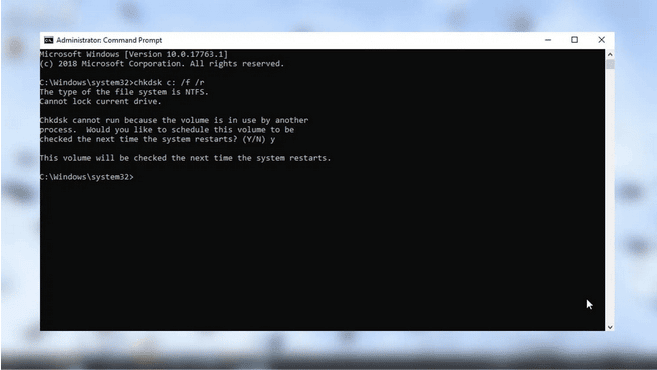
RAW indicates that Windows does not recognize the file system . Sometimes CHKDSK can help if the MFT is not corrupted.
- CHKDSK test (below you have the commands). If it returns that the type is RAW and does not operate, recover data first.
- Once the information is safe, format to FAT32, exFAT or NTFS depending on use and capacity.
Fix logic errors with native tools
Windows includes utilities to check and repair file system errors in both graphical and console modes.
Error checking (graphical interface)
Use the 'Check' option from the drive properties if the volume mounts but exhibits strange behavior.
- Open Explorer, right click on the card > 'Properties' > 'Tools' tab.
- Click 'Check' and let it finish. It may take several minutes.
This tool automates CHKDSK-like checks and repairs common logical errors.
CHKDSK via console: recommended commands
CHKDSK detects and corrects file system errors and bad sectors . Run the console with administrator privileges.
- Open Start, type cmd, Run as administrator.
- Useful commands:
chkdsk X: /f(corrects logical errors),chkdsk X: /f /r(also locates bad sectors and attempts to recover data),chkdsk X: /f /r /x(disassemble before scanning). Replace X by the letter on the card.
Important : If there are bad sectors, the repair may move data; as a precaution, try cloning or recovering first if the content is critical.
Show hidden files and repair attributes
Many "missing files" are still there but hidden . You can unhide them through Settings or with attribute commands.
- In Explorer, 'View' menu > activate 'Hidden Elements'. Then check the card again.
- By console as administrator:
attrib -h -r -s X:\*.* /s /dto remove hidden, read-only, and system attributes from all elements.
Avoid blindly applying attributes to the entire disk if you don't know what you're doing ; focus on the folders where you expected to see your files.
Check Windows system files
If you suspect that the fault comes from Windows and not from the card (general erratic behavior), executes sfc /scannow in an administrator console to repair system files that could affect drivers and mounts.
Reader and card drivers
A corrupt or obsolete controller causes cards to become "invisible" even when they are in good condition.
- Win + X > 'Device Manager'.
- Expand 'Drives' or 'Devices' portable’, right click on SD > 'Uninstall device'.
- Disconnect the card, restart the computer and reconnect. Windows will install the driver automatically.
- If necessary, updates from 'Update Driver' or download from the reader manufacturer.
When the SD card does not appear anywhere in the system, try other readers and ports before concluding that the card is damaged.
Reduced capacity or damaged partitions: Use DiskPart with caution

If the card shows less capacity than it actually has or doesn't allow formatting from File Explorer , you can restructure it using DiskPart. Warning : This will erase all contents; recover your data first if needed.
- Open a console as administrator and type
diskpart. list diskto see the discs and identify the number of the card (look at the size).select disk N(replace N with the correct number).cleanto delete the partition table.create partition primaryto create a new partition.format fs=fat32 quickoformat fs=exfat quickoformat fs=ntfs quickas needed.assign letter=Xto assign a letter.
This usually restores full capacity and also solves corrupt partition structures.
Write protection and permissions
If you can read but not write or delete , check the SD card's side lock (on microSD cards, this depends on the adapter). Set it to the unlocked position.
If Windows says “write protected” and the insurance is fine, in DiskPart you can run attributes disk clear readonly after selecting the correct disk for remove the read-only attribute Of the device.
If Windows doesn't see it: alternatives to access the data
When the PC does not recognize the card, but there is no obvious physical damage , try other access methods before giving up.
- other operating system: A Linux live (USB) mounts more file systems and sometimes reads what Windows doesn't.
- Other device: mobile phones Android, cameras or televisions can read and allow the data to be copied to another medium.
- Another external reader: rules out failures of the laptop's internal reader.
If you gain access through any of these methods , first copy the critical folders and then attempt the repair from within Windows.
“Unsupported file system”: causes and solutions
This message indicates that the format is not recognized by the system or is corrupted . This usually happens when formatting devices that use non-standard formats, due to corruption, or outdated drivers.
- logical damage: Corruption due to improper ejection, bad sectors, or malware.
- Improper format: for example, exFAT on older computers or embedded systems that only read FAT32.
- Outdated drivers: The host does not interpret the volume correctly.
- Hidden files and errors which prevent listing the content despite taking up space.
What to do: try chkdsk X: /f o /f /r, update drivers from the Device administrator, show hidden files and if there is no way to ride, recovers data and formats from Disk Management by choosing a compatible system.
When files “do not appear” but there is used space
Just because you don't see files doesn't mean they've disappeared ; they're often hidden or the index is corrupted.
- View hidden items from the Explorer and remove attributes with
attrib -h -r -s. - Search fragments de downloads video (e.g. m4s extensions) if you suspect segmented files.
- Antivirus/antimalware to remove infections that hide and create shortcuts.
If they still aren't listed , use recovery software with a deep scan and save the recovered files to another drive . There are widely used solutions (EaseUS, Recoverit, Disk Drill, Recuva, PhotoRec, iCare, Yodot) with preview and file type filtering features.
Format: last option when you already have a copy
A quick format marks the space as free without physically erasing the data , but it's not always advisable for an unstable memory card. If you've recovered important data, format it from Disk Management or using the Explorer wizard.
- 'Disk Management' > right click on the card > 'Format'
- Uncheck quick format if you want a more in-depth verification (it will take longer).
- Choose file system suitable: FAT32 for ≤32 GB, exFAT or NTFS for larger capacities or files >4 GB.
If formatting fails or the capacity is still incorrect, repeat with DiskPart (clean, create partition primary, format).

Passionate writer about the world of bytes and technology in general. I love sharing my knowledge through writing, and that's what I'll do on this blog, show you all the most interesting things about gadgets, software, hardware, tech trends, and more. My goal is to help you navigate the digital world in a simple and entertaining way.