- Bulk Rename Utility allows you to rename large volumes of files by applying advanced patterns such as replacements, numbering, and formatting changes.
- The built-in preview shows how the names will look before applying changes, reducing errors even in batches of thousands of files.
- It is a free tool for personal use that complements and surpasses basic Windows renaming and PowerShell commands.
- It is especially useful for organizing photos, TV series episodes, and technical documents generated by applications like Revit.
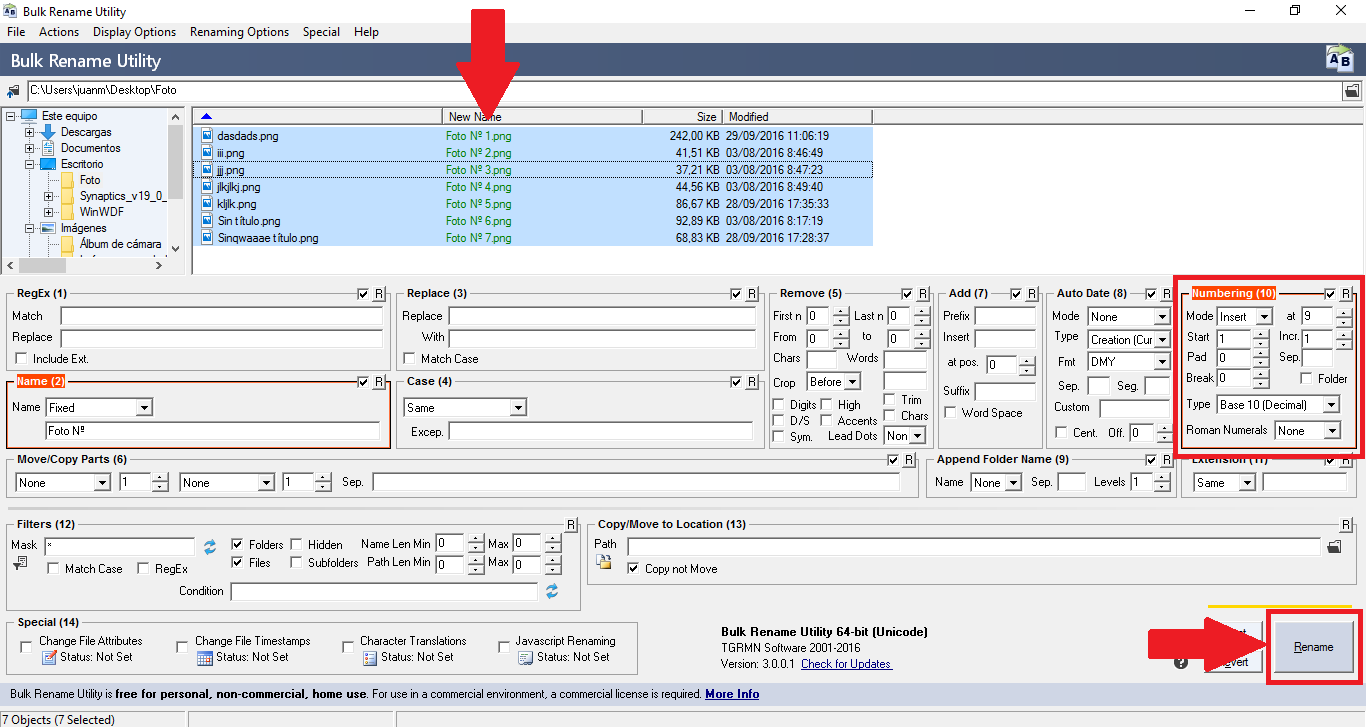
If you frequently work with photos, documents, series, or design projects, sooner or later you'll need to rename a bunch of files at once . Doing it one by one is a real chore, especially when you have dozens or hundreds scattered across multiple folders. This is where Bulk Rename Utility comes in —a veteran, powerful, and free tool that many users are unaware of, but which can save you hours of work.
In this article, we'll take a detailed look at how to batch rename files using Bulk Rename Utility , exploring its strengths in various situations, its available options, and how to easily utilize them even if you have no experience with regular expressions. We'll also briefly compare it to other methods for renaming files in Windows (such as using File Explorer or PowerShell) to help you determine when this program is the most effective way to rename files.
When does it make sense to use Bulk Rename Utility
There are many typical cases where using an advanced tool is almost mandatory, rather than simply relying on basic Windows renaming . Some of the most common scenarios are:
For example, if you have a CD or a music folder where all the tracks are named something like "Track 01," "Track 02," "Track 03," and so on, it quickly becomes impossible to tell which song is which without playing them one by one. These kinds of situations justify using tools designed to rename many files at once.
Another classic case is that of cameras and mobile phones that generate names like DSC00001.JPG, DSC00002.JPG and so on ad infinitum; if you transfer several cards or mix photos from different trips, finding a specific image becomes an odyssey.
Something very similar happens with TV series and movies, where you may already have files called S1.E1, S1.E2, S10.E10 and you want to normalize everything to the format S01.E01, S01.E02, etc., maintaining the padding with zeros even when there are two-digit seasons.
In the professional world, it is also common for programs like Revit, AutoCAD, or other technical tools to generate huge batches of PDFs with very long and unintelligible names , something like "My3D-Model-Project454-A101General.pdf" when what you really want to deliver to the client is a clear structure like "A1-101 General Plan.pdf".
In all these cases, and many more, Bulk Rename Utility allows you to define patterns, replace strings, add numbers, dates, prefixes or suffixes, and instantly see how the final names will look before confirming the change.
Basic bulk renaming functions in Windows
Although Bulk Rename Utility is very powerful, it's worth remembering that Windows includes a very basic bulk renaming tool that can get you out of a bind in simple cases.
If you select multiple files in the same folder, right-click on one of them and choose "Rename" , when you type a new name and press Enter, Windows renames them all with that same name and adds a number in parentheses to differentiate them (file (1), file (2), etc.).
This method is quick and convenient, but it has significant limitations: all files end with the same base name , only the number changes, and they must all be together in the same folder, with no possibility of working with subfolders.
If what you need is to keep part of the original name but change another part (for example, replace the string “-textobuscado” with a different word while keeping the rest of the name), the native Windows system falls very short.
Something similar happens when you have files spread across many folders and subfolders and you want to change the same text in all those files ; going folder by folder is incredibly time-consuming, and that's where advanced tools come in handy.
Batch renaming using PowerShell as an alternative
Before delving into Bulk Rename Utility, it's worth mentioning that Windows includes a very powerful option for users who aren't afraid of the console: PowerShell , an advanced command interpreter that allows you to automate renaming with a single command.
PowerShell has been included since older versions such as Windows 7, 8, 8.1 and 10 , and all you have to do is open the Start menu, type "PowerShell" and run it to start launching commands without installing anything additional.
The basic workflow would be, first, to change to the directory where the files you want to modify are located with a command like cd Documents or cd Documents\Work ; autocomplete with the Tab key helps to avoid typing full paths.
Once you are in the correct folder, you can use an instruction like Get-ChildItem -Filter "*searchtext*" -Recurse | Rename-Item -NewName {$_.name -replace "searchtext","texttoput"} , which locates all files whose name contains the string to search for —even in subfolders, thanks to the -Recurse parameter— and replaces that part of the name with another.
In that command, the Get-ChildItem -Filter "*searchtext*" part locates all items that meet the filter, -Recurse makes it examine each subfolder as well, the vertical bar | sends each result to the next command, and Rename-Item is responsible for changing the name using the replacement rule indicated within {$_.name -replace …}.
In addition, PowerShell allows you to add the -WhatIf parameter to the end of the command to perform a kind of simulation, listing which names would be changed and how they would look without actually executing the renaming, which is very useful to avoid surprises if you make a mistake in the pattern.
The main drawback is that, although the syntax is not particularly complex, many users are put off by the "text" environment and the need to understand a minimum of commands and filters , so for them Bulk Rename Utility is usually a more user-friendly solution.
What is Bulk Rename Utility and what does it offer?
Bulk Rename Utility is a free program for personal use , available for Windows, specifically designed to rename large batches of files or folders with all kinds of rules: text replacement, numbering, dates, uppercase/lowercase changes, regular expressions, etc.
Its interface, when opened for the first time, can be impressive because it has many panels and boxes, all visible at once , with virtually no hierarchies or tabs, which makes it seem more complex than it actually is for the most common tasks.
One of its advantages is that, after installation, it can be integrated into the context menu of Windows Explorer , so that if you are in a folder with files, you can select the ones you want, right-click and use the "Bulk Rename Here" option.
Another key advantage is that the application always shows a preview of the new names in the file list: you see the column with the current name and another with the resulting name, so if the configuration isn't what you wanted, you can correct it before clicking the final button. If you're interested in advanced alternatives to Explorer that also facilitate bulk tasks, try managers like Directory Opus or XYplorer.
The program is free for home use, but if you need it commercially it also offers a relatively inexpensive paid license , something worth highlighting compared to other professional software that is usually much more expensive.
Rename photos, disks, and other files with Bulk Rename Utility
One of the most frequent uses of Bulk Rename Utility is to organize photo collections that originally have generic names like DSC00001.JPG, as well as music discs with tracks simply called “Track – 1”, “Track – 2”, etc.
Imagine you have a folder called something like “2011 – 09 – Tennis Photos” full of images with the typical camera name; you can select all the photos (for example with the shortcut Ctrl + E ) and then, by right-clicking on any of them, choose “Bulk Rename Here” to directly open the program in that location.
Once inside, the interface displays the files at the top and, at the bottom, the different configuration sections are displayed: Remove, Add, Replace, Numbering and many other tabs that you can use depending on what you want to achieve.
If you need to completely replace the name generated by the camera, a common strategy is to go to the Remove block and adjust the option to delete a certain number of characters from the original name, for example the 8 characters of “DSCXXXXX” without touching the extension.
Then, in the Add section , you can write the base text you want to use, something like tennis_photos_ or any other prefix that makes sense for that album, so that all the files share that root name.
Finally, in the Numbering section you configure how the files will be numbered: you can decide if the number will go at the beginning (prefix) or at the end (suffix), the format (decimal, hexadecimal, Roman numerals), the initial value and the padding with zeros.
With that simple combination —removing the original name, adding a new generic one and numbering it— you end up with something like photos_tennis_001.jpg, photos_tennis_002.jpg , much easier to identify and ready to use in albums, websites or wherever you need it.
Renaming series episodes: from S1.E1 to S01.E01
Another fairly common problem among series fans is having episodes labeled as S1.E1, S1.E2 , while others are already in S10.E10 format , and wanting to unify everything with two digits: S01.E01, S10.E10, etc.
Bulk Rename Utility allows you to solve this using its replacement and numbering options , and you can even resort to regular expressions if you want something more sophisticated, although it's not strictly necessary for simple cases.
If you don't know regex, you can start with a practical approach: use the Repl. (Replace) area to replace text patterns (for example, removing unnecessary letters or symbols) combined with the Numbering area to add numbers with zero padding.
The key is that the program lets you try different combinations step by step , so you can perform a simple first renaming to normalize the format and, if necessary, run a second pass to polish details (for example, adjusting leading zeros or unifying the way the season is written).
If at some point you decide to take the plunge and learn some regular expressions, Bulk Rename Utility also supports them, but the author himself recommends not complicating things : if the pattern you want to achieve is very convoluted, it is better to rename in several simple iterations, rather than trying to do it all at once with a long and difficult-to-debug expression.
Rename large batches of drawings or documents from Revit and similar programs
In professional environments such as architecture, engineering or construction, it is very common to export dozens of PDF drawings from Revit or other programs whose names are not exactly friendly or readable for a client.
Instead of having an ordered set like “A1-101 General Plan” , many times you get names full of internal information that only the software understands, something like “My3D-Model-Project454-A101General.pdf”, which greatly complicates sending and archiving.
Many users spend hours renaming these files manually, or they create macros in Excel or scripts that require checking plan by plan by copying and pasting values, which also ends up being quite cumbersome and prone to errors.
Bulk Rename Utility simplifies the process by allowing you to define search and replace patterns perfectly tailored to Revit-generated names: you can remove automatic prefixes or suffixes, rearrange parts of the name, insert sheet codes, and more, in seconds. For professional workflows with many similar files, you can also explore options for renaming multiple files at once in Windows.
One of the great advantages of this type of workflow is the interactive preview, since you see file by file how the name would look before renaming; if a pattern doesn't capture all cases well, you can adjust it without making any irreversible changes.
Furthermore, since the program allows the entry of consecutive numbers, dates, prefixes and suffixes , it is very easy to impose an internal nomenclature standard for an entire set of sheets, which facilitates long-term organization and reduces errors in future revisions.
Rename part of the name according to a specific pattern
It's not always about throwing away the current name and starting from scratch; often what you want is to replace only a portion of the text in many files that share that fragment, keeping the rest intact.
Think of a set of documents where they all include the same brand or reference, for example budget-2017-GarciaCompany.docx , financial-analysis-2017-GarciaCompany.xlsx and similar variations that only share the string "GarciaCompany".
If you used Windows' basic bulk renaming, they would all end up with the same base name and a number in parentheses, which would be a mess, whereas with Bulk Rename Utility you can tell it to search for that exact substring and replace it with another.
To do this, simply select the files and use the Replace (Repl.) block : in the “Replace” field you write the text you want to locate and in “With” you indicate the new text with which you want to replace it, seeing at once how the names change in the preview.
If you want to remove that part of the text without adding anything new , you can simply leave the replacement field empty (or use empty quotes if you're doing it via PowerShell), so that the string disappears from the final name.
Basic steps to change names with Bulk Rename Utility
Although the interface is full of options, for most everyday needs it is enough to follow a few very simple steps that are always repeated.
The first thing to do is open the Bulk Rename Utility application after installing it; if you have enabled the integration with the Explorer, you can also access it by right-clicking with “Bulk Rename Here”.
The left panel displays a kind of folder explorer that allows you to navigate to the folder where the files you want to process are located, whether it's a folder with photos, documents, or any other type of files.
Then you select the files to modify, either with the mouse or with keyboard shortcuts (Ctrl + A for all, Ctrl + click to select several individually, etc.), and at the bottom you start adjusting the sections that interest you, usually Replace, Add, Remove and Numbering.
As you configure each block, the table at the top displays a column with the current name and another with the new intended name, so you can check that you are not breaking anything important before applying the operation.
When everything is as you want it, all that remains is to click on the Rename button located at the bottom right; the program will ask for confirmation and, if you proceed, will make all the changes in seconds even if it involves hundreds or thousands of files.
Advantages, tips and usage recommendations
One of the great advantages of Bulk Rename Utility is that it allows renaming in steps : if the pattern you are looking for is complicated, you can first make a partial change (for example, cleaning certain prefixes), apply the renaming, and then run a second pass to adjust numbers, dates or suffixes.
This philosophy avoids having to set up extremely complex configurations with many conditions at once; instead, you choose one simple goal per stage, check the result, and continue with the next iteration.
Another interesting trick is to use bulk renaming not only for internal organization, but also with SEO in mind: for example, if you do product reviews, you can name the photos review_samsung_galaxy_s2_1.jpg, review_samsung_galaxy_s2_2.jpg , etc., to provide semantic context to the images.
Although the program includes advanced options such as regular expressions, changing dates and times, or complex numbering , it is not mandatory to master them all; you can stick with the four functions you always use and refer to the official manual or the examples folder (samples) installed with the program when you need something more sophisticated.
Finally, it's worth remembering that Bulk Rename Utility is designed to handle massive amounts of files with ease ; whether you have 10, 100, or 10.000 files, the process remains just as fast as long as you know which pattern to apply and carefully review the preview. If you need to quickly locate large collections before renaming, tools like Everything are very useful.
With all of the above, it is clear that Bulk Rename Utility has earned its reputation as an essential program for anyone who frequently works with large volumes of files: it saves time, reduces errors, and provides very fine control over names , whether you are organizing personal photos, TV series episodes, project plans, or corporate documents spread across multiple folders.


Passionate writer about the world of bytes and technology in general. I love sharing my knowledge through writing, and that's what I'll do on this blog, show you all the most interesting things about gadgets, software, hardware, tech trends, and more. My goal is to help you navigate the digital world in a simple and entertaining way.