- The use of NVENC and NVDEC encoders allows content to be recorded without excessively burdening the central processor.
- Privacy settings are the critical step to be able to capture your Windows desktop and not just your games.
- The new NVIDIA App unifies driver control and recording functions into a more modern interface.

When we start recording what's happening on our monitor, the software usually focuses solely on video games so we can upload them to YouTube or stream them on Twitch. However, sometimes we need to capture the desktop , whether to create a quick tutorial, help a friend with a program, or record games that don't go full screen, and that's where NVIDIA's tools come in.
To achieve this, NVIDIA offers solutions integrated into its drivers that take advantage of the graphics card's hardware. It's not just a matter of pressing a button, but of understanding how the encoder works and configuring a couple of options that are disabled by default so that everything runs smoothly and without lag.

The heart of the recording: NVENC and NVDEC
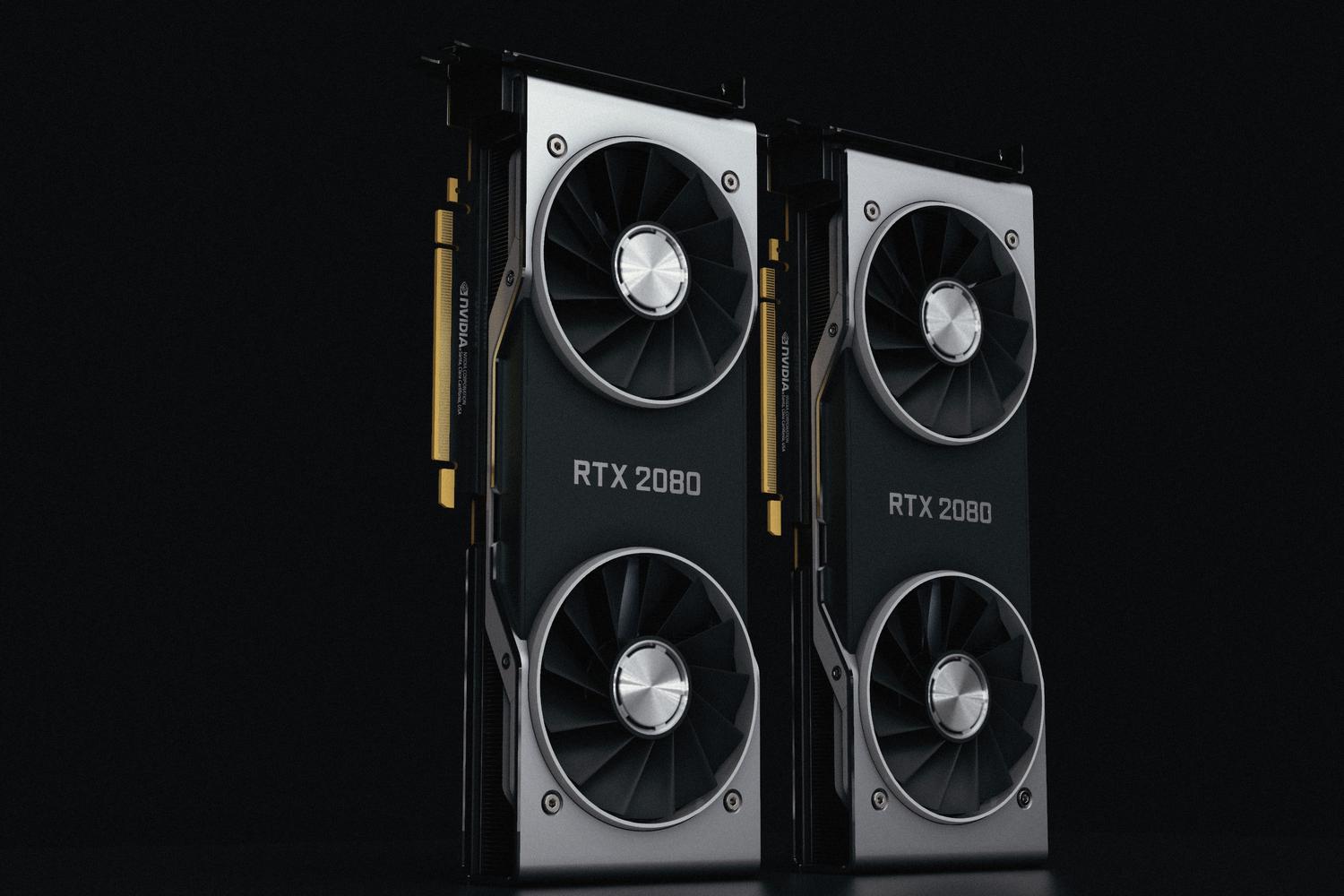
To prevent recording from throttling your PC's performance, NVIDIA uses coprocessors called NVENC (encoding) and NVDEC (decoding) . These units are located within the GPU and operate independently of the hardware that renders the game's frames. Essentially, NVENC takes the information from VRAM and converts it into a video file without the CPU having to do the heavy lifting.
It's important to know that not all NVIDIA graphics cards support NVENC, although almost all have NVDEC for video playback. If you have a modern card, such as the RTX 40 series, you'll have support for the AV1 codec , which allows for incredibly high quality while taking up significantly less hard drive space.
The problem with integrated graphics and RAM
A very common problem occurs in laptops, which often have both integrated graphics (part of the processor) and a dedicated NVIDIA graphics card. Sometimes, the desktop is rendered using the integrated graphics and system RAM, and since NVENC doesn't have direct access to that RAM , it can't record the desktop. To avoid this headache, the ideal solution is to configure the PC to use the NVIDIA GPU as much as possible , thus freeing up memory and improving performance.
GeForce Experience settings
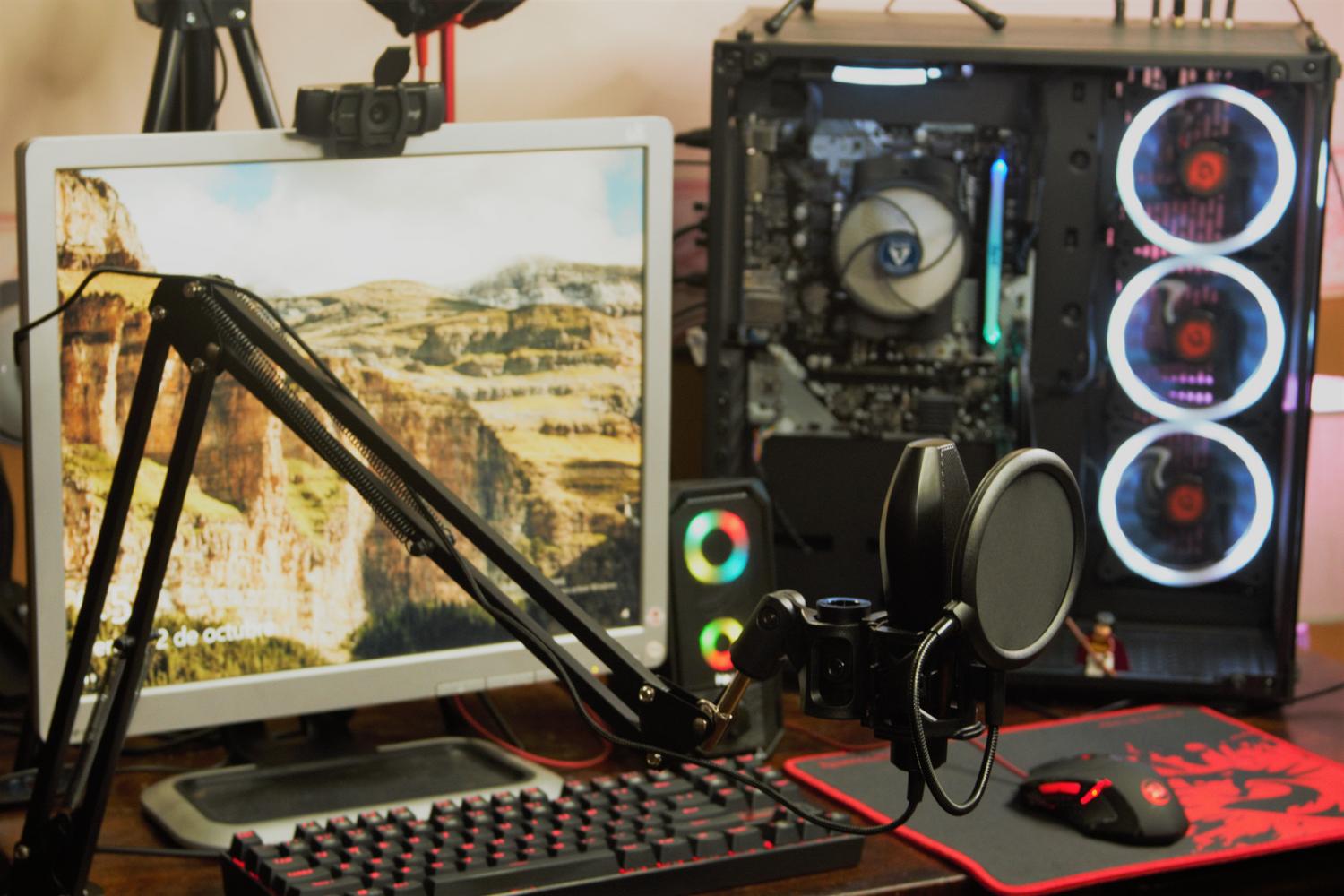
If you're using the classic version of GeForce Experience, the first thing to do is go to the gear icon and check the In-Game Overlay box . Without this, you won't see the floating menu or be able to use keyboard shortcuts.
To record your desktop, there's a step many people overlook: open the menu (Alt + Z), go to Settings, and find the Privacy Controls section. There, you must enable the Screen Capture option ; otherwise, the program will ignore everything except a full-screen game.
Regarding storage, you can define the save path in the Recordings section . Note that the software usually creates a subfolder called Desktop to organize desktop and game clips.
Mastering the new NVIDIA App
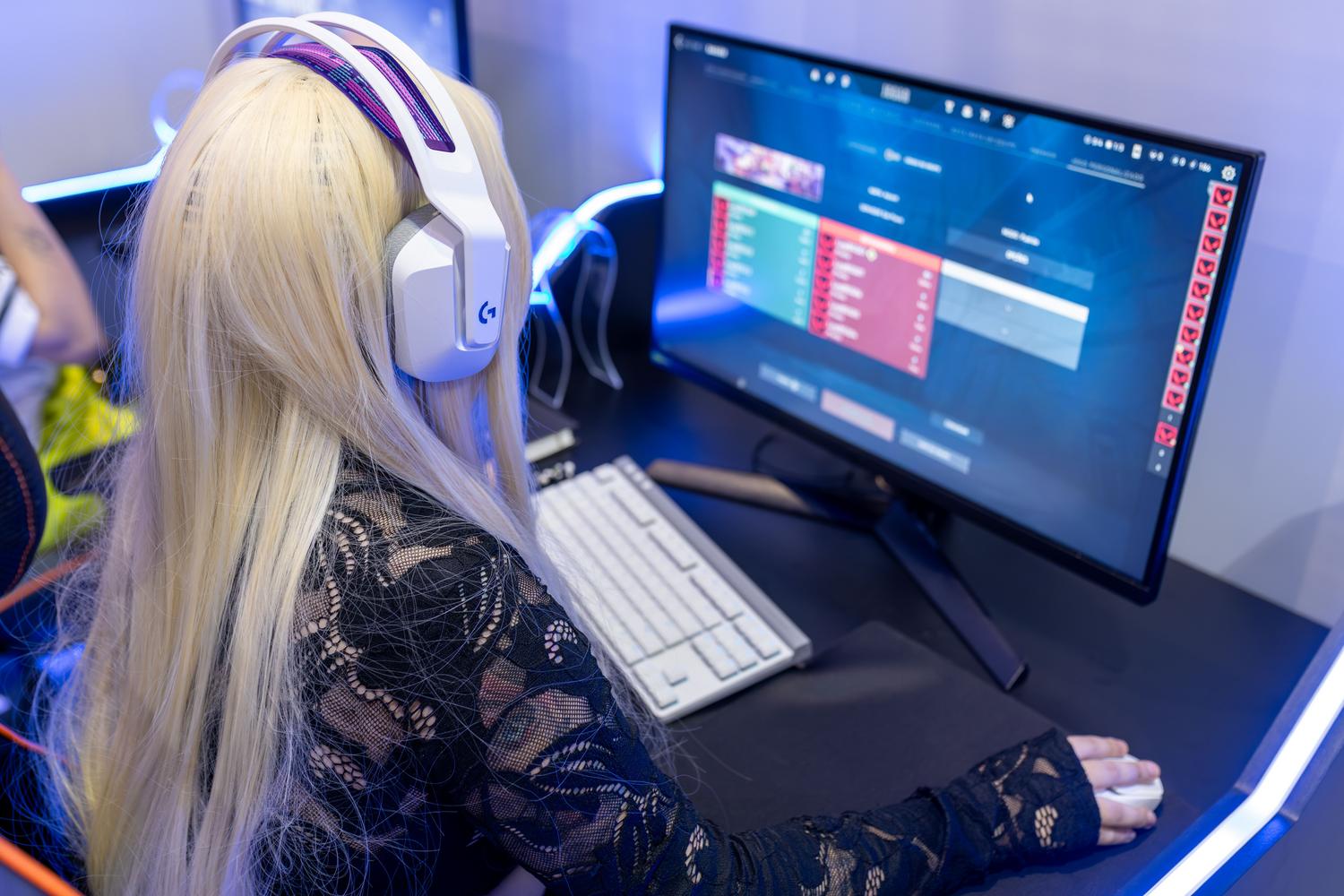
Starting in late 2024, the new NVIDIA App will replace GeForce Experience and the Control Panel. The design has been completely redesigned, but the features remain the same. To enable recording, go to Settings, Feature tab , and turn on the NVIDIA Overlay switch.
Once activated, the Alt + Z shortcut opens a panel with direct options: Record (Alt + F9) for manual recordings, Instant Replay (Alt + F10) to save the last few minutes, and screenshots with Alt + F1. You can also manage the microphone directly from this menu so your voice isn't left out of the video.

Performance and tips before you start
Recording consumes resources, especially VRAM. If your graphics card has very little memory compared to what the game demands, you might notice frame drops or lag . Recording at 720p is not the same as recording at 1080p or 4K at 60 FPS; higher quality puts more strain on the GPU. If you notice your PC struggling, the best solution is to use an external capture card to handle the processing outside your computer.
Before diving into a long session, always do an audio and storage test . It's frustrating to record an epic game only to discover that the hard drive is half full or the microphone is muted. A ten-second clip is enough to ensure everything is working properly.
Useful alternatives to screen recording
If for some reason your card isn't compatible or you're looking for something different, there are other options. Windows includes the Game Bar (Win + G) , which is very simple and saves everything in MP4 format, and the Snipping Tool in Windows 11 , which allows you to record screen snippets, although it's more limited in its settings.
For those seeking total control, OBS Studio is the ultimate tool. It's free software and allows you to configure resolutions, fonts, and audio tracks independently. On the other hand, Steam has implemented its own game recording feature, allowing you to save up to the last 120 minutes of gameplay and create automatic highlights in compatible titles.
Having NVIDIA's tool configured is the most efficient way to capture content without sacrificing too many FPS, as long as desktop privacy is enabled and available video memory is monitored to avoid stuttering in the most demanding games.


Passionate writer about the world of bytes and technology in general. I love sharing my knowledge through writing, and that's what I'll do on this blog, show you all the most interesting things about gadgets, software, hardware, tech trends, and more. My goal is to help you navigate the digital world in a simple and entertaining way.