- Hardware verification and correct selection of the audio output device.
- Use of automated diagnostic tools and adjustment of sound enhancements.
- Updating, reinstalling, or rolling back drivers from Device Manager.
- Restarting critical system services and managing microphone privacy.
There's nothing more infuriating than settling down to enjoy a movie, joining a work video call, or putting on your favorite music only to realize your computer has gone silent . It's a frustrating situation, but the good news is that, most of the time, it's not a catastrophic hardware failure, but rather a configuration issue or a software problem that we can fix at home.
To solve this problem, the best approach is to start with the simplest solutions and work your way up to the more complex ones, eliminating options step by step. This guide will show you how to restore audio output on both Windows (versions 10 and 11) and Mac, covering everything from a loose cable to reinstalling drivers, so you can have sound again without spending a penny on a technician.

First steps: The basics we often forget

Before diving into complicated menus, do a quick system check. Sometimes the problem is with the peripheral, not the PC. If you're using speakers or headphones with the standard 3,5 mm connector, try connecting them to a mobile phone or another device to confirm they aren't broken, or check for any rattling noise in the PC's audio cables . Also, make sure the cables are securely plugged in and that the power is on if your speakers are connected to a wall outlet.
Another key point is the volume mixer. Make sure you haven't accidentally muted any applications . On Windows, right-click the speaker icon in the taskbar and open the mixer; check that no applications have a mute symbol or a red "x". If you have multiple USB ports, try switching the device to a different port, as sometimes one fails while another works perfectly, or look up how to repair malfunctioning USB ports.
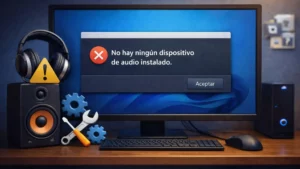
Output configuration and default devices
It's quite common for Windows to select the wrong audio output, such as the HDMI input from a monitor that doesn't even have speakers. To fix this, click the sound icon in the taskbar and select the correct device from the drop-down list. If you're using Bluetooth headphones, check in your device settings that they are properly paired and enabled.
If the problem persists, go to Control Panel or System Sound Settings and access the device properties. Make sure the "Use this device (enable)" option is selected. If you're unsure, you can set your preferred device as the "Default Device" by right-clicking on it in the Playback tab, ensuring that the entire system sends audio to it.
Diagnostic tools and advanced settings
Windows includes an automated troubleshooter that does the dirty work for you. In Windows 11, you can use the Get Help app, while in Windows 10 it's located in the Update & Security menu. This tool scans your system and automatically fixes common configuration errors .

If that doesn't work, try disabling audio enhancements . While they may sound good, they can sometimes create conflicts that cancel out the sound. Go to your sound settings, select your device, find the advanced settings section, and turn enhancements off . It's also a good idea to try different audio formats (sample rates) in your device's advanced properties to see if any are compatible with your hardware.
System controller and service management

When software malfunctions, drivers are often the culprit. Open Device Manager and look for the Sound, video and game controllers section. Here are three options: update the driver automatically, uninstall the device so Windows reinstalls it on restart, or revert to a previous version if the problem started after an update, following an audio driver guide.
For more specific cases, look for the IDT High Definition Audio Codec . If it appears, try updating it manually by selecting "High Definition Audio Device" from the list of available drivers on your computer. Also, don't forget to restart the Windows audio services from the Services console by right-clicking on the audio services and selecting Restart to refresh the connection.

Definitive solutions and special cases
If none of the above has worked, check that Windows is fully updated via Windows Update and restart your computer. In very rare cases, the problem may lie in the computer's BIOS ; a faulty update could have disabled the integrated sound card, requiring a factory reset.
For Mac users, management is simpler, but tools like Audio MIDI Setup allow for more technical adjustments to output levels. Finally, if the PC remains silent after all these tests, the sound card is likely physically damaged . In that case, the cheapest and quickest solution is to buy an external USB sound card , which avoids having to open the computer or replace the motherboard.
Restoring sound involves checking everything from ensuring cables are properly connected and the device is the correct one, to running automatic troubleshooters, cleaning drivers, or restarting system services. If the software is up to date and the configuration is correct but the silence persists, the most effective solution is to use external hardware or check the BIOS to rule out a physical component failure.


Passionate writer about the world of bytes and technology in general. I love sharing my knowledge through writing, and that's what I'll do on this blog, show you all the most interesting things about gadgets, software, hardware, tech trends, and more. My goal is to help you navigate the digital world in a simple and entertaining way.