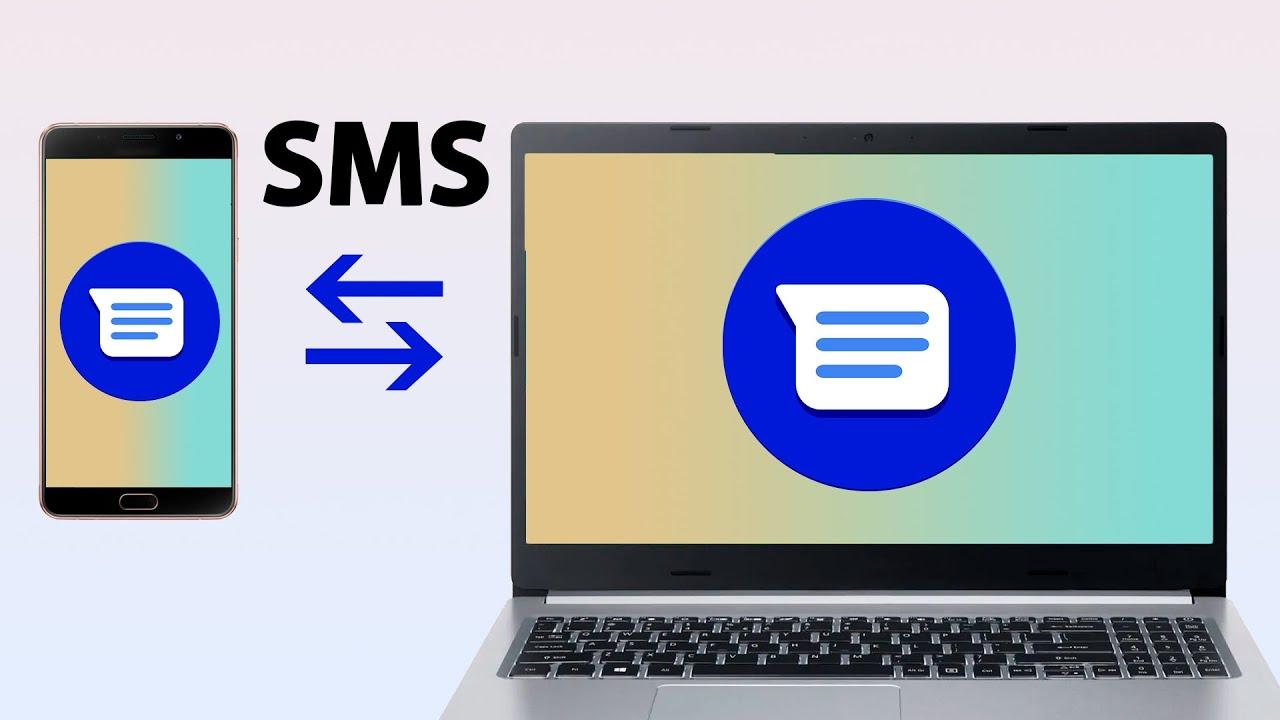
- Windows 11 integrates Mobile Link for SMS/MMS, notifications and calls with Android.
- Messages from Google on the Web allows you to manage SMS from any browser.
- Desktop tools add export, backup, and printing.
- Please note the limits: 30 days visible on Mobile Link and no deletion from the PC.
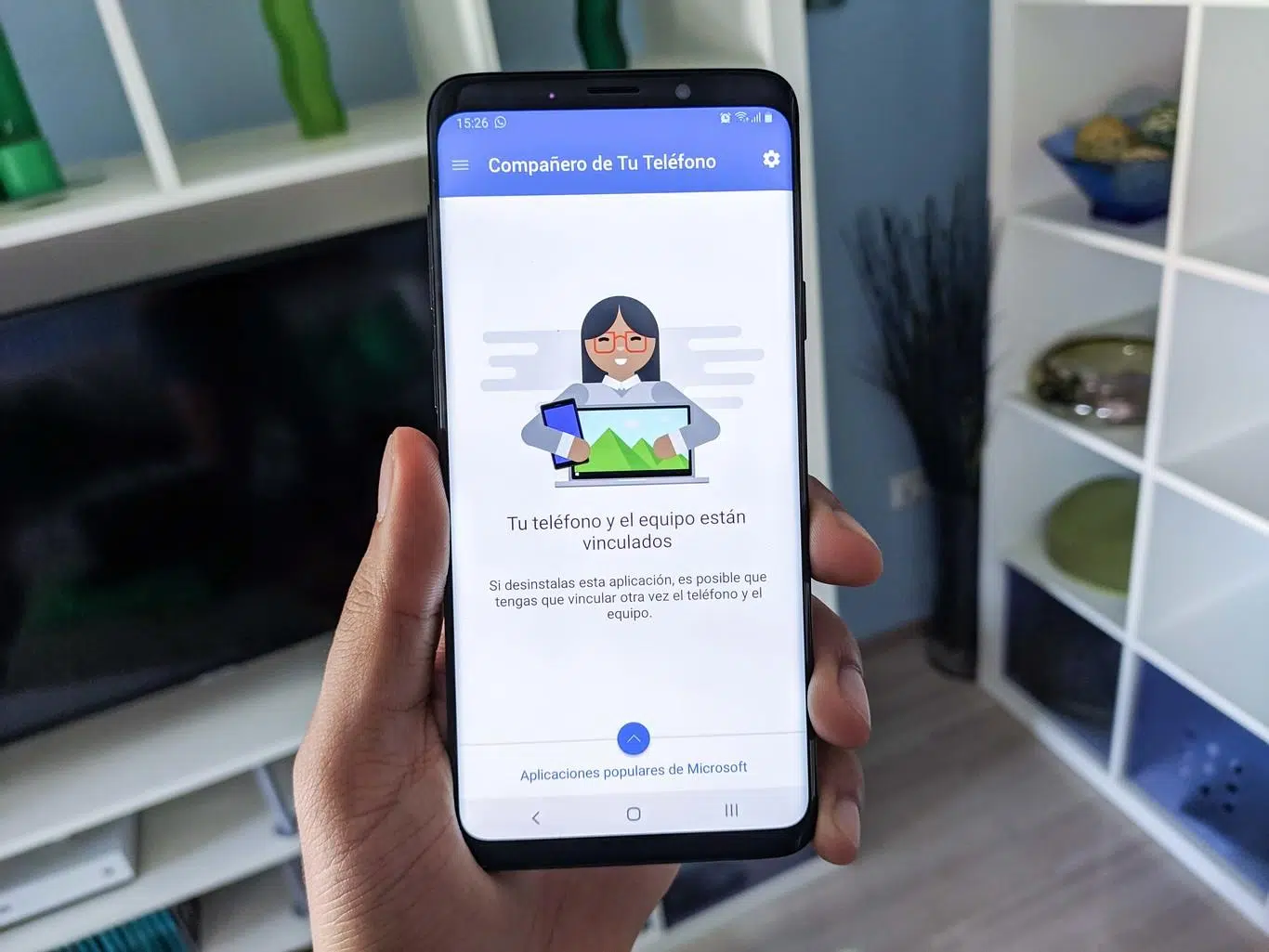
Receiving and replying to SMS messages on Windows 11 is easier than it seems : you can type with your physical keyboard, manage multiple conversations without touching your phone, and have your notifications visible on a large screen. Thanks to official tools like Phone Link, as well as web and desktop solutions, there are options for all types of users , from the simplest to the most advanced.
This guide shows you in detail all the best methods for sending and replying to SMS messages in Windows 11, how to add photos and GIFs, what limitations apply ( you'll only see the last 30 days of messages in Mobile Link ), and what backup and export options are available. We also include a section for corporate environments that use SMS login , in case you need to register or manage a number within your organization.
Which method is best for replying to SMS in Windows 11?
There are three main ways to reply to SMS messages from your PC : Mobile Link (integrated into Windows 11) for native conversations with your Android; Google Messages in its web version, which mirrors your mobile chats in any browser; and desktop software with extra features such as exporting, printing, or making bulk backups.
Phone Link is Microsoft's official option : it allows you to read and reply to SMS/MMS messages, filter notifications, make and receive calls, and, in some cases, use mobile apps from your PC. For SMS messages, it offers a dedicated Messages tab with everything you need to write and attach content.
Google Messages for the Web is ideal if you use the Google Messages app on Android and want something quick, without installing anything on your PC. Open your browser, pair with a QR code, and you're good to go: you'll see your SMS/MMS messages and be able to reply.
If you need something more professional, desktop apps like Coolmuster Android Assistant or Droid Transfer offer advanced features : sending/receiving from your PC, exporting conversations to HTML, TXT, XML or CSV, in-depth search, and even formatted printing for legal or backup purposes.
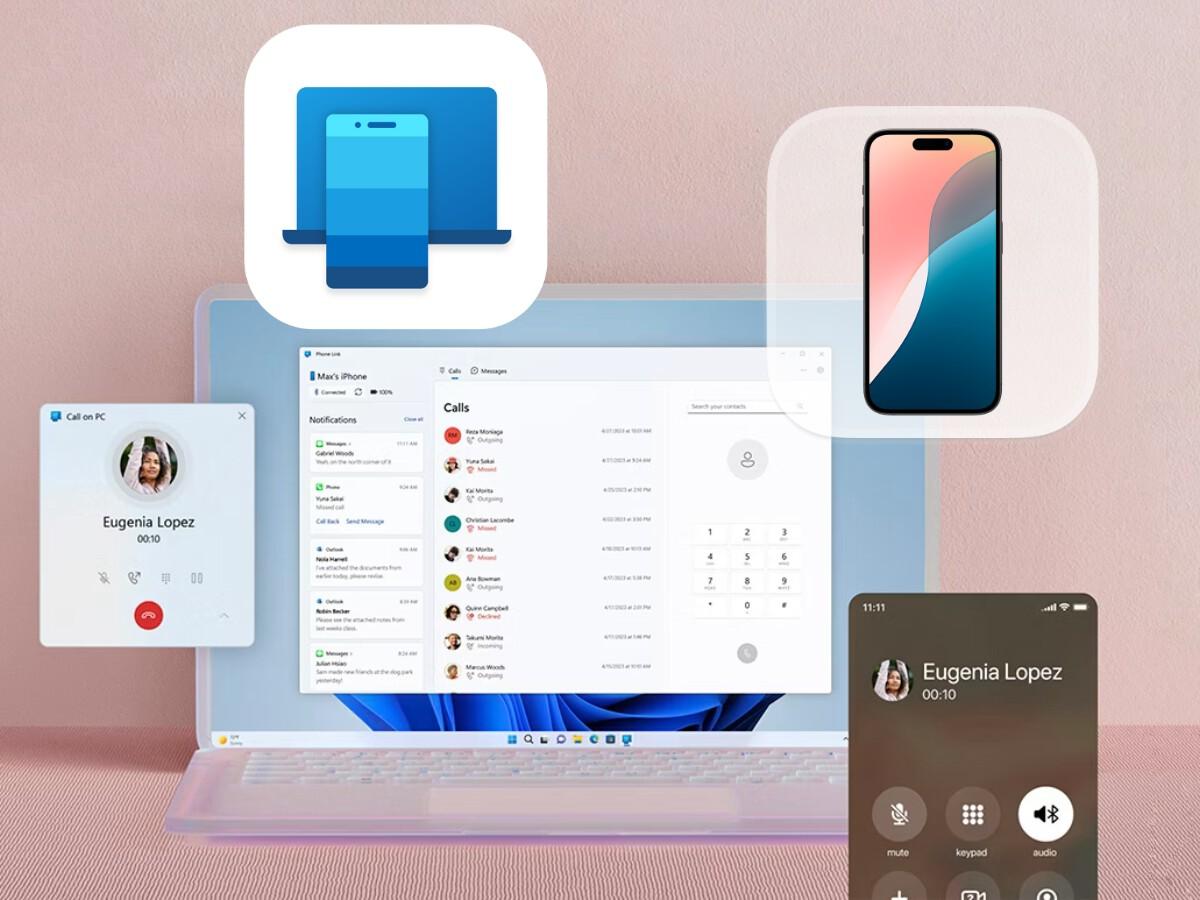
Set up Phone Link in Windows 11 to send and reply to SMS
Mobile Link (formerly Your Phone) comes pre-installed on Windows 11 and most recent versions of Windows 10. If you don't see it, you can download it from the Microsoft Store. On Windows 10, if you were on the May 2019 Update, you needed to install the app; on later versions, it's usually included.
Minimum requirements : a PC with an updated version of Windows 10/11 and an Android phone with Android 7.0 or higher. On your phone, you'll see the "Link to Windows" app, which may come pre-installed on many Samsung and HONOR devices or can be downloaded from the Google Play/Galaxy Store. In the Microsoft Store, the PC app appears as "Mobile Link."
Pair your Android with your PC
- In Windows 11, Open Mobile Link from the Start menu.
- On your Android, install or open Windows Connection from the corresponding store.
- Sign in with the same Microsoft account on PC and mobile.
- Connect both devices following the on-screen instructions: you can scan a QR code or enter a code manually.
- When prompted on your mobile, grants SMS, contacts, and multimedia permissions for messages to work on the PC.
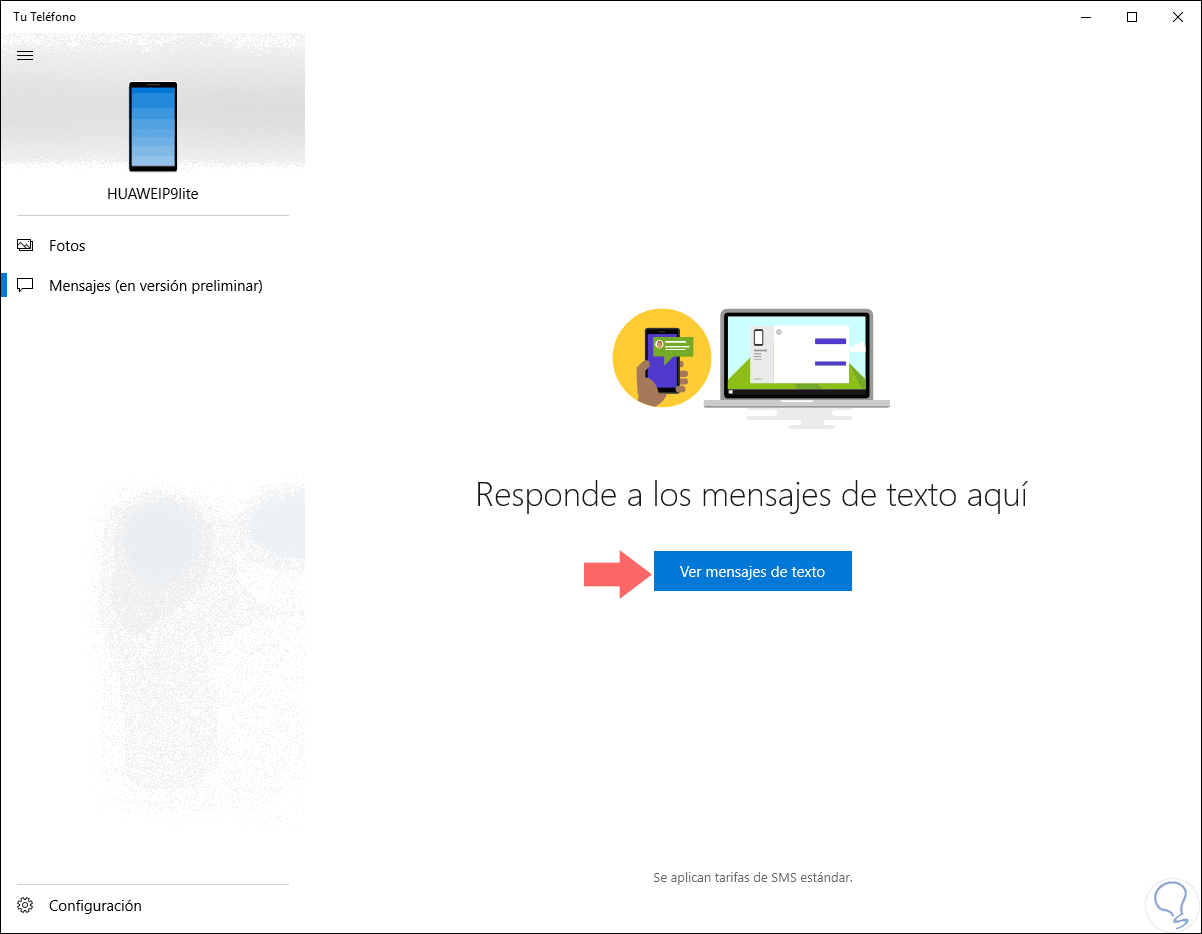
Once paired, open the Messages tab in Mobile Link and you'll see your conversations from the last 30 days. From there you can read, reply to, and create new messages.
Send a new message from Windows 11
- In PC Mobile Link, go to the Messages section.
- Click on New message to start a conversation.
- Write the name or phone number contact.
- Select the recipient and write your SMS; a new thread will open ready for posting.
If you encounter any problems using Messages , try Microsoft's troubleshooting suggestions or check the permissions on your phone and PC to make sure everything is enabled.
Add emojis, GIFs, and images to your conversations
Below the text box, you'll see three buttons for inserting content : Emojis, GIFs, and Images. The Emojis and GIFs buttons open quick search menus, so you can find what you need in a snap.
The Image button lets you insert recent photos from your Android device or choose an image from your PC . If you want to attach an image from your computer, the process is very simple.
Attach an image from your PC
- Below the text field, click on Image.
- Choose Scan this PC.
- Navigate to folder where is the photo.
- Select image and press Open to attach it.
If the photo is on your Android but doesn't appear among the recent ones, you can first save it to your PC from the Mobile Link Photos section and then attach it.
- In Mobile Link, go to Photos.
- In the gallery, look for the image, right click and select Save As to download it to your PC.
- Then attach it to your SMS with the previous procedure.
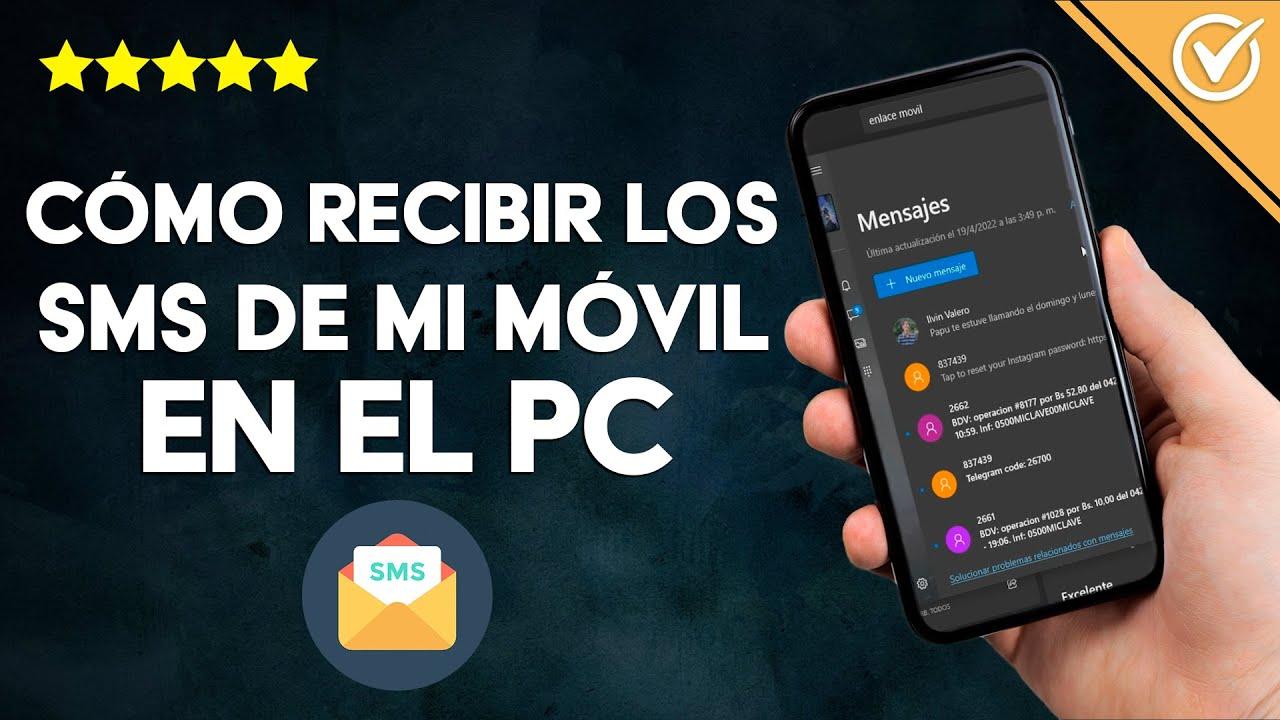
What message formats does Enlace Móvil support?
Mobile Link supports SMS and MMS , so you can send text, photos, and GIFs directly from your PC. Additionally, RCS messaging is available on some Samsung devices , enhancing the experience on those specific models.
Limits and message management
To optimize network and performance, Mobile Link only displays messages from the last 30 days (sent and received). Please also note that you cannot manage or delete messages from your PC using this app; full management remains on your phone.
Turn on or adjust access to Messages Later
If you chose not to enable SMS access during the initial setup, you can activate it later from the Mobile Link itself.
- Open Mobile Link and go to Settings > Features > Messages.
- Activate the switches that you need:
- Allow this app to display text messages from my phone.
- Allow this app to send MMS attachments from my phone.
- Allow this app to receive MMS attachments from my phone.
- Automatically download MMS attachments from my phone.
In addition to SMS, you can decide which notifications and alerts you want to see on your PC by adjusting other options available on the same settings screen.
Use Google Messages on the web to reply from your browser
If your SMS app on Android is Google Messages , you can use its web version to send and receive messages from any modern browser (Chrome, Firefox, Safari, or Edge). It's free and requires no installation on Windows 11.
Google Messages for the Web mirrors your mobile conversations on your PC , allowing you to write SMS and MMS messages, with images, emojis, stickers, and videos from the web interface.
Link your mobile phone with the web version
- On your Android, install/open Google Messages and make sure it's your default SMS app.
- Play the three point menu and go to Device Pairing.
- On the PC, Open your browser and visit https://messages.google.com/web.
- Scan the QR code that appears on the screen of your mobile phone.
- Once paired, your messages will be synced immediately and you can answer from your computer.
From the web, you can view conversations, write messages, and also delete messages or entire threads using the context menu in the interface, all mirrored on your mobile device.
Desktop alternatives with extra features: Coolmuster Android Assistant and Droid Transfer
For those who need more than just responding to SMS messages (such as backups, formatted exports, or bulk management), there are very capable desktop solutions.
Coolmuster Android Assistant
Coolmuster Android Assistant is a professional program available for Windows and Mac that allows you to send, receive, back up, and export SMS messages using a USB or Wi-Fi connection. It is compatible with major Android brands (Samsung, Xiaomi, OPPO, Vivo, Motorola, Huawei , etc.) and works with Android 6.0 and later.
- Complete SMS management: send, receive, delete and export.
- Export in HTML, TXT or XML, useful for printing or archiving conversations.
- Backup and restore your device with one click, in addition to managing contacts, call logs, music, videos, photos and apps.
How to get started with Coolmuster
- Install and run Coolmuster Android Assistant on your computer.
- Connect your phone via USB or Wi‑Fi; the device will appear in the main window.
- Enter the tab SMS to preview conversations and use New to write and Submit your message from the PC.
If you're looking to export and print conversations in clean formats and different extensions, this tool offers very fine control over the data.
Droid Transfer (Wide Angle Software)
Droid Transfer is another solution for viewing and managing messages from Windows 10/11 . It requires the free Transfer Companion app on Android and connects via USB or Wi-Fi.
Once connected, you can open the Messages section to see all your conversations , complete with emojis, dates, and multimedia. It also features a powerful search function: enter a contact or keyword, and it highlights the results within the threads.
In the saving section, it allows you to export conversations as PDFs , HTML, TXT, or CSV files , which is useful for archiving or documentation. It also offers additional features for transferring music, photos, and contacts between your Android device and PC.
Corporate environments: SMS login and number management
In organizations that enable SMS login , the phone is registered to access corporate services, but this doesn't give the organization full control over the device. If your company doesn't enable SMS login, this option won't appear when you register your number.
Register a new number with an organization
- Choose Add method.
- Choose Contact Us.
- Enter the number and select Send me a code via text message.
- Write the code and press Next; you will see the successful verification notice.
If the number is already in use by someone else in your organization , contact the administrator to resolve the issue.
Enable existing number for SMS login
- When the option is available, You will see a banner to enable the number.
- A button also appears Enable in the phone method window.
- Choose Enable and confirm the action.
If you ever need to remove the number, use the Delete option in the SMS login method . Remember that you can't delete it if it's the default method : first change the primary method and then delete it.
With all of the above, you have a clear vision for responding to SMS from Windows 11: if you prioritize integration and simplicity, Mobile Link lets you chat, attach photos, and view notifications; if you prefer not to install anything, Google Messages on the web gets you out of trouble in any browser; and if you're looking for professional archiving and control, tools like Coolmuster or Droid Transfer give you export to multiple formats, backup, and hassle-free printing.

Passionate writer about the world of bytes and technology in general. I love sharing my knowledge through writing, and that's what I'll do on this blog, show you all the most interesting things about gadgets, software, hardware, tech trends, and more. My goal is to help you navigate the digital world in a simple and entertaining way.