- The Explorer Windows Does not add password to ZIP: Use 7-Zip, WinRAR, WinZip or PeaZip to encrypt and share.
- EFS encrypts files and folders for your user; export the certificate to maintain access.
- Office and PDF include proprietary encryption; for maximum security, consider VeraCrypt or BitLocker.
- Avoid .bat scripts and stealth methods: they offer no real protection against third parties.
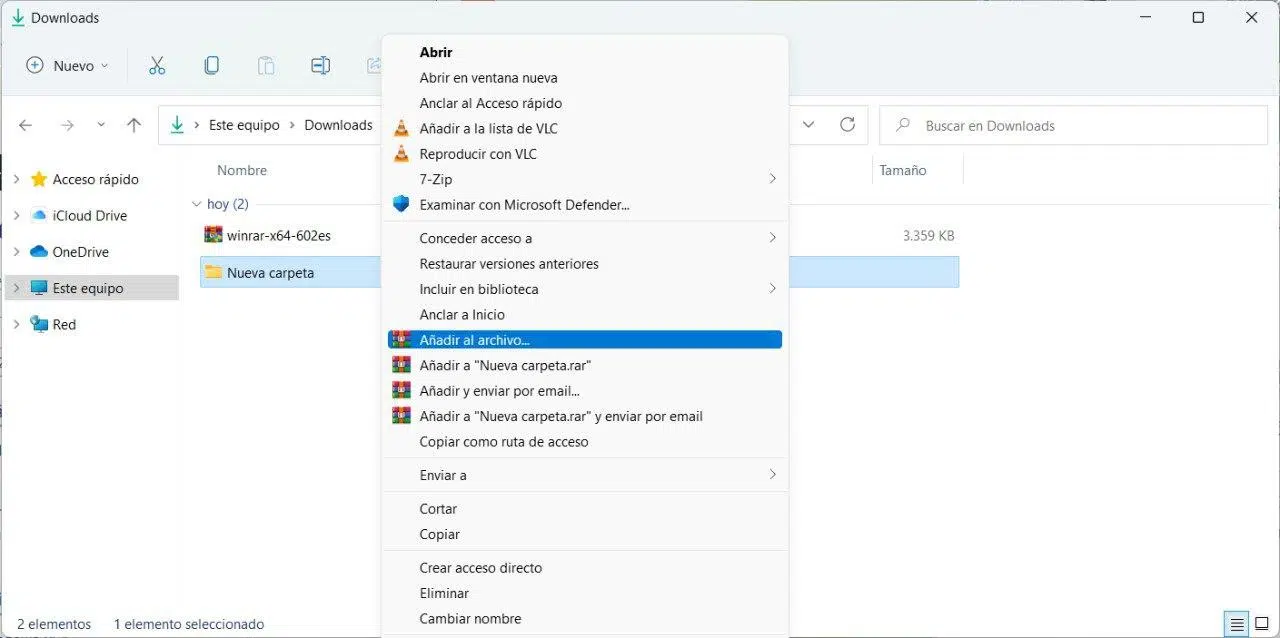
Password-protecting compressed files in Windows 11 is becoming increasingly common: we share computers, move data through the cloud, and constantly send email attachments. In this tutorial, I'll explain, step by step and without beating around the bush, how to password-protect ZIP and other compression formats, what limitations Windows has, and which tools actually work.
In addition to password-protecting ZIP files , you'll learn how to encrypt folders with EFS (Windows' native encryption option), what to do with Office documents and PDFs, alternatives like 7-Zip, WinRAR, WinZip, and PeaZip, and encryption solutions such as VeraCrypt and BitLocker. I'll also warn you about insecure methods (like .bat scripts that hide folders) and what to do if a ZIP file becomes corrupted.
What real options do you have in Windows 11 to set passwords?
Windows 11 natively understands ZIP files : you can create and open compressed archives from Explorer, but it doesn't automatically add a password to a ZIP file. The most direct way to password-protect a ZIP file is to use a third-party compression program like 7-Zip , WinRAR, WinZip, or PeaZip.
There's another native option: EFS (Encrypting File System) . It allows you to encrypt files and folders so that only your user can open them. It doesn't add a password to the ZIP file itself, but rather protects the file on your disk. Useful for local privacy, but not suitable if you want to send the ZIP file to someone else and ask for a password to open it.
Some programs integrate shortcuts into the context menu (for example, options like ".zip (password)" when you right-click). If you see this option, it's because you have a compression program installed that supports it; follow the wizard and define the password when creating the ZIP file.
For particularly sensitive data , you can also use container encryption (VeraCrypt) or full drive encryption (BitLocker), which go a step beyond traditional password-protected ZIPs.
Create ZIP with password: 7-Zip, WinRAR, WinZip and PeaZip
7-Zip is free and open-source , with robust AES-256 encryption. It allows you to protect both ZIP files and their 7z format. It's a lightweight, compatible, and very powerful option for everyday use.
- Install 7-Zip from its official website.
- Open 7-Zip File Manager and select the files or folders.
- Press "Add" and choose the format (ZIP or 7z).
- In the “Encryption” section, set a strong password (AES-256 recommended) and, if you are using 7z, select the option to encrypt file names.
- You accept to create the protected file.
- Install WinRAR from the official website.
- Select files in Explorer (you can use Ctrl for several).
- Right click > Add to file…
- Set the name and the compression method (choosing “No compression” will speed up adding or extracting).
- Click on "Set Password" and enter a secure password. Dial "Encrypt file names" to hide the internal listing.
- You accept the dialog boxes and the protected file will be generated.
What about Windows Explorer with ".zip (password)"? If your context menu shows something like "Compress > .zip (password)," it's a shortcut for the installed compression tool. Select it, set the password, and complete the wizard; the ZIP file will then be protected for sharing.
Protect Uncompressed: EFS Encryption on Windows (Pro Editions)
EFS encrypts files and folders for your user account . It's fast and transparent: when you log in, everything encrypted is decrypted on the fly, just for you. If another user or computer tries to open that data, they won't be able to. It's available in the professional editions.
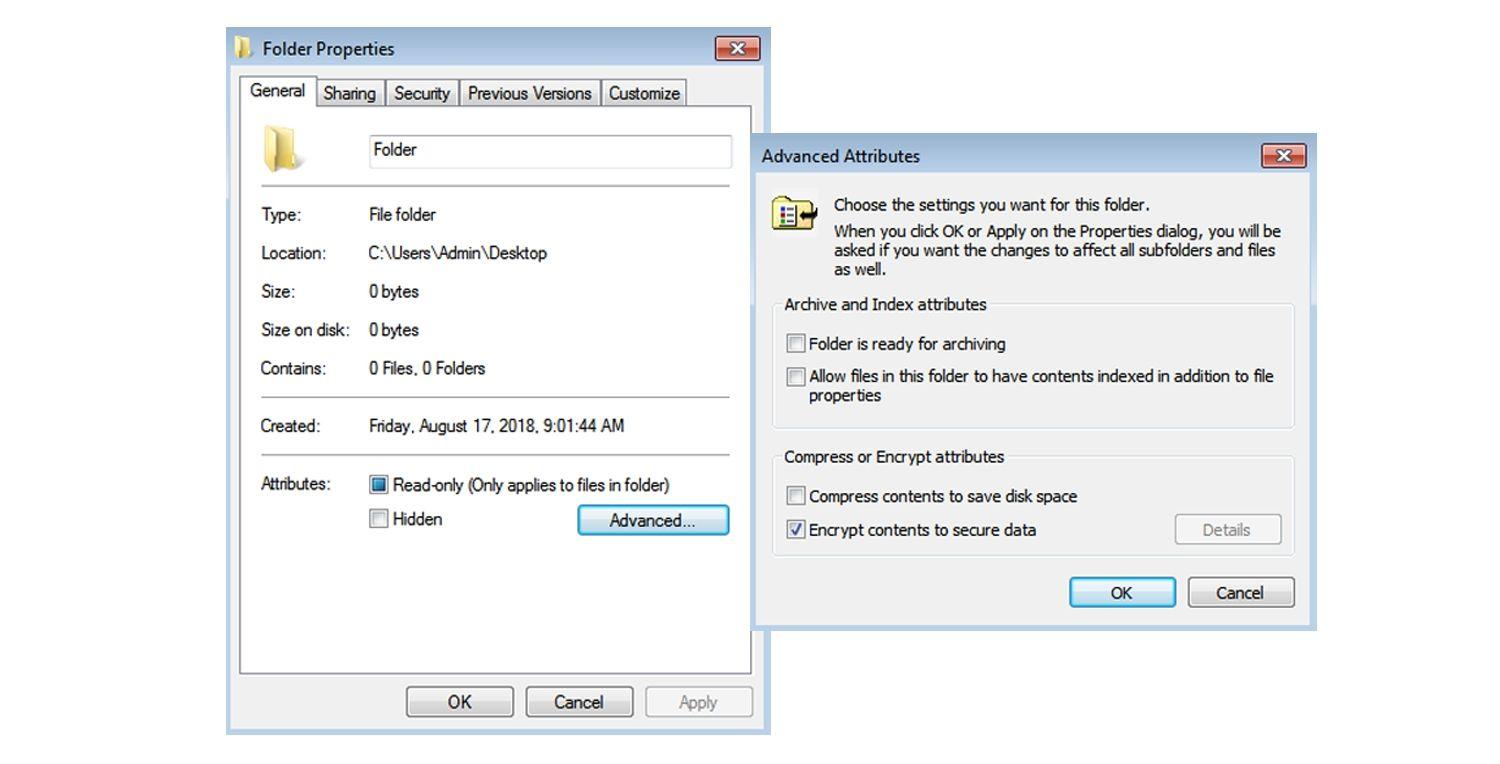
- Right click in the file or folder and enter Properties.
- Click "Advanced" on the General tab.
- Check "Encrypt content to protect data" and accept.
- ApplyIf it's a file, the system will also offer to encrypt its containing folder to avoid unencrypted temporary files (recommended).
- Back up the certificate when it's offered to you. If you lose it and can't log in with your username, you could lose access.
Important note about EFS : If you move the disk to another PC or reinstall without exporting the certificate, you will not be able to access your data. You can export it from "certmgr.msc" (Personal > Certificates > Encrypting File System > Export) and save it with a password.
EFS does not add a password to a ZIP file . If you encrypt a .zip file with EFS, that ZIP will only be accessible to your local user. To share a password-protected ZIP file, use a password-protected compression program like 7-Zip or WinRAR.
Office and PDF documents: built-in encryption
Office allows you to encrypt documents directly from within the program . This is ideal for Excel spreadsheets with financial data or Word reports that shouldn't be opened without permission.
Password protect an Excel file
- File> Information.
- Protect book > Encrypt with password.
- Enter the password and confirm. Don't forget: Microsoft can't recover it.
For Word, the process is similar : File > Info > Protect Document > Encrypt with Password, define the password, and confirm. Anyone receiving the document will need this password.
Password protect a PDF
The paid version of Adobe Acrobat allows encryption via Tools > Protect > Encrypt with Password and selecting "Require password to open." Adobe also offers a free web option, but uploading sensitive PDFs to a third-party server may not be advisable.
Protected folders and locking with third-party software
If you want to lock a folder without moving it , tools like Folder Lock or My Lockbox are popular options. They don't depend on the Windows user, so the protection works regardless of who logs in.
Folder Lock includes a master password, the creation of "Lockers" (containers with defined space), AES-256 encryption, a file shredder, and cloud backup. It is a paid service after a trial period.
My Lockbox is lightweight and simple, compatible with Windows 7/8/10/11, and hides/locks a specific path until you unlock it with the password. Suitable for modest computers or older systems.
Other compression programs like WinZip, 8-Zip, and PeaZip help password-protect compressed files and integrate well with Windows. 8-Zip, for example, fits the modern design and can use Windows Hello.
Container and disk encryption: VeraCrypt and BitLocker
VeraCrypt creates encrypted containers (files you mount as a drive) or encrypts entire disks. It's free and supports AES, Serpent, and TwoFish, accessible only with a password you define.
- Install it and open the application.
- Create volume > «Create an encrypted file container» > «Standard VeraCrypt volume».
- Select File to choose where to save the container and its name.
- Choose the algorithm (AES-256 is a great choice.)
- Define the size of the container according to your needs.
- Enter a strong password and continues.
- Move the mouse randomly until the entropy bar is full and press Format.
To use it , choose an available drive letter in the startup window, click "Select File," locate the container, click "Mount," enter the password, and it will appear as another drive in "This PC" for copying/opening data. When you're finished, unmount it.
BitLocker (Pro editions) encrypts entire drives, including external ones. It's ideal if you're worried about your laptop or hard drive being stolen. You can protect it with a password or TPM , and without the recovery key, no one will be able to read the contents.
Create, remove, and repair ZIP passwords
Creating a password-protected ZIP file has already been covered with 7-Zip/WinRAR. If your compression program adds something like "Compress > .zip (password)" to the context menu, use it and set the password during the wizard.
Removing the password usually requires opening the ZIP file with the key, extracting its contents, and re-compressing it without the password (or using the "change/remove password" option if your program offers it).
Is your ZIP file corrupt or won't open even with the correct password? The file may be damaged. Recovery tools like Tenorshare 4DDiG scan drives and allow you to preview and restore data in various formats.
- Install 4DDiG and choose the unit to analyze.
- Select the location of damaged or deleted files and let it scan.
- preview the results and recover what you need.
Remember that ZIP repair is not always possible if the corruption is severe, but these utilities often save many cases.
Unsafe methods to avoid
Bat scripts designed to "protect" folders actually hide directories and prompt for a fake password; the password text is embedded within the script itself . Anyone who opens the .bat file with an editor will see the password, and the contents will remain visible with other tools.
Hiding a folder in Explorer isn't real security: other file managers, search engines, or operating systems will still see what's hidden. If you truly care about privacy, use encryption or password-protected ZIP files.
Good security practices and password management
Use long, unique passwords . Avoid reusing passwords and don't settle for something too simple. A password manager makes it easy to create and remember strong passwords without the hassle.
Make a copy of your EFS certificate if you're using native encryption. Export it from "certmgr.msc" with a password and save that copy in a safe place; if you lose access to your user account, that file will save you.
Perform regular backups (OneDrive, Google Drive, or external storage ). This will save you from unpleasant surprises if a ZIP file becomes corrupted, if your hard drives fail, or if you forget a password.
Strengthen your device's security with antivirus software and data breach monitoring. If your password is leaked in a breach, you'll want to know as soon as possible so you can change it in time.
Windows version compatibility and useful notes
Windows 7 , 8, 10, and 11 support native ZIP, but not all versions include EFS or BitLocker (these often require Pro editions). If you can't encrypt with EFS or add a password to your ZIP file, install a third-party compression program.
Encrypting the contents to protect data in a .zip file only encrypts the file on your disk (EFS); it doesn't add a password to the ZIP file for sharing. To send a password-protected ZIP file that someone else needs to enter, use 7-Zip/WinRAR/WinZip/PeaZip.
If you share a computer , per-account encryption (EFS) provides good protection against other local users, but if someone gains access to your open session, they will be able to see your files. Supplement this with session locking and secure browsing habits.
When to choose each method?
- ZIP with password- Perfect for sending files to third parties or saving batches with a simple, compatible key. Check the option to encrypt file names when available.
- EFSIdeal for protecting local data without changing your workflow. Lightweight and transparent, but remember to export the certificate and its limits when sharing.
- VeraCrypt/BitLocker: For maximum privacy, lost devices, or compliance scenarios. More robust against attacks and unauthorized access.
- Office/PDF: Use built-in encryption when the document itself is the asset to be protected and you don’t want to rely on a ZIP.
With everything you've seen , you can now decide on the right combination for your needs: sending ZIP files with a key, transparent local encryption, protecting specific documents, or fully securing drives. The important thing is not to rely on obfuscation methods and to opt for real encryption with strong passwords and well-stored backups.


Passionate writer about the world of bytes and technology in general. I love sharing my knowledge through writing, and that's what I'll do on this blog, show you all the most interesting things about gadgets, software, hardware, tech trends, and more. My goal is to help you navigate the digital world in a simple and entertaining way.
Table of Contents
- 1 What real options do you have in Windows 11 to set passwords?
- 2 Create ZIP with password: 7-Zip, WinRAR, WinZip and PeaZip
- 3 Protect Uncompressed: EFS Encryption on Windows (Pro Editions)
- 4 Office and PDF documents: built-in encryption
- 5 Protected folders and locking with third-party software
- 6 Container and disk encryption: VeraCrypt and BitLocker
- 7 Create, remove, and repair ZIP passwords
- 8 Unsafe methods to avoid
- 9 Good security practices and password management
- 10 Windows version compatibility and useful notes
- 11 When to choose each method?